Dual Boot Installation with Windows 7 and XP

How to Setup a Dual Boot Installation with Windows 7 and XP


   Information
This will show you how to install Windows 7 and XP to dual boot with when you already have either Windows 7 or XP installed first.
   Note
With a dual boot installaton, you will have two operating systems (OS) installed. When you start the computer, you will have the choice to choose which OS you would like to start up to. This method is the easiest way of doing a dual boot with these two operating systems.
   Tip
When dual booting with another OS (ex: Vista or XP), you may not always have that OS partition show up in Computer with a driver letter in Windows 7. If this happens, then you will just need to add a drive letter to the OS (ex: Vista or XP) partition in Windows 7 Disk Management for it to show up in Computer with a driver letter.
   Warning
To stop XP from deleting your Windows 7 System Restore Points everytime XP is started, then see System Restore Points - Stop XP Dual Boot Delete to hide Windows 7 from XP.

Windows 7 Minimum Hardware Requirements


NOTE: For more information on this, see: Windows 7 system requirements
  • 1 GHz 32-bit or 64-bit processor
  • 1 GB RAM for 32-bit Windows 7 OR 2 GB RAM for 64-bit Windows 7
  • 16 GB available disk space 32-bit Windows 7 OR 20 GB for 64-bit Windows 7
  • Support for DirectX 9 graphics with 128 MB memory (in order to enable Aero theme)
  • DVD-R/W Drive
  • Internet or phone access to activate Windows 7.
Windows XP Minimum Hardware Requirements

NOTE: For more information on this, see: System requirements for Windows XP operating systems
  • PC with 300 megahertz (MHz) or higher processor clock speed recommended; 233-MHz minimum required;* Intel Pentium/Celeron family, AMD K6/Athlon/Duron family, or compatible processor recommended
  • 128 megabytes (MB) of RAM or higher recommended (64 MB minimum supported; may limit performance and some features)
  • 1.5 gigabyte (GB) of available hard disk space.*
  • Super VGA (800 × 600) or higher resolution video adapter and monitor
  • CD-ROM or DVD drive
  • Keyboard and Microsoft Mouse or compatible pointing device
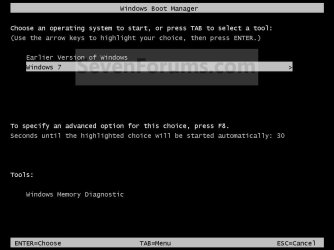
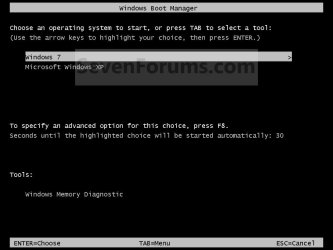
EXAMPLE: Windows Boot Manager
NOTE: This is the boot screen where you select what operating system that you would like to start. By default, you have 30 seconds to choose another operating system before the default operating system will start automatically.
Example.jpg


OPTION ONE

When XP is Installed First


NOTE: If you have a RAID setup, you will need to have the Windows 7 RAID drivers on a USB flash drive available to select and load while installing Windows 7.
1. Do step 2 or 3 below for where you wanted to install Windows 7 at.

2. To Create a New Partition from the XP Hard Disk Drive
A) With your Windows 7 installation disc boot into the Command Prompt from the System Recovery Options screen.
NOTE: Make sure that the CD/DVD drive is selected first in the boot order in the BIOS.

B) In the command prompt, select and shrink the XP volume by how many MB (1024 MB = 1 GB) you want to have for this Windows 7 partition. (See screenshot below)
NOTE: You would do steps 2 to 9 in METHOD TWO at that link. Windows 7 will need a minimum of 16 GB (16384 MB).
XP-W7_1.jpg
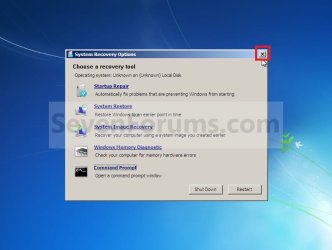
C) Click on the X at the top right corner to close the command prompt. (See screenshot above)

D) Click on the X at the top right corner to close System Recovery Options. (See screenshot below)
XP-W7_2.jpg
E) Go to step 4.
3. To Use a Separate Hard Disk Drive than the XP Drive
A) Boot from your Windows 7 installation disc.
NOTE: Make sure that the CD/DVD drive is selected first in the boot order in the BIOS.
4. Click on the Install now button. (See screenshot below)
XP-W7_3.jpg
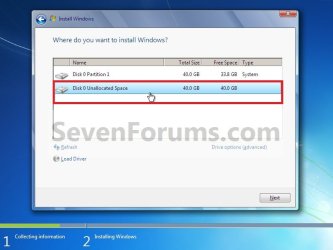
5. When you get to this point, select the partition (step 2) or hard drive to install Windows 7 on. (See screenshot below)
XP-W7_4.jpg
6. Finish installing Windows 7.
NOTE: You would start at step 9 in that link to finish installing Windows 7.

7. When finished, restart the computer to have the option to boot from XP (Earlier Verision of Windows) or Windows 7. (See screenshot below)

   Note
If you are only booting into Windows 7 and do not have XP listed in the Windows Boot Manager, then you can install only EasyBCD (step 8 Option Two below) to add XP (or Windows 7) while started in Windows 7 the same way to the boot list.

Example.jpg


OPTION TWO

When Windows 7 is Installed First


   Warning

1. To Create a New Partition from the Windows 7 Hard Disk Drive
NOTE: If you want to install XP on a separate internal hard drive instead, then skip this step and go to step 2.
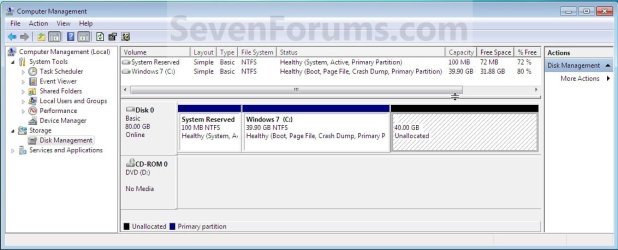
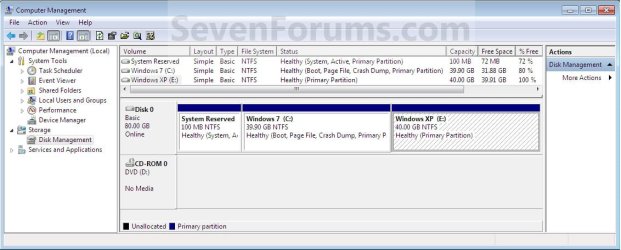
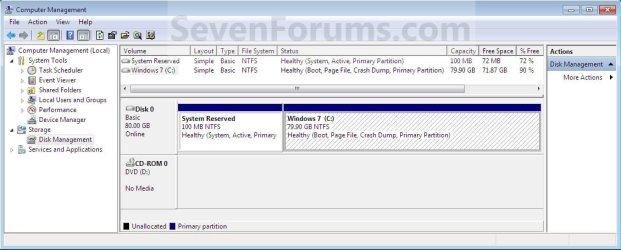
A) In Windows 7, select and shrink the Windows 7 volume in Disk Management by how many MB (1024 MB = 1 GB) you want to have for this XP partition. (See screenshots below)
NOTE: You would do all of Method One at that link.
W7-XP-1.jpg

W7-XP-2.jpg

W7-XP-3.jpg
2. Insert your XP installation disc, then restart the computer and press any key to boot from it when prompted. (See screenshot below)
NOTE: Make sure that the CD/DVD drive is selected first in the boot order in the BIOS.

Step1.jpg
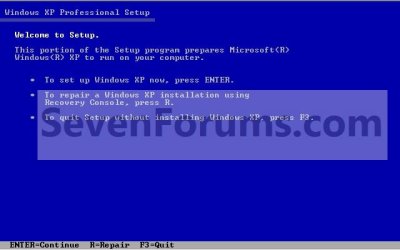
3. From XP Setup, Press Enter. (See screenshot below)


   Warning

W7-XP-4.jpg
4. Press F8. (See screenshot below)
NOTE: On some multimedia keyboards, you may need to press the F-Lock or Function key before pressing F8.
W7-XP-5.jpg
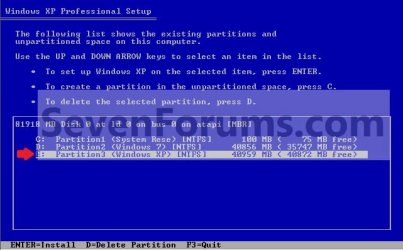
5. Select the partition (step 1) or hard drive that you want to install XP on using the arrow keys and press Enter.
W7-XP-6.jpg
6. Finish installing XP.


   Tip
If you get Error loading Operating System after XP restarts:
  • Using your Windows 7 installation disc, boot to the command prompt at startup.
  • Type in these comands below, and press enter after each one.
    • bootrec /FixMbr
    • bootrec /FixBoot
    • bootrec /RebuildBcd
  • Exit the command prompt and restart the computer.
  • At this point, Windows 7 should boot up the same way before trying to install XP.
  • Continue to step 8 below and run EasyBCD from Windows 7 instead.

7. In XP, download and install .Net Framework 2.0 (32-bit) version or .Net Framework 2.0 (64-bit) version first, and EasyBCD (free version) for your 32-bit (x86) or 64-bit (x86) XP.
NOTE: In XP, Net Framework is required to be installed to run EasyBCD. After you click on Register (at bottom of link) for the free EasyBCD, registration is not required to download it.

8. Run EasyBCD (free version).
NOTE: This is required to repair the Windows 7 boot file and add XP to the Windows Boot Manager list.

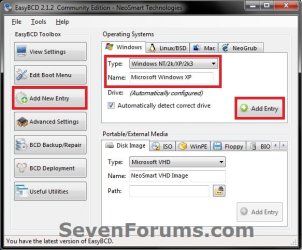
9. On the left side of EasyBCD, click on the Add New Entry button. (See screenshot below)
A) In the top section under Operating Systems, click on the Windows tab. (See screenshot below)
B) To the right of Type, select Windows NT/2k/XP/2k3 from the drop down menu. (See screenshot below)
:warn:WARNING: Be sure to leave the Automatically detect correct drive box checked.

C) To the right of Name, you can leave the default Microsoft Windows XP as the name to be displayed in the Windows Boot Manager, or you can type whatever name you would like to have instead. (See screenshot below)
D) Click on the Add Entry button. (See screenshot below)
W7-XP-7.jpg
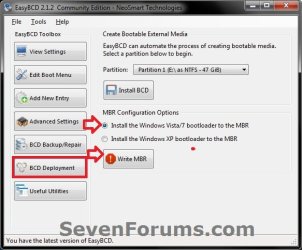
10. On the left side of EasyBCD, click on the BCD Deployment button, select (dot) the Install the Windows Vista/7 bootloader to the MBR option, and click on the Write MBR button. (See screenshot below)
W7-XP-9.jpg
11. Close EasyBCD.

12. Restart the computer to have the option to boot from Microsoft Windows XP or Windows 7. (See screenshot below)
Example2.jpg
   Tip
If Windows 7 will not start up when selected, then use your Windows 7 installation DVD to do a Startup Repair.

That's it,
Shawn


Last edited:
New Win 7 laptop to dual boot

I'm trying to follow your instructions to dual boot a new emachines e535 laptop (Win 7) with XP. I followed the instructions and made a WinXP install disk with the SATA drivers slipstreamed as per your instructions.
I also created a new 105 gig NTSF partition on the 250 gig HD.
When I boot to the win xp cd (with SATA drivers), after the initial copying of files ( before any input can be made) I get a BSOD that seems to point to a HD error.
Do you think the the slipstream didn't work correctly or is the computer just restricted to the OS it came with, or something else?
Thanks for any help you can provide.
 

My Computer

OS
Win 7 and XP
I'm trying to follow your instructions to dual boot a new emachines e535 laptop (Win 7) with XP. I followed the instructions and made a WinXP install disk with the SATA drivers slipstreamed as per your instructions.
I also created a new 105 gig NTSF partition on the 250 gig HD.
When I boot to the win xp cd (with SATA drivers), after the initial copying of files ( before any input can be made) I get a BSOD that seems to point to a HD error.
Do you think the the slipstream didn't work correctly or is the computer just restricted to the OS it came with, or something else?
Thanks for any help you can provide.

Have you slipstream the correct Sata Drivers?
 

My Computer

OS
ME/XP/Vista/Win7
Very frustrated!!!!! My original OS is XP. I followed your instructions - partitioning drive and installing windows 7. Upon reboot, I get the windows boot manager with choice of "earlier windows OS" or windows 7. Choosing either of them, I get the initial start screen logos and then they both crash and reboot. I have tried your Error Loading Operating System tip using Win7 command prompt and did not work. I tried repairing the system using both the original XP and Win 7 disks. Nothing works! Any ideas now? BTW, I never got to the install EasyBCD part. Help!

Just in case there is a 32bit/64bit issue. I was attempting to install Win7 64bit (after my original XP 32bit). Any help much appreciated.

One more interesting point. When I use "bootrec /RebuildBcd" it says "total identified Windows Installations: 0". That seems strange as I can see both installations in Windows Boot Manager, but neither of them make it past the start up logo screen.
 
Last edited by a moderator:

My Computer

Computer Manufacturer/Model Number
None
OS
Windows 7
CPU
Q6600 Quad Core Duo
Motherboard
P35 DS4
Memory
8GB
Graphics Card(s)
ATI 2600 XT
Monitor(s) Displays
BenQ
Hard Drives
Sata 300, Sata 300, Sata 1,000
Case
Antec P180
Try testing your RAM, Steven. Download a copy of Memtest86 and burn the ISO to a CD using Iso Recorder. Boot from the CD, and leave it running for at least 5 passes.

You may also try reinstalling Windows 7. Where did you get your copy of 7?

Welcome to SF, BTW. You made a good decision to come here. ;)
 

My Computer

Computer Manufacturer/Model Number
Custom
OS
Windows 7 Professional x64
CPU
Intel i7 2600K OC'd @ 4620 MHz
Motherboard
Asus P8Z68-V Pro
Memory
16GB GSkill Sniper 2133 Mhz (4x4GB)
Graphics Card(s)
EVGA GeForce GTX 480 SuperClocked+
Sound Card
Realtek High Definition Audio
Monitor(s) Displays
2x Acer S273HLbmii 27"
Screen Resolution
2 x 1920x1080
Hard Drives
64GB Crucial M4 SSD

Storage: Hitachi 1TB 5400RPM, Samsung 1.5TB 5400RPM
PSU
Corsair HW Series 750w (modular)
Case
Cooler Master HAF 932 Advanced Blue Edition
Cooling
CM Hyper 212+ CPU cooler, 3x 230mm + 1x 140mm case fans
Keyboard
Logitech MK320 (wireless)
Mouse
Logitech MK320 (wireless)
Internet Speed
30 Mb/s : 2 Mb/s
I'm trying to follow your instructions to dual boot a new emachines e535 laptop (Win 7) with XP. I followed the instructions and made a WinXP install disk with the SATA drivers slipstreamed as per your instructions.
I also created a new 105 gig NTSF partition on the 250 gig HD.
When I boot to the win xp cd (with SATA drivers), after the initial copying of files ( before any input can be made) I get a BSOD that seems to point to a HD error.
Do you think the the slipstream didn't work correctly or is the computer just restricted to the OS it came with, or something else?
Thanks for any help you can provide.

Have you slipstream the correct Sata Drivers?


That was the problem -2 drivers (.inf) showed up in the driver download for the SATA drive and i picked the wrong one on the first try. . 2nd try was successful and Win xp installed with the new disk. THANK YOU!!!!!
 

My Computer

OS
Win 7 and XP
hello there,

I have installed Win 7 first on my stationary and I installed xp secondly. I rebooted and it only boots to xp. I noticed that Win 7 is on C and XP is on E drive . But when I was on Win 7 ,XP was on drive D .

I used my Win 7 CD ROM to repair the broken Win 7 and then tried to use Easy BCD 1.7.2 to fix it so that i could dual boot. Now when my computer starts up i get the option to select either Win 7 or XP operating system, Win 7 works fine but if i now choose XP it will not start up and asks for the XP Home CD ROM to be inserted so it can be repaired, what am i doing wrong? can this be fixed?

I am NOT very computer savy and it has taken me 2 days of hard work to even get this far :( any help would be very appreciated!!!


M
 

My Computer

Computer Manufacturer/Model Number
Build it together with help from a friend
OS
Win 7 64 bit and win XP home
CPU
AMD Phenom II X4 965 Black Edition
Motherboard
ASUS M4A89GTD PRO
Memory
8 GB Kingston RAM (4 blocks of 2)
Graphics Card(s)
ASUS ENGT240 DI 512 MD5 A
Sound Card
onboard i think
Monitor(s) Displays
Flatron 19" Screen
Hard Drives
Samsung 750 GB
PSU
?
Case
standard cabinet
Cooling
Cooler Master Real Power Modular 520 W
I'm trying to follow your instructions to dual boot a new emachines e535 laptop (Win 7) with XP. I followed the instructions and made a WinXP install disk with the SATA drivers slipstreamed as per your instructions.
I also created a new 105 gig NTSF partition on the 250 gig HD.
When I boot to the win xp cd (with SATA drivers), after the initial copying of files ( before any input can be made) I get a BSOD that seems to point to a HD error.
Do you think the the slipstream didn't work correctly or is the computer just restricted to the OS it came with, or something else?
Thanks for any help you can provide.

Have you slipstream the correct Sata Drivers?


That was the problem -2 drivers (.inf) showed up in the driver download for the SATA drive and i picked the wrong one on the first try. . 2nd try was successful and Win xp installed with the new disk. THANK YOU!!!!!


You are welcome.
 

My Computer

OS
ME/XP/Vista/Win7
blue screen in xp install

Hi,

I have brand new HP laptop with windows 7. I want to dual boot with XP64 or XP.

The install goes through copying files, but with both os's I get a blue screen with a stop code of 7B (INVALID_BOOT_DEVICE)

I followed the instructions in`the tutorial on shrinking the main partion, etc.

Any ideas?
 

My Computer

OS
windows 7

My Computer

OS
ME/XP/Vista/Win7
Making progress, but still not there

Okay, I have made some progress. Windows 7 (drive C:\) was not installing because my BIOS needed updating. Once that was done... voila. Looks/runs well. So I then installed EasyBCD 2.0 and added the old drive with Windows XP (now drive e:\) to the bootloader and highlighted radio button "Reinstall the Vista Bootloader" and then clicked "Write MBR"....

Upon restart, I can see Windows XP in the Windows Boot Manager menu, but it refuses to launch. An error pops up noting File: \NTLDR Status 0xc000000f could not be loaded because application is mising or corrupt" It then asks me to repair my computer with the XP installation disks...

I then boot with the XP installation disks, but I can't get "Repair PC" as I can't get to the Recovery Console... BECAUSE it is asking for an administrator password!!! I am entering the only password I ever had in XP, but it refuses to accept it. After three attempts, have to reboot again.

So, I realize the problems has something to do with boot.ini, ntldr, the XP MBR, but I sice I can't use the Recovery Console, so what can i do next? Can I manually edit/copy/paste files from installation disks and put in root drives? EasyBCD clearly isn't sorting it out either...
 
Last edited:

My Computer

Computer Manufacturer/Model Number
None
OS
Windows 7
CPU
Q6600 Quad Core Duo
Motherboard
P35 DS4
Memory
8GB
Graphics Card(s)
ATI 2600 XT
Monitor(s) Displays
BenQ
Hard Drives
Sata 300, Sata 300, Sata 1,000
Case
Antec P180
VICTORY!!!!!! I finally got it all to work. Please disregard previous requests. Lots of pain (and far too many hours dedicated to this).

I finaly sorted where my system files (ntldr, boot.ini, ntdetect) should all be located. Configured BCD and now it is done!

I want to add a OSX partition next, but I think I'll just enjoy this configuration for a while....

THANKS TO EVERYONE FOR THE INPUT...
 
Last edited by a moderator:

My Computer

Computer Manufacturer/Model Number
None
OS
Windows 7
CPU
Q6600 Quad Core Duo
Motherboard
P35 DS4
Memory
8GB
Graphics Card(s)
ATI 2600 XT
Monitor(s) Displays
BenQ
Hard Drives
Sata 300, Sata 300, Sata 1,000
Case
Antec P180
This isn't working for me:

Here's the basic steps I used when the XP install failed at the first reboot. I'm not sure if this is perfect recollection, though -- feel free to alter the steps if I got something wrong...

1) Reboot with the Windows 7 DVD
2) When the GUI pops up, select language, keyboard, etc. and hit "Next"
3) Select "Repair your computer"
4) Select the OS you want to repair (for me, the only choice was Windows 7)
5) Choose to go to a Command Prompt
6) Use the command "bootrec" three times, as follows:
bootrec /FixMbr
bootrec /FixBoot
bootrec /RebuildBcd
7) Exit the command prompt
and reboot the computer.
8) At this point, Windows 7 booted up the same way it did before I tried to install XP
9) Run EasyBCD from Windows 7, then continue with your tutorial at Step 9.

Now, after rebooting, I got the choice of OS. When I selected WinXP, the installation
process picked up where it left off from the day before, and I was able to finish it up without any more problems.

Thanks again!

Unfortunatly I keep getting a loop back into win 7 I never get a boot screen to choose to finish the xp install. This really sucks as the only reason I'm trying to go back to XP without reformatting my Win 7 is all the games I have installed on win 7 will have to be done all over again. I'm just looking to use my $500 wheel setup that wont work with Vista or 7. This is the only reason I'm beating my head against a wall.

Win 7 resides on C:
I have a partition setup for XP on the same harddrive although a different partition of course.
Disk management shows the 100mb section for win 7 recovery.

Since on xp file copy for installation I'm left with a had disk error has accured please press ctrl alt delete I'm left with following this above to a t and to have nothing but win 7 boot up.

I've opened easybcd in win 7.
I assigned the recovery partition as s.
Typed in Win xp under the add/remove tab seleted S as it states then used the pulldown to select xp under type I added it and clicked save

Then went to manage made sure the choice was ticked and then wrote and closed the app to restart the computer back in win 7.

:mad:

Please someone shed some light on this fiasco so I'm not stuck with reloading the whole computer and throwing the weeks I spent on it down the drain.

Also I plan on upgrading the win 7 drive to an ssd eventually. How much hell will I be looking at when I go to do that?


Ok I had a wild hair and changed the xp association to C: this got me a boot screen, but

windows failed to start. a recent hardware or software change might be the cause. To fix the problem:

1. Insert your windows installation disc and restart your computer.
2. Choose your language settings, and then click "next."
3. Click "Repair your computer."

If you do not have this disc, contact your system administrator or computer manufacturer for assistance.

File: \NTLDR

Status: 0xc000000f

Info: The selected entry could not be loaded because the application is missing or corrupt

What the heck now?
 
Last edited by a moderator:

My Computer

Computer Manufacturer/Model Number
Home built
OS
Win 7 Ult x64 Win XP Pro
CPU
I7 920
Motherboard
Bloodrage
Memory
Dom GT
Graphics Card(s)
XFX HD5870
Sound Card
X-FI Platinum
Monitor(s) Displays
AOC
Hard Drives
Too many to list
PSU
Enermax Revo 1050w
Case
Temporary
Cooling
Temporary
What version of Easybcd did you use?

The XP boot files should all be on the "system" partition.

Boot into 7, go to Folder options and show hidden files and folders, and protected o/s files.

Find ntldr, ntdetect.com and boot.ini. Copy them to the "system" partition ( check in Disk mgmt to see which is the "system " partition ).

Point the ntldr entry at the " system " partition.
 

My Computers

System One System Two

  • Computer type
    PC/Desktop
    OS
    7 X64
    CPU
    i5 8400
    Motherboard
    gigabyte b365m ds3h
    Memory
    2x8gb 3200mhz
    Hard Drives
    various
    PSU
    pure power 11 400w cm
    Case
    Coolermaster
    Cooling
    cryorig m9i
  • Computer type
    PC/Desktop
    OS
    7x64
    CPU
    g5400
    Motherboard
    ga b365m ds3h
    Memory
    8gb ddr4 2400
    PSU
    xfx pro 450w
Will check that out when I fix the boot again so I can get to win 7
Thank you for your response I haven't seen anything about moving files so i will try that out.

UPDATE:

Those three files are in the 100mb system reserved partition from win 7 so I didn't have to move any files. Setting win xp to that drive still doesn't get me any further. :-( Same problem as before. Not only that it is supposed to say Microsoft Windows XP and it says Microsoft Windows so something is over ridding what I'm changing.

Win 7 is set for C: Don't know if that is part of the issue or not?

Just went back in and changed the Microsoft Windows one from the drive its defaulting to D: yet again and saved then wrote it trying again.

Even closed the app and opened it back up again to check and make sure it was the same and low and behold it was, but still getting that same problem when I select it on the boot menu. I swear if Act Labs would just make drivers I wouldn't have to deal with this crap!

Renamed it to Win XP this time and set S: as the drive then saved and wrote to mbr. Restarted to boot selection and it says Microsoft Windows yet again. ARG. This thing is posessed!
 
Last edited by a moderator:

My Computer

Computer Manufacturer/Model Number
Home built
OS
Win 7 Ult x64 Win XP Pro
CPU
I7 920
Motherboard
Bloodrage
Memory
Dom GT
Graphics Card(s)
XFX HD5870
Sound Card
X-FI Platinum
Monitor(s) Displays
AOC
Hard Drives
Too many to list
PSU
Enermax Revo 1050w
Case
Temporary
Cooling
Temporary
Boot.ini sounds wrong.

Open it in notepad and post the contents.
 

My Computers

System One System Two

  • Computer type
    PC/Desktop
    OS
    7 X64
    CPU
    i5 8400
    Motherboard
    gigabyte b365m ds3h
    Memory
    2x8gb 3200mhz
    Hard Drives
    various
    PSU
    pure power 11 400w cm
    Case
    Coolermaster
    Cooling
    cryorig m9i
  • Computer type
    PC/Desktop
    OS
    7x64
    CPU
    g5400
    Motherboard
    ga b365m ds3h
    Memory
    8gb ddr4 2400
    PSU
    xfx pro 450w
Code:
[boot loader]
timeout=1
default=multi(0)disk(0)rdisk(0)partition(3)\Windows
[operating systems]
multi(0)disk(0)rdisk(0)partition(3)\WINDOWS="Microsoft Windows XP Professional" /noexecute=optin /fastdetect

I went in and removed the extra entry and left just win 7. Rebooted the computer to be greeted with a boot selection screen stating:
Windows 7
Microsoft Windows

I'm not getting this at all. It reverting to saying what it wants was one thing. It still being there after it is removed is another thing.
 
Last edited by a moderator:

My Computer

Computer Manufacturer/Model Number
Home built
OS
Win 7 Ult x64 Win XP Pro
CPU
I7 920
Motherboard
Bloodrage
Memory
Dom GT
Graphics Card(s)
XFX HD5870
Sound Card
X-FI Platinum
Monitor(s) Displays
AOC
Hard Drives
Too many to list
PSU
Enermax Revo 1050w
Case
Temporary
Cooling
Temporary
Are you sure that is the boot.ini file that is in the system partition? I had multiple copies floating around on my separate drives. And BTW, EasyBCD VERSION 2.0 (free registration to get) automatically creates/places the boot.ini file - but just make sure the ntldr and ntdetect files are copy/pasted to the same place too.
 

My Computer

Computer Manufacturer/Model Number
None
OS
Windows 7
CPU
Q6600 Quad Core Duo
Motherboard
P35 DS4
Memory
8GB
Graphics Card(s)
ATI 2600 XT
Monitor(s) Displays
BenQ
Hard Drives
Sata 300, Sata 300, Sata 1,000
Case
Antec P180
Are you sure that is the boot.ini file that is in the system partition? I had multiple copies floating around on my separate drives. And BTW, EasyBCD VERSION 2.0 (free registration to get) automatically creates/places the boot.ini file - but just make sure the ntldr and ntdetect files are copy/pasted to the same place too.
How is that the new version when their website lists 1.7.2 as a recent software release?


The only drive that has boot.ini in the root is my Win 7 System reserved drive which is only 100mb by default with the win 7 installation. It is also where bootmgr and nrldr are located.

My drive config is as follows:
Operating system drive consisting of 3 partitions:
C:WIN7 D:ALLOTED FOR XP S:System Reserved

All other partitions and drives are setup for categories of games and are irrelevant at this time in making this work.

Those are all located on the same hard drive under separate partitions.

UPDATE:
HOLLY CRAP!! I deleted the *.BAK file and redid the settings and its loading win xp to finish INSTALLATION WOOOHOOOOO!!!! Thanks to those that have tried to help out. I will update if I get them both up and running properly.
 
Last edited by a moderator:

My Computer

Computer Manufacturer/Model Number
Home built
OS
Win 7 Ult x64 Win XP Pro
CPU
I7 920
Motherboard
Bloodrage
Memory
Dom GT
Graphics Card(s)
XFX HD5870
Sound Card
X-FI Platinum
Monitor(s) Displays
AOC
Hard Drives
Too many to list
PSU
Enermax Revo 1050w
Case
Temporary
Cooling
Temporary
If you still didn't get it to work, just be sure about that:

In order to boot from the Windows 7 hard disk/partition, you must have NTDETECT.COM, NTLDR and BOOT.INI in Windows 7 partition, and that's the point: you MUST EDIT the boot.ini file that is in Windows 7 partition so that it points to the partition where Windows XP is installed!

For more information, click here and read my entire post:
http://www.sevenforums.com/tutorials/8057-dual-boot-installation-windows-7-xp-72.html

Hope it helps.
 

My Computer

OS
Windows 7
CPU
Intel Core 2 Duo E6600
Motherboard
Asus P5B-Deluxe WiFi
Memory
3 GB
Graphics Card(s)
NVidia GeForce 7600 GT
Monitor(s) Displays
Samsung
Hard Drives
Samsung 1,5 TB
Seagate 500 GB
Seagate 320 GB
PSU
Seventeam
Hello i am new here , and new to this forum

I have a windows 7 laptop, 3gb ram and 320gb hard drive

i want to dual boot it to xp and windows 7

i came here for help

my laptop has usb and dvd/cd drives

but here its says


warnsmall.png
Warning


i dont have a floppy drive can i still dual boot and have windows xp please help me thanks :)

and replay back thanks so what shall i do now? please help me asap thanks
 

My Computer

OS
windows 7
Back
Top