Windows XP Mode Questions

RP McIntosh

New member
Member
VIP
Local time
1:15 AM
Messages
135
Two clarifications on Windows XP Mode

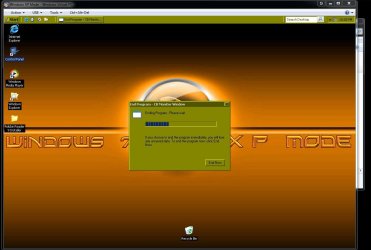
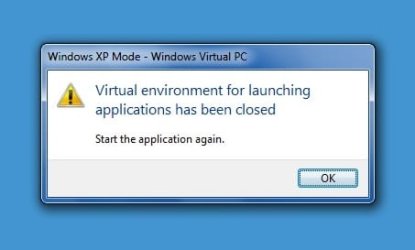
1. When I first start a virtual application, I get a box that says something like "Preparing to start the virtual application," which morphs into a box that says "Starting the virtual application." Then, the box usually (not always) disappears, and I get a box that says something like "The Virtual Environment has been closed. Retart the Virtual Application." If I start it a second time, it starts fairly quickly, and with no problem. I can then start other virtual applications with no problem. It looks to me like something in the Virtual Machine is timing out before the application can get started. But I've looked for any timeout settings in the Virtual Machine Settings, and didn't find any. This is really nothing more than a minor annoyanc, but wondering if anyone else experiences this, or if anyone knows of any timeout settings that might improved this situation.

2. The other problem is one I sort of stumbled onto while looking at the options for settings. I noticed that apparently the default memory allocation for Windows XP Mode settings is only 512 MB, so though about changing it to 1 GB, since I have 12 GB of memory on my system. But there was a note there that said, that to change the setting, the virtual machine had to be closed. Now, I know how to close the virtual machine. But my qestion is, assuming that I want to change the memory allocation, and the virtual machine is closed, how now do I access the settings, without starting the virtual machine again. Probably a simple answer to this question, but it strikes me as a sort of Catch 22 situation.
 

My Computer

Computer Manufacturer/Model Number
Dell
OS
Windows 7 Ultimate 64
CPU
Intel i7-975
Memory
12 GB
Graphics Card(s)
ATI Radeon HD 5870
Sound Card
Sound Blaster X-Fi Titanium
Monitor(s) Displays
Dell U2410
Hard Drives
3, SATA 1.5 TB each
Welcome to the Se7en Forums! RP McIntosh

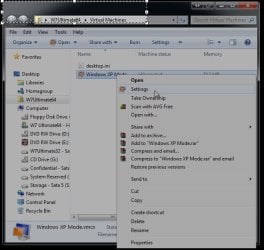
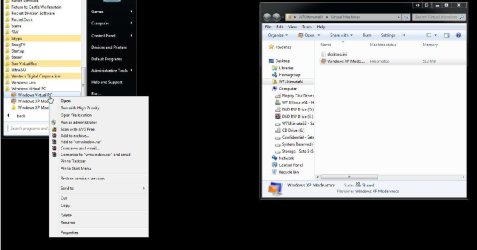
When click on the help link seen in the right window of "settings" once you have right clicked on the "Start>All Programs>Windows Virtual PC" item found there you then right click on the name of the virtual machine seen in the folder window that comes which in the screens here is for the XP Mode itself.

This is the instructions from the help window on Configuring a virtual machine that will come up while in the XP Mode for memory and other changes in settings.

Configuring a virtual machine refers to modifications that you can make to a virtual machine, such as changing the amount of memory or adding and removing virtual devices, such as network adapters. For most of these changes, you modify a virtual machine setting. In some cases, you can modify the setting only when the virtual machine is shut down or turned off.
Note.gif
Note For instructions on shutting down a virtual machine, see Shut down a virtual machine manually.
For simple configuration changes, use the following steps. For configuration changes that require more explanation, see the links to specific procedures.
Procedure.gif
To modify a virtual machine setting
  1. Open the Virtual Machines folder. From the Start menu, click Windows Virtual PC. If the menu item is not visible, click All Programs, click the Windows Virtual PC folder, and then click Windows Virtual PC.
  2. From the Virtual Machines folder, right-click the name of the virtual machine and then click Settings. The Windows Virtual PC Settings page opens.
  3. In the left pane, click the name of the setting you want to modify. In the right pane, message text will inform you if the virtual machine must be shut down first.
  4. In the right pane, make the change, and click OK.
See Also

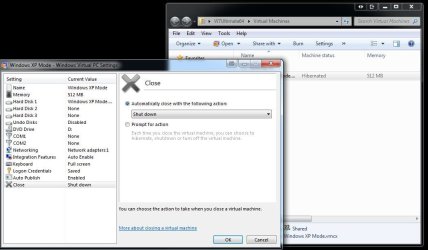
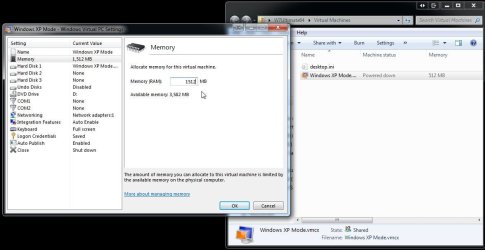
If you look over the screens here however noting that up until now the right window for memory settings has been greyed out that is due to the XP Mode being kept in a higernated stated by default. You first need to change the shutdown option to "powered off" and see that is shutdown completely before the memory and other settings then see an active window for making changes.

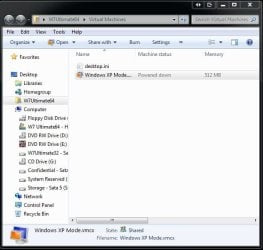
By following these steps you can then simply right click on the shortcut seen in the folder noticing the powered down status there rather then seeing "hibernating". :D
 

Attachments

  • VPC Settings Total Shutdown.jpg
    VPC Settings Total Shutdown.jpg
    68.8 KB · Views: 71
  • VPC Setttings Now Available.jpg
    VPC Setttings Now Available.jpg
    70.6 KB · Views: 60
  • VPC Powered Down.jpg
    VPC Powered Down.jpg
    46 KB · Views: 42
  • VPC Settings2.jpg
    VPC Settings2.jpg
    56.5 KB · Views: 50
  • VPC Settings1.jpg
    VPC Settings1.jpg
    66.9 KB · Views: 47
  • VPC Settings Shutting down.jpg
    VPC Settings Shutting down.jpg
    90 KB · Views: 48

My Computers

System One System Two

  • Computer type
    PC/Desktop
    Computer Manufacturer/Model Number
    Custom builds = 2
    OS
    W7 Ultimate x64/W10 Pro x64/W11 Pro Triple Boot - Main PC W7 Remote PC Micro ATX W7 Pro x64/W11 Pro
    CPU
    AMD Phenom II X4 975 Deneb 3.6ghz - 965 2nd remote pc
    Motherboard
    Gigabyte GA-790XTA-UD4-Gigabyte GA-880GM-D2H remote pc
    Memory
    Kingston Hyper X DDR3 1600 1.5v 16gb - Hyper X Fury 8gb 2nd
    Graphics Card(s)
    MSI HD Radeon 5750 1gb - MSI HD Radeon 6450 on mini tower
    Sound Card
    Creative Labs X-Fi Xtreme Audio P - Realtek onooard 2nd case
    Monitor(s) Displays
    ASUS VW199T-P 19" HP 2082a Main-HP 2082a 20" remote pc
    Screen Resolution
    Asus 1440x900 - HP 1600x900
    Hard Drives
    WD Black 1TB HD per OS W7, W10, and pending W11 presently on 500gb OS Drive - Pending Triple 1TB HDs for Spanned Storage/backup volume
    Single 2TB external USB enclosure, single 1TB System 7 Host/Boot drive, Pending 8TB external HD for system image b
    PSU
    Corsair 750TX - primary / Corsair CX600 - second
    Case
    Antec 900-2 - SSD compatible / NZXT Vulcan mini tower
    Cooling
    Zalman CNPS9900A
    Keyboard
    AZIO L70 Backlit Letters Gaming - ONN Cordless/USB
    Mouse
    MSI DS200 Programmable, Logitech Cordless
    Internet Speed
    30mbps upgrade - primary hard wired - mini tower usb WiFi
    Antivirus
    GFI VIPRE Internet Security 2014 on W7 2016 beta on W10,
    Browser
    Cyberfox, WaterFox 64bit FF variants, FireFox x64, Pale Moon
    Other Info
    Accomdata fan cooled usb 2.0 PIDE/Sata II, III external enclosure.
    Sambient usb/eSata PATA/Sata II, III external enclosure.
  • Computer type
    PC/Desktop
    System Manufacturer/Model Number
    CUSTOM ASSEMBLY
    OS
    W7 Pro x64/W11 Pro
    CPU
    AMD Deneb 3.6ghz - 965
    Motherboard
    Gigabyte GA-880GM-D2H remote pc
    Memory
    Kingston Hyper X Fury 8gb
    Graphics Card(s)
    MSI HD Radeon 6450 DVI Output
    Sound Card
    Realtek onooard Creative or Other separate PENDING
    Monitor(s) Displays
    VIZIO 32" LCD TV Separate LCD Pending
    Screen Resolution
    1600x1080
    Hard Drives
    WD 500GB OS Host/Boot WD Green 1TB Storage/Backup
    PSU
    Corsair 600W - THERMALTAKE 600W spare case
    Case
    NZXT Vulcan mini tower
    Cooling
    Twin 120mm Top Fans - 240mm Side Cover
    Keyboard
    ONN Cordless/USB Logitech Cordless
    Mouse
    ONN USB/Cordless - Logitech Cordless
    Internet Speed
    DSL 5G
    Browser
    MS Edge, FireFox, WaterFox x64, FireFox Nightly
    Other Info
    OS Testing-Remote Access to Main TeamViewer
Welcome to the Se7en Forums! RP McIntosh

When click on the help link seen in the right window of "settings" once you have right clicked on the "Start>All Programs>Windows Virtual PC" item found there you then right click on the name of the virtual machine seen in the folder window that comes which in the screens here is for the XP Mode itself.

This is the instructions from the help window on Configuring a virtual machine that will come up while in the XP Mode for memory and other changes in settings.

Configuring a virtual machine refers to modifications that you can make to a virtual machine, such as changing the amount of memory or adding and removing virtual devices, such as network adapters. For most of these changes, you modify a virtual machine setting. In some cases, you can modify the setting only when the virtual machine is shut down or turned off.
Note.gif
Note For instructions on shutting down a virtual machine, see Shut down a virtual machine manually.
For simple configuration changes, use the following steps. For configuration changes that require more explanation, see the links to specific procedures.

Procedure.gif
To modify a virtual machine setting
  1. Open the Virtual Machines folder. From the Start menu, click Windows Virtual PC. If the menu item is not visible, click All Programs, click the Windows Virtual PC folder, and then click Windows Virtual PC.
  2. From the Virtual Machines folder, right-click the name of the virtual machine and then click Settings. The Windows Virtual PC Settings page opens.
  3. In the left pane, click the name of the setting you want to modify. In the right pane, message text will inform you if the virtual machine must be shut down first.
  4. In the right pane, make the change, and click OK.
See Also

If you look over the screens here however noting that up until now the right window for memory settings has been greyed out that is due to the XP Mode being kept in a higernated stated by default. You first need to change the shutdown option to "powered off" and see that is shutdown completely before the memory and other settings then see an active window for making changes.

By following these steps you can then simply right click on the shortcut seen in the folder noticing the powered down status there rather then seeing "hibernating". :D

Thanks. I had read the HELP, but took a wrong turn by clicking on the WINDOWS XP MODE listed in the START menu, rather than clicking on the Virtual Machine entry, THEN on the Windows XP Mode entry in that folder. Your screen shots pointed me in the right direction.
 

My Computer

Computer Manufacturer/Model Number
Dell
OS
Windows 7 Ultimate 64
CPU
Intel i7-975
Memory
12 GB
Graphics Card(s)
ATI Radeon HD 5870
Sound Card
Sound Blaster X-Fi Titanium
Monitor(s) Displays
Dell U2410
Hard Drives
3, SATA 1.5 TB each
The first place is always the Windows Virtual PC as you found out rather fast. But you'll get the hang of things once you have spent a bit more time with settings things in the XP Mode and may end up working on other VHD projects where you will doing this again for those too! :D

At least you found your way! The main reason for making sure you have any VM shut down completely is that when in hibernation that simply preserves any work you were doing during a previous session but leaves something loaded into memory at the time making memory setting changes unavailable.

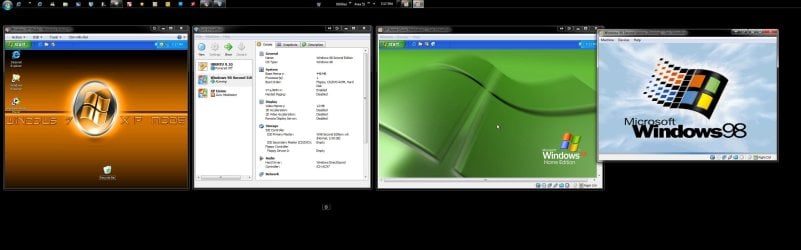
With 12gb of ram you won't be running into the same problem when going to run more then on VM however. I ran into the "out of resources" error for things like that when running other OSs along side the VPC and XP Mode with another VM ware. Once I boost the ram up from 4gb to 8gb on the system here I wouldn't expect running 4 VMs at once to be any problem however if I decide to run another similar setup as seen in the screen here.
 

Attachments

  • Multi Multi Tasking OSs 3.jpg
    Multi Multi Tasking OSs 3.jpg
    186.7 KB · Views: 30

My Computers

System One System Two

  • Computer type
    PC/Desktop
    Computer Manufacturer/Model Number
    Custom builds = 2
    OS
    W7 Ultimate x64/W10 Pro x64/W11 Pro Triple Boot - Main PC W7 Remote PC Micro ATX W7 Pro x64/W11 Pro
    CPU
    AMD Phenom II X4 975 Deneb 3.6ghz - 965 2nd remote pc
    Motherboard
    Gigabyte GA-790XTA-UD4-Gigabyte GA-880GM-D2H remote pc
    Memory
    Kingston Hyper X DDR3 1600 1.5v 16gb - Hyper X Fury 8gb 2nd
    Graphics Card(s)
    MSI HD Radeon 5750 1gb - MSI HD Radeon 6450 on mini tower
    Sound Card
    Creative Labs X-Fi Xtreme Audio P - Realtek onooard 2nd case
    Monitor(s) Displays
    ASUS VW199T-P 19" HP 2082a Main-HP 2082a 20" remote pc
    Screen Resolution
    Asus 1440x900 - HP 1600x900
    Hard Drives
    WD Black 1TB HD per OS W7, W10, and pending W11 presently on 500gb OS Drive - Pending Triple 1TB HDs for Spanned Storage/backup volume
    Single 2TB external USB enclosure, single 1TB System 7 Host/Boot drive, Pending 8TB external HD for system image b
    PSU
    Corsair 750TX - primary / Corsair CX600 - second
    Case
    Antec 900-2 - SSD compatible / NZXT Vulcan mini tower
    Cooling
    Zalman CNPS9900A
    Keyboard
    AZIO L70 Backlit Letters Gaming - ONN Cordless/USB
    Mouse
    MSI DS200 Programmable, Logitech Cordless
    Internet Speed
    30mbps upgrade - primary hard wired - mini tower usb WiFi
    Antivirus
    GFI VIPRE Internet Security 2014 on W7 2016 beta on W10,
    Browser
    Cyberfox, WaterFox 64bit FF variants, FireFox x64, Pale Moon
    Other Info
    Accomdata fan cooled usb 2.0 PIDE/Sata II, III external enclosure.
    Sambient usb/eSata PATA/Sata II, III external enclosure.
  • Computer type
    PC/Desktop
    System Manufacturer/Model Number
    CUSTOM ASSEMBLY
    OS
    W7 Pro x64/W11 Pro
    CPU
    AMD Deneb 3.6ghz - 965
    Motherboard
    Gigabyte GA-880GM-D2H remote pc
    Memory
    Kingston Hyper X Fury 8gb
    Graphics Card(s)
    MSI HD Radeon 6450 DVI Output
    Sound Card
    Realtek onooard Creative or Other separate PENDING
    Monitor(s) Displays
    VIZIO 32" LCD TV Separate LCD Pending
    Screen Resolution
    1600x1080
    Hard Drives
    WD 500GB OS Host/Boot WD Green 1TB Storage/Backup
    PSU
    Corsair 600W - THERMALTAKE 600W spare case
    Case
    NZXT Vulcan mini tower
    Cooling
    Twin 120mm Top Fans - 240mm Side Cover
    Keyboard
    ONN Cordless/USB Logitech Cordless
    Mouse
    ONN USB/Cordless - Logitech Cordless
    Internet Speed
    DSL 5G
    Browser
    MS Edge, FireFox, WaterFox x64, FireFox Nightly
    Other Info
    OS Testing-Remote Access to Main TeamViewer
The first place is always the Windows Virtual PC as you found out rather fast. But you'll get the hang of things once you have spent a bit more time with settings things in the XP Mode and may end up working on other VHD projects where you will doing this again for those too! :D

At least you found your way! The main reason for making sure you have any VM shut down completely is that when in hibernation that simply preserves any work you were doing during a previous session but leaves something loaded into memory at the time making memory setting changes unavailable.

With 12gb of ram you won't be running into the same problem when going to run more then on VM however. I ran into the "out of resources" error for things like that when running other OSs along side the VPC and XP Mode with another VM ware. Once I boost the ram up from 4gb to 8gb on the system here I wouldn't expect running 4 VMs at once to be any problem however if I decide to run another similar setup as seen in the screen here.

Interesting. I'm clearly still learning. One virtual machine is enough for me at the moment <g>. Does the initial startup situation I described (what I call for want of a better term, a virtual machine time out) seem normal. Or could it be the specific application I am running first? Since I have antivirus installed in XP Mode, the first application I run to start the virtual session is a Live Update of the antivirus software. Figure if I update it once a day, at the beginning of each virtual session, that should give me reasonably good protection. But I end up with three boxes. The first one says Preparing to Start the Virtual Application (which I assume means, starting the virtual machine). Then that message turns to "Starting Virtual Application. Then that box disappears, and I get a message box that says something like, "The Virtual Enviornment has been closed. Please start the virtual application again." If I then start the Live Updat again, I don't get the box that says Preparing to start the virtual application--just the one that says "Starting Virtual Application, and that is fairly quickly replaced by the application itself. After that, if I start a virtual application, I get no message at all, just the application apparing open. I've looked through the settings for anything that looks like a timeout setting, but didn't find one. It's more of an annoyance than a problem, since it only happens with the first application I open.

Have you seen anything like that?
 

My Computer

Computer Manufacturer/Model Number
Dell
OS
Windows 7 Ultimate 64
CPU
Intel i7-975
Memory
12 GB
Graphics Card(s)
ATI Radeon HD 5870
Sound Card
Sound Blaster X-Fi Titanium
Monitor(s) Displays
Dell U2410
Hard Drives
3, SATA 1.5 TB each
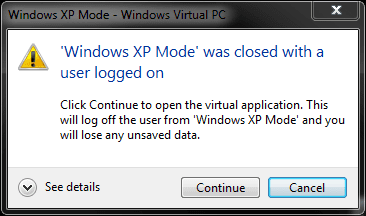
Is this the message you get:

XPM-app_start.PNG

This means that XP Mode is hibernated (closed with a user logged on). Before a virtual XP Mode application can start, it must first log the user of. Just click Continue, it logs the user off before starting the virtual application.

Notice that by doing this you lose any possible unsaved data on XP Mode. If you had hibernated XP Mode with purpose and you have there open apps with unsaved data, click Cancel, boot to XP Mode, save your data and shut XP Mode down before starting virtual application.

Kari
 

My Computer

Computer type
Laptop
Computer Manufacturer/Model Number
HP ENVY 17-1150eg
OS
Windows 10 Pro x64 EN-GB
CPU
1.6 GHz Intel Core i7-720QM Processor
Memory
6 GB
Graphics Card(s)
ATI Mobility Radeon HD 5850 Graphics
Sound Card
Beats sound system with integrated subwoofer
Monitor(s) Displays
17" laptop display, 22" LED and 32" Full HD TV through HDMI
Screen Resolution
1600*900 (1), 1920*1080 (2&3)
Hard Drives
Internal: 2 x 500 GB SATA Hard Disk Drive 7200 rpm
External: 2TB for backups, 3TB USB3 network drive for media
Cooling
As Envy runs a bit warm, I have it on a Cooler Master pad
Keyboard
Logitech diNovo Media Desktop Laser (bluetooth)
Mouse
Logitech Performance Mouse MX
Internet Speed
50/10 Mbps VDSL
Antivirus
Windows Defender 4.3.9431.0
Browser
Maxthon 3.5.2., IE11
Is this the message you get:

View attachment 72137

This means that XP Mode is hibernated (closed with a user logged on). Before a virtual XP Mode application can start, it must first log the user of. Just click Continue, it logs the user off before starting the virtual application.

Notice that by doing this you lose any possible unsaved data on XP Mode. If you had hibernated XP Mode with purpose and you have there open apps with unsaved data, click Cancel, boot to XP Mode, save your data and shut XP Mode down before starting virtual application.

Kari

Kari--

No, that's not the message I get. I've gotten that one before. Normally, I don't actually open the XP Mode, I just open the virtual applications. However, when I DO open XP Mode, to change appearance settings for instance, and then exit XP Mode, then later start an XP Mode application, then I DO get the message you posted a screen shot of. And, as you said, I just click the CONTINUE button, and it goes ahead and loads the application.

The message I get (I'll take a screen shot of it the next time I get it) happens like this:

1. I click the Live Update item under the XP Mode Applications on the START menu.

2. I get a wide, narrow box with what I call an activity bar (a green blob, travelling right to left repeatedly in a progress bar) with a message that says Preparing to Launch (I think that's the wording).

3. After several seconds, the same box remains, but the wording in it changes to Starting Virtual Application.

4. Then that box disappears, and a few seconds later, I get a message box similar in size to the one you posted a screen shot of, that says (not exact wording--I'll get that next time it shows up), The Virtual Environment has been closed. Start the Virtual application again, with nothing there but an OK button.

5. I then restart the Live Update, and this time, I get the narrow box that says Starting Virtual Application (don't get the Preparing to Launch thing), and a few seconds later, the application opens.

6. So far, at least, this only happens with the first application I open. Presumably, once the virtual machine has been hibernated, what I'm referring to as the timeout doesn't occur.

I appreciate the help, and I will get both the exact wording of the message, and a screen shot the next time it happens.
 

My Computer

Computer Manufacturer/Model Number
Dell
OS
Windows 7 Ultimate 64
CPU
Intel i7-975
Memory
12 GB
Graphics Card(s)
ATI Radeon HD 5870
Sound Card
Sound Blaster X-Fi Titanium
Monitor(s) Displays
Dell U2410
Hard Drives
3, SATA 1.5 TB each
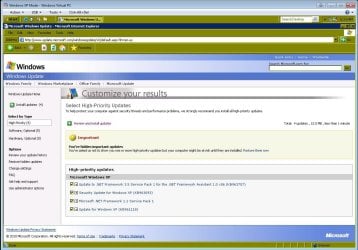
Having just performed a clean install of 7 here and installing the VPC and XP Mode the screen here is from the first run for updates selecting the "Custom" option at the update site. As you can see the results were seen instantly without any problem.

You may need to remove and perform a full reinstall in order to see the problems corrected if the initial install was incomplete and why you are running into the problems you are describing. Another thing to look at would be checking to see if any virtualization option in the bios is enabled.

First however run the tool MS provides in case something is lacking support. The main download page is seen at Download details: HAV Detection Tool
 

Attachments

  • Custom Option XP Mode Updates First Run.jpg
    Custom Option XP Mode Updates First Run.jpg
    132.6 KB · Views: 19
  • Custom Option XP Mode Updates First Run2.jpg
    Custom Option XP Mode Updates First Run2.jpg
    123.8 KB · Views: 19

My Computers

System One System Two

  • Computer type
    PC/Desktop
    Computer Manufacturer/Model Number
    Custom builds = 2
    OS
    W7 Ultimate x64/W10 Pro x64/W11 Pro Triple Boot - Main PC W7 Remote PC Micro ATX W7 Pro x64/W11 Pro
    CPU
    AMD Phenom II X4 975 Deneb 3.6ghz - 965 2nd remote pc
    Motherboard
    Gigabyte GA-790XTA-UD4-Gigabyte GA-880GM-D2H remote pc
    Memory
    Kingston Hyper X DDR3 1600 1.5v 16gb - Hyper X Fury 8gb 2nd
    Graphics Card(s)
    MSI HD Radeon 5750 1gb - MSI HD Radeon 6450 on mini tower
    Sound Card
    Creative Labs X-Fi Xtreme Audio P - Realtek onooard 2nd case
    Monitor(s) Displays
    ASUS VW199T-P 19" HP 2082a Main-HP 2082a 20" remote pc
    Screen Resolution
    Asus 1440x900 - HP 1600x900
    Hard Drives
    WD Black 1TB HD per OS W7, W10, and pending W11 presently on 500gb OS Drive - Pending Triple 1TB HDs for Spanned Storage/backup volume
    Single 2TB external USB enclosure, single 1TB System 7 Host/Boot drive, Pending 8TB external HD for system image b
    PSU
    Corsair 750TX - primary / Corsair CX600 - second
    Case
    Antec 900-2 - SSD compatible / NZXT Vulcan mini tower
    Cooling
    Zalman CNPS9900A
    Keyboard
    AZIO L70 Backlit Letters Gaming - ONN Cordless/USB
    Mouse
    MSI DS200 Programmable, Logitech Cordless
    Internet Speed
    30mbps upgrade - primary hard wired - mini tower usb WiFi
    Antivirus
    GFI VIPRE Internet Security 2014 on W7 2016 beta on W10,
    Browser
    Cyberfox, WaterFox 64bit FF variants, FireFox x64, Pale Moon
    Other Info
    Accomdata fan cooled usb 2.0 PIDE/Sata II, III external enclosure.
    Sambient usb/eSata PATA/Sata II, III external enclosure.
  • Computer type
    PC/Desktop
    System Manufacturer/Model Number
    CUSTOM ASSEMBLY
    OS
    W7 Pro x64/W11 Pro
    CPU
    AMD Deneb 3.6ghz - 965
    Motherboard
    Gigabyte GA-880GM-D2H remote pc
    Memory
    Kingston Hyper X Fury 8gb
    Graphics Card(s)
    MSI HD Radeon 6450 DVI Output
    Sound Card
    Realtek onooard Creative or Other separate PENDING
    Monitor(s) Displays
    VIZIO 32" LCD TV Separate LCD Pending
    Screen Resolution
    1600x1080
    Hard Drives
    WD 500GB OS Host/Boot WD Green 1TB Storage/Backup
    PSU
    Corsair 600W - THERMALTAKE 600W spare case
    Case
    NZXT Vulcan mini tower
    Cooling
    Twin 120mm Top Fans - 240mm Side Cover
    Keyboard
    ONN Cordless/USB Logitech Cordless
    Mouse
    ONN USB/Cordless - Logitech Cordless
    Internet Speed
    DSL 5G
    Browser
    MS Edge, FireFox, WaterFox x64, FireFox Nightly
    Other Info
    OS Testing-Remote Access to Main TeamViewer
Having just performed a clean install of 7 here and installing the VPC and XP Mode the screen here is from the first run for updates selecting the "Custom" option at the update site. As you can see the results were seen instantly without any problem.

You may need to remove and perform a full reinstall in order to see the problems corrected if the initial install was incomplete and why you are running into the problems you are describing. Another thing to look at would be checking to see if any virtualization option in the bios is enabled.

First however run the tool MS provides in case something is lacking support. The main download page is seen at Download details: HAV Detection Tool

I'm probably not describing my situation adequately. So I'll try to get screen shots, but it may be a few days, since I have surgery scheduled for tomorrow morning.

Once I get the initial application open, everything runs fine. And I have run the Windows Update from XP Mode, and it worked fine. In fact, it is probably an exaggeration to call what I've been experiencing a "problem." A "quirk" might be a better description. And it doesn't always do it. This evening, when I booted up and went to XP Mode, I got the first two boxes I described above, but not the third one that told me to start the application again. Maybe the simple fact that I increased the memory for XP Mode lets it load faster, and thus avoid the timeout.

I appreciate your patience. And I'll be back to either post screen shots, or declare the matter resolved once I get my surgery out of the way.
 

My Computer

Computer Manufacturer/Model Number
Dell
OS
Windows 7 Ultimate 64
CPU
Intel i7-975
Memory
12 GB
Graphics Card(s)
ATI Radeon HD 5870
Sound Card
Sound Blaster X-Fi Titanium
Monitor(s) Displays
Dell U2410
Hard Drives
3, SATA 1.5 TB each
That would be a large help here if you can grab a few screens of the actual error messages for a lookover.

That might also show if the problem is with the install of the XP Mode itself or with a program you have added that starts along with the VPC and causing the problem while not preventing you from running the XP Mode itself with a restart if something is loading sideways on you.

Hope your surgery goes well in the mean time! ;)
 

My Computers

System One System Two

  • Computer type
    PC/Desktop
    Computer Manufacturer/Model Number
    Custom builds = 2
    OS
    W7 Ultimate x64/W10 Pro x64/W11 Pro Triple Boot - Main PC W7 Remote PC Micro ATX W7 Pro x64/W11 Pro
    CPU
    AMD Phenom II X4 975 Deneb 3.6ghz - 965 2nd remote pc
    Motherboard
    Gigabyte GA-790XTA-UD4-Gigabyte GA-880GM-D2H remote pc
    Memory
    Kingston Hyper X DDR3 1600 1.5v 16gb - Hyper X Fury 8gb 2nd
    Graphics Card(s)
    MSI HD Radeon 5750 1gb - MSI HD Radeon 6450 on mini tower
    Sound Card
    Creative Labs X-Fi Xtreme Audio P - Realtek onooard 2nd case
    Monitor(s) Displays
    ASUS VW199T-P 19" HP 2082a Main-HP 2082a 20" remote pc
    Screen Resolution
    Asus 1440x900 - HP 1600x900
    Hard Drives
    WD Black 1TB HD per OS W7, W10, and pending W11 presently on 500gb OS Drive - Pending Triple 1TB HDs for Spanned Storage/backup volume
    Single 2TB external USB enclosure, single 1TB System 7 Host/Boot drive, Pending 8TB external HD for system image b
    PSU
    Corsair 750TX - primary / Corsair CX600 - second
    Case
    Antec 900-2 - SSD compatible / NZXT Vulcan mini tower
    Cooling
    Zalman CNPS9900A
    Keyboard
    AZIO L70 Backlit Letters Gaming - ONN Cordless/USB
    Mouse
    MSI DS200 Programmable, Logitech Cordless
    Internet Speed
    30mbps upgrade - primary hard wired - mini tower usb WiFi
    Antivirus
    GFI VIPRE Internet Security 2014 on W7 2016 beta on W10,
    Browser
    Cyberfox, WaterFox 64bit FF variants, FireFox x64, Pale Moon
    Other Info
    Accomdata fan cooled usb 2.0 PIDE/Sata II, III external enclosure.
    Sambient usb/eSata PATA/Sata II, III external enclosure.
  • Computer type
    PC/Desktop
    System Manufacturer/Model Number
    CUSTOM ASSEMBLY
    OS
    W7 Pro x64/W11 Pro
    CPU
    AMD Deneb 3.6ghz - 965
    Motherboard
    Gigabyte GA-880GM-D2H remote pc
    Memory
    Kingston Hyper X Fury 8gb
    Graphics Card(s)
    MSI HD Radeon 6450 DVI Output
    Sound Card
    Realtek onooard Creative or Other separate PENDING
    Monitor(s) Displays
    VIZIO 32" LCD TV Separate LCD Pending
    Screen Resolution
    1600x1080
    Hard Drives
    WD 500GB OS Host/Boot WD Green 1TB Storage/Backup
    PSU
    Corsair 600W - THERMALTAKE 600W spare case
    Case
    NZXT Vulcan mini tower
    Cooling
    Twin 120mm Top Fans - 240mm Side Cover
    Keyboard
    ONN Cordless/USB Logitech Cordless
    Mouse
    ONN USB/Cordless - Logitech Cordless
    Internet Speed
    DSL 5G
    Browser
    MS Edge, FireFox, WaterFox x64, FireFox Nightly
    Other Info
    OS Testing-Remote Access to Main TeamViewer
That would be a large help here if you can grab a few screens of the actual error messages for a lookover.

That might also show if the problem is with the install of the XP Mode itself or with a program you have added that starts along with the VPC and causing the problem while not preventing you from running the XP Mode itself with a restart if something is loading sideways on you.

Hope your surgery goes well in the mean time! ;)

Surgery went as well as a second abdominal surgery in 9 months can go. Thanks for the concern. If it happens again (it did NOT happen last evening), I'll get the screen shot. Note that this does NOT happen if I start XP Mode itself. It only happnes when I start one of the XP Mode Applications, and then ONLY the first one I start. In other words, once the Virtual Machine is up and running, XP Mode applications start with no messages of any kind, or even any indication that they are, in fact, XP Mode applications. That's what had me wondering if there were some sort of "time out" setting in the virtual machine itself that was causing it to time out AFTER getting the Virtual Machine up and runnng, but BEFORE the XP Mode application had time to get started.
 

My Computer

Computer Manufacturer/Model Number
Dell
OS
Windows 7 Ultimate 64
CPU
Intel i7-975
Memory
12 GB
Graphics Card(s)
ATI Radeon HD 5870
Sound Card
Sound Blaster X-Fi Titanium
Monitor(s) Displays
Dell U2410
Hard Drives
3, SATA 1.5 TB each
The only things I find get timed out are either on servers or when some expects a response within a given amount of time. Those are by design however while this would seem a bit odd while not being totally ruled out.

The typical problems you would expect to see with various programs you install onto the XP Mode would be seen with those that requires direct access to either an internal or external hardware like a dvd burner for one example. The problem you are describing however sounds a bit more like the XP Mode is freezing up on you when going to start one or more programs in particular.

Have you tried any setting changes with the XP Mode itself like raising the virtual video memory upto the full 128mb or giving the ram a boost up from 256mb or 512mb upto 1gb or more? Being out of resources is something I ran into here when having more then needed set. It seems to work both ways there for some reason.

If you have any larger programs installed on your own there the lack of virtual ram would be one thing to consider and would fit the bill for the time out you feel is occuring which would be apps stalling if no other problems with the XP Mode itself are being seen.
 

My Computers

System One System Two

  • Computer type
    PC/Desktop
    Computer Manufacturer/Model Number
    Custom builds = 2
    OS
    W7 Ultimate x64/W10 Pro x64/W11 Pro Triple Boot - Main PC W7 Remote PC Micro ATX W7 Pro x64/W11 Pro
    CPU
    AMD Phenom II X4 975 Deneb 3.6ghz - 965 2nd remote pc
    Motherboard
    Gigabyte GA-790XTA-UD4-Gigabyte GA-880GM-D2H remote pc
    Memory
    Kingston Hyper X DDR3 1600 1.5v 16gb - Hyper X Fury 8gb 2nd
    Graphics Card(s)
    MSI HD Radeon 5750 1gb - MSI HD Radeon 6450 on mini tower
    Sound Card
    Creative Labs X-Fi Xtreme Audio P - Realtek onooard 2nd case
    Monitor(s) Displays
    ASUS VW199T-P 19" HP 2082a Main-HP 2082a 20" remote pc
    Screen Resolution
    Asus 1440x900 - HP 1600x900
    Hard Drives
    WD Black 1TB HD per OS W7, W10, and pending W11 presently on 500gb OS Drive - Pending Triple 1TB HDs for Spanned Storage/backup volume
    Single 2TB external USB enclosure, single 1TB System 7 Host/Boot drive, Pending 8TB external HD for system image b
    PSU
    Corsair 750TX - primary / Corsair CX600 - second
    Case
    Antec 900-2 - SSD compatible / NZXT Vulcan mini tower
    Cooling
    Zalman CNPS9900A
    Keyboard
    AZIO L70 Backlit Letters Gaming - ONN Cordless/USB
    Mouse
    MSI DS200 Programmable, Logitech Cordless
    Internet Speed
    30mbps upgrade - primary hard wired - mini tower usb WiFi
    Antivirus
    GFI VIPRE Internet Security 2014 on W7 2016 beta on W10,
    Browser
    Cyberfox, WaterFox 64bit FF variants, FireFox x64, Pale Moon
    Other Info
    Accomdata fan cooled usb 2.0 PIDE/Sata II, III external enclosure.
    Sambient usb/eSata PATA/Sata II, III external enclosure.
  • Computer type
    PC/Desktop
    System Manufacturer/Model Number
    CUSTOM ASSEMBLY
    OS
    W7 Pro x64/W11 Pro
    CPU
    AMD Deneb 3.6ghz - 965
    Motherboard
    Gigabyte GA-880GM-D2H remote pc
    Memory
    Kingston Hyper X Fury 8gb
    Graphics Card(s)
    MSI HD Radeon 6450 DVI Output
    Sound Card
    Realtek onooard Creative or Other separate PENDING
    Monitor(s) Displays
    VIZIO 32" LCD TV Separate LCD Pending
    Screen Resolution
    1600x1080
    Hard Drives
    WD 500GB OS Host/Boot WD Green 1TB Storage/Backup
    PSU
    Corsair 600W - THERMALTAKE 600W spare case
    Case
    NZXT Vulcan mini tower
    Cooling
    Twin 120mm Top Fans - 240mm Side Cover
    Keyboard
    ONN Cordless/USB Logitech Cordless
    Mouse
    ONN USB/Cordless - Logitech Cordless
    Internet Speed
    DSL 5G
    Browser
    MS Edge, FireFox, WaterFox x64, FireFox Nightly
    Other Info
    OS Testing-Remote Access to Main TeamViewer
The only things I find get timed out are either on servers or when some expects a response within a given amount of time. Those are by design however while this would seem a bit odd while not being totally ruled out.

The typical problems you would expect to see with various programs you install onto the XP Mode would be seen with those that requires direct access to either an internal or external hardware like a dvd burner for one example. The problem you are describing however sounds a bit more like the XP Mode is freezing up on you when going to start one or more programs in particular.

Have you tried any setting changes with the XP Mode itself like raising the virtual video memory upto the full 128mb or giving the ram a boost up from 256mb or 512mb upto 1gb or more? Being out of resources is something I ran into here when having more then needed set. It seems to work both ways there for some reason.

If you have any larger programs installed on your own there the lack of virtual ram would be one thing to consider and would fit the bill for the time out you feel is occuring which would be apps stalling if no other problems with the XP Mode itself are being seen.


The situation did NOT occur yesterday.

Yes, I did adjust the memory to 1 GB. Didn't seem to make any difference

I only have three applications that I normally run in XP Mode. The one I USUALLY start first (and thus get the problem with) is Norton Antivirus Live Update. However, if I start one of the other two first, I get the problem with them as well. The second one is an old Daily Journal program. And it runs just fine--it is usually the second one I start (after the Norton Live Update.) Actually, that's probable slightly incorrect. If I get the problem, then the second one I start is the Norton Live Update again--and the second time, it always launches fairly quickly (like the virtual machine is already up and running). The final one is Windows Explorer. I use it only to copy a backup file from the Daily Journal program to a hard disk outside the XP Mode, since the Daily Journal backup feature will not save the backup file to a hard disk outside XP Mode. Windows Explorer works fine (unless I stat it first, and then it behaves just like the other two.

My logic for starting the Norton Live Update first is that I only update once a day, so I should do that before doing anything else.
 

My Computer

Computer Manufacturer/Model Number
Dell
OS
Windows 7 Ultimate 64
CPU
Intel i7-975
Memory
12 GB
Graphics Card(s)
ATI Radeon HD 5870
Sound Card
Sound Blaster X-Fi Titanium
Monitor(s) Displays
Dell U2410
Hard Drives
3, SATA 1.5 TB each
I would dump Norton entirely off of the XP Mode and run if anything the MS Security Essentials. You are likely seeing some type of resource issue with it when going for daily updates. There I simply run the IE security bar option in AVG while having the main program disabled to add the filtering as well as opt with Opera as the alternate.

One thing found with the XP Mode as well as other VMs is not everything works out so well there as on your regular main OS install. Another concern is the type of connection being a virtual network adapter seen on the XP Mode there. Typically the update process for any software tends to place a load as the scanning or searching process starts.

I've never run into any problems with WE there and that's seeing some large file transfers back and forth between multiple hard drives. But that's not all the time ether in that sense.

Mainly the XP Mode for seeing those one or more older softwares work there rather then seeing it loaded up with anything you would always see on your main OS. If the XP Mode is being bogged down a bit you could raise the memory upto 2gb which always helped when XP was the main OS to see if that helps since 1gb still may not have been enough with Norton on since that is a larger av program to begin with over others.
 

My Computers

System One System Two

  • Computer type
    PC/Desktop
    Computer Manufacturer/Model Number
    Custom builds = 2
    OS
    W7 Ultimate x64/W10 Pro x64/W11 Pro Triple Boot - Main PC W7 Remote PC Micro ATX W7 Pro x64/W11 Pro
    CPU
    AMD Phenom II X4 975 Deneb 3.6ghz - 965 2nd remote pc
    Motherboard
    Gigabyte GA-790XTA-UD4-Gigabyte GA-880GM-D2H remote pc
    Memory
    Kingston Hyper X DDR3 1600 1.5v 16gb - Hyper X Fury 8gb 2nd
    Graphics Card(s)
    MSI HD Radeon 5750 1gb - MSI HD Radeon 6450 on mini tower
    Sound Card
    Creative Labs X-Fi Xtreme Audio P - Realtek onooard 2nd case
    Monitor(s) Displays
    ASUS VW199T-P 19" HP 2082a Main-HP 2082a 20" remote pc
    Screen Resolution
    Asus 1440x900 - HP 1600x900
    Hard Drives
    WD Black 1TB HD per OS W7, W10, and pending W11 presently on 500gb OS Drive - Pending Triple 1TB HDs for Spanned Storage/backup volume
    Single 2TB external USB enclosure, single 1TB System 7 Host/Boot drive, Pending 8TB external HD for system image b
    PSU
    Corsair 750TX - primary / Corsair CX600 - second
    Case
    Antec 900-2 - SSD compatible / NZXT Vulcan mini tower
    Cooling
    Zalman CNPS9900A
    Keyboard
    AZIO L70 Backlit Letters Gaming - ONN Cordless/USB
    Mouse
    MSI DS200 Programmable, Logitech Cordless
    Internet Speed
    30mbps upgrade - primary hard wired - mini tower usb WiFi
    Antivirus
    GFI VIPRE Internet Security 2014 on W7 2016 beta on W10,
    Browser
    Cyberfox, WaterFox 64bit FF variants, FireFox x64, Pale Moon
    Other Info
    Accomdata fan cooled usb 2.0 PIDE/Sata II, III external enclosure.
    Sambient usb/eSata PATA/Sata II, III external enclosure.
  • Computer type
    PC/Desktop
    System Manufacturer/Model Number
    CUSTOM ASSEMBLY
    OS
    W7 Pro x64/W11 Pro
    CPU
    AMD Deneb 3.6ghz - 965
    Motherboard
    Gigabyte GA-880GM-D2H remote pc
    Memory
    Kingston Hyper X Fury 8gb
    Graphics Card(s)
    MSI HD Radeon 6450 DVI Output
    Sound Card
    Realtek onooard Creative or Other separate PENDING
    Monitor(s) Displays
    VIZIO 32" LCD TV Separate LCD Pending
    Screen Resolution
    1600x1080
    Hard Drives
    WD 500GB OS Host/Boot WD Green 1TB Storage/Backup
    PSU
    Corsair 600W - THERMALTAKE 600W spare case
    Case
    NZXT Vulcan mini tower
    Cooling
    Twin 120mm Top Fans - 240mm Side Cover
    Keyboard
    ONN Cordless/USB Logitech Cordless
    Mouse
    ONN USB/Cordless - Logitech Cordless
    Internet Speed
    DSL 5G
    Browser
    MS Edge, FireFox, WaterFox x64, FireFox Nightly
    Other Info
    OS Testing-Remote Access to Main TeamViewer
The only things I find get timed out are either on servers or when some expects a response within a given amount of time. Those are by design however while this would seem a bit odd while not being totally ruled out.

The typical problems you would expect to see with various programs you install onto the XP Mode would be seen with those that requires direct access to either an internal or external hardware like a dvd burner for one example. The problem you are describing however sounds a bit more like the XP Mode is freezing up on you when going to start one or more programs in particular.

Have you tried any setting changes with the XP Mode itself like raising the virtual video memory upto the full 128mb or giving the ram a boost up from 256mb or 512mb upto 1gb or more? Being out of resources is something I ran into here when having more then needed set. It seems to work both ways there for some reason.

If you have any larger programs installed on your own there the lack of virtual ram would be one thing to consider and would fit the bill for the time out you feel is occuring which would be apps stalling if no other problems with the XP Mode itself are being seen.

OK. Did it again this evening. Sequence of events was:

1. Clicked on START, WINDOWS VIRTUAL PC, WINDOWS XP MODE APPLICATIONS, LIVE UPDATE (XP MODE)

2. Got a long narrow box that said "Preparing to Launch Virtual Application" with a green activity bar

3. Got the same kind of box that said "Starting Virtual Application" with the same green activity bar

4. Got the box shown in the screen shot

5. Clicked OK. Box disappeared

6. Repeated Step 1. Norton Live Update started normally.

7. When it was done, closed it, then started my Daily Journal program. It started normally with no message boxes of any kind.

8. When done, closed it, and started the Winows Explorer (XP Mode). Started normally, with no message boxes of any kind.

9. Copied my backup file to my non-XP Mode backup drive, with no problem
 

Attachments

  • ScrSht03.jpg
    ScrSht03.jpg
    12.6 KB · Views: 5

My Computer

Computer Manufacturer/Model Number
Dell
OS
Windows 7 Ultimate 64
CPU
Intel i7-975
Memory
12 GB
Graphics Card(s)
ATI Radeon HD 5870
Sound Card
Sound Blaster X-Fi Titanium
Monitor(s) Displays
Dell U2410
Hard Drives
3, SATA 1.5 TB each
Sounds more like the XP Mode is having a problem loading up on occasions due to the increased number of startup items or one in particular in the registry there or one process simply hanging from Norton causing the XP Mode to crash. I couldn't say on the Daily Journal program not being familiar with that one.

Originally with the RC version of the XP Mode I ran into a few similar popups there however. The first was simply from holding off on the required restart once the VPC was installed and going right into installing the XP Mode itself. A few others came out due to incompatibilities with some older apps.
 

My Computers

System One System Two

  • Computer type
    PC/Desktop
    Computer Manufacturer/Model Number
    Custom builds = 2
    OS
    W7 Ultimate x64/W10 Pro x64/W11 Pro Triple Boot - Main PC W7 Remote PC Micro ATX W7 Pro x64/W11 Pro
    CPU
    AMD Phenom II X4 975 Deneb 3.6ghz - 965 2nd remote pc
    Motherboard
    Gigabyte GA-790XTA-UD4-Gigabyte GA-880GM-D2H remote pc
    Memory
    Kingston Hyper X DDR3 1600 1.5v 16gb - Hyper X Fury 8gb 2nd
    Graphics Card(s)
    MSI HD Radeon 5750 1gb - MSI HD Radeon 6450 on mini tower
    Sound Card
    Creative Labs X-Fi Xtreme Audio P - Realtek onooard 2nd case
    Monitor(s) Displays
    ASUS VW199T-P 19" HP 2082a Main-HP 2082a 20" remote pc
    Screen Resolution
    Asus 1440x900 - HP 1600x900
    Hard Drives
    WD Black 1TB HD per OS W7, W10, and pending W11 presently on 500gb OS Drive - Pending Triple 1TB HDs for Spanned Storage/backup volume
    Single 2TB external USB enclosure, single 1TB System 7 Host/Boot drive, Pending 8TB external HD for system image b
    PSU
    Corsair 750TX - primary / Corsair CX600 - second
    Case
    Antec 900-2 - SSD compatible / NZXT Vulcan mini tower
    Cooling
    Zalman CNPS9900A
    Keyboard
    AZIO L70 Backlit Letters Gaming - ONN Cordless/USB
    Mouse
    MSI DS200 Programmable, Logitech Cordless
    Internet Speed
    30mbps upgrade - primary hard wired - mini tower usb WiFi
    Antivirus
    GFI VIPRE Internet Security 2014 on W7 2016 beta on W10,
    Browser
    Cyberfox, WaterFox 64bit FF variants, FireFox x64, Pale Moon
    Other Info
    Accomdata fan cooled usb 2.0 PIDE/Sata II, III external enclosure.
    Sambient usb/eSata PATA/Sata II, III external enclosure.
  • Computer type
    PC/Desktop
    System Manufacturer/Model Number
    CUSTOM ASSEMBLY
    OS
    W7 Pro x64/W11 Pro
    CPU
    AMD Deneb 3.6ghz - 965
    Motherboard
    Gigabyte GA-880GM-D2H remote pc
    Memory
    Kingston Hyper X Fury 8gb
    Graphics Card(s)
    MSI HD Radeon 6450 DVI Output
    Sound Card
    Realtek onooard Creative or Other separate PENDING
    Monitor(s) Displays
    VIZIO 32" LCD TV Separate LCD Pending
    Screen Resolution
    1600x1080
    Hard Drives
    WD 500GB OS Host/Boot WD Green 1TB Storage/Backup
    PSU
    Corsair 600W - THERMALTAKE 600W spare case
    Case
    NZXT Vulcan mini tower
    Cooling
    Twin 120mm Top Fans - 240mm Side Cover
    Keyboard
    ONN Cordless/USB Logitech Cordless
    Mouse
    ONN USB/Cordless - Logitech Cordless
    Internet Speed
    DSL 5G
    Browser
    MS Edge, FireFox, WaterFox x64, FireFox Nightly
    Other Info
    OS Testing-Remote Access to Main TeamViewer
Sounds more like the XP Mode is having a problem loading up on occasions due to the increased number of startup items or one in particular in the registry there or one process simply hanging from Norton causing the XP Mode to crash. I couldn't say on the Daily Journal program not being familiar with that one.

Originally with the RC version of the XP Mode I ran into a few similar popups there however. The first was simply from holding off on the required restart once the VPC was installed and going right into installing the XP Mode itself. A few others came out due to incompatibilities with some older apps.

Appreciate the input. I'm a bit doubtful that Norton is the problem (or at least, that the live update I run is) because I get the same results if I start the Daily Journal program first. It MAY be that the Auto Protect feature of Norton, which runs in the background is taking so long to load that IT is causing the problem--and of course, that would exist regardless of what program I opened first. It's a minor annoyance, since all works well once I restart the virtual program. I'll tinker with it a bit as time permits, and let you know if I find anything conclusive.
 

My Computer

Computer Manufacturer/Model Number
Dell
OS
Windows 7 Ultimate 64
CPU
Intel i7-975
Memory
12 GB
Graphics Card(s)
ATI Radeon HD 5870
Sound Card
Sound Blaster X-Fi Titanium
Monitor(s) Displays
Dell U2410
Hard Drives
3, SATA 1.5 TB each
Most av programs will see an active shield running in the background. I doubt simply having that enabled is the cause. Besides that you might want to try disabling one or two other items for Norton to see if helps.

As for the Daily Journal program if that's by Brothersoft I would try disabling it in the startup group opening the msconfig there and waiting until the XP Mode is up and running to simly start that up manually. That's a small 6-10mb program. All you can do is try tweaking each item at a time to find what works.
 

My Computers

System One System Two

  • Computer type
    PC/Desktop
    Computer Manufacturer/Model Number
    Custom builds = 2
    OS
    W7 Ultimate x64/W10 Pro x64/W11 Pro Triple Boot - Main PC W7 Remote PC Micro ATX W7 Pro x64/W11 Pro
    CPU
    AMD Phenom II X4 975 Deneb 3.6ghz - 965 2nd remote pc
    Motherboard
    Gigabyte GA-790XTA-UD4-Gigabyte GA-880GM-D2H remote pc
    Memory
    Kingston Hyper X DDR3 1600 1.5v 16gb - Hyper X Fury 8gb 2nd
    Graphics Card(s)
    MSI HD Radeon 5750 1gb - MSI HD Radeon 6450 on mini tower
    Sound Card
    Creative Labs X-Fi Xtreme Audio P - Realtek onooard 2nd case
    Monitor(s) Displays
    ASUS VW199T-P 19" HP 2082a Main-HP 2082a 20" remote pc
    Screen Resolution
    Asus 1440x900 - HP 1600x900
    Hard Drives
    WD Black 1TB HD per OS W7, W10, and pending W11 presently on 500gb OS Drive - Pending Triple 1TB HDs for Spanned Storage/backup volume
    Single 2TB external USB enclosure, single 1TB System 7 Host/Boot drive, Pending 8TB external HD for system image b
    PSU
    Corsair 750TX - primary / Corsair CX600 - second
    Case
    Antec 900-2 - SSD compatible / NZXT Vulcan mini tower
    Cooling
    Zalman CNPS9900A
    Keyboard
    AZIO L70 Backlit Letters Gaming - ONN Cordless/USB
    Mouse
    MSI DS200 Programmable, Logitech Cordless
    Internet Speed
    30mbps upgrade - primary hard wired - mini tower usb WiFi
    Antivirus
    GFI VIPRE Internet Security 2014 on W7 2016 beta on W10,
    Browser
    Cyberfox, WaterFox 64bit FF variants, FireFox x64, Pale Moon
    Other Info
    Accomdata fan cooled usb 2.0 PIDE/Sata II, III external enclosure.
    Sambient usb/eSata PATA/Sata II, III external enclosure.
  • Computer type
    PC/Desktop
    System Manufacturer/Model Number
    CUSTOM ASSEMBLY
    OS
    W7 Pro x64/W11 Pro
    CPU
    AMD Deneb 3.6ghz - 965
    Motherboard
    Gigabyte GA-880GM-D2H remote pc
    Memory
    Kingston Hyper X Fury 8gb
    Graphics Card(s)
    MSI HD Radeon 6450 DVI Output
    Sound Card
    Realtek onooard Creative or Other separate PENDING
    Monitor(s) Displays
    VIZIO 32" LCD TV Separate LCD Pending
    Screen Resolution
    1600x1080
    Hard Drives
    WD 500GB OS Host/Boot WD Green 1TB Storage/Backup
    PSU
    Corsair 600W - THERMALTAKE 600W spare case
    Case
    NZXT Vulcan mini tower
    Cooling
    Twin 120mm Top Fans - 240mm Side Cover
    Keyboard
    ONN Cordless/USB Logitech Cordless
    Mouse
    ONN USB/Cordless - Logitech Cordless
    Internet Speed
    DSL 5G
    Browser
    MS Edge, FireFox, WaterFox x64, FireFox Nightly
    Other Info
    OS Testing-Remote Access to Main TeamViewer
Most av programs will see an active shield running in the background. I doubt simply having that enabled is the cause. Besides that you might want to try disabling one or two other items for Norton to see if helps.

As for the Daily Journal program if that's by Brothersoft I would try disabling it in the startup group opening the msconfig there and waiting until the XP Mode is up and running to simly start that up manually. That's a small 6-10mb program. All you can do is try tweaking each item at a time to find what works.


Thanks for the thoughts. I'll tinker a bit with the Norton settings. Fact is, I turened off nearly everthing in Norton (automatic updates, downloading of virus information, background idle time features, and the like, because all I wanted in XP mode was basic av for the rare times I access the internet from XP mode (such as Windows Update once a month). But I'll go through the settings again to see if there is anything I missed.

The Daily Journal program is an old diary program, originally published by Parson's Technology, then at one time, I think sold to Broderbund. And perhaps I misled you. It is NOT in the startup folder (NOTHING IS). I have only 3 items that appear in the list of XP Mode Applications (because I put shortcuts for them into the ALL USERS -> START MENU -> PROGRAMS folder. Those 3 are (1) Windows Explorer, (2) Daily Journal, and (3) Norton Live Update. None of them are set to run automatically. However, Norton DOES have an Autoprotect feature that runs in the background, and of course, it DOES start automtically.
 

My Computer

Computer Manufacturer/Model Number
Dell
OS
Windows 7 Ultimate 64
CPU
Intel i7-975
Memory
12 GB
Graphics Card(s)
ATI Radeon HD 5870
Sound Card
Sound Blaster X-Fi Titanium
Monitor(s) Displays
Dell U2410
Hard Drives
3, SATA 1.5 TB each
If you are not browsing online when having the XP Mode running or want to browse a little safer you can go to an immediary site first It's the Windows for all site someone set up with a working IE you use there to leave no tracking cookies or be exposed to data miners and other bugs since that isolates you entirely. SilveOS.com - Silverlight operating system

I've been using when checking out any new sites with question marks before running into any nasties! That works like an extra layer of protection there.

The active shield portion should be able to be started up manually once the desktop is fully loaded if you find that is causing any concerns. You may even want to raise the allotted memory up to 2gb since you have adequate system memory to run multiple VMs at present to see if you are running into a lack of resources type problem rather any software conflicts.

The Brothersoft reference was simply one version of The Daily Journal found among other similar programs and may only be similar by name alone. Run a search on Bing and you'll find numerous links for those! :D
 

My Computers

System One System Two

  • Computer type
    PC/Desktop
    Computer Manufacturer/Model Number
    Custom builds = 2
    OS
    W7 Ultimate x64/W10 Pro x64/W11 Pro Triple Boot - Main PC W7 Remote PC Micro ATX W7 Pro x64/W11 Pro
    CPU
    AMD Phenom II X4 975 Deneb 3.6ghz - 965 2nd remote pc
    Motherboard
    Gigabyte GA-790XTA-UD4-Gigabyte GA-880GM-D2H remote pc
    Memory
    Kingston Hyper X DDR3 1600 1.5v 16gb - Hyper X Fury 8gb 2nd
    Graphics Card(s)
    MSI HD Radeon 5750 1gb - MSI HD Radeon 6450 on mini tower
    Sound Card
    Creative Labs X-Fi Xtreme Audio P - Realtek onooard 2nd case
    Monitor(s) Displays
    ASUS VW199T-P 19" HP 2082a Main-HP 2082a 20" remote pc
    Screen Resolution
    Asus 1440x900 - HP 1600x900
    Hard Drives
    WD Black 1TB HD per OS W7, W10, and pending W11 presently on 500gb OS Drive - Pending Triple 1TB HDs for Spanned Storage/backup volume
    Single 2TB external USB enclosure, single 1TB System 7 Host/Boot drive, Pending 8TB external HD for system image b
    PSU
    Corsair 750TX - primary / Corsair CX600 - second
    Case
    Antec 900-2 - SSD compatible / NZXT Vulcan mini tower
    Cooling
    Zalman CNPS9900A
    Keyboard
    AZIO L70 Backlit Letters Gaming - ONN Cordless/USB
    Mouse
    MSI DS200 Programmable, Logitech Cordless
    Internet Speed
    30mbps upgrade - primary hard wired - mini tower usb WiFi
    Antivirus
    GFI VIPRE Internet Security 2014 on W7 2016 beta on W10,
    Browser
    Cyberfox, WaterFox 64bit FF variants, FireFox x64, Pale Moon
    Other Info
    Accomdata fan cooled usb 2.0 PIDE/Sata II, III external enclosure.
    Sambient usb/eSata PATA/Sata II, III external enclosure.
  • Computer type
    PC/Desktop
    System Manufacturer/Model Number
    CUSTOM ASSEMBLY
    OS
    W7 Pro x64/W11 Pro
    CPU
    AMD Deneb 3.6ghz - 965
    Motherboard
    Gigabyte GA-880GM-D2H remote pc
    Memory
    Kingston Hyper X Fury 8gb
    Graphics Card(s)
    MSI HD Radeon 6450 DVI Output
    Sound Card
    Realtek onooard Creative or Other separate PENDING
    Monitor(s) Displays
    VIZIO 32" LCD TV Separate LCD Pending
    Screen Resolution
    1600x1080
    Hard Drives
    WD 500GB OS Host/Boot WD Green 1TB Storage/Backup
    PSU
    Corsair 600W - THERMALTAKE 600W spare case
    Case
    NZXT Vulcan mini tower
    Cooling
    Twin 120mm Top Fans - 240mm Side Cover
    Keyboard
    ONN Cordless/USB Logitech Cordless
    Mouse
    ONN USB/Cordless - Logitech Cordless
    Internet Speed
    DSL 5G
    Browser
    MS Edge, FireFox, WaterFox x64, FireFox Nightly
    Other Info
    OS Testing-Remote Access to Main TeamViewer
Back
Top