Desktop Background - Remove Picture Location History

How to Remove the Desktop Background Picture Location History in Windows 7 and Windows 8

   Information
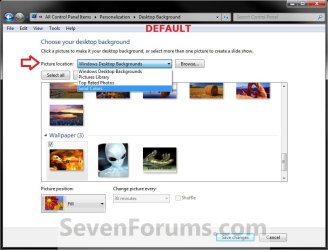
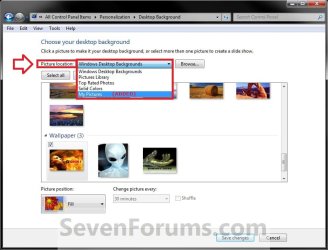
This will show you how to either reset to default or remove a folder in the desktop background picture location drop down list in Personalization in Windows 7 or Windows 8.


EXAMPLE: Desktop Background Picture Location Example.jpgDefault.jpg


OPTION ONE

To Reset Picture Location to Default using a REG Download


NOTE: This option will reset the picture location drop down menu list back to only having the default folders removing any folders that you have added (Option Three below) by browsing to them. 1. Click on the Download button below to download the file below. Reset_Desktop_Background_Picture_Location_History.reg

Download


2. Save the .reg file to your desktop.

3. Double click/tap on the downloaded .reg file to merge it.

4. Click/tap on Run, Yes (UAC), Yes, and OK when prompted.

5. When finished, you can delete the downloaded .reg file if you like.

6. Close and reopen Desktop Background in Windows 7 or Windows 8 to see the change.


OPTION TWO

Reset or Remove a Picture Location Through Registry


NOTE: This option will allow you to either manually reset the picture location drop down menu list back to only having the default folders removing any folders that you have added (Option Three below) by browsing to them, or only remove one or more folders listed in the picture location drop down menu list. 1. Press the Windows + R keys to open the Run dialog, type regedit, and press Enter.

2. If prompted by UAC, then click/tap on Yes to approve or type in the administrator's password.

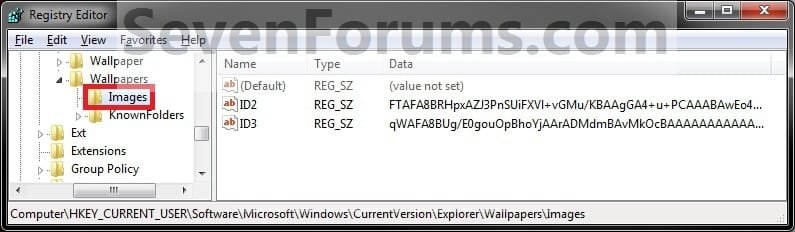
3. In regedit, navigate to the location below: (see screenshot below)
HKEY_CURRENT_USER\Software\Microsoft\Windows\CurrentVersion\Explorer\Wallpapers\Images
Reset_Reg.jpg
4. To Reset Desktop Background Picture Location History A) In the left pane of regedit, right click on Images, and click/tap on Delete. (see screenshot above)
NOTE: Images is restored automatically the first time that you add (Option Three below) a folder by browsing to.

B) Click/tap on Yes to confirm deletion. (see screenshot below) Reset_Confirm.jpg
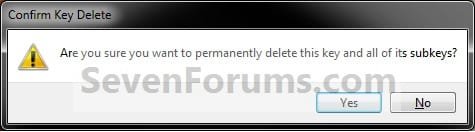
C) Go to step 6.
5. To Remove a Listed Folder in Picture Location A) In the right pane of Images, right click on one of the listed ID# (0-9) that you want to remove, and click/tap on Delete. (see screenshot below)

   Tip
The top 4 Windows Desktop Backgrounds, Pictures Library, Top Rated Photos, and Solid Colors default folders will not be included in the listed ID#'s.

The folders that you added will be listed in order under the default ones above with the same ID# order listed in the registry.
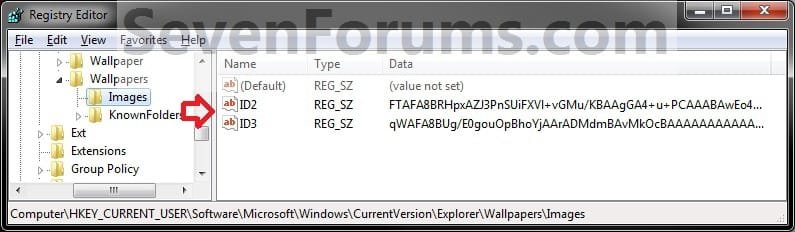
Remove_Reg.jpg
B) Click/tap on Yes to confirm deletion. (see screenshot below)
NOTE: If you made a mistake and deleted the wrong picture location folder, then you can add it back by just browsing to and selecting it in Option Three below. Remove_Confirm.jpg
C) Repeat steps 6A/B if you wish to removed another added picture location folder.
6. Close regedit.

7. Close and reopen Desktop Background in Windows 7 or Windows 8 to see the change.


OPTION THREE

Add a Picture Location Through Desktop Background

1. Open Desktop Background in Windows 7 or Windows 8 in Personalization.

2. To the right of Picture location, click on the Browse button. (see screenshot below) Add.jpg
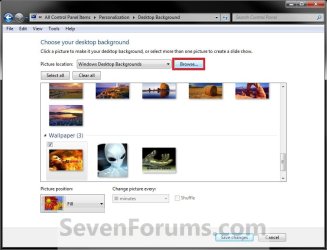
3. Navigate to and select the folder you want to be added to the picture location history, and click/tap on OK. (see screenshot below) Browse.jpg
4. It will be listed in the Picture location drop down arrow box.
That's it,
Shawn


Attachments

Last edited:
AWESOME Shawn! That is another great tutorial, That bugs me seeing those old ones there. You're the Man. :thumbsup:
 

My Computer

Computer type
PC/Desktop
Computer Manufacturer/Model Number
Self Built
OS
Win 10 Pro x64
CPU
Intel I5-2500K @3.3GHz
Motherboard
Asrock P67 Extreme4
Memory
16GB G.Skill Ripjaws X (4x4GB)
Graphics Card(s)
EVGA GeForce 750 Ti SC 2GB
Sound Card
ASUS Xonar DG 5.1 Channels 24-bit 96KHz PCI Interface Sound
Monitor(s) Displays
auria eq2367
Screen Resolution
1920 x 1080
Hard Drives
250GB Samsung 850 EVO SSD
1TB WD Blue
1TB Hitachi
PSU
SeaSonic X 650W 80 Plus Gold
Case
Corsair Obsidian 750D
Cooling
Corsair H60, Three 140mm case fans
Keyboard
Logitech Wireless Keyboard K520
Mouse
Logitech Wireless Mouse M310
Internet Speed
Wave Broadband ~ 100 dn 5 up
Antivirus
Windows Defender, Malwarebytes Premium
Browser
Edge, IE11, Chrome
Other Info
Laptop specs: HP g7-1365dx /
CPU: AMD A6-3420M APU with Radeon(tm) HD Graphics /
RAM: Crucial 8Gb (2x4Gb) /
SSD: Crucial M4-CT128M4SSD2 ATA Device/ FW 000F /
GFX: AMD Radeon HD 6520G /
OS: Windows 10 Pro x64
Thank you Derek. You're most welcome. Yeah, that had bugged me to. :)
 

My Computer

Computer type
PC/Desktop
Computer Manufacturer/Model Number
Self built custom
OS
64-bit Windows 11 Pro for Workstations
CPU
Intel i7-8700K OC'd to 5 GHz
Motherboard
ASUS ROG Maximus XI Formula Z390
Memory
64 GB (4x16GB) G.SKILL TridentZ RGB DDR4 3600 MHz
Graphics Card(s)
ASUS ROG-STRIX-GTX1080TI-O11G-GAMING
Sound Card
Integrated
Monitor(s) Displays
2 x Samsung Odyssey G7 27"
Screen Resolution
2560x1440
Hard Drives
1TB Samsung 990 PRO M.2,
4TB Samsung 990 PRO PRO M.2,
TerraMaster F8 SSD Plus NAS
PSU
Seasonic Prime Titanium 850W
Case
Thermaltake Core P3
Cooling
Corsair Hydro H115i
Keyboard
Logitech wireless K800
Mouse
Logitech MX Master 4
Internet Speed
2 Gb/s Download and 100 Mb/s Upload
Antivirus
Malwarebyte Anti-Malware Premium
Browser
Google Chrome
Other Info
Logitech Z625 speaker system,
Logitech BRIO 4K Pro webcam,
HP Color LaserJet Pro MFP M477fdn,
APC SMART-UPS RT 1000 XL - SURT1000XLI,
Galaxy S23 Plus phone
You're most welcome Endless, and welcome to Seven Forums. :)
 

My Computer

Computer type
PC/Desktop
Computer Manufacturer/Model Number
Self built custom
OS
64-bit Windows 11 Pro for Workstations
CPU
Intel i7-8700K OC'd to 5 GHz
Motherboard
ASUS ROG Maximus XI Formula Z390
Memory
64 GB (4x16GB) G.SKILL TridentZ RGB DDR4 3600 MHz
Graphics Card(s)
ASUS ROG-STRIX-GTX1080TI-O11G-GAMING
Sound Card
Integrated
Monitor(s) Displays
2 x Samsung Odyssey G7 27"
Screen Resolution
2560x1440
Hard Drives
1TB Samsung 990 PRO M.2,
4TB Samsung 990 PRO PRO M.2,
TerraMaster F8 SSD Plus NAS
PSU
Seasonic Prime Titanium 850W
Case
Thermaltake Core P3
Cooling
Corsair Hydro H115i
Keyboard
Logitech wireless K800
Mouse
Logitech MX Master 4
Internet Speed
2 Gb/s Download and 100 Mb/s Upload
Antivirus
Malwarebyte Anti-Malware Premium
Browser
Google Chrome
Other Info
Logitech Z625 speaker system,
Logitech BRIO 4K Pro webcam,
HP Color LaserJet Pro MFP M477fdn,
APC SMART-UPS RT 1000 XL - SURT1000XLI,
Galaxy S23 Plus phone
good job but do you know how to change the: how the pointer looks history
post a tutorial if you do

thanks Jack
 

My Computer

Computer Manufacturer/Model Number
7600
OS
Windows 7 Home Premium
CPU
Pentium(R) Dual-Core E5300 @ 2.60GHz
Motherboard
ASUS P5KPL-AM/PS
Memory
4GB RAM
Graphics Card(s)
NVIDIA GeForce 9500 GT
Monitor(s) Displays
Benq 22"
Screen Resolution
1920 x 1080
Hard Drives
600GB NTFS HDD WD, 1TB External HDD HP simple save , 1TB External WD HDD, 250GB External WD HDD.
Case
Cooler Master Scout
Keyboard
Razer Lycosa
Mouse
Razer Imperator
Other Info
Windows®. Life without Walls™.

Love Steam
Hello Jack,

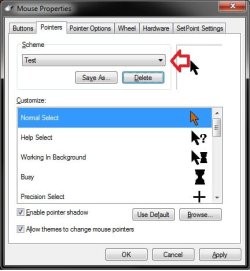
You should be able to just select a "Mouse Pointer" scheme that you had saved, and delete it to remove it from the list. You cannot delete the default schemes though.

Pointers.jpg

Hope this helps,
Shawn
 

My Computer

Computer type
PC/Desktop
Computer Manufacturer/Model Number
Self built custom
OS
64-bit Windows 11 Pro for Workstations
CPU
Intel i7-8700K OC'd to 5 GHz
Motherboard
ASUS ROG Maximus XI Formula Z390
Memory
64 GB (4x16GB) G.SKILL TridentZ RGB DDR4 3600 MHz
Graphics Card(s)
ASUS ROG-STRIX-GTX1080TI-O11G-GAMING
Sound Card
Integrated
Monitor(s) Displays
2 x Samsung Odyssey G7 27"
Screen Resolution
2560x1440
Hard Drives
1TB Samsung 990 PRO M.2,
4TB Samsung 990 PRO PRO M.2,
TerraMaster F8 SSD Plus NAS
PSU
Seasonic Prime Titanium 850W
Case
Thermaltake Core P3
Cooling
Corsair Hydro H115i
Keyboard
Logitech wireless K800
Mouse
Logitech MX Master 4
Internet Speed
2 Gb/s Download and 100 Mb/s Upload
Antivirus
Malwarebyte Anti-Malware Premium
Browser
Google Chrome
Other Info
Logitech Z625 speaker system,
Logitech BRIO 4K Pro webcam,
HP Color LaserJet Pro MFP M477fdn,
APC SMART-UPS RT 1000 XL - SURT1000XLI,
Galaxy S23 Plus phone
Can no longer add folder

So I know how to do whats described, yet somehow (in the last two weeks) I have lost the ability to add folders.

I Browse to one(any folder anywhere) and select it, and it doesn't work. Nothing happens, the folder is not added?? Any ideas?

How can I make it work again?
or
How can I manually(regedit) add in a new folder location? ++

Full add min rights etc.
 

My Computer

Computer Manufacturer/Model Number
Dell Latitude 5520
OS
Windows 7 Professional 64bit OS
CPU
i-5 2520 CPU @ 2.50GHz
Memory
4GB
Hello Debellator, and welcome to Seven Forums.

Interesting. Does the folder that you selected contain any images in it? Could you post a few screenshots of what you are seeing instead to see if something may stand out?
 

My Computer

Computer type
PC/Desktop
Computer Manufacturer/Model Number
Self built custom
OS
64-bit Windows 11 Pro for Workstations
CPU
Intel i7-8700K OC'd to 5 GHz
Motherboard
ASUS ROG Maximus XI Formula Z390
Memory
64 GB (4x16GB) G.SKILL TridentZ RGB DDR4 3600 MHz
Graphics Card(s)
ASUS ROG-STRIX-GTX1080TI-O11G-GAMING
Sound Card
Integrated
Monitor(s) Displays
2 x Samsung Odyssey G7 27"
Screen Resolution
2560x1440
Hard Drives
1TB Samsung 990 PRO M.2,
4TB Samsung 990 PRO PRO M.2,
TerraMaster F8 SSD Plus NAS
PSU
Seasonic Prime Titanium 850W
Case
Thermaltake Core P3
Cooling
Corsair Hydro H115i
Keyboard
Logitech wireless K800
Mouse
Logitech MX Master 4
Internet Speed
2 Gb/s Download and 100 Mb/s Upload
Antivirus
Malwarebyte Anti-Malware Premium
Browser
Google Chrome
Other Info
Logitech Z625 speaker system,
Logitech BRIO 4K Pro webcam,
HP Color LaserJet Pro MFP M477fdn,
APC SMART-UPS RT 1000 XL - SURT1000XLI,
Galaxy S23 Plus phone
Windows 7 BG

Hello Debellator, and welcome to Seven Forums.

Interesting. Does the folder that you selected contain any images in it? Could you post a few screenshots of what you are seeing instead to see if something may stand out?


Well No Screenshot would really show anything there is no error or alert, it allows me to navigate to any folder. I have several sub folders in my Pictures library and when I select one nothing happens, the window goes away as if though it worked but the folder is not there to select.

I thought it might be related to how many pics were in a certain folder(18k) so I chose one with only 10 in it and it did not help.
 

My Computer

Computer Manufacturer/Model Number
Dell Latitude 5520
OS
Windows 7 Professional 64bit OS
CPU
i-5 2520 CPU @ 2.50GHz
Memory
4GB
Do they show if you select the Pictures Library itself from the drop down menu for "Pictures location"?

Do you have this same problem if you select any other folder with images in it other than a included library folder?
 

My Computer

Computer type
PC/Desktop
Computer Manufacturer/Model Number
Self built custom
OS
64-bit Windows 11 Pro for Workstations
CPU
Intel i7-8700K OC'd to 5 GHz
Motherboard
ASUS ROG Maximus XI Formula Z390
Memory
64 GB (4x16GB) G.SKILL TridentZ RGB DDR4 3600 MHz
Graphics Card(s)
ASUS ROG-STRIX-GTX1080TI-O11G-GAMING
Sound Card
Integrated
Monitor(s) Displays
2 x Samsung Odyssey G7 27"
Screen Resolution
2560x1440
Hard Drives
1TB Samsung 990 PRO M.2,
4TB Samsung 990 PRO PRO M.2,
TerraMaster F8 SSD Plus NAS
PSU
Seasonic Prime Titanium 850W
Case
Thermaltake Core P3
Cooling
Corsair Hydro H115i
Keyboard
Logitech wireless K800
Mouse
Logitech MX Master 4
Internet Speed
2 Gb/s Download and 100 Mb/s Upload
Antivirus
Malwarebyte Anti-Malware Premium
Browser
Google Chrome
Other Info
Logitech Z625 speaker system,
Logitech BRIO 4K Pro webcam,
HP Color LaserJet Pro MFP M477fdn,
APC SMART-UPS RT 1000 XL - SURT1000XLI,
Galaxy S23 Plus phone
Windows 7 BG

No they don't show even the main Pictures Folder.

And yes same problem, I tried creating a folder with two images on the desktop and selecting that one and it did the same thing.
 

My Computer

Computer Manufacturer/Model Number
Dell Latitude 5520
OS
Windows 7 Professional 64bit OS
CPU
i-5 2520 CPU @ 2.50GHz
Memory
4GB
Debellator,

Go ahead and run a sfc /scannow command to see if it can find and fix any corrupted system files that may be the cause of this.

If not, then you might consider doing a system restore using a restore point (if available) dated when this did work properly.
 

My Computer

Computer type
PC/Desktop
Computer Manufacturer/Model Number
Self built custom
OS
64-bit Windows 11 Pro for Workstations
CPU
Intel i7-8700K OC'd to 5 GHz
Motherboard
ASUS ROG Maximus XI Formula Z390
Memory
64 GB (4x16GB) G.SKILL TridentZ RGB DDR4 3600 MHz
Graphics Card(s)
ASUS ROG-STRIX-GTX1080TI-O11G-GAMING
Sound Card
Integrated
Monitor(s) Displays
2 x Samsung Odyssey G7 27"
Screen Resolution
2560x1440
Hard Drives
1TB Samsung 990 PRO M.2,
4TB Samsung 990 PRO PRO M.2,
TerraMaster F8 SSD Plus NAS
PSU
Seasonic Prime Titanium 850W
Case
Thermaltake Core P3
Cooling
Corsair Hydro H115i
Keyboard
Logitech wireless K800
Mouse
Logitech MX Master 4
Internet Speed
2 Gb/s Download and 100 Mb/s Upload
Antivirus
Malwarebyte Anti-Malware Premium
Browser
Google Chrome
Other Info
Logitech Z625 speaker system,
Logitech BRIO 4K Pro webcam,
HP Color LaserJet Pro MFP M477fdn,
APC SMART-UPS RT 1000 XL - SURT1000XLI,
Galaxy S23 Plus phone
So I know how to do whats described, yet somehow (in the last two weeks) I have lost the ability to add folders.

I Browse to one(any folder anywhere) and select it, and it doesn't work. Nothing happens, the folder is not added?? Any ideas?

How can I make it work again?
or
How can I manually(regedit) add in a new folder location? ++

Full add min rights etc.
Finlay! Someone with the same error/problem as me. I'm not alone.

This has happen to me on two different computers, both where fresh installs of Windows 7 (Ultimate I think).
Your guide on how to remove one path using regedit works fine.
Adding a path using the normal method with the browse botton does not work. You can browse for a folder but it doesn't get added.

My temporary solution to this:

On a working windows 7 computer.
1. Add a path to some wallpapers like C:\wallpaper
2. Regedit to HKEY_CURRENT_USER\Software\Microsoft\Windows\CurrentVersion\Explorer\Wallpapers\Images
3. Export the folder Images to a .reg file

On the non working windows 7 computer.
4. Make the folder as in step 1, making sure it's the exact same name and path.
5. Run .reg file and the path should have been added.
 
Last edited:

My Computer

OS
Microsoft Windows 7 Ultimate SP1 x64
For anyone else reading this, the Picture Location Browse button stops working AFTER "Libraries" are disabled using this registry entry:

[-HKEY_LOCAL_MACHINE\SOFTWARE\Microsoft\Windows\CurrentVersion\Explorer\Desktop\NameSpace\{031E4825-7B94-4dc3-B131-E946B44C8DD5}]

I like not having Libraries, but that's one of the side effects.

One way around it is to be sure libraries are working. Create a folder to use for personal wallpapers somewhere. Go to the Personalize / Desktop Background page / Browse to that Personal Wallpaper folder. Now that folder will show up in the drop down list from then on. Then disable libraries.
 

My Computer

OS
Windows 7

My Computer

Computer type
PC/Desktop
Computer Manufacturer/Model Number
Self built custom
OS
64-bit Windows 11 Pro for Workstations
CPU
Intel i7-8700K OC'd to 5 GHz
Motherboard
ASUS ROG Maximus XI Formula Z390
Memory
64 GB (4x16GB) G.SKILL TridentZ RGB DDR4 3600 MHz
Graphics Card(s)
ASUS ROG-STRIX-GTX1080TI-O11G-GAMING
Sound Card
Integrated
Monitor(s) Displays
2 x Samsung Odyssey G7 27"
Screen Resolution
2560x1440
Hard Drives
1TB Samsung 990 PRO M.2,
4TB Samsung 990 PRO PRO M.2,
TerraMaster F8 SSD Plus NAS
PSU
Seasonic Prime Titanium 850W
Case
Thermaltake Core P3
Cooling
Corsair Hydro H115i
Keyboard
Logitech wireless K800
Mouse
Logitech MX Master 4
Internet Speed
2 Gb/s Download and 100 Mb/s Upload
Antivirus
Malwarebyte Anti-Malware Premium
Browser
Google Chrome
Other Info
Logitech Z625 speaker system,
Logitech BRIO 4K Pro webcam,
HP Color LaserJet Pro MFP M477fdn,
APC SMART-UPS RT 1000 XL - SURT1000XLI,
Galaxy S23 Plus phone
Windows 10?

Can you update this topic for Windows 10? ...on removing picture location history (removing added images from the choices available in Personalize, Backgrounds).

I have cleared the registry entries for ...\Explorer\Wallpapers\Images ...and the pictures persist among the choices for Backgrounds.

I have also checked/cleared C:\Windows\Web\Wallpaper\Windows of any images that I don't want... but images persist in choices.

Thanks
 

My Computer

OS
Windows 7 Home Premium 64bit
Hello RpD,

That would be a topic to post at our sister site www.tenforums.com instead. :)
 

My Computer

Computer type
PC/Desktop
Computer Manufacturer/Model Number
Self built custom
OS
64-bit Windows 11 Pro for Workstations
CPU
Intel i7-8700K OC'd to 5 GHz
Motherboard
ASUS ROG Maximus XI Formula Z390
Memory
64 GB (4x16GB) G.SKILL TridentZ RGB DDR4 3600 MHz
Graphics Card(s)
ASUS ROG-STRIX-GTX1080TI-O11G-GAMING
Sound Card
Integrated
Monitor(s) Displays
2 x Samsung Odyssey G7 27"
Screen Resolution
2560x1440
Hard Drives
1TB Samsung 990 PRO M.2,
4TB Samsung 990 PRO PRO M.2,
TerraMaster F8 SSD Plus NAS
PSU
Seasonic Prime Titanium 850W
Case
Thermaltake Core P3
Cooling
Corsair Hydro H115i
Keyboard
Logitech wireless K800
Mouse
Logitech MX Master 4
Internet Speed
2 Gb/s Download and 100 Mb/s Upload
Antivirus
Malwarebyte Anti-Malware Premium
Browser
Google Chrome
Other Info
Logitech Z625 speaker system,
Logitech BRIO 4K Pro webcam,
HP Color LaserJet Pro MFP M477fdn,
APC SMART-UPS RT 1000 XL - SURT1000XLI,
Galaxy S23 Plus phone
Back
Top