
You are using an out of date browser. It may not display this or other websites correctly.
You should upgrade or use an alternative browser.
You should upgrade or use an alternative browser.
Where is Volume Control ? Mic Enable & Disable
- Thread starter ITZAD
- Start date

Hi ITZAD, right click the volume icon at the bottom right of the taskbar and there it is, Volume Control Options.
My Computer
At a glance
Vista Ult64, Win7600Intel Core 2 Quad Q6600 @ 2400 MHz 64bit OS4096 MB DDR3-SDRAMATI Radeon HD 3870 Series x2 Crossfired
- Computer Manufacturer/Model Number
- Self Build 64bit
- OS
- Vista Ult64, Win7600
- CPU
- Intel Core 2 Quad Q6600 @ 2400 MHz 64bit OS
- Motherboard
- Asus P5E3 Deluxe WiFi @p 64 bit OS
- Memory
- 4096 MB DDR3-SDRAM
- Graphics Card(s)
- ATI Radeon HD 3870 Series x2 Crossfired
- Sound Card
- Realtek on board
- Monitor(s) Displays
- Samsung SyncMaster - 23 inches
- Screen Resolution
- 1680x1050 pixels at 60 Hz in True Colors
- Hard Drives
- Hitachi (250 GB)/Samsung 750 GB. /Barracuda 160 GB.
My Book 1 TB external..
- PSU
- Cooler Master 1000w
- Case
- Cooler Master Cosmos 1000.
- Cooling
- Fans and fresh air,
- Keyboard
- Wireless
- Mouse
- Wireless
- Internet Speed
- Never fast enough
- Other Info
- I use a Magnum.
 Nice one jfar
 Replay
Hi,
first of all thanks for fast replay .. but after i clicked on the Speaker icon i did not find Mic or Record button or option which allow me to add it to Speaker icon on the Taskbar
and here is the result


and here is when i click on Speaker Icon on Taskbar then click on Mixer

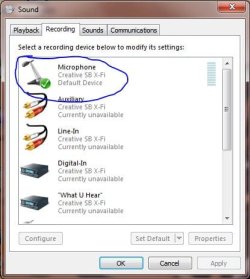
As i know i can enable or disable your microphone through Control Panel -> Sound. Select the recording tab, and enable/disable at will.
but what i'm looking and asking for is how can i add a separate taskbar icon for microphone control , to mute (disable) and unmute (enable) Mic like it was in Windows XP
Hi,
first of all thanks for fast replay .. but after i clicked on the Speaker icon i did not find Mic or Record button or option which allow me to add it to Speaker icon on the Taskbar
and here is the result
and here is when i click on Speaker Icon on Taskbar then click on Mixer
As i know i can enable or disable your microphone through Control Panel -> Sound. Select the recording tab, and enable/disable at will.
but what i'm looking and asking for is how can i add a separate taskbar icon for microphone control , to mute (disable) and unmute (enable) Mic like it was in Windows XP
My Computer
At a glance
Windows 7
- OS
- Windows 7
Well all I can do is tell you how to pin the Sound Recorder to the taskbar. Go to Start / All Programs/Accessories/ right click Sound Recorder/Pin to Taskbar.
My Computer
At a glance
Vista Ult64, Win7600Intel Core 2 Quad Q6600 @ 2400 MHz 64bit OS4096 MB DDR3-SDRAMATI Radeon HD 3870 Series x2 Crossfired
- Computer Manufacturer/Model Number
- Self Build 64bit
- OS
- Vista Ult64, Win7600
- CPU
- Intel Core 2 Quad Q6600 @ 2400 MHz 64bit OS
- Motherboard
- Asus P5E3 Deluxe WiFi @p 64 bit OS
- Memory
- 4096 MB DDR3-SDRAM
- Graphics Card(s)
- ATI Radeon HD 3870 Series x2 Crossfired
- Sound Card
- Realtek on board
- Monitor(s) Displays
- Samsung SyncMaster - 23 inches
- Screen Resolution
- 1680x1050 pixels at 60 Hz in True Colors
- Hard Drives
- Hitachi (250 GB)/Samsung 750 GB. /Barracuda 160 GB.
My Book 1 TB external..
- PSU
- Cooler Master 1000w
- Case
- Cooler Master Cosmos 1000.
- Cooling
- Fans and fresh air,
- Keyboard
- Wireless
- Mouse
- Wireless
- Internet Speed
- Never fast enough
- Other Info
- I use a Magnum.
Well all I can do is tell you how to pin the Sound Recorder to the taskbar. Go to Start / All Programs/Accessories/ right click Sound Recorder/Pin to Taskbar.
Many thanks jfar, but Sound recorder is just to record sound not to enable or disable MIC
Thanks anyway and waiting for another help
My Computer
At a glance
Windows 7
- OS
- Windows 7

DOC8
New member
- Local time
- 11:55 AM
- Messages
- 9
mic
right click volume icon in system tray.choose recording devices. choose recording tab/microphone/properties/device usage/OK/OK.Good luck DOC
right click volume icon in system tray.choose recording devices. choose recording tab/microphone/properties/device usage/OK/OK.Good luck DOC
My Computer
At a glance
windows 7 64bit
- Computer Manufacturer/Model Number
- Dell dimension E520
- OS
- windows 7 64bit
mikegonzalez2k
New member
- Local time
- 9:55 AM
- Messages
- 5
Well since no one has answered your question I will share what I have found as a working solution. Unlike the previous Windows XP the mic is actually stored with the other devices in a separate window.
You can no longer mute/unmute but rather you have to enable / disable the device.
At this point you might be asking yourself how to re-enable the device once disabled. This is actually easier than it sounds.
First right click on the Speaker icon in the bottom right of your taskbar.
Select "Recording Devices"
This will open up your Sound Window.
Select the tab listed as "Recording"
This window is the equivalent of when you selected the mixer in XP.
You will see all of your devices listed.
You can enable/disable them, or change their properties to change their volume.
NOTE:
IF YOU DO NOT SEE YOUR MICROPHONE IT IS BECAUSE IT IS HIDDEN.
TO UNHIDE ALL DISABLED DEVICES RIGHT CLICK IN THE BOX WHERE THE DEVICES ARE LISTED AND SELECT "Show Disabled Devices."
Now you will see all devices available.
The disabled ones are greyed out.
You can right click them and re-enable them at your leisure.
To change their volume
Right click a device then choose "Properties"
Then select the tab "Levels"
I hope this has helped you...
*************************************************
CORRECTION TO PREVIOUS POST
************************************************
You do NOT have to enable/disable the mic every time you want to mute it.
Instead you can simply mute it from the level tab under its properties
- Right Click on Volume Icon
- Select Recording Devices
- Double Click the Microphone from the list of devices (You can also right click and select Properties)
- Open the tab marked "Levels"
- Adjust the volume slider or click on the mic icon to mute
You can no longer mute/unmute but rather you have to enable / disable the device.
At this point you might be asking yourself how to re-enable the device once disabled. This is actually easier than it sounds.
First right click on the Speaker icon in the bottom right of your taskbar.
Select "Recording Devices"
This will open up your Sound Window.
Select the tab listed as "Recording"
This window is the equivalent of when you selected the mixer in XP.
You will see all of your devices listed.
You can enable/disable them, or change their properties to change their volume.
NOTE:
IF YOU DO NOT SEE YOUR MICROPHONE IT IS BECAUSE IT IS HIDDEN.
TO UNHIDE ALL DISABLED DEVICES RIGHT CLICK IN THE BOX WHERE THE DEVICES ARE LISTED AND SELECT "Show Disabled Devices."
Now you will see all devices available.
The disabled ones are greyed out.
You can right click them and re-enable them at your leisure.
To change their volume
Right click a device then choose "Properties"
Then select the tab "Levels"
I hope this has helped you...
*************************************************
CORRECTION TO PREVIOUS POST
************************************************
You do NOT have to enable/disable the mic every time you want to mute it.
Instead you can simply mute it from the level tab under its properties
- Right Click on Volume Icon
- Select Recording Devices
- Double Click the Microphone from the list of devices (You can also right click and select Properties)
- Open the tab marked "Levels"
- Adjust the volume slider or click on the mic icon to mute
Last edited:
My Computer
At a glance
Windows 7Intel Core 2 Duo E6750 @ 2.66 GHz4 GB Corsair XMS2 800 MHz Dual ChannelNvidia GeForce 9800 GTX
- Computer Manufacturer/Model Number
- Self Built Computer
- OS
- Windows 7
- CPU
- Intel Core 2 Duo E6750 @ 2.66 GHz
- Motherboard
- MSI 7320
- Memory
- 4 GB Corsair XMS2 800 MHz Dual Channel
- Graphics Card(s)
- Nvidia GeForce 9800 GTX
- Sound Card
- Creative Labs X-FI Platinum
- Monitor(s) Displays
- Vizio 42' LCD TV
- Hard Drives
- 2x 1 TB Western Digital
- Case
- Generic Server Tower with removable docking bays
- Cooling
- 4 Internal 120MM Fans
My Computer
At a glance
Windows 7Intel(R) Core(TM)2 Quad CPU Q6600 2.40 GHzDDR2 8192 MBytes (G.Skill)NVIDIA GeForce 8800 GT OC2
- Computer Manufacturer/Model Number
- Custom Built
- OS
- Windows 7
- CPU
- Intel(R) Core(TM)2 Quad CPU Q6600 2.40 GHz
- Motherboard
- ASUS Striker Extreme
- Memory
- DDR2 8192 MBytes (G.Skill)
- Graphics Card(s)
- NVIDIA GeForce 8800 GT OC2
- Sound Card
- Creative Sound Blaster X-Fi Fatality Professional Series
- Monitor(s) Displays
- Brand unknown (24in: 1920x1200)
- Hard Drives
- MVODOA STRIPE 279.47G (raided drives both WD Raptors)
WDC WD1600JB-00EVA0 ATA Device (IDE)
Maxtor 4G160J8 ATA Device (IDE)
WDC WD75 00AAKS-00RBA SCSI Disk Device
WDC WD75 00AAKS-00RBA SCSI Disk Device
WDC WD75 00AAKS-00RBA SCSI Disk Device
mikegonzalez2k
New member
- Local time
- 9:55 AM
- Messages
- 5
Okay I have a desktop mic plugged into the mic jack. Even though I disabled the device when i beat on the mic i still hear sounds coming out of the speakers. I want to keep my mic plugged in but I don't want it picking up any sound. What do I do?
The Reason why you still hear sound is because Windows 7 by default enables your device playback to be heard. You need to change this.
- Right click on the Sound Icon in your system tray
- Select your Mic from the list of Recording Devices
- Right click and select Properties
- Open the tab marked "Listen"
- Uncheck "Listen to this Device"
By doing this you can talk into your mic without hearing yourself.
This will prevent the overlap when your mic picks up surrounding volume from your speakers.
My Computer
At a glance
Windows 7Intel Core 2 Duo E6750 @ 2.66 GHz4 GB Corsair XMS2 800 MHz Dual ChannelNvidia GeForce 9800 GTX
- Computer Manufacturer/Model Number
- Self Built Computer
- OS
- Windows 7
- CPU
- Intel Core 2 Duo E6750 @ 2.66 GHz
- Motherboard
- MSI 7320
- Memory
- 4 GB Corsair XMS2 800 MHz Dual Channel
- Graphics Card(s)
- Nvidia GeForce 9800 GTX
- Sound Card
- Creative Labs X-FI Platinum
- Monitor(s) Displays
- Vizio 42' LCD TV
- Hard Drives
- 2x 1 TB Western Digital
- Case
- Generic Server Tower with removable docking bays
- Cooling
- 4 Internal 120MM Fans
bshathaway
New member
- Local time
- 11:55 AM
- Messages
- 1
I am having the same problem. I followed the instructions and "listen to this device" is not checked, however I can still hear myself talk and even breathe through the headset. Any further suggestions?
My Computer
At a glance
windows 7
- OS
- windows 7
mikegonzalez2k
New member
- Local time
- 9:55 AM
- Messages
- 5
The only thing I can think of is that another application may be controlling your sound devices. Even though Windows is set to mute the mic, another application might be passing it through.
For example, I use Ventrillo to chat, and even though my mic is muted, ventrillo will override the settings when it is on and allow me to talk when i press a button.
Also you might want to check in your control panel and see what is set to the default playback device. It might be a hardware setting dealing with your sound card and how it controls what is sent back to windows.
For example, I use Ventrillo to chat, and even though my mic is muted, ventrillo will override the settings when it is on and allow me to talk when i press a button.
Also you might want to check in your control panel and see what is set to the default playback device. It might be a hardware setting dealing with your sound card and how it controls what is sent back to windows.
My Computer
At a glance
Windows 7Intel Core 2 Duo E6750 @ 2.66 GHz4 GB Corsair XMS2 800 MHz Dual ChannelNvidia GeForce 9800 GTX
- Computer Manufacturer/Model Number
- Self Built Computer
- OS
- Windows 7
- CPU
- Intel Core 2 Duo E6750 @ 2.66 GHz
- Motherboard
- MSI 7320
- Memory
- 4 GB Corsair XMS2 800 MHz Dual Channel
- Graphics Card(s)
- Nvidia GeForce 9800 GTX
- Sound Card
- Creative Labs X-FI Platinum
- Monitor(s) Displays
- Vizio 42' LCD TV
- Hard Drives
- 2x 1 TB Western Digital
- Case
- Generic Server Tower with removable docking bays
- Cooling
- 4 Internal 120MM Fans
Hi, I would like to know if there is a simple mute button for the taskbar or something that would make it easier than going into the sound settings and manually muting/unmuting the microphone everytime I want to use it.
My Computer
At a glance
Windows 7INtel Pentium Dual Core 2Ghz4gbNvidia Geforce GT120M
- Computer Manufacturer/Model Number
- ASUS K70IO-TY002C
- OS
- Windows 7
- CPU
- INtel Pentium Dual Core 2Ghz
- Motherboard
- -
- Memory
- 4gb
- Graphics Card(s)
- Nvidia Geforce GT120M
- Sound Card
- -
- Monitor(s) Displays
- 17.3 inch laptop display
- Hard Drives
- Western Digital Scorpio Blue 500gb.
- PSU
- -
- Case
- -
- Cooling
- -
Rustamus82
New member
How to disable mic totally from Windows?
I experiencing same problem. Even if I adjust Levels for Microphone to 0. and Microphone Boost to 0.0 dB and still if i have mice up close and speaking into it - still can hear voice. etc. I tried even disabling microphon and still can hear sound
After sometime....
what is the most frustrating is that those levels are adjusted back to some values!
I tried to see if there was extra controls through Realtek HD Audion control, but it wasn't!
PS. I did also tried on advance tab disabling Exclusive Mode:
Allow Application to take exclusive control on this device (unchecked)
Give exclusive mode aplications priority (unchecked)
But nothing seems to help, still hearing sound through Mic! Anybody have idea how to mute Mic from Windows and not unplug it physically?
I am having the same problem. I followed the instructions and "listen to this device" is not checked, however I can still hear myself talk and even breathe through the headset. Any further suggestions?
I experiencing same problem. Even if I adjust Levels for Microphone to 0. and Microphone Boost to 0.0 dB and still if i have mice up close and speaking into it - still can hear voice. etc. I tried even disabling microphon and still can hear sound
After sometime....
what is the most frustrating is that those levels are adjusted back to some values!
I tried to see if there was extra controls through Realtek HD Audion control, but it wasn't!
PS. I did also tried on advance tab disabling Exclusive Mode:
Allow Application to take exclusive control on this device (unchecked)
Give exclusive mode aplications priority (unchecked)
But nothing seems to help, still hearing sound through Mic! Anybody have idea how to mute Mic from Windows and not unplug it physically?
My Computer
At a glance
Windows 7 64bit Pro EnglishIntel Core i5-750 2,67 GHz4GbNVIDIA GeForce 9800 GTX+
- Computer Manufacturer/Model Number
- Assembled by me.
- OS
- Windows 7 64bit Pro English
- CPU
- Intel Core i5-750 2,67 GHz
- Motherboard
- MSI P55-CD53
- Memory
- 4Gb
- Graphics Card(s)
- NVIDIA GeForce 9800 GTX+
- Sound Card
- Realtec High Definition Audio drv. 6.0.1.6013
- Monitor(s) Displays
- 1920x1080 LG W2363V
- Case
- CoolerMaster

Rustamus82,
What happens if you mute or either lower the Playback Volume in the Realtek HD Audio Manager?
Do you still hear sound from the mic?
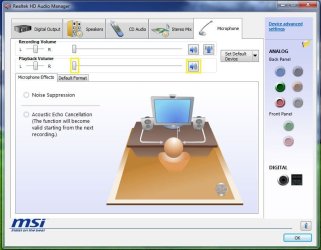
What happens if you mute or either lower the Playback Volume in the Realtek HD Audio Manager?
Do you still hear sound from the mic?
My Computer
At a glance
Windows 7 Home Premium 64 bitIntel Core i7-4790G.SKILL 8GB (2 x 4GB) DDR3 F3-10666CL9D-8GBNTAMD Radeon R7 250
- Computer type
- PC/Desktop
- Computer Manufacturer/Model Number
- Custom Build
- OS
- Windows 7 Home Premium 64 bit
- CPU
- Intel Core i7-4790
- Motherboard
- GA-Z87X-D3H
- Memory
- G.SKILL 8GB (2 x 4GB) DDR3 F3-10666CL9D-8GBNT
- Graphics Card(s)
- AMD Radeon R7 250
- Sound Card
- Realtek ALC892
- Monitor(s) Displays
- Samsung UN32EH5000, Dell 1703FPT
- Screen Resolution
- 1920 x 1080, 1280 x 1024
- Hard Drives
- WD5003AZEX
WD10EZEX
Samsung HD103SJ
Samsung 128 GB 840 PRO
- PSU
- SeaSonic M12II SS-500GM
- Case
- Fractal Design Define R4
- Cooling
- Zalman CNPS9900ALED
- Keyboard
- Logitech K800
- Mouse
- Logitech M705
- Internet Speed
- 16 Mbps
- Antivirus
- Avast
- Browser
- Firefox
- Other Info
- Bose Companion 2 Multimedia Speakers
Rustamus82
New member
Thanks a lot!
P5bdkw,
Yes, you are right! Thats it! If I do it now directly in Playback Volume in the Realtek HD Audio Manager, I don't hear then anything from the mic even after restart! I hope it will stay there! Thanks a lot!
P.S
When I did it trhough windows own sound control it didn't resembled same setup in Realtek! Thats why I was confused!
Rustamus82,
What happens if you mute or either lower the Playback Volume in the Realtek HD Audio Manager?
Do you still hear sound from the mic?
View attachment 130280
P5bdkw,
Yes, you are right! Thats it! If I do it now directly in Playback Volume in the Realtek HD Audio Manager, I don't hear then anything from the mic even after restart! I hope it will stay there! Thanks a lot!
P.S
When I did it trhough windows own sound control it didn't resembled same setup in Realtek! Thats why I was confused!
Last edited:
My Computer
At a glance
Windows 7 64bit Pro EnglishIntel Core i5-750 2,67 GHz4GbNVIDIA GeForce 9800 GTX+
- Computer Manufacturer/Model Number
- Assembled by me.
- OS
- Windows 7 64bit Pro English
- CPU
- Intel Core i5-750 2,67 GHz
- Motherboard
- MSI P55-CD53
- Memory
- 4Gb
- Graphics Card(s)
- NVIDIA GeForce 9800 GTX+
- Sound Card
- Realtec High Definition Audio drv. 6.0.1.6013
- Monitor(s) Displays
- 1920x1080 LG W2363V
- Case
- CoolerMaster
bfreestone1
New member
- Local time
- 10:55 AM
- Messages
- 1
I am having the same problem. I followed the instructions and "listen to this device" is not checked, however I can still hear myself talk and even breathe through the headset. Any further suggestions?
I was having the same problem, sorry for digging up this old thread but I thought I'd post a solution to bshataway's problem in general. I went into recording devices, double clicked the active mic. Then click the listen tab, even though it isn't checked... click the checkbox marked listen to this device. Hit apply. Then uncheck that same box and hit apply. For some reason my mic was on by default even though that box wasn't checked but following the steps above has now fixed it for me. Hope this helps someone out, if somebody has already posted a solution to bshathaway's problem in general I apologize.
My Computer
At a glance
Windows 7 Ultimate x64
- OS
- Windows 7 Ultimate x64
I think that this is absolutely pathetic. Why is it so hard to do this in Windows 7 when it was an absolute doddle in Win XP.? I find this to be intrusive. Win XP allowed me to control all of this stuff through my X-fi inbuilt software and it was a piece of cake... now I find I am clicking a million things that would once take me like 3 clicks to do. Anyway, thanks for all the comments, I have eventually got my head round it lol 
My Computer
At a glance
Windows 7 64 bit
- OS
- Windows 7 64 bit
thewickedlord
New member
- Local time
- 11:55 AM
- Messages
- 1
You can not turn your Mic off because the Freemasons and Illuminati want to hostile takeover your life, punish you when you irritate them, generate profit for them, give them ultimate control, intercept your wife, monitor and control your banking, add or deplete funds, and play songs you love to hear when you make them money! They do not believe in God, they believe in money, power, control, rules, taxes, paying dues, and intimacy with everyone you love. Accept the reality get your brain out of the TV and think.
My Computer
At a glance
Windows 7 Home Premium 32bit
- OS
- Windows 7 Home Premium 32bit
Similar threads

- Replies
- 1
- Views
- 17K
- Replies
- 5
- Views
- 1K
- Replies
- 5
- Views
- 29K
- Replies
- 17
- Views
- 43K
