Games Explorer Folder - Add Games To

How to Add Games to Games Explorer Folder in Vista, Windows 7, and Windows 8


"So you add a game into Games Explorer Folder and realize that the game has no
cover, no rating, no info... Well, this tutorial will show you
how to add all that missing information."​


First things First.
  • Adding a shortcut into Game Explorer Folder (GEF):

  • Copy the main executable, then right click and select paste shortcut.

  • Or Just Drag n Drop a shortcut of the game.
gft1.png
Use a shortcut, never use the main executable.

  • Using the Registry Editor (REd):

  • Hit the Start Orb and type regedit in the search box, an UAC prompt will ask you to authorize access by clicking Continue.

  • The Files you will need:

Download


  • Inside is the GameUXLegacyGDFs.txt file, Just save it for later use.

The Tutorial:


This tutorial subdivides in Semi-Automatic for games already in the database which the GEF doesn't recognize automatically and manual for the ones not included in the database.​

   Note
Always remember to close GEF every time you need to edit the values in the REd, otherwise the game shortcut will be deleted.


Let's Begin...


  • Semi-Automatic
Microsoft has added various old games to be recognized automatically by the GEF using a file called GameUXLegacyGDFs.dll but some of them need a little extra work to show-up.

Step 1: Add a shortcut into the GEF and then close it.

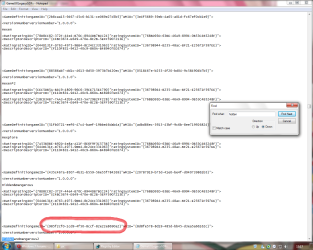
Step 2: Extract and then open the file GameUXLegacyGDFs.txt from the downloadable file.​

  • Hit Ctrl+F to bring the search option in Notepad.
  • Type just a part of the game's name.
It is very important to search only a part of the name otherwise you will cannot find any game. (e.g. if i want to find Hidden & Dangerous 2, i just type hidden in the search box).

  • Hit "Find Next" button 'till you find the game your looking for.
If you cannot find the game please refer to Manual part of this tutorial.
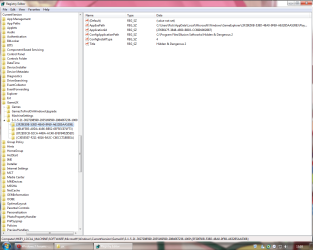
Step 3: Open the REd and navigate to this location.
HKEY_LOCAL_MACHINE\SOFTWARE\Microsoft\Windows\CurrentVersion\GameUX
gft3.png
The KEY name might be different from yours.

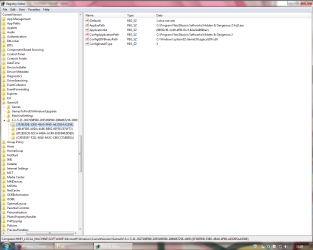
Step 4: Once you find the KEY that belongs to your game, edit as follow:

  • In AppExePath put the location of your game executable.
(e.g. C:\Program Files\Illusion Softworks\Hidden & Dangerous 2\hd2.exe).

  • In ApplicationId put the xxx value you found in *GameDefinitiongameID="xxx", on the GameUXLegacyGDFs.txt file.
gft4.png
Add just the value between commas.

  • In ConfigInstallType replace the value to 3.
  • Delete the Title String.
  • Add a new String (Right-click>New>String Value) and name it ConfigGDFBinaryPath, then in the value data space put C:\Windows\system32\GameUXLegacyGDFs.dll
gft6.png
It should be look like this.
Step 5: Close the REd and open GEF, wait 'till windows updates the game info.
gft7.png

  • Manual
If you can't find the game your looking for in GameUXLegacyGDFs.txt, you still can use another already in the file and edit its values.
Step 1: Go to All Game Guide to search your game.
gft9.png
Save the cover image for later use.
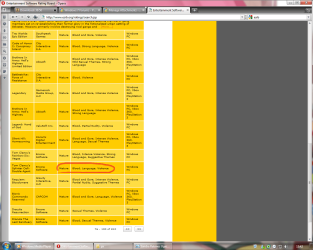
Step 2: Now go to Entertainment Software Rating Board and find a game with similar rating.
gft10.png
Step 3: Now lets find out if its listed on the GameUXLegacyGDFs.txt file, if not keep searching on the ESRB page.
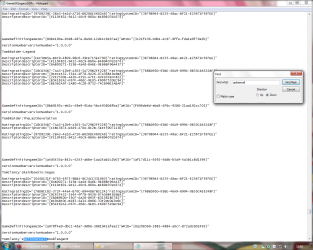
gft11.png
Step 4: Open the REd and navigate to this location.
HKEY_LOCAL_MACHINE\SOFTWARE\Microsoft\Windows\CurrentVersion\GameUX

gft3.png

The KEY name might be different from yours.


Step 5: Once you find the KEY that belongs to your game, edit as follow:


  • In AppExePath put the location of your game executable.
(e.g. C:\Program Files\Illusion Softworks\Hidden & Dangerous 2\hd2.exe).

  • In ApplicationId put the xxx value you found in *GameDefinitiongameID="xxx", on the GameUXLegacyGDFs.txt file.
gft4.png
Add just the value between commas.

  • In ConfigInstallType replace the value to 3.
  • Delete the Title String.
  • Add a new String (Right-click>New>String Value) and name it ConfigGDFBinaryPath, then in the value data space put C:\Windows\system32\GameUXLegacyGDFs.dll
gft6.png
It should be look like this.
Step 6: Open GEF and wait to update the info.
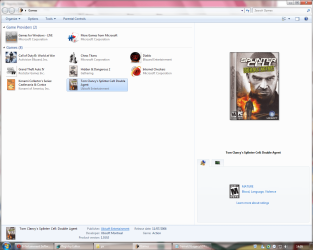
gft12.png
Step 7: Update the REd by hitting the F5 key and replace the info as necessary.
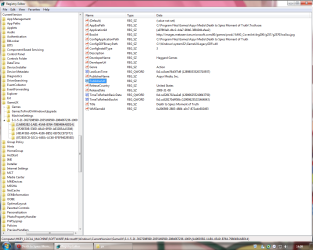
gft13.png
This is just the basic info only, you can fill the blank spaces if you like.
Step 8: Now copy and paste this values and put them like so:

  • in TimeToRefreshBasicData: b357951d59359b57 (Hexadecimal)
  • in TimeToRefreshBoxArt: 855c358859359b57 (Hexadecimal)
The given values should stop reverting the game to its defaults every once in awhile.
Step 9: Now navigate to this location and paste the image your game will use as a cover.
C:\Users\%username%\AppData\Local\Microsoft\Windows\GameExplorer\GamesBoxArt
The AppData folder is hidden by default you can learn how to unhide it in this tutorial.
Step 10: Change the name of the image with the one we're replacing.


  • If you wanna use another type of image you need to edit the last part of the BoxArt String to the kind of file you wanna use.
(e.g. ...//images.../g21004lorom.jpg) JPG/PNG/BMP.

  • Or if you want to use an icon instead, just edit:
AppExePath put the location of the icon.
BoxArt leave it blank.

gft14.png

Step 11: Now open the GEF and your game should display with the new info on it.
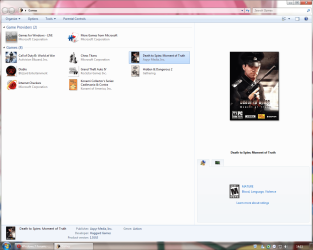
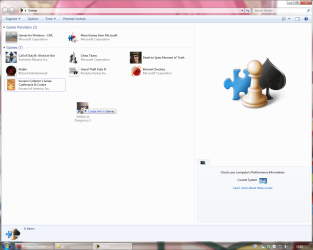
gft15.png
BTW, if you think is too much work for you, just take a look at this tutorial Games Explorer - Edit all credits to Darkness Warrior '96.


That's all for now...
Rjck.


Attachments

Last edited by a moderator:
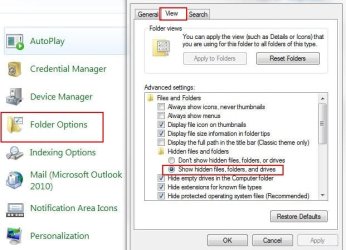
The are inside the Appdata folder, which by default is hidden.

You will need to to go to the Control panel, and choose Folder options, and check "Show hidden Folders" to see them.
 

Attachments

  • Capture.JPG
    Capture.JPG
    96.1 KB · Views: 305

My Computer

Computer Manufacturer/Model Number
Custom (Self Build)
OS
Windows 7 Home Premium 64bit
CPU
Intel Core i7 2700k
Motherboard
eVGA P67 SLI
Memory
8GB Mushkin Redline Ridgebacks @1866
Graphics Card(s)
EVGA GTX570 SC
Sound Card
XiFi Titanium HD
Monitor(s) Displays
LG W2453V
Screen Resolution
1920x1080
Hard Drives
Intel 320 80GB -- Intel X25-V 40GB --WD Black 1TB x2 -- WD Blue 640GB
PSU
Seasonic x750
Case
Corsair 600T SE White
Cooling
eVGA Superclocked CPU Cooler
Keyboard
Saitek Cyborg
Antivirus
Kaspersky
Browser
IE
Other Info
LG BD/DVD
The are inside the Appdata folder, which by default is hidden.

You will need to to go to the Control panel, and choose Folder options, and check "Show hidden Folders" to see them.

Thank you, you've been very helpful. This may be unrelated (if so I'm assuming it gets moved to right place), but I have noticed that if I want to copy + paste something, I need to keep the window of the thing I'm copying open. Is there any way around this? On XP it used to be that I could click "copy", close the window, and an hour later still paste it into something else.
 

My Computer

Computer Manufacturer/Model Number
MSI/MS-7309
OS
Windows 7 Ultimate x64
Graphics Card(s)
Radeon HD 4830
Other Info
Don't know enough about computers to fill in the rest, if any important info is missing, feel free to message me on where or how to find the details.
... This may be unrelated (if so I'm assuming it gets moved to right place), but I have noticed that if I want to copy + paste something, I need to keep the window of the thing I'm copying open. Is there any way around this? On XP it used to be that I could click "copy", close the window, and an hour later still paste it into something else.

might be cause in Win7 certain folders are UAC protected.
 

My Computer

Computer type
PC/Desktop
OS
Windows 7 Ultimate x64
CPU
Intel Core i5-2500K @4.5Ghz
Motherboard
Asus Maximus V GENE
Memory
x2 Kingston KHX1600C9D3/4G
Graphics Card(s)
NVIDIA GeForce GTS 250 - 1024MB
Sound Card
SupremeFX III built-in 8-Channel High Definition Audio
Monitor(s) Displays
Samsung Syncmaster P2270
Screen Resolution
1920x1080
Hard Drives
x1 Seagate Barracuda ST3160811AS
x2 Seagate Barracuda ST380817AS
PSU
Corsair TX750
Case
Cooler Master HAF 922 Side Window Model
Cooling
Stock Intel Cooler + Tuniq TX2
Keyboard
Dell SK-8135
Mouse
Logitech G5
Internet Speed
2 Mbps
Other Info
x2 Xbox 360 Wireless Controller for Windows
Logitech Z-5550
Sennheiser HD555
Thanks for this!

I tried the tut of dw96 first before these, his method is much simplier but i can't seem to find a way to add rating("M" Mature, "T" Teens,... etc). While your method can.

Thanks a lot!

Ur welcome Tupezky ;)
 

My Computer

Computer type
PC/Desktop
OS
Windows 7 Ultimate x64
CPU
Intel Core i5-2500K @4.5Ghz
Motherboard
Asus Maximus V GENE
Memory
x2 Kingston KHX1600C9D3/4G
Graphics Card(s)
NVIDIA GeForce GTS 250 - 1024MB
Sound Card
SupremeFX III built-in 8-Channel High Definition Audio
Monitor(s) Displays
Samsung Syncmaster P2270
Screen Resolution
1920x1080
Hard Drives
x1 Seagate Barracuda ST3160811AS
x2 Seagate Barracuda ST380817AS
PSU
Corsair TX750
Case
Cooler Master HAF 922 Side Window Model
Cooling
Stock Intel Cooler + Tuniq TX2
Keyboard
Dell SK-8135
Mouse
Logitech G5
Internet Speed
2 Mbps
Other Info
x2 Xbox 360 Wireless Controller for Windows
Logitech Z-5550
Sennheiser HD555
Opi8,

I have had something similar happen to one of my games.
In my case, the game was Beyond Good and Evil. It just wouldn't run properly if I used its main .exe as a copy paste shortcut, as most others do.
What I done to fix this game, was go to the main directory of the Game and instead of "Copying" the .exe and 'Pasting" it in to Game Explorer to create the Shortcut,

Right Click the .exe in the main folder and Choose 'Create Shortcut"
Then Copy that Shortcut you just created into that Games Folder Directory,

((Not the Games Explorer but, the same folder where the original 'Play' icon is. By Default , C\Users\user name\Microsoft\Windows\GameExplorer))
As you may already know, if you go into the BoxArt folder, and find the game in question, it name (number) will be the number of the folder to look for in the GameExplorer folder.


Delete the one there named Play (usually a Folder named 0)and re-name the shortcut you just pasted 'Play"

Sometimes, for some reason, creating a 'shortcut" of the .exe helps. not sure why.
Hope this helps.

Thanx for the help Wishmaster, i dunno why those last messages haven't been sended to me by mail... weird huh.
 

My Computer

Computer type
PC/Desktop
OS
Windows 7 Ultimate x64
CPU
Intel Core i5-2500K @4.5Ghz
Motherboard
Asus Maximus V GENE
Memory
x2 Kingston KHX1600C9D3/4G
Graphics Card(s)
NVIDIA GeForce GTS 250 - 1024MB
Sound Card
SupremeFX III built-in 8-Channel High Definition Audio
Monitor(s) Displays
Samsung Syncmaster P2270
Screen Resolution
1920x1080
Hard Drives
x1 Seagate Barracuda ST3160811AS
x2 Seagate Barracuda ST380817AS
PSU
Corsair TX750
Case
Cooler Master HAF 922 Side Window Model
Cooling
Stock Intel Cooler + Tuniq TX2
Keyboard
Dell SK-8135
Mouse
Logitech G5
Internet Speed
2 Mbps
Other Info
x2 Xbox 360 Wireless Controller for Windows
Logitech Z-5550
Sennheiser HD555
Great tutorial, I got it to display everything the way I want it to for the one game I've done, however...
The game I added in (Kane And Lynch 2, doubt it matters) doesn't actually allow me to run it from Game Explorer. What I mean is, when I open it through the GEF shortcut, it brings up a black screen like it's about to launch, and then gives me the message that it has stopped working, with the option of closing the program or searching online for a solution. Yet if I actually go to the games directory and run the original file titled kl2.exe, it works fine.
Any ideas, cause I'm assuming I did something wrong, and don't want this to occur with every game I add in.

If i recall K&L2 its an Steam game, so lets try this.

1. Put a shortcut of your Steam game in the GEF (Games Explorer Folder).

2. In the registry set AppExePath to your Steam main executable location.

36596d1258146427-games-explorer-folder-add-games-2.png


Now your Steam game should work.

Let me know if that solves the issue.
 
Last edited:

My Computer

Computer type
PC/Desktop
OS
Windows 7 Ultimate x64
CPU
Intel Core i5-2500K @4.5Ghz
Motherboard
Asus Maximus V GENE
Memory
x2 Kingston KHX1600C9D3/4G
Graphics Card(s)
NVIDIA GeForce GTS 250 - 1024MB
Sound Card
SupremeFX III built-in 8-Channel High Definition Audio
Monitor(s) Displays
Samsung Syncmaster P2270
Screen Resolution
1920x1080
Hard Drives
x1 Seagate Barracuda ST3160811AS
x2 Seagate Barracuda ST380817AS
PSU
Corsair TX750
Case
Cooler Master HAF 922 Side Window Model
Cooling
Stock Intel Cooler + Tuniq TX2
Keyboard
Dell SK-8135
Mouse
Logitech G5
Internet Speed
2 Mbps
Other Info
x2 Xbox 360 Wireless Controller for Windows
Logitech Z-5550
Sennheiser HD555
If i recall K&L2 its an Steam game, so lets try this.

1. Put a shortcut of your Steam game in the GEF (Games Explorer Folder).

2. In the registry set AppExePath to your Steam main executable location.
36596d1258146427-games-explorer-folder-add-games-2.png
Now your Steam game should work.

Let me know if that solves the issue.

ahh, I wish I could help you find out if this works, but uhh. My Kane and Lynch 2 isn't really steam. All I'm saying :D Thank you for trying to help though, and thanks to everyone else who has :) +rep for all!
 

My Computer

Computer Manufacturer/Model Number
MSI/MS-7309
OS
Windows 7 Ultimate x64
Graphics Card(s)
Radeon HD 4830
Other Info
Don't know enough about computers to fill in the rest, if any important info is missing, feel free to message me on where or how to find the details.
ahh, I wish I could help you find out if this works, but uhh. My Kane and Lynch 2 isn't really steam. All I'm saying :D Thank you for trying to help though, and thanks to everyone else who has :) +rep for all!

Np m8, you can always use the ol' method... ;)
 

My Computer

Computer type
PC/Desktop
OS
Windows 7 Ultimate x64
CPU
Intel Core i5-2500K @4.5Ghz
Motherboard
Asus Maximus V GENE
Memory
x2 Kingston KHX1600C9D3/4G
Graphics Card(s)
NVIDIA GeForce GTS 250 - 1024MB
Sound Card
SupremeFX III built-in 8-Channel High Definition Audio
Monitor(s) Displays
Samsung Syncmaster P2270
Screen Resolution
1920x1080
Hard Drives
x1 Seagate Barracuda ST3160811AS
x2 Seagate Barracuda ST380817AS
PSU
Corsair TX750
Case
Cooler Master HAF 922 Side Window Model
Cooling
Stock Intel Cooler + Tuniq TX2
Keyboard
Dell SK-8135
Mouse
Logitech G5
Internet Speed
2 Mbps
Other Info
x2 Xbox 360 Wireless Controller for Windows
Logitech Z-5550
Sennheiser HD555
Hey wishmaster, maybe you could help me out again. I have bioshock in my GEF, but even the original .exe does not have an icon for it. The only place I am able to have an icon visible for bioshock is on my taskbar, I did it by going to a folder that has the taskbar icons in it, and when I went to change icon, it had 2 options, they both looked the exact same, like the normal bioshock icon, so i selected the one it wasn't already on and that fixed it. However, it only fixed it for my taskbar. Any idea how to do it for the GEF, considering the original .exe doesn't have the image for whatever reason? It would be best if I didn't have to change the gameid to something else. I did have to place the shortcut in myself, but even when I change the game id and such, it only breaks the shortcut more, making it go to "unspecified" in GEF.
 

My Computer

Computer Manufacturer/Model Number
MSI/MS-7309
OS
Windows 7 Ultimate x64
Graphics Card(s)
Radeon HD 4830
Other Info
Don't know enough about computers to fill in the rest, if any important info is missing, feel free to message me on where or how to find the details.
Hi everybody.

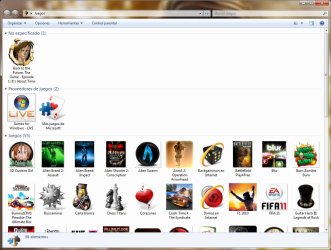
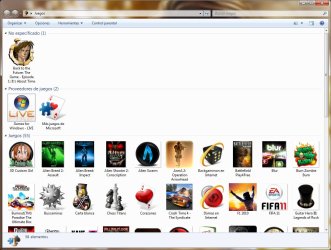
Look at this. Back to the Future its in another group of games!
How can i put it with the others?

Tnxz!
 

Attachments

  • Sin título.jpg
    Sin título.jpg
    232.4 KB · Views: 234

My Computer

OS
Windows 7 X64
If i recall K&L2 its an Steam game, so lets try this.

1. Put a shortcut of your Steam game in the GEF (Games Explorer Folder).

2. In the registry set AppExePath to your Steam main executable location.
36596d1258146427-games-explorer-folder-add-games-2.png
Now your Steam game should work.

Let me know if that solves the issue.

Hey Rick,

I've been wondering about something for a while and I decided to register on this forum to ask. I see that the procedure for adding steam games does not actually include specific information about the game (there is no steam app ID in the registry info as shown in your screenshot). How does Win 7's Game Explorer know which game in steam to run when you double-click the icon?
 

My Computer

OS
Windows 7 Ultimate x64
Hey Rick,

I've been wondering about something for a while and I decided to register on this forum to ask. I see that the procedure for adding steam games does not actually include specific information about the game (there is no steam app ID in the registry info as shown in your screenshot). How does Win 7's Game Explorer know which game in steam to run when you double-click the icon?

Oh! a though one :p ...its because the steam app ID info its already on the shortcut located in ¨C:\Users\username\AppData\Local\Microsoft\Windows\GameExplorer\¨ folder and not under the ¨AppExePath¨ in the registry.
btw. welcome to the forums. ;)
 

My Computer

Computer type
PC/Desktop
OS
Windows 7 Ultimate x64
CPU
Intel Core i5-2500K @4.5Ghz
Motherboard
Asus Maximus V GENE
Memory
x2 Kingston KHX1600C9D3/4G
Graphics Card(s)
NVIDIA GeForce GTS 250 - 1024MB
Sound Card
SupremeFX III built-in 8-Channel High Definition Audio
Monitor(s) Displays
Samsung Syncmaster P2270
Screen Resolution
1920x1080
Hard Drives
x1 Seagate Barracuda ST3160811AS
x2 Seagate Barracuda ST380817AS
PSU
Corsair TX750
Case
Cooler Master HAF 922 Side Window Model
Cooling
Stock Intel Cooler + Tuniq TX2
Keyboard
Dell SK-8135
Mouse
Logitech G5
Internet Speed
2 Mbps
Other Info
x2 Xbox 360 Wireless Controller for Windows
Logitech Z-5550
Sennheiser HD555
Hi everybody.

Look at this. Back to the Future its in another group of games!
How can i put it with the others?

Tnxz!

Dang, I can´t remember why its in another group... can u pls upload a screenshot of the game registry values... thx.
 

My Computer

Computer type
PC/Desktop
OS
Windows 7 Ultimate x64
CPU
Intel Core i5-2500K @4.5Ghz
Motherboard
Asus Maximus V GENE
Memory
x2 Kingston KHX1600C9D3/4G
Graphics Card(s)
NVIDIA GeForce GTS 250 - 1024MB
Sound Card
SupremeFX III built-in 8-Channel High Definition Audio
Monitor(s) Displays
Samsung Syncmaster P2270
Screen Resolution
1920x1080
Hard Drives
x1 Seagate Barracuda ST3160811AS
x2 Seagate Barracuda ST380817AS
PSU
Corsair TX750
Case
Cooler Master HAF 922 Side Window Model
Cooling
Stock Intel Cooler + Tuniq TX2
Keyboard
Dell SK-8135
Mouse
Logitech G5
Internet Speed
2 Mbps
Other Info
x2 Xbox 360 Wireless Controller for Windows
Logitech Z-5550
Sennheiser HD555
Hey Rick,

I've been wondering about something for a while and I decided to register on this forum to ask. I see that the procedure for adding steam games does not actually include specific information about the game (there is no steam app ID in the registry info as shown in your screenshot). How does Win 7's Game Explorer know which game in steam to run when you double-click the icon?

Oh! a though one :p ...its because the steam app ID info its already on the shortcut located in ¨C:\Users\username\AppData\Local\Microsoft\Windows\GameExplorer\¨ folder and not under the ¨AppExePath¨ in the registry.
btw. welcome to the forums. ;)

Aha, thanks! I see it now...
 

My Computer

OS
Windows 7 Ultimate x64
Hi everybody.

Look at this. Back to the Future its in another group of games!
How can i put it with the others?

127472d1293674651-games-explorer-folder-add-games-sin-titulo.jpg

Tnxz!

OK, so I managed to get a copy of the game, sorry for keep you w8ing.

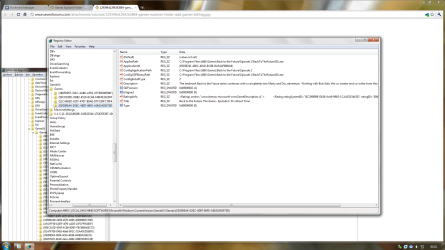
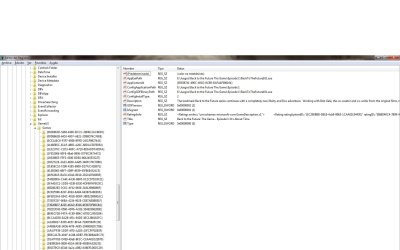
This is how it looks on the registry.
Untitled.png

The only difference I've noticed is the IsSigned value (yours 1 mine 0).
I've changed the value and nothing happens.

Sorry to say this but I really don't have a clue on this one. :(

BTW, This game automatically add the shortcut along with rating info and specs in the GEF, so there's no need to use this tutorial...
 

My Computer

Computer type
PC/Desktop
OS
Windows 7 Ultimate x64
CPU
Intel Core i5-2500K @4.5Ghz
Motherboard
Asus Maximus V GENE
Memory
x2 Kingston KHX1600C9D3/4G
Graphics Card(s)
NVIDIA GeForce GTS 250 - 1024MB
Sound Card
SupremeFX III built-in 8-Channel High Definition Audio
Monitor(s) Displays
Samsung Syncmaster P2270
Screen Resolution
1920x1080
Hard Drives
x1 Seagate Barracuda ST3160811AS
x2 Seagate Barracuda ST380817AS
PSU
Corsair TX750
Case
Cooler Master HAF 922 Side Window Model
Cooling
Stock Intel Cooler + Tuniq TX2
Keyboard
Dell SK-8135
Mouse
Logitech G5
Internet Speed
2 Mbps
Other Info
x2 Xbox 360 Wireless Controller for Windows
Logitech Z-5550
Sennheiser HD555
Ok Rjck :)

I have another problem but, like the last question i made maybe this time i will have the same answer again... :P
So, if this is out of the thread... please forgive me.

GEF keeps everytime show icons view in "Tiles" size while i like to view it in "Large"....
I have to change it every time manually.
Is there a solution for this?
 

My Computer

OS
Windows 7 X64
GEF keeps everytime show icons view in "Tiles" size while i like to view it in "Large"....
I have to change it every time manually.
Is there a solution for this?

That sounds odd my friend... i really have no idea what could happened, you could try ccleaner

Install the app n run it
in Cleaner tab - untick all boxes

under Advanced Just tick:
window size/Location cache
Custom Files and Folders

press cleaner button

it should reset the folder cache and size to default ones. hope it helps.
 

My Computer

Computer type
PC/Desktop
OS
Windows 7 Ultimate x64
CPU
Intel Core i5-2500K @4.5Ghz
Motherboard
Asus Maximus V GENE
Memory
x2 Kingston KHX1600C9D3/4G
Graphics Card(s)
NVIDIA GeForce GTS 250 - 1024MB
Sound Card
SupremeFX III built-in 8-Channel High Definition Audio
Monitor(s) Displays
Samsung Syncmaster P2270
Screen Resolution
1920x1080
Hard Drives
x1 Seagate Barracuda ST3160811AS
x2 Seagate Barracuda ST380817AS
PSU
Corsair TX750
Case
Cooler Master HAF 922 Side Window Model
Cooling
Stock Intel Cooler + Tuniq TX2
Keyboard
Dell SK-8135
Mouse
Logitech G5
Internet Speed
2 Mbps
Other Info
x2 Xbox 360 Wireless Controller for Windows
Logitech Z-5550
Sennheiser HD555
GEF keeps everytime show icons view in "Tiles" size while i like to view it in "Large"....
I have to change it every time manually.
Is there a solution for this?

That sounds odd my friend... i really have no idea what could happened, you could try ccleaner

Install the app n run it
in Cleaner tab - untick all boxes

under Advanced Just tick:
window size/Location cache
Custom Files and Folders

press cleaner button

it should reset the folder cache and size to default ones. hope it helps.

2 shots, 2 kills :)

it worked. thanks a lot pal!!!
 

My Computer

OS
Windows 7 X64

My Computer

Computer type
PC/Desktop
OS
Windows 7 Ultimate x64
CPU
Intel Core i5-2500K @4.5Ghz
Motherboard
Asus Maximus V GENE
Memory
x2 Kingston KHX1600C9D3/4G
Graphics Card(s)
NVIDIA GeForce GTS 250 - 1024MB
Sound Card
SupremeFX III built-in 8-Channel High Definition Audio
Monitor(s) Displays
Samsung Syncmaster P2270
Screen Resolution
1920x1080
Hard Drives
x1 Seagate Barracuda ST3160811AS
x2 Seagate Barracuda ST380817AS
PSU
Corsair TX750
Case
Cooler Master HAF 922 Side Window Model
Cooling
Stock Intel Cooler + Tuniq TX2
Keyboard
Dell SK-8135
Mouse
Logitech G5
Internet Speed
2 Mbps
Other Info
x2 Xbox 360 Wireless Controller for Windows
Logitech Z-5550
Sennheiser HD555
Back
Top