I have been using my Acer aspire 5532 laptop with windows 7 and printing from my hp photosmart all in one c5180 printer via my netgear WGR 614v9 wireless router connected to my desktop with windows xp installed on it just fine for well over a year now.
I recently built and replaced my old desktop with a new desktop and installed windows 7 home premium 64bit but I am now unable to print to my printer! I can install it on the laptop but can not print to it. It states that it can not locate the printer? Gives an error code of 31?
Help!
Is your Acer laptop 32-bit Win7 or 64-bit Win7? I'm going to guess it is 32-bit Win7.
If it was 64-bit Win7 you'd have no problem right now. My guess is that since your old desktop had WinXP (32-bit no doubt), your Acer laptop was also a 32-bit version of Win7.
I'm assuming that your printer is now installed on your new 64-bit Win7 desktop, and will go from there. You now want to "share" that printer, which is hosted by the 64-bit Win7, so that your other network machine (your 32-bit Win7 laptop) can print to it.
You simply need to install the 32-bit (x86) printer driver on your 64-bit Win7 system, as an "additional driver". The hosting 64-bit Win7 system will thus actually have TWO drivers installed for this printer which you've marked as "shared"... one for its own 64-bit local/USB printing needs as well as for 64-bit client machines (say if you had a 3rd 64-bit laptop wanting to print to the "shared" printer) and a second for 32-bit client machines (say a 32-bit WinXP laptop/desktop, or a 32-bit Win7 laptop/desktop, wanting to print to the "shared" printer).
You need to download the 32-bit Win7 version of your C5180 printer driver from the HP site, and "expand it" so that you can access the INF files for it from the "add additional printer driver' dialog on your 64-bit Win7 desktop system that is "hosting" the "shared" C5180 to the rest of your network's machines. Note that I'm not asking you to "install" it on your 64-bit system. It's meant for a 32-bit system, not a 64-bit system. But the imbedded 32-bit printer driver (INF) file CAN be installed as a second 32-bit "additional printer driver" on a 64-bit hosting system, thus allowing the printer to be "shared" with all network client systems, be they 32-bit or 64-bit WinXP or Win7 systems.
On your 64-bit Win7 system where you currently have the x64 64-bit version of your C5180 printer driver installed:
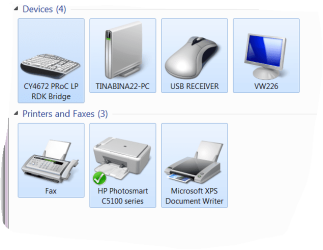
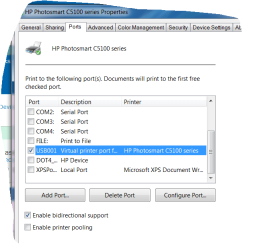
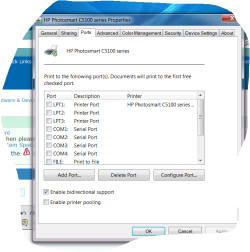
Start -> Devices and printers -> right-click on the printer, and select "Printer properties" from the popup menu.
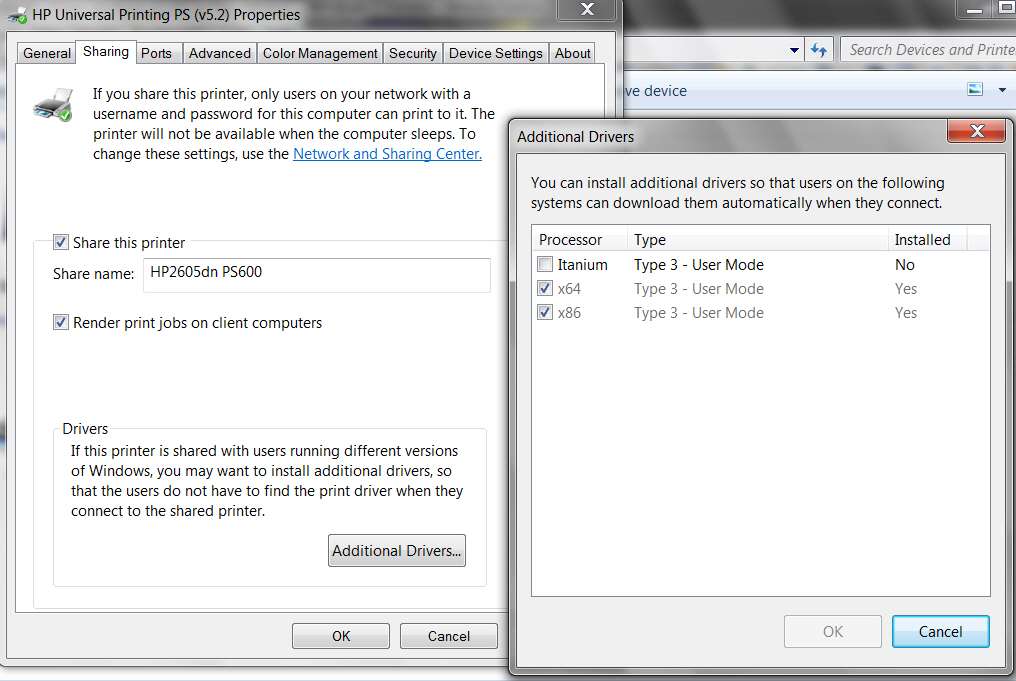
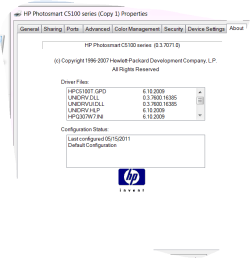
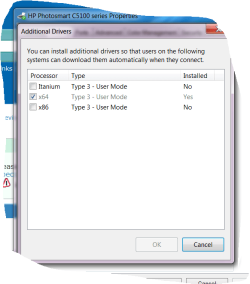
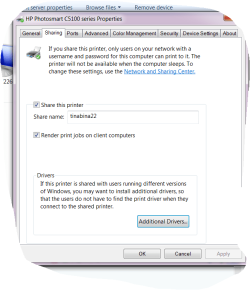
Select the "Sharing" tab, and then push the "additional drivers" button. You should then see the x64 radio button checked for the currently installed driver. You should obviously have the "share this printer" button checked, and the name you enter as the "share name" is what will be presented on your 32-bit laptop in order to "connect", which will facilitate printing on the 64-bit Win7 host machine for print requests made from the 32-bit laptop.
Now check the x86 button and then push the OK button (which will light up, to allow you to enter the wizard) to proceed to the next steps.
You'll then get an "install print drivers" dialog window which will allow you to navigate to the folder in which you expanded the 32-bit driver for the C5180 that you downloaded from the HP support site. You need to point to the folder where the "INF" file lives for the printer. Then push OK, and follow the remaining instructions for the "additional drivers" wizard.
When this second driver installation process completes successfully you will then see BOTH the x64 and x86 radio buttons checked. You're now ready to "share" this printer from the 64-bit host machine to any 32-bit or 64-bit client machines also on your network.
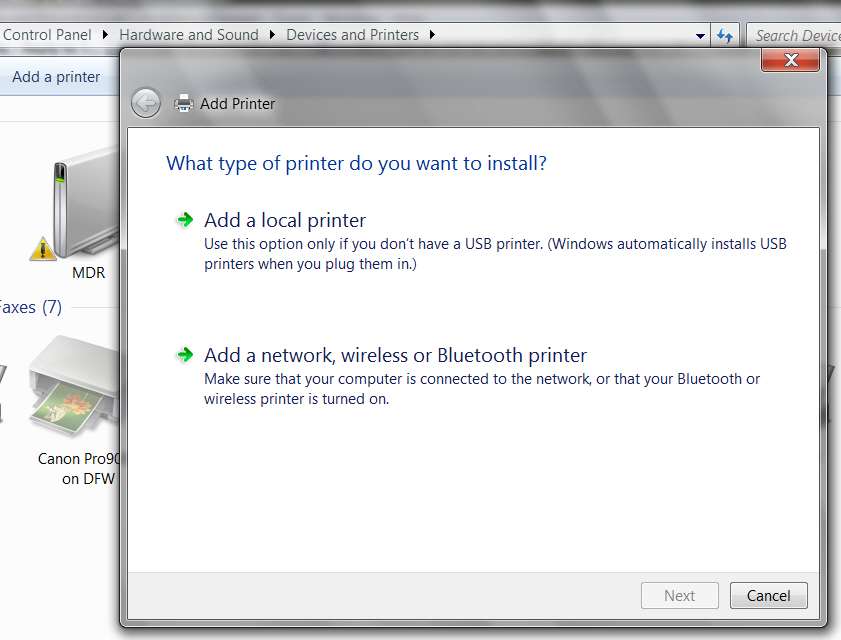
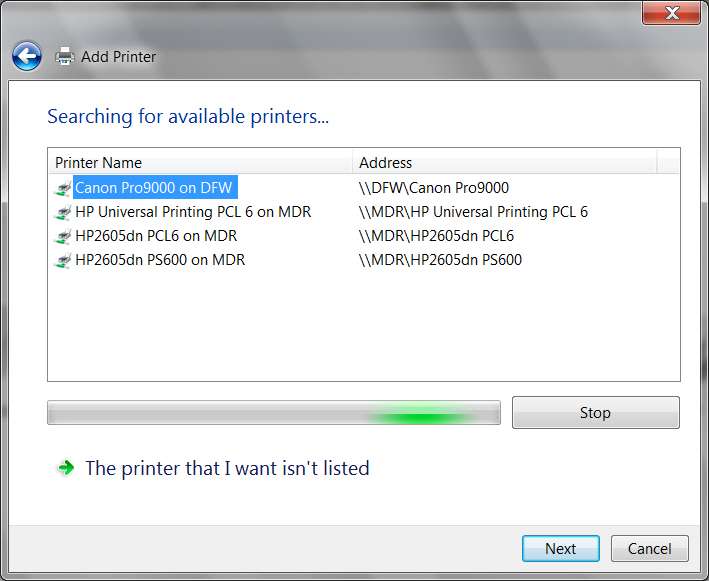
Now, back on the 32-bit laptop, you need to get into the "add printer" dialog, and follow the wizard steps to the "shared" printer name which should now be visible from the 64-bit host machine.
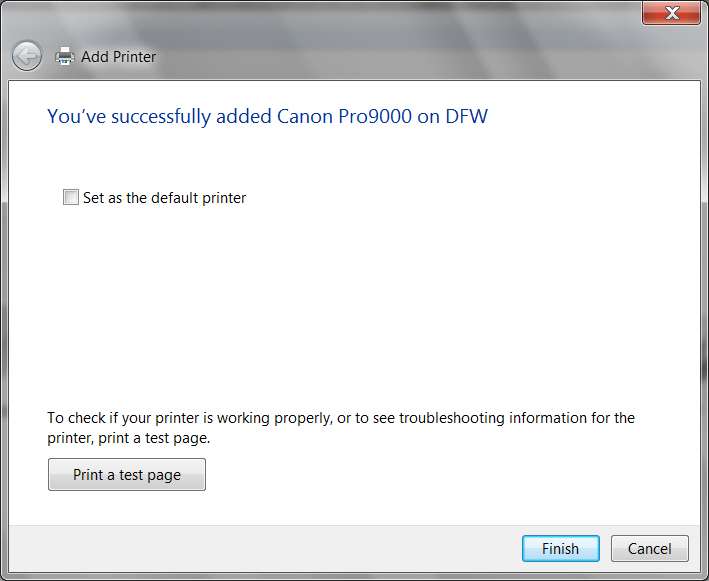
Right-click on that "shared printer" object and select the "connect" option and the rest should happen automatically. This "connect" process is actually a request from the 32-bit/64-bit client to have the 64-bit "host" system ship over either the 32-bit or 64-bit printer driver that's appropriate for the client system. And since the 64-bit system now has BOTH x64 and x86 drivers installed and available (now that you've successfully added the SECOND 32-bit printer driver using the "additional drivers" process), the 64-bit hosting system can now support printing requests from any Windows client machine on your network... whether WinXP or Win7, and whether 32-bit of 64-bit client environments.
You're now home free. That "shared" printer (hosted by the 64-bit Win7 machine) is now in your list of available printers on the 32-bit laptop, and you can specify the usual printing preferences and defaults, etc. The 64-bit hosting system will of course use the x64 version of the driver for its own local/USB printing needs. And the proper x64 or x86 version of the driver will be shipped at "connect" time (which is a one-time activity) from the host system to the client system, for use thereafter... in support of all print requests from the client machine to the "shared" printer on the host machine.
If you have questions or problems, please ask.
But the key is to install a SECOND PRINTER DRIVER for 32-bit clients on the 64-bit system. Then the 64-bit host Win7 system will be able to support both 32-bit and 64-bit client machines, for this "shared" printer, facilitated through the one-time "connect" action from the client machine that completes the "add printer" dialog on the client machine.
NOTE: if you have an existing installed 32-bit Win7 system (as you likely do on your Acer laptop), and if the C5180 printer was natively supported by Win7 and you didn't need to retrieve even the 64-bit driver from the HP site but rather Win7 just recognized it and supported it immediately, then you do NOT need to download the 32-bit printer driver for the C5180 from the HP site. The INF file you already need is on your 32-bit laptop in a special system folder that holds INF files for EVERY DEVICE SUPPORTED BY WIN7 OUT-OF-THE-BOX.
All of these "supported device" drivers are in C:\Windows\System32\DriverStore\FileRepository.
However I've looked at my own FileRepository and don't find an INF file that mentions the "C5180" by that name inside of it. So I suspect you need to get it from the HP site. I've looked further and it does not appear that the C5180 was supported by Win7's installation DVDs. The drivers for Win7 came out late in 2009, and were distributed by HP itself on their support site.
If you had a software CD with the C5180 I would guess it might be in something like a \Drivers folder on some software CD you got with the printer, but again I doubt that the Win7 version of the driver would be on the CD you have ... but who knows?
I've
found it on the HP site, and it's a 290MB download (clearly lots more software, outside of the drivers). I would suggest using WinRAR or WinZIP to "expand/unpack" it (unless it's a self-expanding zip file which you can run to expand, and then cancel the offer to run the SETUP program) into the underlying folders. Again, we're looking just for the INF driver files (which would be in a single folder I'm sure) and do not need any of the other supporting software.