Outlook ’07 and Gmail: am I SOL?

TDKMate

New member
Member
VIP
Local time
12:55 PM
Messages
335
Outlook ’07 and Gmail: am I SOL?

Starting two or three days ago Outlook ’07 keeps asking me for my logons and passwords to retrieve Gmail, constantly. This has happened to me in the past but always cleared up on its own. Not this time, so I am not getting my emails delivered. I Googled the snot out of this to no avail. So I searched this forum and found:
Outlook 2010 will not connect to Gmail And I get the impression (I’m not too bright) that I won’t be able to get this to work. We have multiple Gmail accounts and my ‘BetterHalf’ barely knows how to work Outlook so I have to, on occasions, manage/maintain Gmail online, but I also use Outlook as my primary day-to-day client..
Is there any help for me…???
Outlook settings attached, same as in use for years. .
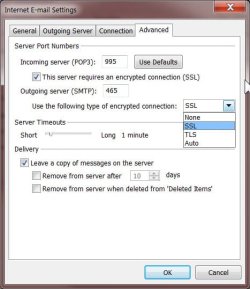
Outlook 07 Gmail Settings.jpg

- - - Updated - - -

Sorry for the bad formatting. I don't know what happened...
 

My Computer My Computer

Computer type
PC/Desktop
Computer Manufacturer/Model Number
home built
OS
Win 7 Pro 64 SP1
CPU
i7 6700K SkyLake
Motherboard
MSI Gaming M7
Memory
32 GB
Graphics Card(s)
nVidia GTX 970
Sound Card
onboard
Monitor(s) Displays
DELL U2711
Screen Resolution
2560x1440
Hard Drives
1 SSD OS, 2 WD Black Caviar data harddrives
PSU
EVGA Super Nova 850W G2 'Gold'
Case
Thermaltake Soprano Snow Edition
Cooling
Cooler Master Hyper 212 evo
Keyboard
Logitech K350
Mouse
Mad Kats RATT
Antivirus
Avast
Browser
Firefox
Yeah, that post there is what the solution is. I just added to that post. Believe me, I was pissed trying to figure this Mountain View hippie bull shit out...

The process is simpler than you would think.

1) Log into your Google account.

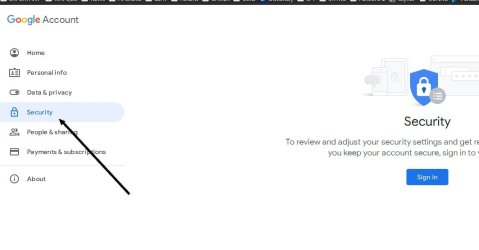
2) Look at my snap and go to the Security option on the left.


rewsdgre.jpg


3) Look on that Security page that's now in front of you and find the option to turn on 2FA (Two Factor Authentication). You can just chose your cell phone and a text (totally "secure"). Enter that text you got in your cellphone and Bob's your uncle (or aunt)... You now have 2FA turned on.


4) Now you need to get a password for "Apps" that can't use 2FA. In this case Outlook. Go back into that Security option page and look for the option to create a password for Apps. You can chose any name. In your case just chose Mail and on Windows. Now it'll generate its BS 16 character password. This is NOW your new password you need to use for your email in Outlook. So first backup the current gmail password in outlook ( I currently recommend the password managers Bitwarden or Keepass). And now change your gmail password in Outlook to that 16 character bull crap gmail gave you. Now Bob's probably your cousin... You should be set.
 

My Computer My Computer

Computer type
PC/Desktop
OS
Windows 7 Ultimate x64
Thanks for the tip, and the humor (humor needed right now as I've been so busy i haven't even had time to change my mind...)

As I've mentioned, I don't claim to be too bright and didn't realize at first that having a gmail account also means I also have a Google account. I went to the settings as you suggest and found it's talking about texting codes and the like...but I don't even have a smart phone so I'm clueless how that would work. (Any ideas on that?)

Then I figured I'd have to jump threw all those hoops for each and every gmail account, and that's something I really don't have time for at the moment.. And I don't do anything Google other than gmail and of course, Googling, so I don't sync and so on.

For you and others who may have a similar issue, I did seem to find a work-around, though, until i can fix it right. I'm already forwarding emails in gmail online, so i added my ISP's eddress, but that didn't work. Then I realized gmail will forward emails to only one other email, so I made the ISP's eddress to be on top. That didn't work until I figured out have to hit the Save button way down the page (duh...).

That appears to be working ok so far. Then I figured out how to turn off Outlook's trying or send/receive to those gmail accounts by going to:
Tools>Send/Receive>Send/Receive Settings>Define Send/Receive Groups...

Then go into the group(s) and checking On or Off what accounts you want to Send/Receive to.

That stops all those annoying pop-ups.

- - - Updated - - -

Ops, sorry if I wasn't clear above: Outlook has no problem getting my ISP's email.
 

My Computer My Computer

Computer type
PC/Desktop
Computer Manufacturer/Model Number
home built
OS
Win 7 Pro 64 SP1
CPU
i7 6700K SkyLake
Motherboard
MSI Gaming M7
Memory
32 GB
Graphics Card(s)
nVidia GTX 970
Sound Card
onboard
Monitor(s) Displays
DELL U2711
Screen Resolution
2560x1440
Hard Drives
1 SSD OS, 2 WD Black Caviar data harddrives
PSU
EVGA Super Nova 850W G2 'Gold'
Case
Thermaltake Soprano Snow Edition
Cooling
Cooler Master Hyper 212 evo
Keyboard
Logitech K350
Mouse
Mad Kats RATT
Antivirus
Avast
Browser
Firefox
We have multiple Gmail accounts and my ‘BetterHalf’ barely knows how to work Outlook so I have to, on occasions, manage/maintain Gmail online, but I also use Outlook as my primary day-to-day client.
[...]
Then I figured I'd have to jump threw all those hoops for each and every gmail account, and that's something I really don't have time for at the moment.

And yet you had time to configure forwarding "for each and every gmail account"?? Doing it the right way really isn't very hard, so you're making things more complicated than they need to be. And remember, while you may be reluctant to spend the time right now setting up 2FA for your gmail accounts, it may not be long before Google will *require* you to do it, so in the long run you're really wasting time instead of saving it.


I went to the [Google] settings as you suggest and found it's talking about texting codes and the like...but I don't even have a smart phone so I'm clueless how that would work. (Any ideas on that?)

You don't need a smartphone to receive texts. Any cell phone will work. For that matter, you don't even need a cell phone and can use an old land line or VoIP number. When setting up the call/text 2FA option, you can choose between receiving automated voice calls or automated texts.

Once 2FA is enabled, it's a simple matter to go back to F22SimPilot's Step 4 and get an "app password" to use with Outlook. Substitute that for your gmail password in Outlook instead of your real gmail password, and job done. (FYI, it's an "app password" and only applies to that one app. Your real gmail password will still apply for everything else.)
 

My Computer My Computer

Computer type
PC/Desktop
Computer Manufacturer/Model Number
Dell Optiplex 7050
OS
Windows 7/8.1/10 multiboot
CPU
Intel Core i7-7700
Motherboard
Dell, Intel Q270 chipset
Memory
48GB (2x16GB Crucial DDR4-3200 + 2x8GB Hynix DDR4-2400)
Graphics Card(s)
Intel HD630 + AMD Radeon R7 450 PCIe
Monitor(s) Displays
Asus VC279 (27")
Screen Resolution
1920x1080
Hard Drives
Toshiba M.2 NVMe (256GB),
Samsung 960 Evo (500GB),
WD Red Plus 80EFBX (8TB)
According to that thread apparently they changed their security settings on 6/1 (which you might have gotten emails about) impacting versions of outlook before 2013. As an alternative you can use another browser such as thunderbird.
 

My Computers My Computers

System One System Two

Thanks,

I got same problem on my Win 7 Pro. was going to give up the mail app.

followed your guide, got my gmail working in the mail app on Win 7.

I don't like the password google gave me. but to read emails on my local PC. it's a trade-off.

Yeah, that post there is what the solution is. I just added to that post. Believe me, I was pissed trying to figure this Mountain View hippie bull shit out...

The process is simpler than you would think.
4) Now you need to get a password for "Apps" that can't use 2FA. In this case Outlook. Go back into that Security option page and look for the option to create a password for Apps. You can chose any name. In your case just chose Mail and on Windows. Now it'll generate its BS 16 character password. This is NOW your new password you need to use for your email in Outlook. So first backup the current gmail password in outlook ( I currently recommend the password managers Bitwarden or Keepass). And now change your gmail password in Outlook to that 16 character bull crap gmail gave you. Now Bob's probably your cousin... You should be set.
 

My Computers My Computers

System One System Two

  • Computer type
    PC/Desktop
    Computer Manufacturer/Model Number
    HP Elite 800 G5
    OS
    Windows 7 Pro 64-bit
    CPU
    I7-9700
    Memory
    32 GB
  • Computer type
    Laptop
    System Manufacturer/Model Number
    ASUS UX305C
    OS
    Windows 7 Pro 64-bit
Back
Top