Access XP Mode files from Windows 7

jmayeraz

New member
Local time
12:44 AM
Messages
29
I'm new to this so I apologize for sounding like an idiot. I just got a new computer and am a novice in Windows 7.

I have an old program that I had to install in XP Mode. It works fine. It's an old medical billing program (Medisoft) that won't run in Windows 7

I use MS Access 2007 (and ODBC drivers) to access and manipulate some of the database tables of Medisoft.

Do I have to install Access in XP Mode to do this?

Or can I use the Access 2007 that I installed in Windows 7 to directly access the files on Virtual Windows XP??

If so, where the heck are they? I can't figure out how to see the files on the virtual windows XP from Windows 7 (using windows explorer).

I'm so frustrated. This upgrade to a Windows 7 computer is taking me way way too long.

Thanks,
Jill
 

My Computer

OS
Windows 7 professional 64 bit
Hi Jill, we meet again ;)

File sharing between XP mode and its host (Win7) is like file sharing between two physical computers. I found this nice tutorial for you to read. It explains the main principles in file sharing.

Not being familiar with Medisoft, I don't know where it stores files. A good place to start looking is My Documents, Medisoft might have created a folder there to store user files.

Kari
 

My Computer

Computer type
Laptop
Computer Manufacturer/Model Number
HP ENVY 17-1150eg
OS
Windows 10 Pro x64 EN-GB
CPU
1.6 GHz Intel Core i7-720QM Processor
Memory
6 GB
Graphics Card(s)
ATI Mobility Radeon HD 5850 Graphics
Sound Card
Beats sound system with integrated subwoofer
Monitor(s) Displays
17" laptop display, 22" LED and 32" Full HD TV through HDMI
Screen Resolution
1600*900 (1), 1920*1080 (2&3)
Hard Drives
Internal: 2 x 500 GB SATA Hard Disk Drive 7200 rpm
External: 2TB for backups, 3TB USB3 network drive for media
Cooling
As Envy runs a bit warm, I have it on a Cooler Master pad
Keyboard
Logitech diNovo Media Desktop Laser (bluetooth)
Mouse
Logitech Performance Mouse MX
Internet Speed
50/10 Mbps VDSL
Antivirus
Windows Defender 4.3.9431.0
Browser
Maxthon 3.5.2., IE11
Thanks. You rock. I'll check out the article right now.

I know where the files are on the XP machine. I just couldn't locate them from Windows 7.
 

My Computer

OS
Windows 7 professional 64 bit

My Computer

Computer type
Laptop
Computer Manufacturer/Model Number
HP ENVY 17-1150eg
OS
Windows 10 Pro x64 EN-GB
CPU
1.6 GHz Intel Core i7-720QM Processor
Memory
6 GB
Graphics Card(s)
ATI Mobility Radeon HD 5850 Graphics
Sound Card
Beats sound system with integrated subwoofer
Monitor(s) Displays
17" laptop display, 22" LED and 32" Full HD TV through HDMI
Screen Resolution
1600*900 (1), 1920*1080 (2&3)
Hard Drives
Internal: 2 x 500 GB SATA Hard Disk Drive 7200 rpm
External: 2TB for backups, 3TB USB3 network drive for media
Cooling
As Envy runs a bit warm, I have it on a Cooler Master pad
Keyboard
Logitech diNovo Media Desktop Laser (bluetooth)
Mouse
Logitech Performance Mouse MX
Internet Speed
50/10 Mbps VDSL
Antivirus
Windows Defender 4.3.9431.0
Browser
Maxthon 3.5.2., IE11
Kari (and anybody else)

I'm still having trouble. Here is the situation:

On my home network I currently have:

1. An XP machine named JILL-VAIO. My user name is Mayer. My workgroup is JELLY.
2. A Windows 7 machine named JILL-DELL-PC. My user name is Jill. My workgroup is JELLY.
3. An XP Mode installation on the Windows 7 machine named JILL-DELL-XPMOD. My user name appears to be XPMUser. My workgroup is JELLY.

I have a few directories on each computer that I shared. On the Windows 7 machine I figured out how to share with Everyone.

JILL-VAIO can see all the shared files on JILL-DELL-PC.
JILL-DELL-PC can see all the shared files on JILL-VAIO

But JILL-DELL-XPMOD can not see the other computers at all. From Windows Explorer on JILL-DELL-XPMOD, I've gone into My Network Place ... Entire Network ... Microsoft Windows Network ... Jelly. From there I can only see JILL-DELL-XPMOD (and the directories I've shared under there).

From the other two computers, I can not see JILL-DELL-XPMOD either.

The weird thing is that for a while, I DID see JILL-DELL-XPMOD from both of the other computers. But when I clicked on it I got a message similar to "JILL-DELL-XPMOD is not accessible ...". I can't remember it exactly. But it wouldn't let me open the folder.

Now I don't see JILL-DELL-XPMOD at all.

For what it's worth, I can not ping JILL-DELL-XPMOD from either of the other two computers either.

I also just remembered that when I start XP Mode, I have to enter a password for the user XPMUser. I don't have passwords on the other computers.

Any advice?
 
Last edited:

My Computer

OS
Windows 7 professional 64 bit
Additionally, I just realized I can't find my network printer.

I have a printer network printer plugged into a router. JILL-DELL-XPMOD can't see it.
 

My Computer

OS
Windows 7 professional 64 bit
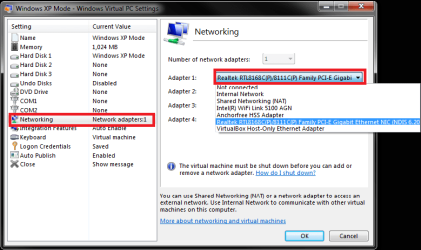
Let's try two things: install integration features, and change the NIC (network adapter) XP Mode is using.

First integration features, read this post if you don't have integration installed and enabled.

Second, change the XP Mode network adapter 1 to that of your host i.e. choose your host's NIC from the drop down list in XP Mode settings > Network > Adapter 1:

XPM_NIC.png

Kari
 

My Computer

Computer type
Laptop
Computer Manufacturer/Model Number
HP ENVY 17-1150eg
OS
Windows 10 Pro x64 EN-GB
CPU
1.6 GHz Intel Core i7-720QM Processor
Memory
6 GB
Graphics Card(s)
ATI Mobility Radeon HD 5850 Graphics
Sound Card
Beats sound system with integrated subwoofer
Monitor(s) Displays
17" laptop display, 22" LED and 32" Full HD TV through HDMI
Screen Resolution
1600*900 (1), 1920*1080 (2&3)
Hard Drives
Internal: 2 x 500 GB SATA Hard Disk Drive 7200 rpm
External: 2TB for backups, 3TB USB3 network drive for media
Cooling
As Envy runs a bit warm, I have it on a Cooler Master pad
Keyboard
Logitech diNovo Media Desktop Laser (bluetooth)
Mouse
Logitech Performance Mouse MX
Internet Speed
50/10 Mbps VDSL
Antivirus
Windows Defender 4.3.9431.0
Browser
Maxthon 3.5.2., IE11
You are my hero!!

That worked beautifully. Thank you thank you thank you.

I had integration tools already. But changing the network adapter was the key!!


Do you know of a central location for information like this? I.e., a manual on XP Mode??
 

My Computer

OS
Windows 7 professional 64 bit
Thanks Jill :)

There's surprisingly little documentation available for Virtual PC and XP Mode. When you search the net, search rather Virtual PC than XP Mode, for XP Mode is nothing but a normal Virtual PC machine.

I find these two sites very useful::
In our Tutorials section you can find some quite good Virtual PC and XP Mode tutorials. To see what's available, go to Tutorials index page and search from V as Virtual PC and W as Windows Virtual PC and Windows XP Mode.

This PDF by Microsoft is not much, showing the level of VPC and XPM documentation, but at least it tells about some basic principles: View attachment Windows Virtual PC Tips.pdf.

Never been too humble ;), so I have to mention my tutorials:
You have some limited options to increase XP Mode, or any other virtual machine's, performance. Read this to learn why and how to modify options.xml file. Here's a bit long post, somewhere near the end you'll find how to increase the RAM assigned to your XP Mode.

My XPM Tip #1: I have created a folder called XPM files in my host's C:\Users\Kari. In XP Mode, I have redirected My Documents to this folder, meaning that all my XPM documents are always available from the host, even when XPM is not running.

And of course, posting issues and questions in our Virtualization section usually gives you an answer.

Kari
 
Last edited:

My Computer

Computer type
Laptop
Computer Manufacturer/Model Number
HP ENVY 17-1150eg
OS
Windows 10 Pro x64 EN-GB
CPU
1.6 GHz Intel Core i7-720QM Processor
Memory
6 GB
Graphics Card(s)
ATI Mobility Radeon HD 5850 Graphics
Sound Card
Beats sound system with integrated subwoofer
Monitor(s) Displays
17" laptop display, 22" LED and 32" Full HD TV through HDMI
Screen Resolution
1600*900 (1), 1920*1080 (2&3)
Hard Drives
Internal: 2 x 500 GB SATA Hard Disk Drive 7200 rpm
External: 2TB for backups, 3TB USB3 network drive for media
Cooling
As Envy runs a bit warm, I have it on a Cooler Master pad
Keyboard
Logitech diNovo Media Desktop Laser (bluetooth)
Mouse
Logitech Performance Mouse MX
Internet Speed
50/10 Mbps VDSL
Antivirus
Windows Defender 4.3.9431.0
Browser
Maxthon 3.5.2., IE11
Awesome. As soon as I finish getting my computer set up, I'll check those out.

Quick question for you before I lose your attention...

Now that I can see my XPM files from Win7 and vice versa ... I'm curious which of these setups would be more efficient. As I mentioned above, I link to my Medisoft tables through MS Access ODBC drivers. I use this to run detailed reports/queries/etc that I can't do from the program itself.

I have one report in particular that takes a few hours to run. I keep wanting to optimize it but we keep talking about upgrading from Medisoft to something else so I don't really want to take the time.

So...given that the report is pretty slow to run, which is better...

1. Set up Access in Win7 and have it a access the Medisoft tables on XPM to run the reports.
2. Set up Access in XPM to run the reports.

I'm unsure if things tend to run faster in Win7 which could make up any time delays I experience b/c I'm accessing files on a different machine (virtual).

Did that make sense?

I plan to try both and time it. But it might be difficult since the report takes many hours on my biggest client and I tend to go to bed and let it run overnight.

What do you think?

Jill
 

My Computer

OS
Windows 7 professional 64 bit
Not knowing the software, I would like to say there's basically no performance difference, however you do that. I think I would do that in XPM, but after reading you want to leave it unattended, running it on host (Win7) would decrease the risk of something going wrong; computers are computers, every running process and service increases the probability of a crash. Not very scientific, just a gut feeling ;)

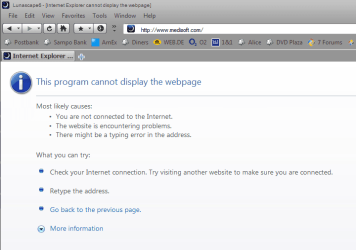
I tried to find out more about Medisoft, but I can not access the website:

medisoft.PNG

Kari
 

My Computer

Computer type
Laptop
Computer Manufacturer/Model Number
HP ENVY 17-1150eg
OS
Windows 10 Pro x64 EN-GB
CPU
1.6 GHz Intel Core i7-720QM Processor
Memory
6 GB
Graphics Card(s)
ATI Mobility Radeon HD 5850 Graphics
Sound Card
Beats sound system with integrated subwoofer
Monitor(s) Displays
17" laptop display, 22" LED and 32" Full HD TV through HDMI
Screen Resolution
1600*900 (1), 1920*1080 (2&3)
Hard Drives
Internal: 2 x 500 GB SATA Hard Disk Drive 7200 rpm
External: 2TB for backups, 3TB USB3 network drive for media
Cooling
As Envy runs a bit warm, I have it on a Cooler Master pad
Keyboard
Logitech diNovo Media Desktop Laser (bluetooth)
Mouse
Logitech Performance Mouse MX
Internet Speed
50/10 Mbps VDSL
Antivirus
Windows Defender 4.3.9431.0
Browser
Maxthon 3.5.2., IE11
Medisoft is just a simple medical billing program. I'm running an old version b/c I'm worried my ODBC access isn't supported in newer versions.

Anyway. it's just an Advantage database...local tables (not server).

I use Access to run SQL queries, make tables, modify Advantage tables, etc. If they'd written the program better, I wouldn't need to.

I don't think the program matters much. I just wondered if the host machine would process faster than XPM. And if faster processing would be negated by any transfer time between Win7 and XPM.
 

My Computer

OS
Windows 7 professional 64 bit
Transfer times in this type of operation are so minimal it makes no difference. I honestly don't think you are going to notice any difference.
 

My Computer

Computer type
Laptop
Computer Manufacturer/Model Number
HP ENVY 17-1150eg
OS
Windows 10 Pro x64 EN-GB
CPU
1.6 GHz Intel Core i7-720QM Processor
Memory
6 GB
Graphics Card(s)
ATI Mobility Radeon HD 5850 Graphics
Sound Card
Beats sound system with integrated subwoofer
Monitor(s) Displays
17" laptop display, 22" LED and 32" Full HD TV through HDMI
Screen Resolution
1600*900 (1), 1920*1080 (2&3)
Hard Drives
Internal: 2 x 500 GB SATA Hard Disk Drive 7200 rpm
External: 2TB for backups, 3TB USB3 network drive for media
Cooling
As Envy runs a bit warm, I have it on a Cooler Master pad
Keyboard
Logitech diNovo Media Desktop Laser (bluetooth)
Mouse
Logitech Performance Mouse MX
Internet Speed
50/10 Mbps VDSL
Antivirus
Windows Defender 4.3.9431.0
Browser
Maxthon 3.5.2., IE11
Kari

Weird question ...

I thought everything was running fine. Did my work in Medisoft.

But when I printed my reports, they don't print in the font the reports are set to.

I modified the reports ... but it messes up all the fonts. It's as though the fonts I need aren't installed so it makes up a font instead. But the fonts are all there (C:\Windows\Fonts).

I even uninstalled the one I needed (Courier New) and copied the one from the old machine over and reinstalled it. But it didn't make a difference.

I've installed this program MANY MANY times on various Windows 2000 and Windows XP machines over the years and NEVER had this problem.

Medisoft doesn't support this version anymore and their knowledge base has nothing.

Any tips?? I've been hunting around online and can't find any information on this specific problem.

BTW ... the fonts print fine from notepad and Microsoft Office.

Jill (I swear I'm never going to get my REAL work done)
 

My Computer

OS
Windows 7 professional 64 bit
Jill, I'm very sorry but I have no idea what could cause that. If the font exists, and is chosen in print preferences, it should print OK.

Are you printing from Medisoft of from Access? From XP Mode or Win7?

Kari

P.S. Who needs real work, it takes time from computing ;)
 

My Computer

Computer type
Laptop
Computer Manufacturer/Model Number
HP ENVY 17-1150eg
OS
Windows 10 Pro x64 EN-GB
CPU
1.6 GHz Intel Core i7-720QM Processor
Memory
6 GB
Graphics Card(s)
ATI Mobility Radeon HD 5850 Graphics
Sound Card
Beats sound system with integrated subwoofer
Monitor(s) Displays
17" laptop display, 22" LED and 32" Full HD TV through HDMI
Screen Resolution
1600*900 (1), 1920*1080 (2&3)
Hard Drives
Internal: 2 x 500 GB SATA Hard Disk Drive 7200 rpm
External: 2TB for backups, 3TB USB3 network drive for media
Cooling
As Envy runs a bit warm, I have it on a Cooler Master pad
Keyboard
Logitech diNovo Media Desktop Laser (bluetooth)
Mouse
Logitech Performance Mouse MX
Internet Speed
50/10 Mbps VDSL
Antivirus
Windows Defender 4.3.9431.0
Browser
Maxthon 3.5.2., IE11
I'm printing from Medisoft within XP Mode.

The only program that has problems printing is the one that I was forced to install in XP Mode.

ARGH...
 

My Computer

OS
Windows 7 professional 64 bit
I'm printing from Medisoft within XP Mode.

The only program that has problems printing is the one that I was forced to install in XP Mode.

ARGH...
That's so typical! Murphy's law in action...

Once more, sorry but I can not help you with this printing problem. I'll ask some clever geeks to take a look at this thread, maybe we can find a solution.

EDIT: How about printing in file, for instance with a PDF writer, exporting file to host, and print from there?
 
Last edited:

My Computer

Computer type
Laptop
Computer Manufacturer/Model Number
HP ENVY 17-1150eg
OS
Windows 10 Pro x64 EN-GB
CPU
1.6 GHz Intel Core i7-720QM Processor
Memory
6 GB
Graphics Card(s)
ATI Mobility Radeon HD 5850 Graphics
Sound Card
Beats sound system with integrated subwoofer
Monitor(s) Displays
17" laptop display, 22" LED and 32" Full HD TV through HDMI
Screen Resolution
1600*900 (1), 1920*1080 (2&3)
Hard Drives
Internal: 2 x 500 GB SATA Hard Disk Drive 7200 rpm
External: 2TB for backups, 3TB USB3 network drive for media
Cooling
As Envy runs a bit warm, I have it on a Cooler Master pad
Keyboard
Logitech diNovo Media Desktop Laser (bluetooth)
Mouse
Logitech Performance Mouse MX
Internet Speed
50/10 Mbps VDSL
Antivirus
Windows Defender 4.3.9431.0
Browser
Maxthon 3.5.2., IE11
I hope the clever geeks that you know are able to help.

For what it's worth, I just uninstalled, rebooted, and reinstalled the program...no luck

I also took your suggestion and used .pdf writer. Unfortunately, it prints in the same font. Additionally, all print previews render in the wrong font also.

I modified the report to use different fonts to see what happens. They are all goofy.

Jill (crossing my fingers that some printing geeks check out my thread)
 

My Computer

OS
Windows 7 professional 64 bit
I told about this issue to some senior geeks, I'm confident we get at least some ideas to test.
 

My Computer

Computer type
Laptop
Computer Manufacturer/Model Number
HP ENVY 17-1150eg
OS
Windows 10 Pro x64 EN-GB
CPU
1.6 GHz Intel Core i7-720QM Processor
Memory
6 GB
Graphics Card(s)
ATI Mobility Radeon HD 5850 Graphics
Sound Card
Beats sound system with integrated subwoofer
Monitor(s) Displays
17" laptop display, 22" LED and 32" Full HD TV through HDMI
Screen Resolution
1600*900 (1), 1920*1080 (2&3)
Hard Drives
Internal: 2 x 500 GB SATA Hard Disk Drive 7200 rpm
External: 2TB for backups, 3TB USB3 network drive for media
Cooling
As Envy runs a bit warm, I have it on a Cooler Master pad
Keyboard
Logitech diNovo Media Desktop Laser (bluetooth)
Mouse
Logitech Performance Mouse MX
Internet Speed
50/10 Mbps VDSL
Antivirus
Windows Defender 4.3.9431.0
Browser
Maxthon 3.5.2., IE11
Oh my god I solved it myself.

I found this thread Configuring a Windows XP PostScript Printer to Avoid Font Substitution

My dialog box was bit different. I'm running a Brother 8460n printer.

1. From "Printers and Faxes", I right clicked on my printer and selected "properties"
2. From the "General" tab, I selected "Printing Preferences"
3. From the "Advanced" tab, I changed my "Print Setting" from "Automatic" to "Manual" which allowed the "Setting" box to become enabled
4. In the "True Type Mode" box I changed the "Mode" from "Print as Graphics" to "Download as True Type"

IT WORKED!!

Whew

Time to get back to what I get paid to do!!
 
Last edited:

My Computer

OS
Windows 7 professional 64 bit
Back
Top