Accessories - Cascading Desktop Context Menu

How to Add a "Accessories" Cascading Desktop Context Menu in Windows 7

   Information
This will show you how to add or remove a cascading (expandable) Accessories menu to the desktop context menu for all users in Windows 7.

This is the same folder and items as in the Start Menu - All Programs - Accessories folder.

You must be logged in as an administrator to be able to do this tutorial.

   Note
By default, the Windows Mobility Center context menu item below will only run on laptops, notebooks, and tablet PCs.

However, if you would like to enable the Windows Mobility Center to be able to run on a desktop computer, then see:

http://www.sevenforums.com/tutorials/6552-windows-mobility-center-enable-desktop-computer.html


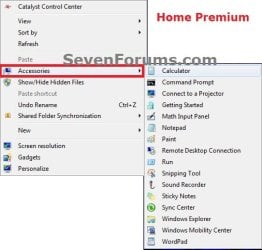
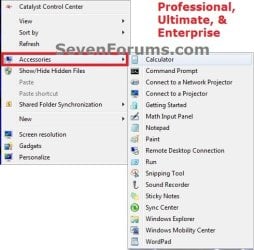
EXAMPLE: Accessories Cascading Context Menu
NOTE: The far left screenshot is for the Windows 7 Starter and Home Basic editions. The middle screenshot is for the Windows 7 Home Premium editions. The far right screenshot is for the Windows 7 Professional, Ultimate, and Enterprise editions. Example-1.jpg

Example-2.jpg

Example-3.jpg


Here's How: 1. Add "Accessories" Cascading Desktop Context Menu
NOTE: Use this download if you have Windows 7 Starter or Home Basic edition installed. A) Click on the Download button below to download the file below. 1-Add_Accessories_to_Desktop_Context_Menu.reg

Download


B) Go to step 5.
2. Add "Accessories" Cascading Desktop Context Menu
NOTE: Use this download if you have Windows 7 Home Premium edition installed. A) Click on the Download button below to download the file below. 2-Add_Accessories_to_Desktop_Context_Menu.reg

Download


B) Go to step 5.
3. Add "Accessories" Cascading Desktop Context Menu
NOTE: Use this download if you have Windows 7 Professional, Ultimate, or Enterprise edition installed. A) Click on the Download button below to download the file below. 3-Add_Accessories_to_Desktop_Context_Menu.reg

Download


B) Go to step 5.
4. Remove "Accessories" Cascading Desktop Context Menu
NOTE: This is the default setting, and is for all editions of Windows 7. A) Click on the Download button below to download the file below. Remove_Accessories_from_Desktop_Context_Menu.reg

Download


5. Click on Save, and save the .reg file to the desktop.

6. Right click on the downloaded .reg file and click on Merge.

7. Click on Run, Yes, Yes, and OK when prompted.

8. When done, you can delete the downloaded .reg file if you like.
That's it,
Shawn


Attachments

Last edited:
I'm afraid that I have no idea with XP. :(

You might post this in the Chillout Room since it's not WIndows 7 related to see if someone may know of a way for XP.
 

My Computer

Computer type
PC/Desktop
Computer Manufacturer/Model Number
Self built custom
OS
64-bit Windows 11 Pro for Workstations
CPU
Intel i7-8700K OC'd to 5 GHz
Motherboard
ASUS ROG Maximus XI Formula Z390
Memory
64 GB (4x16GB) G.SKILL TridentZ RGB DDR4 3600 MHz
Graphics Card(s)
ASUS ROG-STRIX-GTX1080TI-O11G-GAMING
Sound Card
Integrated
Monitor(s) Displays
2 x Samsung Odyssey G7 27"
Screen Resolution
2560x1440
Hard Drives
1TB Samsung 990 PRO M.2,
4TB Samsung 990 PRO PRO M.2,
TerraMaster F8 SSD Plus NAS
PSU
Seasonic Prime Titanium 850W
Case
Thermaltake Core P3
Cooling
Corsair Hydro H115i
Keyboard
Logitech wireless K800
Mouse
Logitech MX Master 4
Internet Speed
2 Gb/s Download and 100 Mb/s Upload
Antivirus
Malwarebyte Anti-Malware Premium
Browser
Google Chrome
Other Info
Logitech Z625 speaker system,
Logitech BRIO 4K Pro webcam,
HP Color LaserJet Pro MFP M477fdn,
APC SMART-UPS RT 1000 XL - SURT1000XLI,
Galaxy S23 Plus phone
Thank you

Mr. Brink, this is AWESOME!
thank you for sharing with us ! Best regards,

LE: Is there any possibility to modify the cmd.exe command data value in regedit in order to start in default mode as Administrator ? As far as I saw ,merging this .reg file will start the cmd in normal mode (not Admin mode)
thanks
 

Attachments

  • Capture.JPG
    Capture.JPG
    74.9 KB · Views: 429
Last edited:

My Computer

OS
win7 x64
Command Prompt "here" as Admin in color.

@7user78, Here is more than you were looking for. This will add the Command Prompt as Admin in the context menu only if you right-click on a folder, not a file. The beauty is that it opens to the directory you've clicked on.

http://www.sevenforums.com/tutorials/47415-open-command-window-here-administrator.html

More, the DOS window is not in the boring black & white, but in COLOR!!! You have 16 colors to play with. Just type at the prompt: COLOR /?. Here I gave you the Cyan on a Blue-gray background, e.g., /T:3B, Just change the ‘3B’ for your own colors.


Code:
[HKEY_CLASSES_ROOT\Drive\shell\runas]
"@"=" Command Prompt (Admin)"
"HasLUAShield"=""
[HKEY_CLASSES_ROOT\Drive\shell\runas\command]
"@"=Cmd.exe /T:3B /s /k pushd "%V"
 
Same for these 3 other keys:
 
[HKEY_CLASSES_ROOT\Directory\shell\runas]
[HKEY_LOCAL_MACHINE\SOFTWARE\Classes\Directory\shell\runas]
[HKEY_LOCAL_MACHINE\SOFTWARE\Classes\Drive\shell\runas]
Note: A secure icon will show up on the menu showing that it is as Admin. Beside the “/T:3B” in the command line, you can also change the text " Command Prompt (Admin)" for whatever you want to see on the menu. I always add a space in front of the first letter in order to separate the text nicely from the icon.

The ‘antidote’ (as non admin):
Code:
[HKEY_CLASSES_ROOT\Drive\shell\cmd]
"@"[email protected],-8506
"Extended"=""
"NoWorkingDirectory"=""
 
[HKEY_CLASSES_ROOT\Drive\shell\cmd\command]
"@"=cmd.exe /s /k pushd "%V"
 
Same for these 3 other keys:
 
[HKEY_CLASSES_ROOT\Directory\shell\cmd\command]
[HKEY_LOCAL_MACHINE\SOFTWARE\Classes\Directory\shell\cmd\command]
[HKEY_LOCAL_MACHINE\SOFTWARE\Classes\Drive\shell\cmd\command]

Have fun!!
 
Last edited by a moderator:

My Computer

Computer Manufacturer/Model Number
Aspire 5552-5686 notebook
OS
Windows 7 v.6.1 Edition Familial Premium on a 64 bit laptop
CPU
ADM Phenom II X3 N830
Memory
16 GB DDR3
Graphics Card(s)
ADI Mobility Radeon HD 45250
wow , this is awesome :D
Thank you for your great reply ,
Best wishes !
 

My Computer

OS
win7 x64
You're welcome 7user78.

@Brink. You have replied in the post #12 that
17 is the limit that can be on a cascading menu.

Do you mean 17 keys under [HKEY_LOCAL_MACHINE\SOFTWARE\Microsoft\Windows\CurrentVersion\Explorer\CommandStore\shell] without counting the Windows.* ones?

BTW, I have a Tutorial to post. Is there a special procedure for that or I just post it? My title will be:
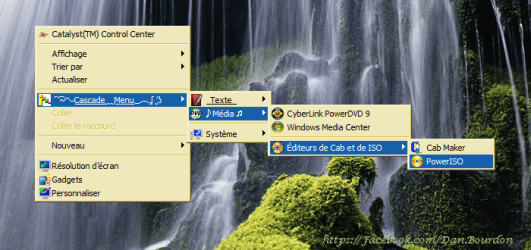
How to create a Desktop Cascade Context Menu of multiple layers, four in my example.

BTW, in which forum shall I ask why the “Pictures & Albums” feature does not show up in my “User Control Panel”?

Thanks
 
Last edited:

My Computer

Computer Manufacturer/Model Number
Aspire 5552-5686 notebook
OS
Windows 7 v.6.1 Edition Familial Premium on a 64 bit laptop
CPU
ADM Phenom II X3 N830
Memory
16 GB DDR3
Graphics Card(s)
ADI Mobility Radeon HD 45250
Hello Dan,

It's 17 for the total limit in the context menu. There's no limit for how many keys that can be created in the registry.

I suppose post the tutorial in the Chillout Room for now, and let me know when it's posted. This way we can get it all polished up before moving into Tutorials. For something that complicated, it will need to be very detailed so that even noobs could follow.

The “Pictures & Albums” doesn't show up in your User CP yet because you are still a "new" member. Once you are no longer classified as new, it will be there.
 

My Computer

Computer type
PC/Desktop
Computer Manufacturer/Model Number
Self built custom
OS
64-bit Windows 11 Pro for Workstations
CPU
Intel i7-8700K OC'd to 5 GHz
Motherboard
ASUS ROG Maximus XI Formula Z390
Memory
64 GB (4x16GB) G.SKILL TridentZ RGB DDR4 3600 MHz
Graphics Card(s)
ASUS ROG-STRIX-GTX1080TI-O11G-GAMING
Sound Card
Integrated
Monitor(s) Displays
2 x Samsung Odyssey G7 27"
Screen Resolution
2560x1440
Hard Drives
1TB Samsung 990 PRO M.2,
4TB Samsung 990 PRO PRO M.2,
TerraMaster F8 SSD Plus NAS
PSU
Seasonic Prime Titanium 850W
Case
Thermaltake Core P3
Cooling
Corsair Hydro H115i
Keyboard
Logitech wireless K800
Mouse
Logitech MX Master 4
Internet Speed
2 Gb/s Download and 100 Mb/s Upload
Antivirus
Malwarebyte Anti-Malware Premium
Browser
Google Chrome
Other Info
Logitech Z625 speaker system,
Logitech BRIO 4K Pro webcam,
HP Color LaserJet Pro MFP M477fdn,
APC SMART-UPS RT 1000 XL - SURT1000XLI,
Galaxy S23 Plus phone
Thanks Brink for your quick response.

1. I am stuck at 15 elements in my context menu. As soon as I add another one, the last one doesn't show up.

2. My tutorial is very comprehensible for newbies. Understandable simple steps with explanations, tips and many photos. I am pretty sure it is at the level of the high standards of your forums. The maximum size of the photos in our posts is 620×280 px. Can they be bigger for tutorials?

3. Concerning the “Pictures & Albums”, I suggest that your explanation be part of the FAQ because I spent quite some time trying to figure out why, including the options of my IE7 and Windows XP that I am using for now (connection problem on my LP win7).

See you soon in the “Chillout Room.”
 

My Computer

Computer Manufacturer/Model Number
Aspire 5552-5686 notebook
OS
Windows 7 v.6.1 Edition Familial Premium on a 64 bit laptop
CPU
ADM Phenom II X3 N830
Memory
16 GB DDR3
Graphics Card(s)
ADI Mobility Radeon HD 45250

My Computer

Computer type
PC/Desktop
Computer Manufacturer/Model Number
Self built custom
OS
64-bit Windows 11 Pro for Workstations
CPU
Intel i7-8700K OC'd to 5 GHz
Motherboard
ASUS ROG Maximus XI Formula Z390
Memory
64 GB (4x16GB) G.SKILL TridentZ RGB DDR4 3600 MHz
Graphics Card(s)
ASUS ROG-STRIX-GTX1080TI-O11G-GAMING
Sound Card
Integrated
Monitor(s) Displays
2 x Samsung Odyssey G7 27"
Screen Resolution
2560x1440
Hard Drives
1TB Samsung 990 PRO M.2,
4TB Samsung 990 PRO PRO M.2,
TerraMaster F8 SSD Plus NAS
PSU
Seasonic Prime Titanium 850W
Case
Thermaltake Core P3
Cooling
Corsair Hydro H115i
Keyboard
Logitech wireless K800
Mouse
Logitech MX Master 4
Internet Speed
2 Gb/s Download and 100 Mb/s Upload
Antivirus
Malwarebyte Anti-Malware Premium
Browser
Google Chrome
Other Info
Logitech Z625 speaker system,
Logitech BRIO 4K Pro webcam,
HP Color LaserJet Pro MFP M477fdn,
APC SMART-UPS RT 1000 XL - SURT1000XLI,
Galaxy S23 Plus phone
hi great man its works thanks next
 

My Computer

Computer type
PC/Desktop
Computer Manufacturer/Model Number
b
OS
windows 7 ultimate x64

Attachments

  • Cascade_Menu-Média2.png
    Cascade_Menu-Média2.png
    344.9 KB · Views: 490

My Computer

Computer Manufacturer/Model Number
Aspire 5552-5686 notebook
OS
Windows 7 v.6.1 Edition Familial Premium on a 64 bit laptop
CPU
ADM Phenom II X3 N830
Memory
16 GB DDR3
Graphics Card(s)
ADI Mobility Radeon HD 45250
Back
Top