To make a WinRE.WIM without WAIK.
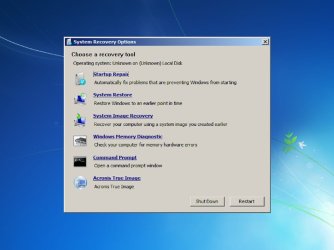
Get the cd\sources\boot.wim file from the System repair CD and copy into a directory on your HDD. example: copy d:\sources\boot.wim c:\work\boot.wim.
Run Acronis WinPE ISO builder to add Acronis files to this file. When it completes, you should have new file. example: c:\work\AcronisMedia.wim. Delete the c:\work\boot.wim file and rename the AcronisMedia.wim to boot.wim. Next mount the image file in c:\work\mount. Example:
Dism /Mount-Wim /WimFile:C:\work\boot.wim /index:1 /MountDir:C:\work\mount
all on one line.
Then in the mounted image file goto c:\work\mount\sources\recovery and make a new directory called Tools then in the
C:\work\mount\sources\recovery\tools directory make a new file called WinREConfig.xml
Use notepad and quotes to do this
------------------------------------------------------------------------------------------
<Recovery><RecoveryTools><RelativeFilePath>..\..\..\Program Files\Acronis\TrueImageHome\TrueImage_Starter.exe</RelativeFilePath></RecoveryTools></Recovery>
------------------------------------------------------------------------------------------
I write this all on one line because sometimes it doesn't work if the enter key is used.
You can install ONE tool to the winre.wim. I like the acronis because you don't have to set location of factory file and you can save your image.tib files to any drive.
If you plan to use on a recovery partition on you HDD, get a copy of
c:\work\mount\windows\system32\recovery\ReAgent.xml and save to another location for later.
Then unmount the image file.
Dism /Unmount-Wim /MountDir:C:\work\mount /Commit
Once it complete you should have a new boot.wim file to put back into the CD or flash drive. Finished
I use diskpart to make a partition on my HDD that I call Recovery and also use for boot partition so that it is the active partition. In that partition I make a directory called Recovery and in that recovery directory I make another called WindowsRE then copy this boot.wim to it and name it WinRE.WIM.
%SystemRoot%/Recovery\WindowsRE\WinRE.wim
%SystemRoot% = Drive letter of you Recovery partition. Then before I make an image of the partition that windows is installed to, make sure you DO NOT have a
%Root%\Recovery directory and make sure that in
%Root%\Windows\system32\recovery\ that there is NOT a WinRE.wim file. This will keep the restored image from messing up the F8 key. If you upgrade your c partition after the first time this will Not be a problem as the file and directory are NOT on the C partition.
After you have your recovery partition setup you will have to run ReAgentc.exe It seems like alot of people have problems with this and this is part of reason to remove the WinRe.wim and the Recovery directory from the C Drive. The ReAgentc.exe file has to be ran from %DriveLetter%\windows\system32 When you boot computer with a WinPE the drive letter can be different from expected. It might be D: rather than C:
Use NotePad and look and HDD to see what the drive letters are then
?1\Windows\System32\Reagentc.exe /setreimage /path ?2:\Recovery\WindowsRE /target ?1:\Windows
?1 = drive partition of recovery ?2= drive partition of windows
Example:
c:\windows\system32\reagentc /setreimage /path d:\recovery\windowsre /target c:\windows
You should see something that said success. Reboot and try the F8 key at boot and see your Acronis at bottom of the Recovery Con.
If you have problems, just copy that little file: ReAgent.xml that you saved to
C:\windows\system32\recovery and overwrite the old file and then run Reagentc again.
Have fun TJG




