- Local time
- 5:28 AM
- Messages
- 43
MANY years ago, on my beloved Win7desktop, I discovered a way to get quick access to my most used folders. I created a folder in "My Documents" called "Q".
In it, I created subfolders by themes.
And within those, I created both more subfolders and added shortcuts to about 60 key documents I use.
~
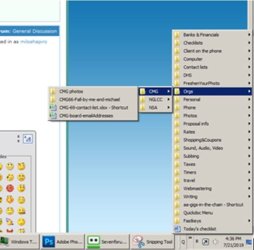
I then, by some method I cannot tell you all these years later, added that Q-folder-menu to my system tray so it sits there, like in the attachment, ready for me to access those folders and files super-easily. I used it every single day. Unlike a folder one could add to the Start Button, with the Q-button in the system tray, I can go to the side-appearing subfolders from the Q without it opening Exploring. MUCH nicer!
~
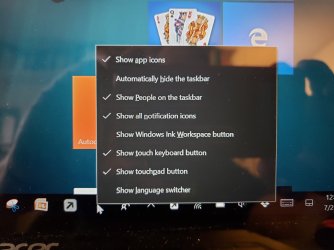
So here's the issue. Now that my travel laptop is Win10 (and realizing that, sometime not that far off, my main computer is going to have to go the way of Win10 too, much to my dislike of it), i need to figure out two things:~
1) How did I create, in the system tray, the link to Q-toolbar that you can see in the image I'm attaching? Is there a name for such pinned folders like that?
2) Is there any equivalent to this in Win 10?
~
I don't even know what to call that Q with the two right-pointing arrows that give me access to its subfolders. A system tray menu, perhaps? Or system-tray toolbar, maybe? If knew what it were called, maybe I could google it for more information.
~
I can't imagine using Win10 much without this great feature. (If I never see a tile again, I would be just fine!) So I'm trying to find my way around them to remain a productive worker. Does Win10 support this feature?
Thank you!!!
In it, I created subfolders by themes.
And within those, I created both more subfolders and added shortcuts to about 60 key documents I use.
~
I then, by some method I cannot tell you all these years later, added that Q-folder-menu to my system tray so it sits there, like in the attachment, ready for me to access those folders and files super-easily. I used it every single day. Unlike a folder one could add to the Start Button, with the Q-button in the system tray, I can go to the side-appearing subfolders from the Q without it opening Exploring. MUCH nicer!
~
So here's the issue. Now that my travel laptop is Win10 (and realizing that, sometime not that far off, my main computer is going to have to go the way of Win10 too, much to my dislike of it), i need to figure out two things:~
1) How did I create, in the system tray, the link to Q-toolbar that you can see in the image I'm attaching? Is there a name for such pinned folders like that?
2) Is there any equivalent to this in Win 10?
~
I don't even know what to call that Q with the two right-pointing arrows that give me access to its subfolders. A system tray menu, perhaps? Or system-tray toolbar, maybe? If knew what it were called, maybe I could google it for more information.
~
I can't imagine using Win10 much without this great feature. (If I never see a tile again, I would be just fine!) So I'm trying to find my way around them to remain a productive worker.
Does Win10 support this feature? Thank you!!!
Attachments
My Computer
At a glance
Microsoft Windows 7 Home Premium 64-bit 7601 ...AMD Phenom(tm) II X4 945 Processor8.00 GBATI Radeon HD 5450
- Computer type
- PC/Desktop
- Computer Manufacturer/Model Number
- HP
- OS
- Microsoft Windows 7 Home Premium 64-bit 7601 Multiprocessor Free Service Pack 1
- CPU
- AMD Phenom(tm) II X4 945 Processor
- Motherboard
- FOXCONN 2AB1
- Memory
- 8.00 GB
- Graphics Card(s)
- ATI Radeon HD 5450
- Sound Card
- (1) Realtek High Definition Audio (2) Logitech Microphone
- Screen Resolution
- 1920 x 1080 x 32 bits (4294967296 colors) @ 60 Hz
- Hard Drives
- (1) Hitachi HDS721010CLA332 SATA Disk Device (2) Generic- Compact Flash USB Device (3) Generic- MS/MS-Pro USB Device (4) Generic- SD/MMC USB Device (5) Generic- SM/xD-Picture USB Device (6) Iomega E xternal HD USB Device (7) Seagate Backu