All shortcuts point to the wrong Program Files folder

rafi123

New member
Local time
2:25 PM
Messages
1
Hi,
Today I was asked to help in a problem with shortcuts in Windows 7 which pointed to the wrong non-existing location. The issue refers too all shortcuts connected with the Program Files folder.

As I didn't know what is the issue the first idea was to create a completely new profile (i.e. user account) to check if the problem arises there as well.
Fortunately the new profile/account was correct, all links were fine. It meant the problem was connected only with the first profile. That's why I decided to recreate the IconCache.db file by removing it and restarting the machine. Unfortunately it didn't help.

The system itself is a Polish edition of Windows 7 and because it works on 64-bit platform there are 2 folders for applications:
a) (for 32-bit apps) "c:\Program Files"
b) (for 64-bit apps) "c:\Pliki programów (x64)"
Almost all programs are installed in b) but all corrupted links pointed to "c:\Program Files (x64)" instead of "c:\Pliki programów (x64)". Somehow the links contained the English name ("c:\Program Files (x64)") instead of Polish one ("c:\Pliki programów (x64)"). This was the reason they didn't work.

Do you have any idea what could happen and how to fix it ?

Thank you for help,
rafi
 

My Computer

Computer type
PC/Desktop
OS
Windows XP
Where are the faulty shortcuts located? On desktop or in startmenu ... or?

normal is:
C:\program files =>for 64bits
C:\Program Files (x86) =>for 32 bits

open command prompt
Code:
set

Do you see this in the list?
ProgramFiles=C:\Program Files
ProgramFiles(x86)=C:\Program Files (x86)
ProgramW6432=C:\Program Files
-------

c:\Program Files (x64) is very abnormal.... are you sure?
 

My Computer

Computer type
Laptop
Computer Manufacturer/Model Number
ACER ASPIRE 5742G
OS
Microsoft Windows 7 Home Premium 64-bits 7601 Multiprocessor Free Service Pack 1
CPU
Intel(R) Core(TM) i3 CPU M 370 @ 2.40GHz
Motherboard
Acer Aspire 5742G
Memory
4,00 GB
Graphics Card(s)
ATI Mobility Radeon HD 5400 Series
Sound Card
(1) AMD High Definition Audio Device (2) Realtek High Defi
Screen Resolution
1366 x 768 x 32 bits (4294967296 colors) @ 60 Hz
Hard Drives
WDC WD5000BEVT-22ZAT0

My Computer

Computer type
Laptop
Computer Manufacturer/Model Number
ACER ASPIRE 5742G
OS
Microsoft Windows 7 Home Premium 64-bits 7601 Multiprocessor Free Service Pack 1
CPU
Intel(R) Core(TM) i3 CPU M 370 @ 2.40GHz
Motherboard
Acer Aspire 5742G
Memory
4,00 GB
Graphics Card(s)
ATI Mobility Radeon HD 5400 Series
Sound Card
(1) AMD High Definition Audio Device (2) Realtek High Defi
Screen Resolution
1366 x 768 x 32 bits (4294967296 colors) @ 60 Hz
Hard Drives
WDC WD5000BEVT-22ZAT0
Hi Rafi, welcome to the Seven Forums.

First, you have got it wrong: A 64 bit windows 7 has two folders for programs as Kaktussoft already told:
  • Program Files > for 64 bit programs (executables and binary files)
  • Program Files (x86)> for 32 bit programs (executables and binary files)
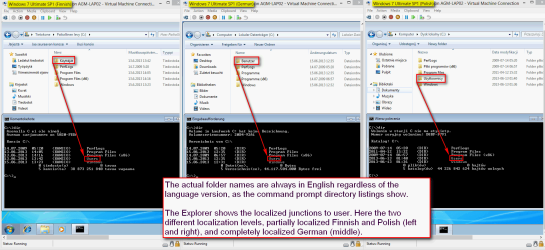
Whatever language version of Windows 7 you are using, the Windows system files and folders always have same English names. In fully or partially localized language versions the folder names themselves are not translated, changed to respective language, they always remain in English. Instead the localization only translates the names of the so called links used by Windows Explorer.

In other words, for instance the folder Program Files (x86) is called Program Files (x86) in Polish Windows 7 although the Explorer also uses the link Pliki programów (x86), or the folder Users is called Users in Finnish Windows 7 although it can also be accessed in Explorer using the localized Finnish link name Käyttäjät.

See the screenshot for an explanation:

2013-06-15_141309.png
(Click to enlarge.)

Therefore a shortcut should and must always point to the folder using its actual (English) name instead of the localized link.

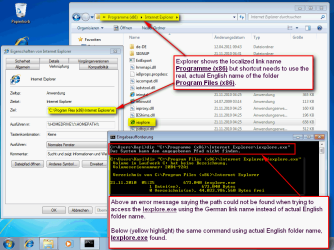
Let's use the Internet Explorer shortcut as an example. In localized version (German in this example) the Windows Explorer shows the location of IE as C:\Programme (x86)\Iexplore.exe. However, as Programme (x86) is only a link instead of actual location, IE's shortcut must use the actual folder name Program Files (x86). Please notice also that for instance Command Prompt cannot find the Iexplore.exe executable file using the localized German link name but needs instead the full, actual folder name in English.

See the screenshot for explanation:

2013-06-15_144320.png

All system folders can also be accessed in Explorer using their respective English environment variable names, regardless of the used Windows language version. Type %programdata% on Explorer addressbar and hit enter to open by default hidden ProgramData folder, %programfiles(x86)% to enter Program Files (x86), %temp% to open Temp folder, %appdata% to open your AppData\Roaming folder and so on.

A tip: you can always see the actual folder names and location in Explorer by clicking inside the addressbar:

Addressbar showing the localized link:

2013-06-15_144811.png

Clicking the addressbar shows the actual folder names:

2013-06-15_144852.png

Conclusion:
All shortcuts should always point to actual location of target files using the actual English folder names for Windows system folders. Any localized folder (link) names in shortcut target name will cause errors.

Kari
 

My Computer

Computer type
Laptop
Computer Manufacturer/Model Number
HP ENVY 17-1150eg
OS
Windows 10 Pro x64 EN-GB
CPU
1.6 GHz Intel Core i7-720QM Processor
Memory
6 GB
Graphics Card(s)
ATI Mobility Radeon HD 5850 Graphics
Sound Card
Beats sound system with integrated subwoofer
Monitor(s) Displays
17" laptop display, 22" LED and 32" Full HD TV through HDMI
Screen Resolution
1600*900 (1), 1920*1080 (2&3)
Hard Drives
Internal: 2 x 500 GB SATA Hard Disk Drive 7200 rpm
External: 2TB for backups, 3TB USB3 network drive for media
Cooling
As Envy runs a bit warm, I have it on a Cooler Master pad
Keyboard
Logitech diNovo Media Desktop Laser (bluetooth)
Mouse
Logitech Performance Mouse MX
Internet Speed
50/10 Mbps VDSL
Antivirus
Windows Defender 4.3.9431.0
Browser
Maxthon 3.5.2., IE11
Back
Top