

An Old School Geek’s approach to Installing & Setting Up a Windows PC
Windows Setup
An Old School Geek’s approach to Installing & Setting Up a Windows PC
Put the DVD in, boot to Windows installation, enter the product key and get coffee while Windows installs. When ready install your favorite game and start playing. Later on maybe a user account or two, some other day also some other software.
That’s how many of us are doing it, nothing wrong in it. It is most definitely not my way; might be I am too analytic in everything I do but I need to know from the beginning that the PC is set up exactly as I want it to be.
A decent setup strategy is for me as important as a decent backup strategy. For me it’s no difference if the PC is the only one in the household, or if it is part of a multiple PC network. When a PC is correctly set up regarding user’s needs and habits, maintaining it and keeping it clean and running becomes much easier and effortless.
I rather use some extra time when setting up a Windows PC than repairing and modifying it later.
Part 1: Partition Plan
I always start from a partition plan. On my personal computers I want to have at least 3 partitions on at least two hard disks. If the PC I am setting up has 1TB or less of total HD space, I use three partitions: System, User Profiles and Virtual Machines. If the PC has two disks, I set System and Virtual Disks on first disk and User Profiles on second. My minimum sizes for these 3 partitions are 150GB for System and 250GB for other two partitions. Storage being so cheap today I simply refuse to get or buy a PC with less than 750GB internal HD space.
Here's a view of the laptop I am using to write this:
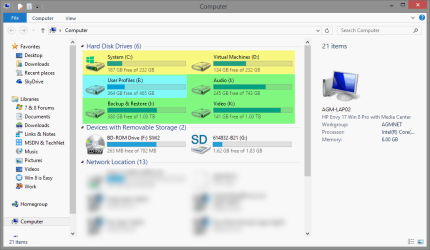
Two internal 500GB hard disks. First disk: System C: and Virtual Machines D: (highlighted yellow), second HDD User Profiles E: (blue), external storage I:, J: and K: (green). This is how I like it and will have on every PC.
To keep user profiles and data totally separated from system on another disk makes it easier when / if something bad happens. Would be too big a coincidence if two HDDs went broken at the same time. If my System disk fails, all my user data is intact.
If I have more HD space, the fourth partition is always Local Backup, to be used for quick local backup of personal data. System Images and full backups I like to store on server or other network storage.
On 2TB and more systems I also create a fifth partition for Media and Downloads. On smaller systems I use network storage for these purposes.
Part 2: Partitioning & Installation
For me it’s no difference if the PC came with a pre-installed Windows or not, I always do a clean install. I have been a genuine in-place upgrade advocate, even writing a tutorial on how to in-place from XP to Seven using Vista as a "springboard" shortly in between. I still believe a correctly done in-place upgrade is sometimes a good alternative and has its place and purpose.
However, I have no pirated software meaning I always have both install media and product or license key to all my applications and programs which makes re-installing them a piece of cake. Rather than in-place upgrading I do a clean install. If I am setting up a computer that I have already previously used I simply backup all user data and continue as if it was a new PC with a clean install.
My first stop is here, disk tools before the installation begins:
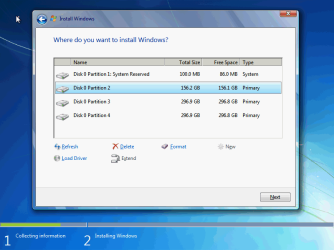
See the tutorial here: http://www.sevenforums.com/tutorials/52291-partition-hard-drive-windows-7-install.html
I create the partitions I need and start installation. The reason I want to create all partitions I later need already here is that by doing so, I also get them to use the drive letters I want to from beginning, from the first boot. In this example installation I created a 150GB partition where Windows will be installed (C:), and two 250GB partitions which will be Virtual Machines (D:) and User Profiles (E:).
One important thing I have learned to do before I continue from here: I will always disconnect all external devices before installation (USB sticks and disks etc.), leaving only the main system with internal devices, mouse, keyboard and display.
Continue from next step when Windows installation has rebooted last time and asks your personal details.
Part 3: Boot to Audit Mode to prepare Windows
I first learned to use Windows Audit Mode back when we were still using pre-release versions of Windows Vista. The first time seeing how it worked and how easy it made certain preparations and alterations made me to fell in love with it .
.
When booting to Audit Mode after last reboot of Windows installation when there are still no user accounts and even the computer is not named yet, you can customize and setup Windows as you want to. Audit Mode uses at this phase a so called built-in administrator account with a temporary roaming profile.
To boot to Audit Mode at the end of the installation process, press CTRL + SHIFT + F3 when installation has done the last reboot and stops for asking an initial user name and computer name:

The PC reboots now, going in to Audit Mode. When you arrive to Windows Desktop you will see the System Preparation Tool (Sysprep) dialog. Before you can close it we need to stop Windows Media Player Network Sharing Service which will often cause Sysprep not to work.
Open Command Prompt, type or copy & paste the command below and press Enter to stop the mentioned service and press Enter:
Now let's quit Sysprep t be able to customize Windows and install drivers and software. Select System Cleanup Action: Enter System Audit Mode and Shutdown Options: Quit as shown below and click OK:
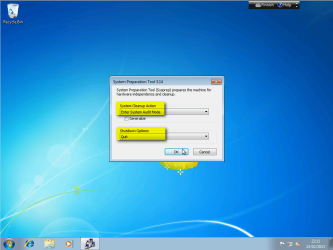
This tells the System Preparation Tool to quit for now but be prepared to return to Audit Mode when a driver install for example asks reboot. This way you can be sure every reboot during driver and software installation brings you back to Audit Mode.
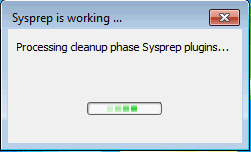
You will see Sysprep preparing the system:
Part 4: Create User Accounts
Now you can create all the User profiles (accounts) for other users of the PC, just do not create your main user yet.
When creating user accounts please notice the order: Windows Welcome screen presents (when several profiles exist) users alphabetically from left to right and top to bottom. If it is important to you to show user tiles on Welcome Screen in a certain order, consider these facts:
Part 5: Install Drivers, Software & Updates
Now first the main drivers. Your Windows has most probably already automatically installed network adapter drivers; if not, you need to install them from external media.
My setup starts with main device drivers, in this order and always rebooting back to Audit Mode after a driver is installed. For these main drivers I only use ones downloaded from manufacturer's website (you can use Internet normally in Audit Mode):
Now the software. Install anything you want to. My installation begins here always with current Office version, followed by browsers, VLC Player, Flash Player, PDF Reader and so on. Also the antivirus and firewall solutions will be installed now. Anything you want to. I also install the local printers at this point, network printers only after the setup is finished and I'm at my own desktop.
If a driver or application install requests a reboot, do it and let Windows return to Audit Mode. If and when this happens close the Sysprep dialog as told at the end of the Part 3 above to prepare system to again return to Audit Mode if a further reboot is required. Please remember to first stop the Windows Media Player Network Sharing Service (also told in Part 3) before quitting Sysprep.
When all your drivers and software is installed, you have one important decision to make: Do you want to keep User Profiles (the Users folder) on C: drive, or relocate it completely to another internal partition or drive. There are no cons, only pros in doing so but not everyone likes the idea.
You can also move individual user folders (Documents, Pictures and so on) later after we have finished the setup as told in these tutorials:
The biggest advantage in relocating, moving the User Profile folder Users now in Audit Mode using Sysprep is that it is a complete solution: all user specific data and folders is relocated in a few clicks in a couple of minutes. It is done by changing the value of Windows Environment Variable <ProfilesDirectory>. All future user profiles will now be created on the new location without any other actions. System Restore, system imaging and all repair and recovery actions will always find and use the new location.
Decision is yours, do whatever feels right and suits you. If you decide to relocate Users, do it now following the instructions in this tutorial: http://www.sevenforums.com/tutorial...reate-move-during-windows-7-installation.html
If you relocated Users now, be sure to close Sysprep once again as told in Part 3 after Sysprep has finished and you are back in Audit Mode.
Whatever you decided, next step is now the Windows Updates. Run Windows Update as many times as is needed to install all available updates. Personally important to me are the Language Packs available for Ultimate and Enterprise editions of Vista and Seven as Optional Updates. In Windows 8 all editions can use Language Packs.
I finalize my update phase by installing all available Important Updates plus Finnish, Swedish and German language packs. I always use English Windows so this gives me the four languages I need.
Time to get some coffee or take a walk, last reboot after Windows Update can take some time:

Part 6: Create initial System Image and Backup
We are almost there. Windows is setup, drivers and software installed but it's still virgin: no user data, nothing but a system itself. A perfect time to create a System Image, you can always restore your system to this moment when nothing was messed and everything worked.
Windows Backup does not work in Audit Mode if the Sysprep is set to return to Audit Mode, so first thing to do is to change that.
Click Win + R to open Run dialog, type this and press Enter to open Sysprep dialog:
When Sysprep opens, set System Cleanup Action: Enter System Out-of- Box Experience (OOBE) and Shutdown Options: Quit as shown below:
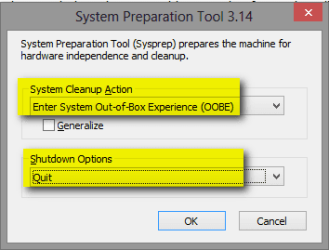
Sysprep prepares the system now for a so called Welcome (OOBE) boot and quits.
Create a System Image:
Part 7: Finalizing Windows Installation and Setup
Almost there!
If you installed Language Packs as described in Part 5 the final phase of Windows installation and setup asks now which language you want to install for initial (main) user. Select the language and click Next:
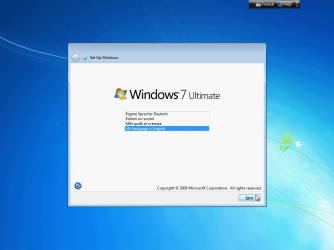
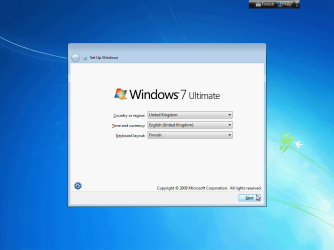
Continue by selecting system locale and input language:
Final thing, type the name of the main user you did not create in Part 4. This user profile will have administrative rights. Name your PC, too:
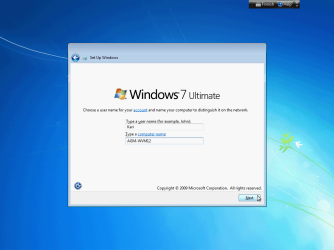
The reason why we did not create the main user's (you!) admin account earlier is that at this point Windows needs a so called main user to be named but does not accept any existing name, so you can not use a user name which you already have created.
Please notice this is also where you start after restoring the initial System Image we created in Part 6, restored image boots to language selections and setting up initial user. If something happens you can always return to this point, a virgin Windows setup, everything installed.
That's it. You have a decently set up Windows PC, ready to serve. Time needed with a modern PC: 75 minutes plus, depending on how much additional software you install and how long it took to download updates using your connection.
Please reply with your ideas and tips!
Kari
Windows Setup
An Old School Geek’s approach to Installing & Setting Up a Windows PC
Put the DVD in, boot to Windows installation, enter the product key and get coffee while Windows installs. When ready install your favorite game and start playing. Later on maybe a user account or two, some other day also some other software.
That’s how many of us are doing it, nothing wrong in it. It is most definitely not my way; might be I am too analytic in everything I do but I need to know from the beginning that the PC is set up exactly as I want it to be.
A decent setup strategy is for me as important as a decent backup strategy. For me it’s no difference if the PC is the only one in the household, or if it is part of a multiple PC network. When a PC is correctly set up regarding user’s needs and habits, maintaining it and keeping it clean and running becomes much easier and effortless.
I rather use some extra time when setting up a Windows PC than repairing and modifying it later.
Note
Please notice that I am not telling about The Correct Way to set up Windows. Quite a many users will tell you my way is far from the correct way. This is however my way, my approach, my guidelines which years of active PC usage have shown to work for me. I want to share it with you for how I do it might not be the right way for you but it might give you some tips and new ideas.
I will include links to all tutorials needed to follow these guidelines.
To get correct screenshot’s to be used in this post I will set up a Windows 7 Ultimate SP1 on a virtual machine running on Hyper-V on Windows 8 Pro, with one 750GB virtual hard disk. As these guidelines apply to all editions of Windows Vista, Windows 7 and Windows 8, your actual installation and setup dialogs and messages may differ depending on Windows version and edition you are installing.
I will include links to all tutorials needed to follow these guidelines.
To get correct screenshot’s to be used in this post I will set up a Windows 7 Ultimate SP1 on a virtual machine running on Hyper-V on Windows 8 Pro, with one 750GB virtual hard disk. As these guidelines apply to all editions of Windows Vista, Windows 7 and Windows 8, your actual installation and setup dialogs and messages may differ depending on Windows version and edition you are installing.
Part 1: Partition Plan
I always start from a partition plan. On my personal computers I want to have at least 3 partitions on at least two hard disks. If the PC I am setting up has 1TB or less of total HD space, I use three partitions: System, User Profiles and Virtual Machines. If the PC has two disks, I set System and Virtual Disks on first disk and User Profiles on second. My minimum sizes for these 3 partitions are 150GB for System and 250GB for other two partitions. Storage being so cheap today I simply refuse to get or buy a PC with less than 750GB internal HD space.
Here's a view of the laptop I am using to write this:
Two internal 500GB hard disks. First disk: System C: and Virtual Machines D: (highlighted yellow), second HDD User Profiles E: (blue), external storage I:, J: and K: (green). This is how I like it and will have on every PC.
To keep user profiles and data totally separated from system on another disk makes it easier when / if something bad happens. Would be too big a coincidence if two HDDs went broken at the same time. If my System disk fails, all my user data is intact.
If I have more HD space, the fourth partition is always Local Backup, to be used for quick local backup of personal data. System Images and full backups I like to store on server or other network storage.
On 2TB and more systems I also create a fifth partition for Media and Downloads. On smaller systems I use network storage for these purposes.
Part 2: Partitioning & Installation
For me it’s no difference if the PC came with a pre-installed Windows or not, I always do a clean install. I have been a genuine in-place upgrade advocate, even writing a tutorial on how to in-place from XP to Seven using Vista as a "springboard" shortly in between. I still believe a correctly done in-place upgrade is sometimes a good alternative and has its place and purpose.
However, I have no pirated software meaning I always have both install media and product or license key to all my applications and programs which makes re-installing them a piece of cake. Rather than in-place upgrading I do a clean install. If I am setting up a computer that I have already previously used I simply backup all user data and continue as if it was a new PC with a clean install.
2.1. BIOS
For me the only correct way to start setting up a PC is to check that the BIOS is up to date. As there are several ways to enter BIOS or UEFI setup and again several ways to flash (update) it, please consult your motherboard manufacturer's website or manual on how to do it.2.2. Partitioning
For my purposes the Windows Setup disk and partition tools are enough. For those who need to be sure the HDD is absolutely clean, there's Diskpart. An excellent Diskpart tutorial here: http://www.sevenforums.com/tutorials/52129-disk-clean-clean-all-diskpart-command.htmlMy first stop is here, disk tools before the installation begins:
See the tutorial here: http://www.sevenforums.com/tutorials/52291-partition-hard-drive-windows-7-install.html
I create the partitions I need and start installation. The reason I want to create all partitions I later need already here is that by doing so, I also get them to use the drive letters I want to from beginning, from the first boot. In this example installation I created a 150GB partition where Windows will be installed (C:), and two 250GB partitions which will be Virtual Machines (D:) and User Profiles (E:).
2.3. Installation
I will skip the installation almost completely for we as well as our sister forums Vista Forums and Eight Forums have so many good installation tutorials. Here are the ones you might want to read when installing Windows 7:- http://www.sevenforums.com/tutorials/1649-clean-install-windows-7-a.html
- http://www.sevenforums.com/tutorials/31402-clean-install-upgrade-windows-7-version.html
- http://www.sevenforums.com/tutorials/171382-clean-install-windows-7-windows-xp-desktop.html
As the new MOBO's now have a uEFI/BIOS firmware.
How to install Windows 64 bit on a uEFI/BIOS firmware:
http://www.sevenforums.com/tutorial...e-firmware-interface-install-windows-7-a.html
or
UEFI (Unified Extensible Firmware Interface) - Install Windows 8 with
One important thing I have learned to do before I continue from here: I will always disconnect all external devices before installation (USB sticks and disks etc.), leaving only the main system with internal devices, mouse, keyboard and display.
Continue from next step when Windows installation has rebooted last time and asks your personal details.
Part 3: Boot to Audit Mode to prepare Windows
I first learned to use Windows Audit Mode back when we were still using pre-release versions of Windows Vista. The first time seeing how it worked and how easy it made certain preparations and alterations made me to fell in love with it
.When booting to Audit Mode after last reboot of Windows installation when there are still no user accounts and even the computer is not named yet, you can customize and setup Windows as you want to. Audit Mode uses at this phase a so called built-in administrator account with a temporary roaming profile.
To boot to Audit Mode at the end of the installation process, press CTRL + SHIFT + F3 when installation has done the last reboot and stops for asking an initial user name and computer name:
Note
This is where you start if you are setting up a new PC with pre-installed Windows and you are happy with the default partitioning. When you boot your new PC first time it will stop here to ask your initial username and computer name. You can follow the rest of these guidelines from this point on.
If you want to do maintenance for your existing Windows installation, you can boot it to Audit Mode and continue from here.
Reboot to Audit Mode:
If you want to do maintenance for your existing Windows installation, you can boot it to Audit Mode and continue from here.
Reboot to Audit Mode:
- Close all programs
- Press Win + R to open Run dialog
- Type or copy & paste this to Run dialog:
Code:%windir%\system32\sysprep\sysprep.exe /audit /reboot - Click OK
The PC reboots now, going in to Audit Mode. When you arrive to Windows Desktop you will see the System Preparation Tool (Sysprep) dialog. Before you can close it we need to stop Windows Media Player Network Sharing Service which will often cause Sysprep not to work.
Open Command Prompt, type or copy & paste the command below and press Enter to stop the mentioned service and press Enter:
Code:
net stop WMPNetworkSvcNow let's quit Sysprep t be able to customize Windows and install drivers and software. Select System Cleanup Action: Enter System Audit Mode and Shutdown Options: Quit as shown below and click OK:
This tells the System Preparation Tool to quit for now but be prepared to return to Audit Mode when a driver install for example asks reboot. This way you can be sure every reboot during driver and software installation brings you back to Audit Mode.
You will see Sysprep preparing the system:
Part 4: Create User Accounts
Note
If you want your initial System Image to be without any existing user profiles, do not create them now. User profiles can be normally created after setup is finished.
Now you can create all the User profiles (accounts) for other users of the PC, just do not create your main user yet.
Warning
Do not create your personal main user account now! It will be created last, after exiting the Audit Mode and booting Windows normally for the first time.
When creating user accounts please notice the order: Windows Welcome screen presents (when several profiles exist) users alphabetically from left to right and top to bottom. If it is important to you to show user tiles on Welcome Screen in a certain order, consider these facts:
- Accounts are shown in alphabetical order according to the account name given when account was first created. Any later account name change does not change this order, i.e. if original accounts were Abel, Bubba and Cain and you later change Bubba's account name to Zorro, they are still shown in original order Abel, Zorro (originally Bubba) and Cain
- In Windows Vista and Seven if you have 1 to 5 user accounts, tiles are presented in one row. Six to 10 accounts are presented in two rows, 6 accounts 3+3 (top + bottom rows), 7 = 4+3, 8 = 4+4, 9 = 5+4 and 10 = 5+5
Part 5: Install Drivers, Software & Updates
Now first the main drivers. Your Windows has most probably already automatically installed network adapter drivers; if not, you need to install them from external media.
My setup starts with main device drivers, in this order and always rebooting back to Audit Mode after a driver is installed. For these main drivers I only use ones downloaded from manufacturer's website (you can use Internet normally in Audit Mode):
- Motherboard (Chipset)
- Storage (USB3, Intel RapidStorage and TurboBoost etc.)
- Video
- Audio
Now the software. Install anything you want to. My installation begins here always with current Office version, followed by browsers, VLC Player, Flash Player, PDF Reader and so on. Also the antivirus and firewall solutions will be installed now. Anything you want to. I also install the local printers at this point, network printers only after the setup is finished and I'm at my own desktop.
If a driver or application install requests a reboot, do it and let Windows return to Audit Mode. If and when this happens close the Sysprep dialog as told at the end of the Part 3 above to prepare system to again return to Audit Mode if a further reboot is required. Please remember to first stop the Windows Media Player Network Sharing Service (also told in Part 3) before quitting Sysprep.
Note
All software and applications installed now will be installed for all user profiles. If you have a special program you want to install only for you as opposite to all users, do not install it now. Instead do it first after booting to your personal user profile first time.
When all your drivers and software is installed, you have one important decision to make: Do you want to keep User Profiles (the Users folder) on C: drive, or relocate it completely to another internal partition or drive. There are no cons, only pros in doing so but not everyone likes the idea.
You can also move individual user folders (Documents, Pictures and so on) later after we have finished the setup as told in these tutorials:
- http://www.sevenforums.com/tutorials/18629-user-folders-change-default-location.html
- http://www.sevenforums.com/tutorials/117308-user-folders-moving-user-folders-modular-script.html
The biggest advantage in relocating, moving the User Profile folder Users now in Audit Mode using Sysprep is that it is a complete solution: all user specific data and folders is relocated in a few clicks in a couple of minutes. It is done by changing the value of Windows Environment Variable <ProfilesDirectory>. All future user profiles will now be created on the new location without any other actions. System Restore, system imaging and all repair and recovery actions will always find and use the new location.
Decision is yours, do whatever feels right and suits you. If you decide to relocate Users, do it now following the instructions in this tutorial: http://www.sevenforums.com/tutorial...reate-move-during-windows-7-installation.html
If you relocated Users now, be sure to close Sysprep once again as told in Part 3 after Sysprep has finished and you are back in Audit Mode.
Whatever you decided, next step is now the Windows Updates. Run Windows Update as many times as is needed to install all available updates. Personally important to me are the Language Packs available for Ultimate and Enterprise editions of Vista and Seven as Optional Updates. In Windows 8 all editions can use Language Packs.
I finalize my update phase by installing all available Important Updates plus Finnish, Swedish and German language packs. I always use English Windows so this gives me the four languages I need.
Time to get some coffee or take a walk, last reboot after Windows Update can take some time:
Part 6: Create initial System Image and Backup
We are almost there. Windows is setup, drivers and software installed but it's still virgin: no user data, nothing but a system itself. A perfect time to create a System Image, you can always restore your system to this moment when nothing was messed and everything worked.
Windows Backup does not work in Audit Mode if the Sysprep is set to return to Audit Mode, so first thing to do is to change that.
Click Win + R to open Run dialog, type this and press Enter to open Sysprep dialog:
Code:
%windir%\system32\sysprep\sysprep.exeWhen Sysprep opens, set System Cleanup Action: Enter System Out-of- Box Experience (OOBE) and Shutdown Options: Quit as shown below:
Sysprep prepares the system now for a so called Welcome (OOBE) boot and quits.
Create a System Image:
- Using Windows own Backup & Restore Tool: http://www.sevenforums.com/tutorials/663-backup-complete-computer-create-image-backup.html
- Using Macrium reflect Free: http://www.sevenforums.com/tutorials/73828-imaging-free-macrium.html
Part 7: Finalizing Windows Installation and Setup
Almost there!
If you installed Language Packs as described in Part 5 the final phase of Windows installation and setup asks now which language you want to install for initial (main) user. Select the language and click Next:
Continue by selecting system locale and input language:
Final thing, type the name of the main user you did not create in Part 4. This user profile will have administrative rights. Name your PC, too:
The reason why we did not create the main user's (you!) admin account earlier is that at this point Windows needs a so called main user to be named but does not accept any existing name, so you can not use a user name which you already have created.
Tip
If your main personal account already exists (you created it at Part 4, or you have followed these steps on an existing Windows installation) you cannot use it here. Even as Windows "thinks" this is the first time ever the system is booted, it does not accept existing username to be used as OOBE initial user.
Instead use here a temporary username for example Temp, select your old original username on Welcome Screen to login, go to Control Panel > Users and remove the temporary user.
Instead use here a temporary username for example Temp, select your old original username on Welcome Screen to login, go to Control Panel > Users and remove the temporary user.
Please notice this is also where you start after restoring the initial System Image we created in Part 6, restored image boots to language selections and setting up initial user. If something happens you can always return to this point, a virgin Windows setup, everything installed.
That's it. You have a decently set up Windows PC, ready to serve. Time needed with a modern PC: 75 minutes plus, depending on how much additional software you install and how long it took to download updates using your connection.
Please reply with your ideas and tips!
Kari
Last edited:
My Computer
At a glance
Windows 10 Pro x64 EN-GB1.6 GHz Intel Core i7-720QM Processor6 GBATI Mobility Radeon HD 5850 Graphics
- Computer type
- Laptop
- Computer Manufacturer/Model Number
- HP ENVY 17-1150eg
- OS
- Windows 10 Pro x64 EN-GB
- CPU
- 1.6 GHz Intel Core i7-720QM Processor
- Memory
- 6 GB
- Graphics Card(s)
- ATI Mobility Radeon HD 5850 Graphics
- Sound Card
- Beats sound system with integrated subwoofer
- Monitor(s) Displays
- 17" laptop display, 22" LED and 32" Full HD TV through HDMI
- Screen Resolution
- 1600*900 (1), 1920*1080 (2&3)
- Hard Drives
- Internal: 2 x 500 GB SATA Hard Disk Drive 7200 rpm
External: 2TB for backups, 3TB USB3 network drive for media
- Cooling
- As Envy runs a bit warm, I have it on a Cooler Master pad
- Keyboard
- Logitech diNovo Media Desktop Laser (bluetooth)
- Mouse
- Logitech Performance Mouse MX
- Internet Speed
- 50/10 Mbps VDSL
- Antivirus
- Windows Defender 4.3.9431.0
- Browser
- Maxthon 3.5.2., IE11


