
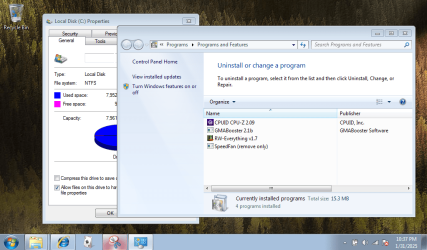
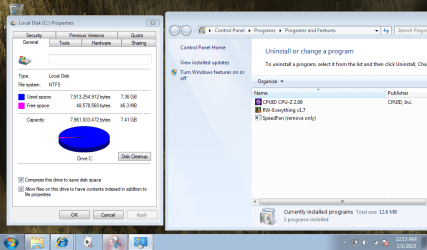
Hello!I'm working with a dainty little Eee PC and was curious how I could optimize my C: Drive storage. I only have 7.4 GB of storage with 3.45 MB available and I was hoping those of you among the forum could suggest (outside of simply purchasing a different laptop with more storage) how I could free some space up.What I want to do is use this laptop for practicing data entry. I'm hoping to find a set of Office applications I could download here on the forum but with the little amount of storage I have, I can't download additional applications. I have a SanDisk thumb drive that I was hoping to use as an additional removable storage system.I don't have the knowledge on what I should remove application-wise when I run a disk clean-up. I'm hoping I can include some screenshots of the storage pie chart and a list of applications I could uninstall. Though I paid little for this little guy, I don't intend on ruining it by uninstalling something I shouldn't.Any help would be appreciated. Thank you.
- - - Updated - - -
I do want to add that I did remove the GMA Booster application and compressed a small portion of my C: Drive and it freed up a small amount of space it seems. I'm hesitant to remove more without guidance.Looking into compressing the C: Drive was a bit risky, but I figured a small portion would not hurt. I did go through and can open folders and files are still accessible.I moved a few folders out from the C: Drive into the D: Drive, which; how can I tap into that for storage and running of applications? It seems to route automatically into the C: Drive. In my mind, it would make sense to be able to run some things separately on the D: Drive if the user wanted considering both are hard drives, but I do not know the intricacies of that either.
- - - Updated - - -
I've gone through and removed the applications above. I'm somewhat at a loss on what to do further to make more space. I'll include a screenshot of my disk management. I see unallocated space in drive D: that would be great to move, but if they're both internal drives I'm not sure how I could do that. I don't have any space to install any programs so I can't run any software that may be suggested and I don't have enough space to run a system recovery if I would want to start from scratch. I'm going to peruse the forum and see if I can find anything to help as well.
- - - Updated - - -
I do want to add that I did remove the GMA Booster application and compressed a small portion of my C: Drive and it freed up a small amount of space it seems. I'm hesitant to remove more without guidance.Looking into compressing the C: Drive was a bit risky, but I figured a small portion would not hurt. I did go through and can open folders and files are still accessible.I moved a few folders out from the C: Drive into the D: Drive, which; how can I tap into that for storage and running of applications? It seems to route automatically into the C: Drive. In my mind, it would make sense to be able to run some things separately on the D: Drive if the user wanted considering both are hard drives, but I do not know the intricacies of that either.
- - - Updated - - -
I've gone through and removed the applications above. I'm somewhat at a loss on what to do further to make more space. I'll include a screenshot of my disk management. I see unallocated space in drive D: that would be great to move, but if they're both internal drives I'm not sure how I could do that. I don't have any space to install any programs so I can't run any software that may be suggested and I don't have enough space to run a system recovery if I would want to start from scratch. I'm going to peruse the forum and see if I can find anything to help as well.
Attachments


My Computers
-
At a glance
(32bit) Ubuntu 18.04.5 LTSIntel Atom CPU N270 @ 1.60GHz1011652 KiB- Computer type
- Laptop
- Computer Manufacturer/Model Number
- Asus Eee PC 900A
- OS
- (32bit) Ubuntu 18.04.5 LTS
- CPU
- Intel Atom CPU N270 @ 1.60GHz
- Motherboard
- x.x / 900A
- Memory
- 1011652 KiB
- Hard Drives
- ATA GH-SSD32GEP-M
- Case
- White
- Cooling
- eeepc/fan 1510.00 RPM
- Mouse
- Integrated two-button touchpad
- Internet Speed
- Moderately Slow.
- Browser
- Firefox
- Other Info
- Ubuntu distro is Lubuntu.
-
- Computer type
- PC/Desktop


