Solved AOMEI Backupper

What pe are you starting with, and what do you want to add?
 

My Computers

System One System Two

  • Computer type
    PC/Desktop
    OS
    7 X64
    CPU
    i5 8400
    Motherboard
    gigabyte b365m ds3h
    Memory
    2x8gb 3200mhz
    Hard Drives
    various
    PSU
    pure power 11 400w cm
    Case
    Coolermaster
    Cooling
    cryorig m9i
  • Computer type
    PC/Desktop
    OS
    7x64
    CPU
    g5400
    Motherboard
    ga b365m ds3h
    Memory
    8gb ddr4 2400
    PSU
    xfx pro 450w
Thanks for the reply SIW2, it is appreciated,

What pe are you starting with, and what do you want to add?

I have never done anything with PE before so the below might not be possible. This would be for Windows 7:

Diagnosic Tools
SeaTools for DOS
Memtest86+
AOMEI Backupper
AOMEI Partition Assistant
Partition Recovery
Autoruns (MS Sysinternals utility)
Belarc Advisor

If you could point us to a recommended site or perhaps give us an overview of how to achieve this it would be great. I am sure that you don't want to spend too long on this as you are kindly offering your advice and help.

Can you start with the AOMEI PE Builder?

Have you got any recommendations of what would be useful, like diagnostics etc?

Thanks in advance.
 

My Computer

Computer type
Laptop
Computer Manufacturer/Model Number
Fujitsu LIFEBOOK
OS
Win 7 HP SP1 64-bit Vista HB SP2 32-bit Linux Mint 18.3
CPU
Intel(R) Pentium(R) CPU P6200 @ 2.13GHz
Motherboard
FUJITSU FJNBB06
Memory
4.00 GB
Graphics Card(s)
Intel(R) Graphics Media Accelerator HD
Sound Card
[1] Realtek High Definition Audio [2] Intel(R) Display Audio
Screen Resolution
1366 x 768 x 32 bits (4294967296 colors) @ 59 Hz
Hard Drives
TOSHIBA MK5076GSX
Antivirus
AVG FREE
The most simple winpe:

If you are staring from scratch, you can either use boot.wim from the installion media, or winre.wim as the base.

1. Mount the wim image ( boot.wim you use image 2 ) for winre.wim use image 1.

2. Copy a simple portable program into the mounted Program Files directory. Needs to be the same bit version as winpe.

3. Create a text file as follows and save it as winpeshl.ini ( don't forget the "" )

[LaunchApps]
"%systemdrive%\program files\the-name-of your.exe"


4. Copy winpeshl.ini into mounted system32 directory.

5. Unmount and commit the image.

6. When you boot that new wim, your program will appear as the SHELL.
 

My Computers

System One System Two

  • Computer type
    PC/Desktop
    OS
    7 X64
    CPU
    i5 8400
    Motherboard
    gigabyte b365m ds3h
    Memory
    2x8gb 3200mhz
    Hard Drives
    various
    PSU
    pure power 11 400w cm
    Case
    Coolermaster
    Cooling
    cryorig m9i
  • Computer type
    PC/Desktop
    OS
    7x64
    CPU
    g5400
    Motherboard
    ga b365m ds3h
    Memory
    8gb ddr4 2400
    PSU
    xfx pro 450w
If you want several programs in there, you need 2 things:

1. A pre Shell

2. A menu

3. The winpeshl.ini entry needs to point at your pre SHELL

[Note - some programs will need extra supporting .dll files added, and some will need registry entries. It is not to difficult, but you are best starting out by using fully portable programs that don't need those extras.]

There is a pre SHELL called pecmd.exe. It is currently developed by a Chinese guy by the name of Davies. I have made an English version of it.


4. You also need pecmd.ini in Sytem32 to tell pecmd what to do.
 
Last edited:

My Computers

System One System Two

  • Computer type
    PC/Desktop
    OS
    7 X64
    CPU
    i5 8400
    Motherboard
    gigabyte b365m ds3h
    Memory
    2x8gb 3200mhz
    Hard Drives
    various
    PSU
    pure power 11 400w cm
    Case
    Coolermaster
    Cooling
    cryorig m9i
  • Computer type
    PC/Desktop
    OS
    7x64
    CPU
    g5400
    Motherboard
    ga b365m ds3h
    Memory
    8gb ddr4 2400
    PSU
    xfx pro 450w
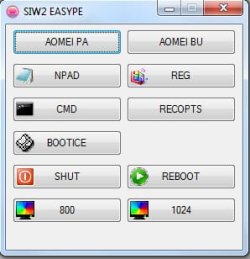
The menu looks like this ( you will also have icons on the buttons for Aomei PA and Aomei BU if they are in the correct place)

menu.jpg
 
Last edited:

My Computers

System One System Two

  • Computer type
    PC/Desktop
    OS
    7 X64
    CPU
    i5 8400
    Motherboard
    gigabyte b365m ds3h
    Memory
    2x8gb 3200mhz
    Hard Drives
    various
    PSU
    pure power 11 400w cm
    Case
    Coolermaster
    Cooling
    cryorig m9i
  • Computer type
    PC/Desktop
    OS
    7x64
    CPU
    g5400
    Motherboard
    ga b365m ds3h
    Memory
    8gb ddr4 2400
    PSU
    xfx pro 450w
Easy way:

1. Mount boot.wim image 2 (or winre.wim image 1)


2. Copy the contents of the zip file into mounted windows\system32.


(To make it easy for you, I have included in the attached zip files
winpeshl.ini
pecmd.exe
pecmd.ini
menu.wcs )

You obviously need to rt click the files>properties>unblock>ok as usual as they from my pc.

64 bit
View attachment 404017

32 bit
View attachment 404018


3. Unmount and commit the wim image.


When you boot up the wim you saved, you should get the menu and be able to launch everything ( except the two aomei programs which we haven't added yet - I can show you how to do that in the next step )
 
Last edited:

My Computers

System One System Two

  • Computer type
    PC/Desktop
    OS
    7 X64
    CPU
    i5 8400
    Motherboard
    gigabyte b365m ds3h
    Memory
    2x8gb 3200mhz
    Hard Drives
    various
    PSU
    pure power 11 400w cm
    Case
    Coolermaster
    Cooling
    cryorig m9i
  • Computer type
    PC/Desktop
    OS
    7x64
    CPU
    g5400
    Motherboard
    ga b365m ds3h
    Memory
    8gb ddr4 2400
    PSU
    xfx pro 450w
Last edited:

My Computers

System One System Two

  • Computer type
    PC/Desktop
    OS
    7 X64
    CPU
    i5 8400
    Motherboard
    gigabyte b365m ds3h
    Memory
    2x8gb 3200mhz
    Hard Drives
    various
    PSU
    pure power 11 400w cm
    Case
    Coolermaster
    Cooling
    cryorig m9i
  • Computer type
    PC/Desktop
    OS
    7x64
    CPU
    g5400
    Motherboard
    ga b365m ds3h
    Memory
    8gb ddr4 2400
    PSU
    xfx pro 450w
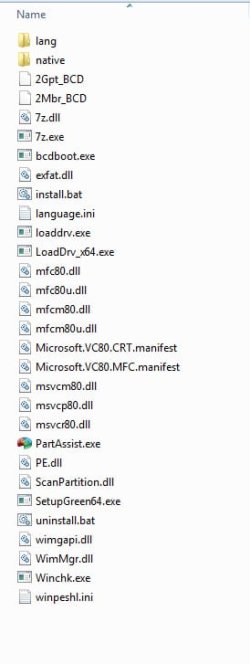
Including AomeiPartAssist is straightforward.

1. Mount boot.wim image 2 or winre.wim image 1

2. Create a folder in Mount\Program Files\AomeiPartAssist

Copy these files into that folder ( note if you winpe is x64, you need to copy them from "C:\Program Files\AOMEI Partition Assistant Pro Edition 6.6\x64" )

If you have standard edition and x64 winpe, copy them from "C:\Program Files (x86)\AOMEI Partition Assistant Standard Edition 6.6\x64"

add-partassist.jpg
 
Last edited:

My Computers

System One System Two

  • Computer type
    PC/Desktop
    OS
    7 X64
    CPU
    i5 8400
    Motherboard
    gigabyte b365m ds3h
    Memory
    2x8gb 3200mhz
    Hard Drives
    various
    PSU
    pure power 11 400w cm
    Case
    Coolermaster
    Cooling
    cryorig m9i
  • Computer type
    PC/Desktop
    OS
    7x64
    CPU
    g5400
    Motherboard
    ga b365m ds3h
    Memory
    8gb ddr4 2400
    PSU
    xfx pro 450w
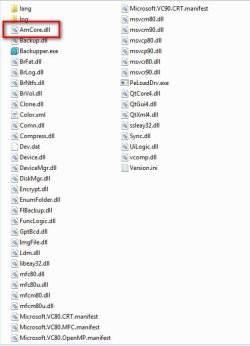
To include Backupper, create a folder Mount\Program Files\AomeiBackupper

Copy all these files into it

add-backupper.jpg

Obviously, if your winpe is x64, you need to copy them from "C:\Program Files (x86)\AOMEI Backupper\Winpe64" . Amcore.dll is marked in the photo - because it does not come from the x64 folder.

Copy the Amcore.dll file from "C:\Program Files (x86)\AOMEI Backupper\AmCore.dll"
 

My Computers

System One System Two

  • Computer type
    PC/Desktop
    OS
    7 X64
    CPU
    i5 8400
    Motherboard
    gigabyte b365m ds3h
    Memory
    2x8gb 3200mhz
    Hard Drives
    various
    PSU
    pure power 11 400w cm
    Case
    Coolermaster
    Cooling
    cryorig m9i
  • Computer type
    PC/Desktop
    OS
    7x64
    CPU
    g5400
    Motherboard
    ga b365m ds3h
    Memory
    8gb ddr4 2400
    PSU
    xfx pro 450w
For Backupper, you also copy the drivers from

If you are using x64 winpe
"C:\Program Files (x86)\AOMEI Backupper\driver\amd64\amwrtdrv.sys"
"C:\Program Files (x86)\AOMEI Backupper\driver\amd64\ambakdrv.sys"
"C:\Program Files (x86)\AOMEI Backupper\driver\amd64\ammntdrv.sys"

to Mount\Windows\System32

If you are using 32 bit winpe copy
"C:\Program Files (x86)\AOMEI Backupper\driver\i386\amwrtdrv.sys"
"C:\Program Files (x86)\AOMEI Backupper\driver\i386\ambakdrv.sys"
"C:\Program Files (x86)\AOMEI Backupper\driver\i386\ammntdrv.sys"

to Mount\Windows\System32
 
Last edited:

My Computers

System One System Two

  • Computer type
    PC/Desktop
    OS
    7 X64
    CPU
    i5 8400
    Motherboard
    gigabyte b365m ds3h
    Memory
    2x8gb 3200mhz
    Hard Drives
    various
    PSU
    pure power 11 400w cm
    Case
    Coolermaster
    Cooling
    cryorig m9i
  • Computer type
    PC/Desktop
    OS
    7x64
    CPU
    g5400
    Motherboard
    ga b365m ds3h
    Memory
    8gb ddr4 2400
    PSU
    xfx pro 450w
Easy so far, here is the tricky bit.
Backupper uses a filter driver, so you need to add registry entries ( unless you have the Tech Edition).

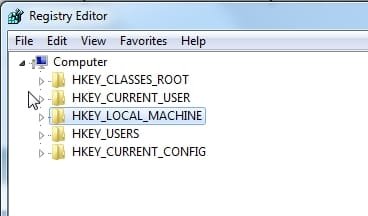
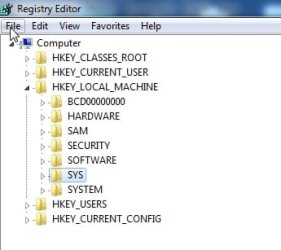
Open Regedit.


Highlight HKEY_LOCAL_MACHINE

load1.jpg

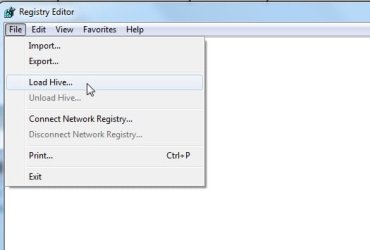
Click File>Load Hive

load2.jpg


Browse to Mount\Windows\System32\config and select the file called System. It will ask you to give it name - call it SYS.


load3.jpg

Then merge this .reg file.
View attachment AOMEIBU.zip

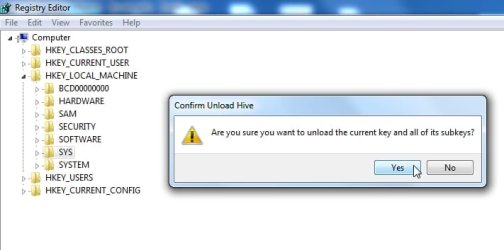
Finally click on Sys to highlight it, then File>Unload Hive

load4.jpg

That's it.

You can now unmount and commit the wim.

When you boot the wim you should be able to launch Aomei Part Assist and Aomei Backupper from the menu we added previously.
 
Last edited:

My Computers

System One System Two

  • Computer type
    PC/Desktop
    OS
    7 X64
    CPU
    i5 8400
    Motherboard
    gigabyte b365m ds3h
    Memory
    2x8gb 3200mhz
    Hard Drives
    various
    PSU
    pure power 11 400w cm
    Case
    Coolermaster
    Cooling
    cryorig m9i
  • Computer type
    PC/Desktop
    OS
    7x64
    CPU
    g5400
    Motherboard
    ga b365m ds3h
    Memory
    8gb ddr4 2400
    PSU
    xfx pro 450w
Paul Black and billmcct
Have you done it yet?
 

My Computers

System One System Two

  • Computer type
    PC/Desktop
    OS
    7 X64
    CPU
    i5 8400
    Motherboard
    gigabyte b365m ds3h
    Memory
    2x8gb 3200mhz
    Hard Drives
    various
    PSU
    pure power 11 400w cm
    Case
    Coolermaster
    Cooling
    cryorig m9i
  • Computer type
    PC/Desktop
    OS
    7x64
    CPU
    g5400
    Motherboard
    ga b365m ds3h
    Memory
    8gb ddr4 2400
    PSU
    xfx pro 450w

My Computers

System One System Two

  • Computer type
    PC/Desktop
    OS
    7 X64
    CPU
    i5 8400
    Motherboard
    gigabyte b365m ds3h
    Memory
    2x8gb 3200mhz
    Hard Drives
    various
    PSU
    pure power 11 400w cm
    Case
    Coolermaster
    Cooling
    cryorig m9i
  • Computer type
    PC/Desktop
    OS
    7x64
    CPU
    g5400
    Motherboard
    ga b365m ds3h
    Memory
    8gb ddr4 2400
    PSU
    xfx pro 450w
Paul Black and billmcct
Have you done it yet?

I'm still trying to absorb all that. I have flash drives to boot Aomei Backupper and Partition software. I've used Backupper for years now and prefer it.

Bill
 

My Computer

Computer type
Laptop
Computer Manufacturer/Model Number
Dell Precision 15 7550 Workstation
OS
Windows 10 22H2 Pro
CPU
Intel(R) Xeon W-10885M
Motherboard
Dell
Memory
2x 32 GB DDR4 ECC memory (128 GB max)
Graphics Card(s)
Intel onboard GPU 1080p - Quadro RTX 5000 Max-Q GPU 4K
Hard Drives
500 GB Corsair T500 main M2 SSD
1 TB Intel storage M2 SSD (6 TB max)
Mouse
Logitech MX-25 Bluetooth
Internet Speed
slow
Antivirus
MS
Browser
Pale Moon 33.3.x x64 AVX2 build
Great tut/info SIW2!!!
 

My Computer

Computer type
PC/Desktop
Computer Manufacturer/Model Number
HP Desktop & Compaq Laptop
OS
Win 10 x64, Linux Lite, Win 7 x64, BlackArch, & Kali
Hard Drives
Samsung 850 Pro 256Gb,
Hitachi HDD 1Tb,
Crucial MX SSD 250Gb
Segate 3Tb USB 3.0 Ext. Backup HDD
Internet Speed
150Mbps dn, 20Mbps up
Antivirus
Avast Free, Malwarebytes Anti-Exploit & Anti-Ransomware
Browser
Firefox, Chrome, Opera, & VPN
If you need win10x64 boot media for any reason 16299x64-v2.iso
Just wanted to say thanks to ian50 and SIW2 for the thread and sharing the ISO. I was on the same situation and I can confirm this really works.

I use AOMEI backupper quite a lot for rescue, backup, migrate and restore on all of my computers, I do have my set of tools but for some strange reason I couldn't get any ISO/CD/USB-boot to work on my Surface 3 and one Macbook Pro, they just wouldn't boot any of those tools no matter what I tried. Yes I tried creating diff ones with diff options, also downloading diff tools trying diff usbs, sizes, formats, partitions, turning off secure boot, etc, just like the OP described on this thread and perhaps more. Many threads on the web fail to grasp what the problem is and so the suggestions won't work.

That is, until I found this thread and now I have one tool that works on ALL my machines. It is worth posting confirmations and details when something works and solves the problem, just as saying thanks to those sharing the information.
 

My Computers

System One System Two

  • Computer type
    PC/Desktop
    Computer Manufacturer/Model Number
    HP
    OS
    Windows 10 Pro x64
    CPU
    AMD A8
    Graphics Card(s)
    Radeon R5
    Hard Drives
    SSD + mechanical HDD
    Antivirus
    Windows Defender
    Browser
    Firefox
  • Computer type
    PC/Desktop
Back
Top