Backing up computer

I have never backed up a computer the whole time I've had one which was when they first came out. I got Windows 7 and I have this little flag in the right hand corner that says I have to back up.
Anyway - should I do this and how? How do you know what to backup? Surely it wouldn't be all the programs and can you back it up right on your computer somewhere.
I know nothing about this, so you might have to talk kids language for me.
 

My Computer

Computer Manufacturer/Model Number
Vostro 220 Mini Tower Desktop Details | Dell
OS
Windows 7 Home Premium SP 1, 32-bit
CPU
Intel(R) Core(TM)2 Duo CPU E7400 @ 2.80GHz
Motherboard
Dell Inc. 0P301D
Memory
3.00 GB
Graphics Card(s)
(1) Intel(R) G45/G43 Express Chipset (2) Intel(R) G45/G43
Sound Card
(1) High Definition Audio Device (2) High Definition Audio
Monitor(s) Displays
Dell 22" wide E228WFP Analog flat panelq
Mouse
Dell optical usb mouse vostro
Other Info
OPTICAL READER, MOUSE,SPEAKERS, MONITOR, MODEM

My Computer

Computer type
PC/Desktop
Computer Manufacturer/Model Number
Dell XPS 420
OS
Windows 10, Home Clean Install
CPU
Intel Core2 processsor Q8200(2.33Ghz 1333FSB) Quad Core Tech
Motherboard
Dell
Memory
6 gb
Graphics Card(s)
ATI Radeon 256MB HD3650
Sound Card
Intergrated 7.1 Channel Audio
Monitor(s) Displays
Dell SP2009W 20"
Hard Drives
640 GB Serial ATA Hard drive
Cooling
Fan
Keyboard
Dell USB Keyboard
Mouse
Dell Premium Optical USB
Internet Speed
DSL 2.85
if you never do an initial backup when you first use win 7 the the action center has a flagged message as a reminder ,you can turn the reminder off by clicking the flag, then open Action center then on the window for the backup alert click the turn off message about backups link
 

My Computer

Computer Manufacturer/Model Number
Hewlett packard/p6512uk
OS
Microsoft Windows 7 Home Premium 64-bit 7600
CPU
IIx4 amd athelon 635 processor
Motherboard
FOXCONN 2AA9
Memory
2x2gb
Graphics Card(s)
ati radeon HD 5450
Sound Card
(1) Realtek High Definition Audio (2) AMD High Definition
Monitor(s) Displays
samsung lcd tv 32"
Screen Resolution
1360x 768
Hard Drives
(1) WDC WD10 01FAES-60Z2A0 SATA Disk Device (2) Maxtor OneTouch USB Device (3) ST310003 33AS USB Device (4) WD My Book 1111 USB Device
PSU
?
Cooling
air!
Keyboard
wireless hp
Mouse
wireless Hp,optical
Internet Speed
1.10mb/s
Antivirus
MSE
Browser
Firefox
I guess you mean a complete back up
http://www.sevenforums.com/tutorials/663-backup-complete-computer-create-image-backup.html

I was not aware of a notice that it had to be done.
There is an annoying notice but it can be turned off. My step father started the process of setting up a regular incremental backup but did not complete the process and it took us a bit to get the message to go away. This was not the complete PC image backup I am referring to.

You can set up an incremental backup of certain files if you are in need of that type of function...I myself am not since I manually backup the one folder from time to time. I do have a complete PC image which is a great feature once you get your PC set the way you like it with everything installed. It is also a good idea to create a new one from time to time as you install new things since it will save you oodles of time if you need to re-install your OS for any reason. The complete PC image is only useful if you have a second hard drive or other large capacity storage device...my image is well over 100 gigs and needs to be updated so it will be even bigger so as you see it takes a fair amount of space for this backup method but it is worth it.

Someone with better knowledge of the other back up types should be able to give some insight on how they work. Basically they allow you to keep backups of important files like a server machine does where it backs up files every little bit to prevent data loss....some home PC users might need this but I think most won't. There is an option in the action center to turn the message off for that particular notification.
 

My Computer

Computer Manufacturer/Model Number
Custom Asus
OS
Win7 64
CPU
AMD Phenom X4 9950 2.6ghz
Motherboard
Asus Crosshair
Memory
8 gigs Corsair
Graphics Card(s)
2 X Nvidia Geforce 8800 GTS (G92) 512 in SLI
Sound Card
Onboard
Monitor(s) Displays
Samsung 22 inch
Screen Resolution
1920 X 1080
Hard Drives
WD 1 TB, WD 500 Gig, WD 320 Gig
PSU
Thermaltake 850 watt
Case
Raidmax
Cooling
Zalman 9700
Keyboard
Microsoft
Mouse
Logitech MX 518
Internet Speed
25 mbps
How do you know what to backup? Surely it wouldn't be all the programs and can you back it up right on your computer somewhere.

A System Image Backup will include all of the programs on your computer as well as system settings, the 100 MB Win 7 System partition and your factory restore partition as it will show in Backup and Restore. Its fairly quick though I did one earlier this evening with 16.2 GB on the Windows 7 partition to back up and it only took 5 minutes and 22 seconds to complete.

~Maxx~
.
da59fa57.png
 

My Computer

Computer Manufacturer/Model Number
HP HPE 270f
OS
Windows 7 x64 Home Premium
CPU
Intel Core i7 930 @ 2.8 Ghz Socket 1366 LGA
Motherboard
Pegatron Truckee v1.04E41
Memory
8 GB 1366 Mhz DDR3 (PC3-10700) RAM
Graphics Card(s)
ATI Radeon 5770 1 GB DDR5 RAM
Sound Card
Realtech High Definition
Monitor(s) Displays
32" Sony Bravia
Screen Resolution
1366 X 768
Hard Drives
Intel 25nm 120 GB Series 320 SSD HD Tune- 265 MBps Read/ 130 MBps Write

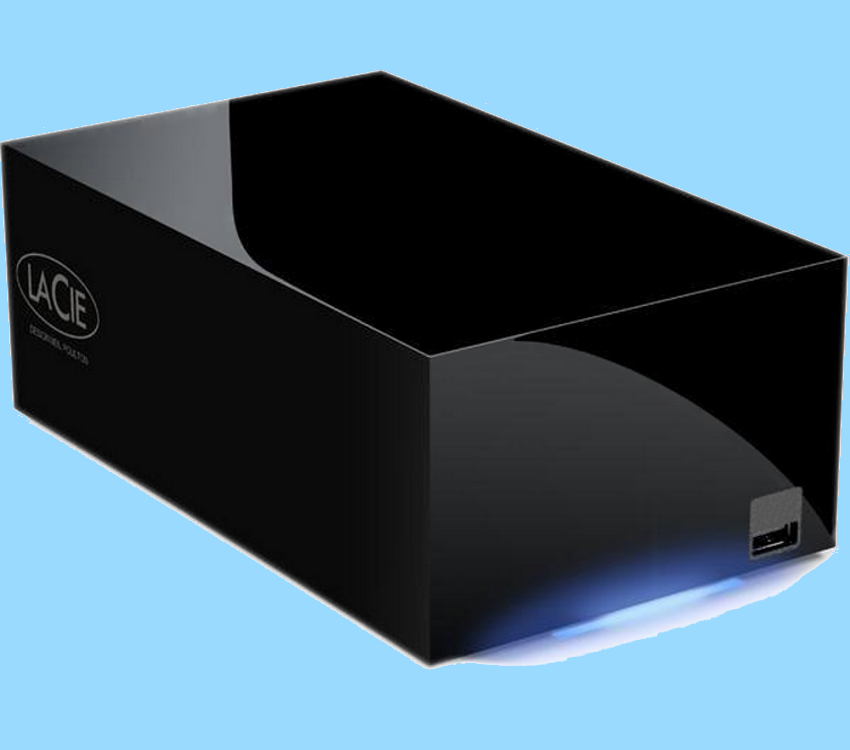
LaCie 1TB + 1TB RAID 0 eSATA Drive HD Tune- 160 MBps Read/ 90 MBps Write
Keyboard
Logitech Illuminated
Mouse
Logitech MX Revolution
Internet Speed
36.4 Mbps Maximum on a 37 Mbps Motorola SB501 Modem
I have never backed up a computer the whole time I've had one which was when they first came out. I got Windows 7 and I have this little flag in the right hand corner that says I have to back up.
Anyway - should I do this and how? How do you know what to backup? Surely it wouldn't be all the programs and can you back it up right on your computer somewhere.
I know nothing about this, so you might have to talk kids language for me.

The simplest solution is to perform a system image backup.

WIN | type Backup | Enter |
in the left-hand side click on Create a System Image |
you wil be presented with dialogs asking where do you want the image to be saved and which partitions you want to backup.

The selection dialogs are shown in the tutorial which was specified in a previous reply.

There are only two types of people: Those who make backups and those who wish they had.

If you ever have to restore your computer using a system image that was created, then you can use a System Repair Disc.

A system repair disc has many uses which if all goes well, then you will never need. The chances are you will need it at sometime.

Here is how to create a system repair disc:
[FONT=&quot]DISC - CREATE A SYSTEM REPAIR DISC[/FONT]
START | type System Repair | Enter key | Create Disc button
 

My Computer

Computer Manufacturer/Model Number
Toshiba Satellite S875D-S7239 laptop
OS
MS Windows 7 Ultimate SP1 64-bit
CPU
AMD A10-4600M
Motherboard
AMD Pumori (Socket FT1)
Memory
6.00 GB Dual-Channel DDR3 @ 798MHz (11-11-12-28)
Graphics Card(s)
AMD Radeon HD 7660G
Sound Card
High Definition Audio Device
Monitor(s) Displays
Generic PnP Monitor (1600x900@60Hz)
Screen Resolution
1600x900@60Hz
Hard Drives
SSD 119GB Corsair CSSD-V128GB2 ATA Device
Keyboard
Standard PS/2 Keyboard
Mouse
HP Wireless Optical Mobile Mouse Model FHA-3410
Internet Speed
What the local pub, local coffee shop offers.
Other Info
Optical Drive:MATSHITA BD-CMB UJ160B ATA Device


Also have an Asus ha1002xp netbook with Win 7 Ultimate installed.
Patti,
I notice that your System Specs are extremely sparse.

If you could fill those out for us, then we will have a better idea of backup specifics such as where to place the backup.


HOW TO FILL OUT YOUR SYSTEM SPECS


In the line at the top of www.SevenForums.com you will see UserCP.
That is an abbreviation for User Control Panel.
Click on UserCP.
In the left-hand column, under Your Profile you will see Edit System Spec.
Click on Edit System Spec
You can copy and paste from the output of Speccy, Speccy - System Information - Free Download to fill out much of the info. Be sure to use the Other Info section of your System Specs for such info as your optical drive, your wireless adapter, your speakers, etc.


Now there are a couple of other approaches to gathering the info for your system specs.
1) run MSINFO32.EXE
2) download and run SIW SIW | Download

These two alternatives are great but are sometimes overwhelming for a neophyte.
 

My Computer

Computer Manufacturer/Model Number
Toshiba Satellite S875D-S7239 laptop
OS
MS Windows 7 Ultimate SP1 64-bit
CPU
AMD A10-4600M
Motherboard
AMD Pumori (Socket FT1)
Memory
6.00 GB Dual-Channel DDR3 @ 798MHz (11-11-12-28)
Graphics Card(s)
AMD Radeon HD 7660G
Sound Card
High Definition Audio Device
Monitor(s) Displays
Generic PnP Monitor (1600x900@60Hz)
Screen Resolution
1600x900@60Hz
Hard Drives
SSD 119GB Corsair CSSD-V128GB2 ATA Device
Keyboard
Standard PS/2 Keyboard
Mouse
HP Wireless Optical Mobile Mouse Model FHA-3410
Internet Speed
What the local pub, local coffee shop offers.
Other Info
Optical Drive:MATSHITA BD-CMB UJ160B ATA Device


Also have an Asus ha1002xp netbook with Win 7 Ultimate installed.
I thought that was quick - then I looked at your specs. Pretty fast machine you have.

Windows system image is actually slow in comparative terms - it's the slowest backup app. I have come across.

Not that backup speed matters all that much ( unless you have an enormous amount of data ) . Reliability and flexibilty are more important imo.


How do you know what to backup? Surely it wouldn't be all the programs and can you back it up right on your computer somewhere.

A System Image Backup will include all of the programs on your computer as well as system settings, the 100 MB Win 7 System partition and your factory restore partition as it will show in Backup and Restore. Its fairly quick though I did one earlier this evening with 16.2 GB on the Windows 7 partition to back up and it only took 5 minutes and 22 seconds to complete.

~Maxx~
.
da59fa57.png
 

My Computers

System One System Two

  • Computer type
    PC/Desktop
    OS
    7 X64
    CPU
    i5 8400
    Motherboard
    gigabyte b365m ds3h
    Memory
    2x8gb 3200mhz
    Hard Drives
    various
    PSU
    pure power 11 400w cm
    Case
    Coolermaster
    Cooling
    cryorig m9i
  • Computer type
    PC/Desktop
    OS
    7x64
    CPU
    g5400
    Motherboard
    ga b365m ds3h
    Memory
    8gb ddr4 2400
    PSU
    xfx pro 450w
I thought that was quick - then I looked at your specs. Pretty fast machine you have.

Windows system image is actually slow in comparative terms - it's the slowest backup app. I have come across.

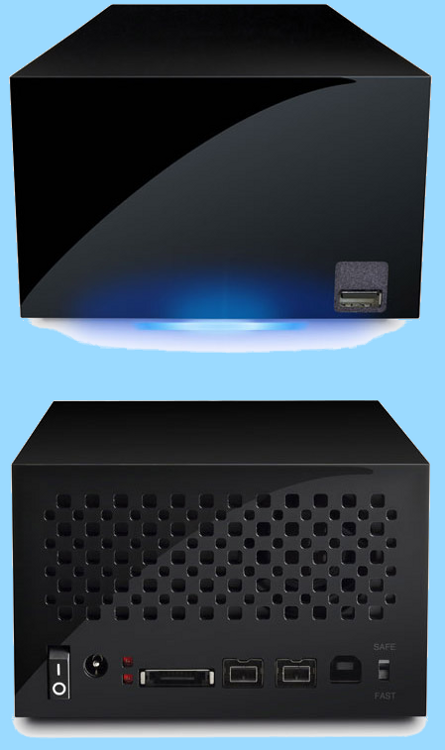
I honestly did not know that! Just after I got my Win 7 computer I added a LaCie Hard Disk MAX 2TB eSATA Raid 0 Drive and the 24 GB Windows System Images have always taken around 5 minutes. Other operations proceed at an accelerated rate also when using the LaCie Raid 0 eSata drive which I have benchmarked using HD Tune at 160/90 write and read times...

LaCieHDMax.png


~Maxx~
.
da59fa57.png
 

My Computer

Computer Manufacturer/Model Number
HP HPE 270f
OS
Windows 7 x64 Home Premium
CPU
Intel Core i7 930 @ 2.8 Ghz Socket 1366 LGA
Motherboard
Pegatron Truckee v1.04E41
Memory
8 GB 1366 Mhz DDR3 (PC3-10700) RAM
Graphics Card(s)
ATI Radeon 5770 1 GB DDR5 RAM
Sound Card
Realtech High Definition
Monitor(s) Displays
32" Sony Bravia
Screen Resolution
1366 X 768
Hard Drives
Intel 25nm 120 GB Series 320 SSD HD Tune- 265 MBps Read/ 130 MBps Write

LaCie 1TB + 1TB RAID 0 eSATA Drive HD Tune- 160 MBps Read/ 90 MBps Write
Keyboard
Logitech Illuminated
Mouse
Logitech MX Revolution
Internet Speed
36.4 Mbps Maximum on a 37 Mbps Motorola SB501 Modem
Patti,
I'm not trying to talk down to you I'm assuming backup is new to you.

Coming from no backups I suggest sticking to the Microsoft inbuilt backup capabilities. Only if they cause problems or later would I look at some of the other good software around.
"Backup" has 2 main parts to it.
(1) Backing up your files and folders. Like your documents, photos and so on.
The "BACK UP NOW" button will start this.
The first one you make will take a little longer but then say you run it every couple of days it will pick up the new stuff you've made and add it to the backup - pretty quick.
(2) System Image. Snapshots of your whole disk (partitions to be precise). The snaps shots contains everything: Windows itself, application programs, your personal stuff -- The works.
These are VERY important to have because you can put the image/snapshot back to when everything was running fine.
These couldn't be easier to make. You press a button "CREATE A SYSTEM IMAGE NOW". Make say one every couple of weeks (or a month) - takes 10-20 minutes).
(3) Just one more thing you will need to hit the "Change Settings" button once to set a few things up. There is a little box there that say create a system image along with the backup. I would UNTICK this one or else it will do the the image/snapshot thing along with your more regular personal file backups. I'd use the button on the left of the "backup" page - called "Create a System Image" with the little shield in front of it. You don't need to make these that often.
You can setup a automatic backup schedule but the program may want to backup when it's inconvenient...up to you.


Make your backups to an external USB Hard Disk Drive (HDD). If you don't have one, I suggest you buy one 500GB is enough (Bigger's ok of course). Cost less than $100.

Finally!!!!!! There are tutorials here that take you through the step by step procedures.
 

My Computer

Computer type
PC/Desktop
Computer Manufacturer/Model Number
Own build
OS
Windows 7x64 Home Premium SP1
CPU
Intel i7 2600k
Motherboard
ASUS P8Z68 Deluxe
Memory
G.Skill Ripjaws (DDR3-1600) 2x4GB
Graphics Card(s)
Nvidia GeForce GTS 450; Intel HD Graphics 3000(GT2+)
Monitor(s) Displays
Dell Ultrasharp IPS panel U2311H, Samsung SyncMaster P2350
Screen Resolution
1920x1080
Hard Drives
Samsung 850 Pro SSD 256GB, Samsung SSD 840 120GB, Seagates 1TB Barracuda ST31000528AS x2
PSU
Seasonic M12II 520W
Case
Lian Li Lancool PC-K60
Cooling
Case: 1x120mm, 3x140mm CPU: Hyper 212+
Keyboard
Logitech MK520 (wireless)
Mouse
Logitech MK520
Internet Speed
6-7 Mbps
Antivirus
Norton Security Premium, Malwarebytes on 2 (MSE on 3rd PC)
Browser
FireFox
Other Info
Audio: Logitech Z523 2.1
Make your backups to an external USB Hard Disk Drive (HDD). If you don't have one, I suggest you buy one 500GB is enough (Bigger's ok of course). Cost less than $100.

I have been backing up to external drives for a long time and I have purchased 3 Western Digital Drives including one that had a 1 TB capacity as well as a 1.5 TB Seagate Drive and they all failed within a short period of time. The longest lasting was the $180 1TB WD at 18 months and the record for the shortest amount of time before complete failure was the $150 1.5 TB Seagate.

By the time the 1TB WD Firewire Drive which was the fastest of the bunch @ 38 MBps read time went out I had spent almost $500 on external drives with slow transfer speeds and frequent failures and so I decided to spend slightly more than one of these failed drives cost on the 2TB LaCie eSATA Raid 0 drive. Some owners of the 2TB LaCie say that they have used their Lacie Drives for 4 years with no issues. I have yet to know how long my 2TB LaCie Drive will last, but one thing I know for sure and that it has transfer speeds that are 6X as fast as the USB Drives that I had before they broke down.

~Maxx~
.
Win7_50.png
 

My Computer

Computer Manufacturer/Model Number
HP HPE 270f
OS
Windows 7 x64 Home Premium
CPU
Intel Core i7 930 @ 2.8 Ghz Socket 1366 LGA
Motherboard
Pegatron Truckee v1.04E41
Memory
8 GB 1366 Mhz DDR3 (PC3-10700) RAM
Graphics Card(s)
ATI Radeon 5770 1 GB DDR5 RAM
Sound Card
Realtech High Definition
Monitor(s) Displays
32" Sony Bravia
Screen Resolution
1366 X 768
Hard Drives
Intel 25nm 120 GB Series 320 SSD HD Tune- 265 MBps Read/ 130 MBps Write

LaCie 1TB + 1TB RAID 0 eSATA Drive HD Tune- 160 MBps Read/ 90 MBps Write
Keyboard
Logitech Illuminated
Mouse
Logitech MX Revolution
Internet Speed
36.4 Mbps Maximum on a 37 Mbps Motorola SB501 Modem
Make your backups to an external USB Hard Disk Drive (HDD). If you don't have one, I suggest you buy one 500GB is enough (Bigger's ok of course). Cost less than $100.

I have been backing up to external drives for a long time and I have purchased 3 Western Digital Drives including one that had a 1 TB capacity as well as a 1.5 TB Seagate Drive and they all failed within a short period of time. The longest lasting was the $180 1TB WD at 18 months and the record for the shortest amount of time before complete failure was the $150 1.5 TB Seagate.

By the time the 1TB WD Firewire Drive which was the fastest of the bunch @ 38 MBps read time went out I had spent almost $500 on external drives with slow transfer speeds and frequent failures and so I decided to spend slightly more than one of these failed drives cost on the 2TB LaCie eSATA Raid 0 drive. Some owners of the 2TB LaCie say that they have used their Lacie Drives for 4 years with no issues. I have yet to know how long my 2TB LaCie Drive will last, but one thing I know for sure and that it has transfer speeds that are 6X as fast as the USB Drives that I had before they broke down.

~Maxx~
.
Win7_50.png
I hope your experience is (unfortunate) bad luck. But they are high precision, mass produced, relatively low cost. Feedback from others in a new thread would be interesting.
Call me Mr Paranoid - I have 2 external drives, just for backup) which I keep spun down most of the time.
 

My Computer

Computer type
PC/Desktop
Computer Manufacturer/Model Number
Own build
OS
Windows 7x64 Home Premium SP1
CPU
Intel i7 2600k
Motherboard
ASUS P8Z68 Deluxe
Memory
G.Skill Ripjaws (DDR3-1600) 2x4GB
Graphics Card(s)
Nvidia GeForce GTS 450; Intel HD Graphics 3000(GT2+)
Monitor(s) Displays
Dell Ultrasharp IPS panel U2311H, Samsung SyncMaster P2350
Screen Resolution
1920x1080
Hard Drives
Samsung 850 Pro SSD 256GB, Samsung SSD 840 120GB, Seagates 1TB Barracuda ST31000528AS x2
PSU
Seasonic M12II 520W
Case
Lian Li Lancool PC-K60
Cooling
Case: 1x120mm, 3x140mm CPU: Hyper 212+
Keyboard
Logitech MK520 (wireless)
Mouse
Logitech MK520
Internet Speed
6-7 Mbps
Antivirus
Norton Security Premium, Malwarebytes on 2 (MSE on 3rd PC)
Browser
FireFox
Other Info
Audio: Logitech Z523 2.1
I hope your experience is (unfortunate) bad luck.
Call me Mr Paranoid - I have 2 external drives, just for backup) which I keep spun down most of the time.

Please don't let by experience with these external HDD's worry you. This 2 1/2 year long period of one drive failing after another did teach me to keep 4 copies of my data and 100+ GB of pictures though.

I have another 500 GB Verbatim external USB drive with WD discs that has been running every day for 9 months or so along with a 1 TB WD drive I bought at the same time that is usually inert which only cost $60 less than the 2TB LaCie eSATA Raid 0 drive. The moral of the story for me is that I will not be byuing WD or Seagate HDD's again in the future when I can get 6X faster performance and much better longivity from a 2TB LaCie eSATA drive.

LaCie_HD_MAX_Quadra.png


~Maxx~
.
Win7_50.png
 

My Computer

Computer Manufacturer/Model Number
HP HPE 270f
OS
Windows 7 x64 Home Premium
CPU
Intel Core i7 930 @ 2.8 Ghz Socket 1366 LGA
Motherboard
Pegatron Truckee v1.04E41
Memory
8 GB 1366 Mhz DDR3 (PC3-10700) RAM
Graphics Card(s)
ATI Radeon 5770 1 GB DDR5 RAM
Sound Card
Realtech High Definition
Monitor(s) Displays
32" Sony Bravia
Screen Resolution
1366 X 768
Hard Drives
Intel 25nm 120 GB Series 320 SSD HD Tune- 265 MBps Read/ 130 MBps Write

LaCie 1TB + 1TB RAID 0 eSATA Drive HD Tune- 160 MBps Read/ 90 MBps Write
Keyboard
Logitech Illuminated
Mouse
Logitech MX Revolution
Internet Speed
36.4 Mbps Maximum on a 37 Mbps Motorola SB501 Modem
I've been trying to use the Windows 7 backup feature but I keep running into a problem. I have an external 300GB USB hard drive with nothing on it except for the backups. I have a set of files about 80GB (Music Library, Photo Library, Documents, etc) that I want backed up onto it daily. I do not have it set to create a system image. Within a few weeks the drive fills up and Windows stops making backups. Everything I have read says this is normal behavior and I need to "Manage Space" to remove old backups to free up space for new ones. Can anyone else say if this is normal behavior? If so, I would say that Win7 backup is USELESS since the point of automated backups is that they do not need user intervention to run. It should automatically manage space to remove old backup sets as necessary.

Maybe I'm just doing it wrong...
 

My Computer

OS
-
gte024h- Welcome to the Windows 7 Forums!

My Windows System Image backups are initially 24 GB and each weekly incremental backup adds very little to that amount. I think that the problem you are having is that even though relatively little information is being added Windows refuses to do the backup because the drive is full. It sounds like you will need to move either the Music or Windows Backup to another external drive to avoid this conflict.

~Maxx~

LaCie100.png
 

My Computer

Computer Manufacturer/Model Number
HP HPE 270f
OS
Windows 7 x64 Home Premium
CPU
Intel Core i7 930 @ 2.8 Ghz Socket 1366 LGA
Motherboard
Pegatron Truckee v1.04E41
Memory
8 GB 1366 Mhz DDR3 (PC3-10700) RAM
Graphics Card(s)
ATI Radeon 5770 1 GB DDR5 RAM
Sound Card
Realtech High Definition
Monitor(s) Displays
32" Sony Bravia
Screen Resolution
1366 X 768
Hard Drives
Intel 25nm 120 GB Series 320 SSD HD Tune- 265 MBps Read/ 130 MBps Write

LaCie 1TB + 1TB RAID 0 eSATA Drive HD Tune- 160 MBps Read/ 90 MBps Write
Keyboard
Logitech Illuminated
Mouse
Logitech MX Revolution
Internet Speed
36.4 Mbps Maximum on a 37 Mbps Motorola SB501 Modem
Hi there
There are 2 different types of backup strategies you should adopt -- "Archive" which is data that doesn't change too much -- for example a lot of data files (spread sheets, Word documents, email folders, photos, music etc etc) and "Backup" for data that DOES change quite frequently.

I would possibly backup the User data stuff that doesn't change a lot to say 50GB BD blue ray discs or to passport type external USB disks -- BUT DON'T USE THESE EVERY DAY. Only use them when re-archiving or extending an archive.

Backing up your OS (image the disk) and other data should be done regularly to DIFFERENT disks -- the chances of TWO failing at the same time are so small as to be discounted.

Decent backup software also allows "incremental backups" - you create a FULL backup and then the next set of backups only backups stuff that has CHANGED.

Say once a week do a full backup and run incremental backups daily.

Data that you don't change very often or even need online 100% copy it to your ARCHIVE system.

Cheers
jimbo
 

My Computer

Computer type
PC/Desktop
Computer Manufacturer/Model Number
Custom built, several laptops HP/ASUS
OS
Linux CENTOS 7 / various Windows OS'es and servers
CPU
Intel i7 Intel i5
Memory
8GB, 16GB
Graphics Card(s)
On Motherboard
Sound Card
Realtek HD audio
Monitor(s) Displays
Apple Cinema display, Samsung LCD
Screen Resolution
1920 X 1080
Hard Drives
4 X 1TB SATA
Mouse
Toshiba wireless laser
Internet Speed
> 20MB up
Patti,
I'm not trying to talk down to you I'm assuming backup is new to you.

Coming from no backups I suggest sticking to the Microsoft inbuilt backup capabilities. Only if they cause problems or later would I look at some of the other good software around.
"Backup" has 2 main parts to it.
(1) Backing up your files and folders. Like your documents, photos and so on.
The "BACK UP NOW" button will start this.
The first one you make will take a little longer but then say you run it every couple of days it will pick up the new stuff you've made and add it to the backup - pretty quick.
(2) System Image. Snapshots of your whole disk (partitions to be precise). The snaps shots contains everything: Windows itself, application programs, your personal stuff -- The works.
These are VERY important to have because you can put the image/snapshot back to when everything was running fine.
These couldn't be easier to make. You press a button "CREATE A SYSTEM IMAGE NOW". Make say one every couple of weeks (or a month) - takes 10-20 minutes).
(3) Just one more thing you will need to hit the "Change Settings" button once to set a few things up. There is a little box there that say create a system image along with the backup. I would UNTICK this one or else it will do the the image/snapshot thing along with your more regular personal file backups. I'd use the button on the left of the "backup" page - called "Create a System Image" with the little shield in front of it. You don't need to make these that often.
You can setup a automatic backup schedule but the program may want to backup when it's inconvenient...up to you.


Make your backups to an external USB Hard Disk Drive (HDD). If you don't have one, I suggest you buy one 500GB is enough (Bigger's ok of course). Cost less than $100.

Finally!!!!!! There are tutorials here that take you through the step by step procedures.
Repeating this again for you in case it gets lost in the noise.
 

My Computer

Computer type
PC/Desktop
Computer Manufacturer/Model Number
Own build
OS
Windows 7x64 Home Premium SP1
CPU
Intel i7 2600k
Motherboard
ASUS P8Z68 Deluxe
Memory
G.Skill Ripjaws (DDR3-1600) 2x4GB
Graphics Card(s)
Nvidia GeForce GTS 450; Intel HD Graphics 3000(GT2+)
Monitor(s) Displays
Dell Ultrasharp IPS panel U2311H, Samsung SyncMaster P2350
Screen Resolution
1920x1080
Hard Drives
Samsung 850 Pro SSD 256GB, Samsung SSD 840 120GB, Seagates 1TB Barracuda ST31000528AS x2
PSU
Seasonic M12II 520W
Case
Lian Li Lancool PC-K60
Cooling
Case: 1x120mm, 3x140mm CPU: Hyper 212+
Keyboard
Logitech MK520 (wireless)
Mouse
Logitech MK520
Internet Speed
6-7 Mbps
Antivirus
Norton Security Premium, Malwarebytes on 2 (MSE on 3rd PC)
Browser
FireFox
Other Info
Audio: Logitech Z523 2.1
I've been trying to use the Windows 7 backup feature but I keep running into a problem. I have an external 300GB USB hard drive with nothing on it except for the backups. I have a set of files about 80GB (Music Library, Photo Library, Documents, etc) that I want backed up onto it daily. I do not have it set to create a system image. Within a few weeks the drive fills up and Windows stops making backups. Everything I have read says this is normal behavior and I need to "Manage Space" to remove old backups to free up space for new ones. Can anyone else say if this is normal behavior? If so, I would say that Win7 backup is USELESS since the point of automated backups is that they do not need user intervention to run. It should automatically manage space to remove old backup sets as necessary.

Maybe I'm just doing it wrong...
If you're doing daily backups, over a period of time, Windows will create several backup "periods". A regular backup is incremental and generally won't get a whole lot larger unless you continuously add large chunks of data. The first time you back up, Windows does a complete, full backup. After that, your backups become incremental. However, after several incremental backups, Windows will create, yet, another complete, full backup. These "full" backups are called backup "periods". They collect on your HDD in backup ranges by date. It is safe to delete old backup periods, keeping just the latest ones. When Windows manages backup disk space, they are referring to "image" backups, not incremental backups. You can elect to keep just the latest "image" backup and each time an image is made, windows will automatically delete the one it replaces. It will not do such things for backup periods, they must be managed manually.
 

My Computer

Computer Manufacturer/Model Number
Custom Build
OS
Windows 7 Pro/32 Academic. Build 7600
CPU
Intel 2.3 Duo core
Motherboard
EliteGroup G31T-M
Memory
4 GB DDR
Graphics Card(s)
Nvidia GeForce 9500 GT
Sound Card
Built in
Monitor(s) Displays
Viewsonic 15" 4:3
Screen Resolution
1280 x 1024
Hard Drives
WD Caviar Black 750 GB
WD 250 GB External
PSU
Antec 450w
Keyboard
Standard windows
Mouse
Logitech USB
Internet Speed
Bellsouth DSL 6.0
If you're doing daily backups, over a period of time, Windows will create several backup "periods". A regular backup is incremental and generally won't get a whole lot larger unless you continuously add large chunks of data. The first time you back up, Windows does a complete, full backup. After that, your backups become incremental. However, after several incremental backups, Windows will create, yet, another complete, full backup. These "full" backups are called backup "periods". They collect on your HDD in backup ranges by date. It is safe to delete old backup periods, keeping just the latest ones. When Windows manages backup disk space, they are referring to "image" backups, not incremental backups. You can elect to keep just the latest "image" backup and each time an image is made, windows will automatically delete the one it replaces. It will not do such things for backup periods, they must be managed manually.

Thank you that was the info I was looking for. I noticed the backup periods collecting over time, usually it starts failing on the third backup period. If I have to manually manage these backup periods, then IMO Windows 7 backup is broken. Now I go in search of a smart automated backup solution.
 

My Computer

OS
-
An alternative method is to place your User folders in a separate data partition or HD: http://www.sevenforums.com/tutorials/18629-user-folders-change-default-location.html

This keeps the OS/Programs partition leaner for an SSD and so the backup image is more compact.

If Win7 becomes irreparable, in 15 minutes you can reimage your OS/Programs partition and your data is waiting and current in its vault.

As for the data backup, I like using a sync program like Windows Live Mesh which keeps the same folder structure while synch'ing your User folders to another HD, other network computers, or using free Sky Drive as a server can make them available worldwide to access securely from anywhere.
 
Back
Top