Backup XP Mode?

RP McIntosh

New member
Member
VIP
Local time
3:33 PM
Messages
135
I just went through a lengthy process to remove and reinstall XP mode on my Windows 7 machine, including installing and updating an antivirus program, running Windows Update to get all 37 critical patches, and reinstalling my XP Applications.

It occurred to me that it would have been nice to have a backup of the Virtual Machine, and XP Mode that I could simply retore rather than remove everything and start over (sort of a manually prepared version of System Restore for the XP Mode). I do have a disk imaging program, and of course, could resore my most recent image. But I don't want to restore the entire C Drive, if I can avoid it.

Does anyone know if a backup can be made of JUST the Virtual Machine and XP Mode, and if so, what folders would need to be included? My intution tells me that there may be supporting files in places like the Windows\System folder, or entries in the Registry that would not be captured in such a backup, but if those files or setting are not the cause of the problem, restoring a backup might work.

Does anyone have any experience in doing this?
 

My Computer

Computer Manufacturer/Model Number
Dell
OS
Windows 7 Ultimate 64
CPU
Intel i7-975
Memory
12 GB
Graphics Card(s)
ATI Radeon HD 5870
Sound Card
Sound Blaster X-Fi Titanium
Monitor(s) Displays
Dell U2410
Hard Drives
3, SATA 1.5 TB each
You just need a copy of the virtual hard drive file. That's it.
 

My Computer

Computer Manufacturer/Model Number
Self-Built in July 2009
OS
Windows 7 Ultimate x64
CPU
Intel Q9550 2.83Ghz OC'd to 3.40Ghz
Motherboard
Gigabyte GA-EP45-UD3R rev. 1.1, F12 BIOS
Memory
8GB G.Skill PI DDR2-800, 4-4-4-12 timings
Graphics Card(s)
EVGA 1280MB Nvidia GeForce GTX570
Sound Card
Realtek ALC899A 8 channel onboard audio
Monitor(s) Displays
23" Acer x233H
Screen Resolution
1920x1080
Hard Drives
Intel X25-M 80GB Gen 2 SSD
Western Digital 1TB Caviar Black, 32MB cache. WD1001FALS
PSU
Corsair 620HX modular
Case
Antec P182
Cooling
stock
Keyboard
ABS M1 Mechanical
Mouse
Logitech G9 Laser Mouse
Internet Speed
15/2 cable modem
Other Info
Windows and Linux enthusiast. Logitech G35 Headset.
XP Mode Backup

Thanks for the info. I' assuming that the file you are talking about is the one found at C:/USERS/USER_NAME/APPDATA/LOCAL/MICROSOFT/WINDOWS VIRTUAL PC/VIRTUAL MACHINES. If so, let me confirm that I understand the long and short of it.

Assuming that I have backed this file up on a regular basis, and experience a problem with XP Mode, similar to the one I just had where I had to remove and reinstall, am I correct in the following conclusions?

1. Simply restoring the VHD file COULD fix the problem, assuming that the problem was a corruption of the VHD file.

2. If that did not fix the problem, (presumaby the problem was somewhere OTHER than in the VHD file), I could remove and reinstall XP Mode and the Virtual Machine, THEN, in lieu of doing all the updating and reistallation of applications, I could restore the VHD file and have my old settings, applications, updates etc back to the way they were before the problem.

3. And finally, the only way I would need to start completely from scratch, would be if there were problems in BOTH corruption of the VHD file, AND the underpinnings of the virtual machine and XP Mode.

Are those assumptions more or less correct?

Thanks in advance for your help.
 

My Computer

Computer Manufacturer/Model Number
Dell
OS
Windows 7 Ultimate 64
CPU
Intel i7-975
Memory
12 GB
Graphics Card(s)
ATI Radeon HD 5870
Sound Card
Sound Blaster X-Fi Titanium
Monitor(s) Displays
Dell U2410
Hard Drives
3, SATA 1.5 TB each
For the first one, I would say yes. For the second one, you would have to make sure you ALSO have a copy of the virtual machine settings or you may have to start all over. Good luck!
 

My Computer

OS
Windows 7 Ultimate 32 Bit
CPU
AMD Sempron 2.7GHz
Motherboard
Asus
Memory
2GB Crucial
Graphics Card(s)
ATI Sapphire 4670 1GB 750MHz
Monitor(s) Displays
Samsung SyncMaster 2253LW
Screen Resolution
1680x1050@60Hz
Hard Drives
Western Digital 500GB 7200RPM
Western Digital 250GB 7200RPM
PSU
Athena 500W With PCI Express Power Plugs
Case
Cooler Master Elite 310
Cooling
Stock
Keyboard
HP 5183
Mouse
Logitech M-UAE96
Internet Speed
Clear 4MBps
Other Info
Also Have Acer Netbook
For the first one, I would say yes. For the second one, you would have to make sure you ALSO have a copy of the virtual machine settings or you may have to start all over. Good luck!

OK--that makes a certain amount of sense. Now, where do I get a copy of the virtual machine settings, or what file do I backup which, when restored, would restore all of the virtual machine settings?
 

My Computer

Computer Manufacturer/Model Number
Dell
OS
Windows 7 Ultimate 64
CPU
Intel i7-975
Memory
12 GB
Graphics Card(s)
ATI Radeon HD 5870
Sound Card
Sound Blaster X-Fi Titanium
Monitor(s) Displays
Dell U2410
Hard Drives
3, SATA 1.5 TB each
In the beginning of this tutorial you'll find a list of XP Mode files and their default locations.

XP Mode has also a base vhd file (C:\Program Files\Windows XP Mode\Windows XP Mode base.vhd), which should not be copied or moved to another location.

Kari
 

My Computer

Computer type
Laptop
Computer Manufacturer/Model Number
HP ENVY 17-1150eg
OS
Windows 10 Pro x64 EN-GB
CPU
1.6 GHz Intel Core i7-720QM Processor
Memory
6 GB
Graphics Card(s)
ATI Mobility Radeon HD 5850 Graphics
Sound Card
Beats sound system with integrated subwoofer
Monitor(s) Displays
17" laptop display, 22" LED and 32" Full HD TV through HDMI
Screen Resolution
1600*900 (1), 1920*1080 (2&3)
Hard Drives
Internal: 2 x 500 GB SATA Hard Disk Drive 7200 rpm
External: 2TB for backups, 3TB USB3 network drive for media
Cooling
As Envy runs a bit warm, I have it on a Cooler Master pad
Keyboard
Logitech diNovo Media Desktop Laser (bluetooth)
Mouse
Logitech Performance Mouse MX
Internet Speed
50/10 Mbps VDSL
Antivirus
Windows Defender 4.3.9431.0
Browser
Maxthon 3.5.2., IE11
In the beginning of this tutorial you'll find a list of XP Mode files and their default locations.

XP Mode has also a base vhd file (C:\Program Files\Windows XP Mode\Windows XP Mode base.vhd), which should not be copied or moved to another location.

Kari


Kari--

OK. Thanks for the tutorial. But a couple of questions for you. Right now, what I'm backing up is the vhd file located in the C:\Users\Your_Username\AppData\Local\Microsoft\Windows Virtual PC\Virtual Machines folder. If I understand you correctly, I SHOULD also be backing up the vmc and vsv files from that same location. I can certainly add them to my backup job. But are you saying I should ALSO back up the vhd file in the C:\Program Files\Windows XP Mode\ folder? Am I reading you correctly that one of th vhd files is for XP mode, and the other one is for the virtual machine itself? Or am I hopelessly confused? And am I correct in assuming that your warning about not copying or moving it to another location would NOT prevent me from creating a backup copy of it, which if used, would replace the existing file in the same location?
 
Last edited:

My Computer

Computer Manufacturer/Model Number
Dell
OS
Windows 7 Ultimate 64
CPU
Intel i7-975
Memory
12 GB
Graphics Card(s)
ATI Radeon HD 5870
Sound Card
Sound Blaster X-Fi Titanium
Monitor(s) Displays
Dell U2410
Hard Drives
3, SATA 1.5 TB each
The base vhd file has to be in the default location, all other files anywhere you want to, as long as you remember to change the file location references as told in tutorial. To completely backup XP Mode, you need to copy both vhd files (base and XP Mode itself), vmcx and vmc files plus the folder C:\Users\Your_Username\AppData\Local\Microsoft\Windows Virtual PC\Virtual Applications\Windows XP Mode.

The vsv file exists only if XP Mode is hibernated, containing the hibernation data. I would not make the backup when XP Mode is only hibernated instead of completely shut down, but if you do so you need to copy vsv as well.

Kari
 

My Computer

Computer type
Laptop
Computer Manufacturer/Model Number
HP ENVY 17-1150eg
OS
Windows 10 Pro x64 EN-GB
CPU
1.6 GHz Intel Core i7-720QM Processor
Memory
6 GB
Graphics Card(s)
ATI Mobility Radeon HD 5850 Graphics
Sound Card
Beats sound system with integrated subwoofer
Monitor(s) Displays
17" laptop display, 22" LED and 32" Full HD TV through HDMI
Screen Resolution
1600*900 (1), 1920*1080 (2&3)
Hard Drives
Internal: 2 x 500 GB SATA Hard Disk Drive 7200 rpm
External: 2TB for backups, 3TB USB3 network drive for media
Cooling
As Envy runs a bit warm, I have it on a Cooler Master pad
Keyboard
Logitech diNovo Media Desktop Laser (bluetooth)
Mouse
Logitech Performance Mouse MX
Internet Speed
50/10 Mbps VDSL
Antivirus
Windows Defender 4.3.9431.0
Browser
Maxthon 3.5.2., IE11
The base vhd file has to be in the default location, all other files anywhere you want to, as long as you remember to change the file location references as told in tutorial. To completely backup XP Mode, you need to copy both vhd files (base and XP Mode itself), vmcx and vmc files plus the folder C:\Users\Your_Username\AppData\Local\Microsoft\Windows Virtual PC\Virtual Applications\Windows XP Mode.

The vsv file exists only if XP Mode is hibernated, containing the hibernation data. I would not make the backup when XP Mode is only hibernated instead of completely shut down, but if you do so you need to copy vsv as well.

Kari

Thanks. Seems like a simpler solution would be to backup the base vhd file, plus the entire C:\Users\Your_Username\AppData\Local\Microsoft\Windows Virtual PC folder. That would get the XP Mode vhd file, the other there, plus the Windows XP Mode folder, all in one fell swoop.

In checking out the files, I note that the XP Mode vhd file changes whenever I've used XP mode (which I would expect it to do), but that the base vhd file doesn't seem to change. In any case, I do appreciate you taking the time to provide this information. I'll modify my backup job accordingly.
 

My Computer

Computer Manufacturer/Model Number
Dell
OS
Windows 7 Ultimate 64
CPU
Intel i7-975
Memory
12 GB
Graphics Card(s)
ATI Radeon HD 5870
Sound Card
Sound Blaster X-Fi Titanium
Monitor(s) Displays
Dell U2410
Hard Drives
3, SATA 1.5 TB each
Do not forget to backup the vmcx file in C:\Users\Your_Username\Virtual Machines\.

By default, XP Mode is divided to two virtual hard disks. The base, or parent vhd contains the 'not negotiable' part of XP, system core, files needed to run XP. All user modifications, installed apps etc. are then stored to the XP Mode vhd.

However, if you want to, you can make XP Mode to use only one vhd by merging the base, parent vhd and the XP Mode vhd. Here's how:

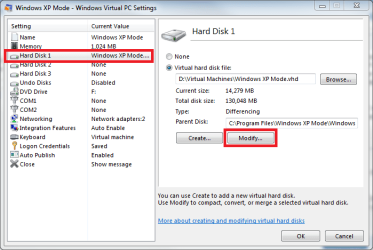
  • Go to XP Mode settings, choose Hard Disk 1 in left pane, click Modify

    XPM_Modify_HD_1.png
    .
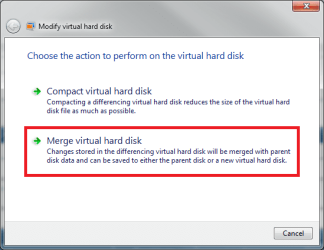
  • Click Merge virtual hard disk

    XPM_Modify_HD_2.png
    .
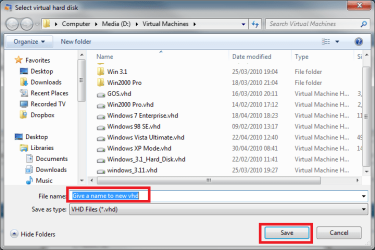
  • Choose New file and browse to a location where you want to save the new, merged vhd

    XPM_Modify_HD_3.png
    .
  • Give a name to the vhd, click Save

    XPM_Modify_HD_4.png
    .
  • Click Merge

    XPM_Modify_HD_5.png
A new standalone XP Mode vhd is now created. It does no longer need the base vhd. Notice that merging takes quite a long time.

Kari
 
Last edited:

My Computer

Computer type
Laptop
Computer Manufacturer/Model Number
HP ENVY 17-1150eg
OS
Windows 10 Pro x64 EN-GB
CPU
1.6 GHz Intel Core i7-720QM Processor
Memory
6 GB
Graphics Card(s)
ATI Mobility Radeon HD 5850 Graphics
Sound Card
Beats sound system with integrated subwoofer
Monitor(s) Displays
17" laptop display, 22" LED and 32" Full HD TV through HDMI
Screen Resolution
1600*900 (1), 1920*1080 (2&3)
Hard Drives
Internal: 2 x 500 GB SATA Hard Disk Drive 7200 rpm
External: 2TB for backups, 3TB USB3 network drive for media
Cooling
As Envy runs a bit warm, I have it on a Cooler Master pad
Keyboard
Logitech diNovo Media Desktop Laser (bluetooth)
Mouse
Logitech Performance Mouse MX
Internet Speed
50/10 Mbps VDSL
Antivirus
Windows Defender 4.3.9431.0
Browser
Maxthon 3.5.2., IE11
Do not forget to backup the vmcx file in C:\Users\Your_Username\Virtual Machines\.

By default, XP Mode is divided to two virtual hard disks. The base, or parent vhd contains the 'not negotiable' part of XP, system core, files needed to run XP. All user modifications, installed apps etc. are then stored to the XP Mode vhd.

However, if you want to, you can make XP Mode to use only one vhd by merging the base, parent vhd and the XP Mode vhd. Here's how:

A new standalone XP Mode vhd is now created. It does no longer need the base vhd. Notice that merging takes quite a long time.

Kari

Kari--

Thanks. I'll keep that for future reference. Right now, I think I'll stick to the approach that says "if it isn't broke, don't fix it." Thanks for all your help.
 

My Computer

Computer Manufacturer/Model Number
Dell
OS
Windows 7 Ultimate 64
CPU
Intel i7-975
Memory
12 GB
Graphics Card(s)
ATI Radeon HD 5870
Sound Card
Sound Blaster X-Fi Titanium
Monitor(s) Displays
Dell U2410
Hard Drives
3, SATA 1.5 TB each
You are welcome.
 

My Computer

Computer type
Laptop
Computer Manufacturer/Model Number
HP ENVY 17-1150eg
OS
Windows 10 Pro x64 EN-GB
CPU
1.6 GHz Intel Core i7-720QM Processor
Memory
6 GB
Graphics Card(s)
ATI Mobility Radeon HD 5850 Graphics
Sound Card
Beats sound system with integrated subwoofer
Monitor(s) Displays
17" laptop display, 22" LED and 32" Full HD TV through HDMI
Screen Resolution
1600*900 (1), 1920*1080 (2&3)
Hard Drives
Internal: 2 x 500 GB SATA Hard Disk Drive 7200 rpm
External: 2TB for backups, 3TB USB3 network drive for media
Cooling
As Envy runs a bit warm, I have it on a Cooler Master pad
Keyboard
Logitech diNovo Media Desktop Laser (bluetooth)
Mouse
Logitech Performance Mouse MX
Internet Speed
50/10 Mbps VDSL
Antivirus
Windows Defender 4.3.9431.0
Browser
Maxthon 3.5.2., IE11
Merging XP Mode files

Kari:

I read your replies about backing up XP Mode with great interest as I have now invested a lot of time in installing non-Win7 compatible apps and maintaining AV and AS softwares and Win XP security updates. When you mentioned Merging the base and custom XP Mode vhd files, I was prompted to question why this would be beneficial.

Does a single XP Mode file load or perform faster?

Are there other advantages or disadvantages to merging the files or keeping them separate?

- - Phil
 

My Computer

Computer Manufacturer/Model Number
HP Dv8t-1000
OS
Windows 7 Ultimate 64-bit
CPU
i7 820QM
Motherboard
Quanta
Memory
6Gb 1333mHz
Graphics Card(s)
Nvidia Geforce GT 230M
Screen Resolution
1920 x 1024 HD
Hard Drives
Samsumg MLC PM800 256gb SSD
Seagate Momentus 500gb 7200rpm 16mb cache
Keyboard
HDX18 Backlit
Internet Speed
90kbs
Hi Phil, welcome to the Seven Forums.

To start, a short explanation of two vhd's (Virtual Hard Disk) of XP Mode.

The base vhd is the XP core, containing parts that XP Mode needs to run. All user modifications, installed apps etc. are then stored to the second vhd. If these two vhd's are not merged, they are both needed for XP Mode to run. This, using so-called differencing disks, separates XP Mode from all other virtual machines.

To put it short, if you want to distribute an XP Mode virtual machine, you should merge it. It's also the easiest way to let different users (computer or domain) to access the same XP Mode virtual machine. If the XP Mode is differencing (base & personal vhd's), all users have separate XP Mode virtual machines, using the same base. Merging these too vhd's creates a virtual machine which can be used and accessed by different users.

To make it even more complicated, you can then use this merged vhd as a base. A practical and typical example is to install XP Mode normally, install all the software and drivers that are common to all users, merge vhd's and create a new vhd, and using it as a base let users then modify and customize their personal XP Mode's.

I use my system as an example. I have 6 user accounts on my main rigs, on a laptop and desktop. Two of those users use the same XP Mode virtual machine, my personal and work accounts. Both of these accounts are in English, as is the admin account on these two computers. Both computers also have accounts in Finnish, Swedish and German. Maybe a pic of my logon screen tells it better:

Logon_PC2.png

For me, it's important that both my accounts, work and private, are able to use the same XP Mode virtual machine, access the same computer in other words. It's also important to me that all other accounts have an individual, separate XP virtual machine.

So, to start I installed XP Mode. I then installed Office, PDF-reader, VLC player and some other stuff that all users need. I merged the differencing disks to a new vhd, and replaced the base vhd with it. I then logged in to each account to install (first boot) XP Mode to those accounts.

Next step was to create a completely new vhd, merging this time the new base with my work account's differencing vhd. Now when I click XP Mode on my two accounts, they open this new vhd which no longer has a base, thus using the same virtual machine. All other accounts use differencing vhd's, the base I created with a personal vhd.

Hope you can understand my rant; I just read through what I've written and have some difficulties to understand it myself ;)

Kari
 

My Computer

Computer type
Laptop
Computer Manufacturer/Model Number
HP ENVY 17-1150eg
OS
Windows 10 Pro x64 EN-GB
CPU
1.6 GHz Intel Core i7-720QM Processor
Memory
6 GB
Graphics Card(s)
ATI Mobility Radeon HD 5850 Graphics
Sound Card
Beats sound system with integrated subwoofer
Monitor(s) Displays
17" laptop display, 22" LED and 32" Full HD TV through HDMI
Screen Resolution
1600*900 (1), 1920*1080 (2&3)
Hard Drives
Internal: 2 x 500 GB SATA Hard Disk Drive 7200 rpm
External: 2TB for backups, 3TB USB3 network drive for media
Cooling
As Envy runs a bit warm, I have it on a Cooler Master pad
Keyboard
Logitech diNovo Media Desktop Laser (bluetooth)
Mouse
Logitech Performance Mouse MX
Internet Speed
50/10 Mbps VDSL
Antivirus
Windows Defender 4.3.9431.0
Browser
Maxthon 3.5.2., IE11
Thank you...

I think I follow what you're describing as to how and what merging the base and custom vhd files accomplishes (in a organizational environment). In a small organization using one PC (no network), are there advantages to employing a merged file?

Does a merged file load and run faster that using two files?

After one has merged the files where does the resulting reside?

Regards,
- - Phil
 

My Computer

Computer Manufacturer/Model Number
HP Dv8t-1000
OS
Windows 7 Ultimate 64-bit
CPU
i7 820QM
Motherboard
Quanta
Memory
6Gb 1333mHz
Graphics Card(s)
Nvidia Geforce GT 230M
Screen Resolution
1920 x 1024 HD
Hard Drives
Samsumg MLC PM800 256gb SSD
Seagate Momentus 500gb 7200rpm 16mb cache
Keyboard
HDX18 Backlit
Internet Speed
90kbs
In one computer / multi user system the merged vhd gives the users a possibility to use one and same XP Mode. If not merged, using a base vhd, each user has an individual XP Mode virtual machine.

I have not noticed any difference in performance.

The merged vhd file can be located wherever the user wants to. Read this tutorial; even if you are not copying your XP Mode, it explains where different XP Mode files are located by default, and what files you have to edit to locate it to a non-default place.

Kari
 

My Computer

Computer type
Laptop
Computer Manufacturer/Model Number
HP ENVY 17-1150eg
OS
Windows 10 Pro x64 EN-GB
CPU
1.6 GHz Intel Core i7-720QM Processor
Memory
6 GB
Graphics Card(s)
ATI Mobility Radeon HD 5850 Graphics
Sound Card
Beats sound system with integrated subwoofer
Monitor(s) Displays
17" laptop display, 22" LED and 32" Full HD TV through HDMI
Screen Resolution
1600*900 (1), 1920*1080 (2&3)
Hard Drives
Internal: 2 x 500 GB SATA Hard Disk Drive 7200 rpm
External: 2TB for backups, 3TB USB3 network drive for media
Cooling
As Envy runs a bit warm, I have it on a Cooler Master pad
Keyboard
Logitech diNovo Media Desktop Laser (bluetooth)
Mouse
Logitech Performance Mouse MX
Internet Speed
50/10 Mbps VDSL
Antivirus
Windows Defender 4.3.9431.0
Browser
Maxthon 3.5.2., IE11
In one computer / multi user system the merged vhd gives the users a possibility to use one and same XP Mode. If not merged, using a base vhd, each user has an individual XP Mode virtual machine.

I have not noticed any difference in performance.

The merged vhd file can be located wherever the user wants to. Read this tutorial; even if you are not copying your XP Mode, it explains where different XP Mode files are located by default, and what files you have to edit to locate it to a non-default place.

Kari
Thanks. I read your earlier descriptions of where the files are located. I just wondered how the size of base +unmerged compares to size of merged? Probably about the same size?

- - Phil
 

My Computer

Computer Manufacturer/Model Number
HP Dv8t-1000
OS
Windows 7 Ultimate 64-bit
CPU
i7 820QM
Motherboard
Quanta
Memory
6Gb 1333mHz
Graphics Card(s)
Nvidia Geforce GT 230M
Screen Resolution
1920 x 1024 HD
Hard Drives
Samsumg MLC PM800 256gb SSD
Seagate Momentus 500gb 7200rpm 16mb cache
Keyboard
HDX18 Backlit
Internet Speed
90kbs
Theoretically, merged XP Mode vhd is a bit smaller than base & differencing vhd.

The maximum size of a Virtual PC vhd is 127 GB. When a new virtual machine is created, or XP Mode run first time, there are two types of vhd to choose:
  • A dynamically expanding vhd takes only as much space on your host hard disk as needed but is automatically expanded when you add data to it. The size of a dynamically expanded vhd is measured and shown in two different ways:
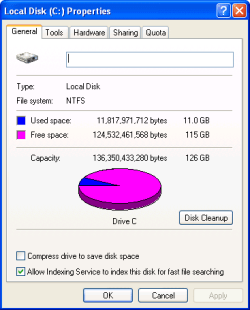
    1. XP Mode > My Computer > Hard disk C: > Properties shows always the maximum size -1GB, 126 GB. The actual space needed can be seen in mow much of this 126 GB is used, in my case space needed is 11.5 GB

      XPM_HD_Size.PNG
      .
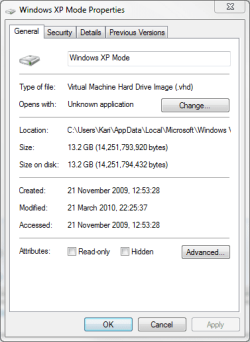
    2. Host computer > C:\Users\Your_Username\AppData\Local\Microsoft\Windows Virtual PC\Virtual Machines > Xp Mode.vhd > Properties shows another figure, in my case 13.2 GB. This is because a dynamically expanding vhd must be "a little ahead of the time"; it has already reserved almost 2 GB to be ready to expand. This is the real, actual space the XP Mode vhd is taking on my host's HD at the moment

      XPM_HD_Size_2.PNG
      .
  • A fixed size vhd. The user can choose the size of the vhd. This size must of course be at least as much as is needed to install the OS in question, in case of the XP some 20 GB would be enough to most users as the size of the HD1. Because it's fixed, it's size is shown correctly both when looking from inside the XP Mode and from host

So, theoretically a differencing XP Mode is base 1.2 GB + 127 GB, when a merged XP Mode is "only" 127 GB.

Dynamically expanding vhd is default. If the user only clicks Next and OK, accepting default choices when installing XP Mode or creating a new virtual machine, it is created using dynamically expanding vhd. Personally, I find no reasons to use fixed size; a dynamically expanding vhd is more practical because its ability to grow or shrink, depending how much data I add or remove.

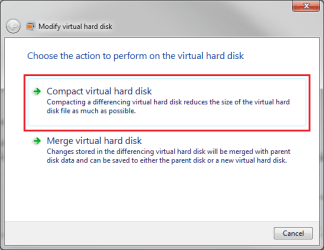
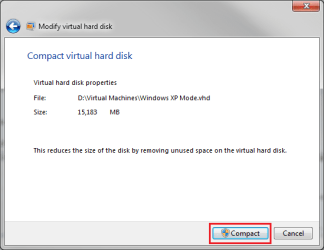
If you need to free some space in your host's HD, you can try to compact XP Mode (or any other) vhd. Compacting is more effective when using fixed size vhd, a dynamically expanded vhd is already about as small as it can be.

To compact an XP Mode vhd, choose XP Mode > Settings > Hard Disk 1 > Modify > Compact virtual hard disk > Compact:

XPM_HD_Size_3.png
XPM_HD_Size_4.png
XPM_HD_Size_5.PNG

Hope this answer your question at least partly.

Kari
 

My Computer

Computer type
Laptop
Computer Manufacturer/Model Number
HP ENVY 17-1150eg
OS
Windows 10 Pro x64 EN-GB
CPU
1.6 GHz Intel Core i7-720QM Processor
Memory
6 GB
Graphics Card(s)
ATI Mobility Radeon HD 5850 Graphics
Sound Card
Beats sound system with integrated subwoofer
Monitor(s) Displays
17" laptop display, 22" LED and 32" Full HD TV through HDMI
Screen Resolution
1600*900 (1), 1920*1080 (2&3)
Hard Drives
Internal: 2 x 500 GB SATA Hard Disk Drive 7200 rpm
External: 2TB for backups, 3TB USB3 network drive for media
Cooling
As Envy runs a bit warm, I have it on a Cooler Master pad
Keyboard
Logitech diNovo Media Desktop Laser (bluetooth)
Mouse
Logitech Performance Mouse MX
Internet Speed
50/10 Mbps VDSL
Antivirus
Windows Defender 4.3.9431.0
Browser
Maxthon 3.5.2., IE11
Back
Top