Basic copy question

Wtchdrmd

New member
Local time
6:32 AM
Messages
6
Advanced user new to Windows 7 - I need to copy about 220 MB of files from one folder to two other folders, all on the desktop. In XP, opening the source folder and doing SELECT ALL would give the COPY, MOVE, DELETE options on the left hand of the folder. How best to do in W 7 ? Use the COPY to Clipboard, then PASTE to the two other folders ? If so, is the Clipboard big enough to handle the copying of up to 1.5 GB in files ? Thanks.
 

My Computer

OS
Windows 7 Professional 64 bit
CPU
I7-2600K
Motherboard
Asus P67 fatality professional
Memory
16 GB DDR3
Graphics Card(s)
Radeon 6870
Monitor(s) Displays
Gateway 30"
Hard Drives
Sandisk Ultra SSD 120 GB
PSU
Corssair 850 W
Case
Cooler Master HAF 932
Cooling
Corsair H80 liquid
Copy and paste. File operations don't use the clipboard to store files in transit.
 

My Computer

OS
Win7Ultimate x64 + x32, Win7Pro x64, XP x32, Win 2003, Ubuntu and OpenIndiana
hi Wtchdrmd, and welcome to sevenforums,

here are a few useful keyboard shortcuts:

Ctrl-A = select all

Ctrl-C = copy

Ctrl-X = cut

Ctrl-V = paste

you can also access cut/copy/paste by right-clicking the mouse.

--------------------------------------------

so, a quick way of copying files from one folder to two others would be:

  1. open the folder in windows explorer
  2. Ctrl-A to select all the files
  3. Ctrl-C to copy files (or right-click > copy)
  4. go to 1st destination folder in explorer
  5. Ctrl-V to paste the files (or right-click > paste)
  6. go to 2nd destination folder
  7. Ctrl-V again or right-click > paste
 

My Computer

Computer Manufacturer/Model Number
mickey megabyte 1234
OS
ultimate 64 sp1
CPU
i5 2500K [email protected]
Motherboard
MSI P67A-GD53
Memory
8 gigs GSkill Ripjaws 1600
Graphics Card(s)
amd hd6950
Sound Card
creative x-fi gamer
Monitor(s) Displays
samsung 24"
Screen Resolution
1920x1080
Hard Drives
ocz vertex 2e 60 gig, samsung f3 1tb, buffalo 2tb ext
PSU
antec 550
Case
antec three hundred
Cooling
i'm a cooling fan
Keyboard
saitek eclipse ii
Mouse
logitech g3
Internet Speed
about 4 Mbps
Other Info
i love win7
Welcome to the windows 7 forums..

FWIW: I recommend cut and paste as using copy and paste leaves both folders with the same files. Takes up a lot of space and is unnecessary.
If you cut and paste, it happens almost immediately as long as both source and target are on the same drive as all the system needs to do is to change the directory entrys which is pretty fast.

Copying to another hard disk is slower as it actually has to copy the files.
Rich
 

My Computer

Computer type
Laptop
Computer Manufacturer/Model Number
Toshiba Laptop Qosimo X870
OS
Windows 7 Pro x64 SP1
CPU
Intel Core I7
Motherboard
Toshiba Qosmio
Memory
16 Gigs
Graphics Card(s)
NVIDIA GeForce GTX 670M
Monitor(s) Displays
17.7" laptop
Screen Resolution
1600 x 900
Hard Drives
256 Gig SanDisk SSD for C
256 Gig Intel SSD for D
Internet Speed
50/25 FIOS
Antivirus
Vipre (all you can eat for 10 machines)
Browser
IE and FF
Other Info
I have dos 6.22, wfwg 3.11, win98, 2000 and xp VHD's available for testing. MS's Virtual PC works great.

My Computer

Computer Manufacturer/Model Number
HP, Dell, Gateway, Toshiba - 4 laptops and 2 desktops
OS
Vista, Windows7, Mint Mate, Zorin, Windows 8
CPU
from 1.6GHz Duo to i7
Monitor(s) Displays
2x HP w2207
Hard Drives
5x HDD, 7x SSD, 12x Externals
Keyboard
with trackball - no mices
Mouse
Trackball mice
Internet Speed
DSL 6000
Just in passing...

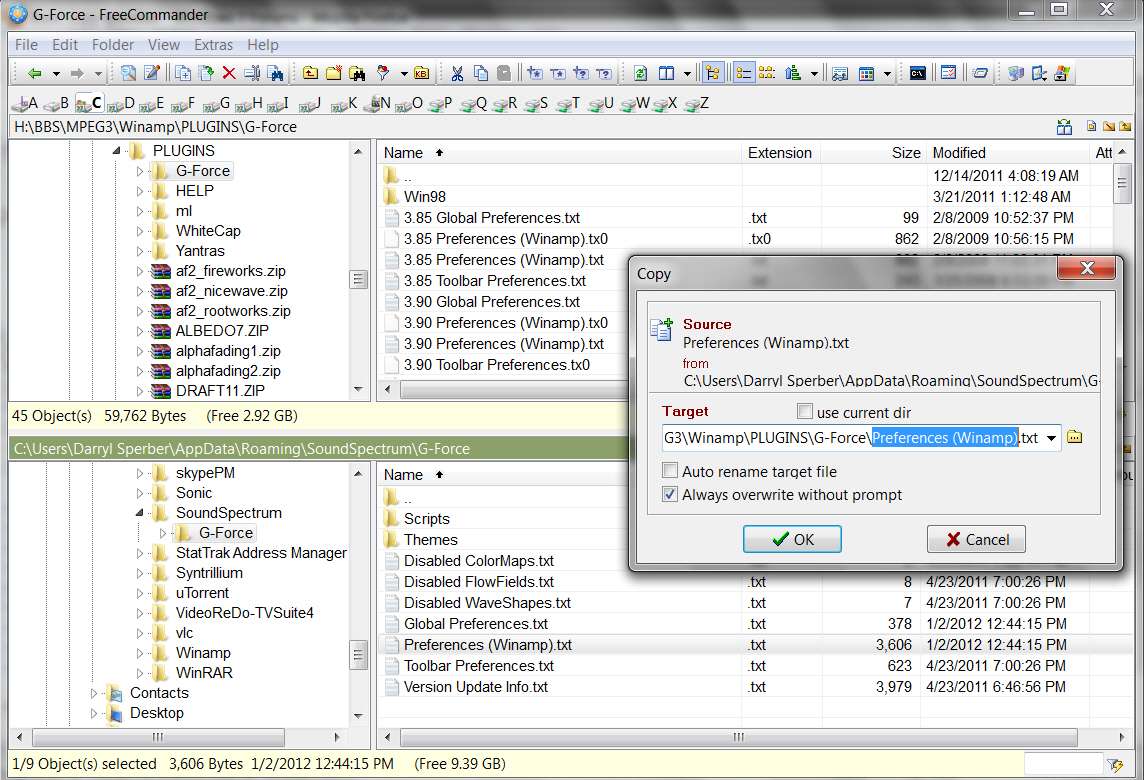
Myself... I would use my million-times-a-day workhorse Explorer-replacement Free Commander, and its clearly intuitive two-pane presentation. I use the over/under two-pane approach because it maximises the use of screen for long folder/file names. Either pane can be SOURCE or TARGET.

Once navigating the source pane to the FROM folder, and navigating the target pane to the TO folder, you use standard Windows Explorer keyboard/mouse techniques to select the contents from within the FROM folder just as you'd want (e.g. using CTRL+click to add multiple random items, CTRL+SHIFT+click to add consecutive items, etc.).

Then you can either drag (using left or right mouse buttons, like Explorer) from SOURCE pane to TARGET pane as you'd expect, or when familiar with the myriad set of keyboard shortcuts (which match Explorer, when possible... e.g. F2 for "rename") you can just use F5 for COPY or F6 for MOVE.

And, each COPY/MOVE pops up a "here is the name I will use, or you can rename it now" dialog with the existing folder/file name populated by default and just the filename portion highlighted. Thus the path prefix and filename extension will not be touched if you decide to rename the file itself. Super feature.
freecommander.jpg


Also, if say you highlight multiple ZIP files you can then right-click and, for example, select Winrar from the context menu (if you have Winrar installed) and then select say "extract here". EACH of those multiple highlighted ZIP files will then be fed to Winrar for extraction, as if you'd done them one at a time. And, then, to add icing to the cake, the originally selected/highlighted ZIP files all still remain selected/highlighted... so you can now just click on the DELETE icon button on the toolbar (or use the DELETE key, or SHIFT+DELETE to bypass the recycle bin) and those selected/highlighted ZIP files will all be deleted without your having to re-select them all again for the delete!

In other words unlike Explorer, sequences of operations on a set of selected/highlighted items does NOT de-select them!!! Super-convenient.

Etc., etc., etc.

Countless Explorer-like functions performed far more understandably and conveniently with Free Commander and its two-pane approach, not to mention its countless ADDITIONAL capabilities that are not done by Explorer.

You owe it to yourself to give Free Commander a try as a super-Explorer, for use any and all times you would otherwise use Explorer. And... it's free!

 

My Computer

Computer type
PC/Desktop
Computer Manufacturer/Model Number
Home-built, two systems (1) and (2)
OS
Windows 7 Pro x64 (1), Win7 Pro X64 (2)
CPU
i5-3350p 3.1Ghz/6MB-cache (1); E8400 3.0Ghz/6MB-cache (2)
Motherboard
ASUS P8Z77-V Pro (1); ASUS P5Q3 (2)
Memory
8GB PC3-12800 DDR3 (1); 4GB PC3-10600 DDR3 (2)
Graphics Card(s)
ATI HD7750 (1), (see TV cards); ATI R7 250 (2)
Sound Card
Realtek ALC892 HD Audio (1); Realtek ALC1200 HD Audio (2)
Monitor(s) Displays
Eizo HD2441W LCD, Eizo S2433W (1); Eizo 24" S2433W (2)
Screen Resolution
1920x1200, 1920x1200 (1); 1920x1200 (2)
Hard Drives
(1) 1TB SATA-II (7200RPM), 2x2TB SATA-III (7200RPM), 250GB SATA-III (10000RPM) for OS; 2x2TB external USB 3.0

(2) 320GB SATA-II (7200RPM), 750GB SATA-II (7200RPM), 150GB SATA-II (10000RPM) for OS; 2TB external USB 3.0
PSU
Nesteq ECS-6001 600W (1); Nesteq ECS-5001 500W (2)
Case
Acousti-Case 360 (1) and (2)
Cooling
Noctua NH-U12P SE2 for CPU, 2x120mm case fans (1) and (2)
Keyboard
IBM PS/2 (1) and (2)
Mouse
Logitech MX Revolution wireless (1); Microsoft wired (2)
Internet Speed
100mbps down / 10mbps up
Antivirus
Microsoft Security Essentials; Malwarebyte Anti-Malware Pro
Browser
Firefox
Other Info
Ceton InfiniTV 4-tuner cablecard-enabled TV card as well as Hauppauge HVR-2250 OTA/ATSC 2-tuner TV card in (1), running under Win7 WMC
Back
Top