Batch Files - Create a Menu to Execute Commands

How to Use a Batch File to Create a Command Prompt Menu to Execute Commands

   Information
This tutorial shows the process one goes through when creating a batch file that opens a command prompt menu allowing you to launch commands, programs and more.

I will only be executing programs in this tutorial, but you can use this to execute any DOS command that is available in command prompt.


   Tip
Lines typed in the Courier New font should be added to the document.


Opening Notepad

First Open Notepad and Create a New Text Document

Clearing the Command Window

The next thing we'll do is tell the batch file not to show the second command we input. This uses the ECHO OFF command. As mentioned, ECHO OFF only hides the next command, if you wish to hide all commands you must use @ECHO OFF.

ECHO OFF

Once we've turned off display of the next line, we'll issue another command. This command is CLS. CLS clears the current command window to only show a prompt.

CLS

Creating the First Anchor

An anchor is simply a marker which shows the command prompt what to execute when directed to that specific point in the batch file. The first anchor we'll use will be called MENU because when executed it will show the menu of choices. To make MENU an anchor we'll place a : before it.

:MENU

Creating the Menu

Now we'll actually create the menu. This will be the text that the user sees when he/she opens the batch file and it will also be reverted to after executing a command other than exit. The menu will be comprised of ECHO commands. Not only can an ECHO command turn off display of commands, but it can also display whatever you type after it. If you place a space after the ECHO command, it will print whatever you type onto the command window. If you place a . (period) after the ECHO command it will skip a line.

ECHO.
ECHO ...............................................
ECHO PRESS 1, 2 OR 3 to select your task, or 4 to EXIT.
ECHO ...............................................
ECHO.
ECHO 1 - Open Notepad
ECHO 2 - Open Calculator
ECHO 3 - Open Notepad AND Calculator
ECHO 4 - EXIT
ECHO.

Creating the Input Area

Now that we've created the visual menu, we also need to create the place where the user can input his or her choice and execute it. To do this we will use the SET command. This command simply lets the user change one variable or string to another. In other words it will change an input of "1" into an input of GOTO NOTE which will direct the batch file to execute whatever is in the NOTE section. In our SET command we'll give the user 4 choices, one directs the batch file to the NOTE section, another to the CALC section, another to the BOTH section and the last directs the batch file to exit the Window.

SET /P M=Type 1, 2, 3, or 4 then press ENTER:
IF %M%==1 GOTO NOTE
IF %M%==2 GOTO CALC
IF %M%==3 GOTO BOTH
IF %M%==4 GOTO EOF

Creating the Command Sections

Now we'll create the sections of the batch file that are executed by 1, 2, 3 or 4. These sections will be marked by an anchor so that the batch file knows where to start. The sections that execute programs or commands will also be directed to the MENU at the end. If you wished to exit the command prompt instead of falling back on the menu, you could simply place an EXIT command at the end of the section. We will also be using the CD command. This command changes the directory of the command prompt. While not strictly neccesary in this batch file, it will be neccesary if you execute programs outside of the system32 directory. The START command will be used as well. It simply starts the executable. The GOTO command is the last in each section. It tells the batch file to go to a specific anchor. All of the GOTO commands are anchored to the MENU.

:NOTE
cd %windir%\system32\notepad.exe
start notepad.exe
GOTO MENU
:CALC
cd %windir%\system32\calc.exe
start calc.exe
GOTO MENU
:BOTH
cd %windir%\system32\notepad.exe
start notepad.exe
cd %windir%\system32\calc.exe
start calc.exe
GOTO MENU

Saving & Creating the Shortcut

Now that we've finished the batch file, we need to save it. You should save the file as ALL FILES and with a .bat extension. It can be named anything you want. Once you've saved it, you should create a shortcut. This shortcut will allow you to execute the batch file and allow you to change the icon. To change the shortcut's icon simply go to Properties and Change Icon.

Review

In this tutorial we created a batch file which shows a command prompt menu through which you can choose to execute programs. This is only one of many uses for batch files. Files can be copied, DOS commands executed, and more. If you wish to use a batch file to create a menu which will allow you to do more, read through tutorials on DOS commands and using batch files. Below is the entire Document.

ECHO OFF
CLS
:MENU
ECHO.
ECHO ...............................................
ECHO PRESS 1, 2 OR 3 to select your task, or 4 to EXIT.
ECHO ...............................................
ECHO.
ECHO 1 - Open Notepad
ECHO 2 - Open Calculator
ECHO 3 - Open Notepad AND Calculator
ECHO 4 - EXIT
ECHO.
SET /P M=Type 1, 2, 3, or 4 then press ENTER:
IF %M%==1 GOTO NOTE
IF %M%==2 GOTO CALC
IF %M%==3 GOTO BOTH
IF %M%==4 GOTO EOF
:NOTE
cd %windir%\system32\notepad.exe
start notepad.exe
GOTO MENU
:CALC
cd %windir%\system32\calc.exe
start calc.exe
GOTO MENU
:BOTH
cd %windir%\system32\notepad.exe
start notepad.exe
cd %windir%\system32\calc.exe
start calc.exe
GOTO MENU

   Tip
For more about Batch files, read this tutorial:
Microsoft - Batch Files

For more DOS commands, read this tutorial:
MS-DOS help and commands


Last edited by a moderator:
The crucial shortcoming of this batch routine is the use of the enter key to complete the command. This was easily avoided by using either the CHOICE or DEBUG utility up until and including any 32 bit environment. These utilities are not included anymore in windows 7 and they can not be used in any 64 bit environment.

Do you have a solution to this dilemma?
 

My Computer

OS
XP 32
The crucial shortcoming of this batch routine is the use of the enter key to complete the command. This was easily avoided by using either the CHOICE or DEBUG utility up until and including any 32 bit environment. These utilities are not included anymore in windows 7 and they can not be used in any 64 bit environment.

Do you have a solution to this dilemma?

but it does work in the x64 environment and pressing enter is most likely easier for most people to understand and accomplish. The batch file is great..

Rich
 

My Computer

Computer type
Laptop
Computer Manufacturer/Model Number
Toshiba Laptop Qosimo X870
OS
Windows 7 Pro x64 SP1
CPU
Intel Core I7
Motherboard
Toshiba Qosmio
Memory
16 Gigs
Graphics Card(s)
NVIDIA GeForce GTX 670M
Monitor(s) Displays
17.7" laptop
Screen Resolution
1600 x 900
Hard Drives
256 Gig SanDisk SSD for C
256 Gig Intel SSD for D
Internet Speed
50/25 FIOS
Antivirus
Vipre (all you can eat for 10 machines)
Browser
IE and FF
Other Info
I have dos 6.22, wfwg 3.11, win98, 2000 and xp VHD's available for testing. MS's Virtual PC works great.
richnrockville: I referred to the inability to run GETKEY or CHOICE in a 64 bit environment. The batch works fine there.
No, I disagree. A single key answer in any menu is the preferred way, forget the enter key... So the question remains: is there a way to accomplish that feat.
 

My Computer

OS
XP 32
richnrockville: I referred to the inability to run GETKEY or CHOICE in a 64 bit environment. The batch works fine there.
No, I disagree. A single key answer in any menu is the preferred way, forget the enter key... So the question remains: is there a way to accomplish that feat.

Cheebase, most likely not without a third party program which would have to be installed that the batch file would run. I think that for brevities sake and the ease by which many people could modify the batch file and make it run, this simple batch file method is most likely the cleanest and easiest to understand.

I could write the program in compliled basic with an onkey but I think that this batch file will work for the majority of users.

After all anyone with windows and notepad can make changes and get it done.

Rich
 

My Computer

Computer type
Laptop
Computer Manufacturer/Model Number
Toshiba Laptop Qosimo X870
OS
Windows 7 Pro x64 SP1
CPU
Intel Core I7
Motherboard
Toshiba Qosmio
Memory
16 Gigs
Graphics Card(s)
NVIDIA GeForce GTX 670M
Monitor(s) Displays
17.7" laptop
Screen Resolution
1600 x 900
Hard Drives
256 Gig SanDisk SSD for C
256 Gig Intel SSD for D
Internet Speed
50/25 FIOS
Antivirus
Vipre (all you can eat for 10 machines)
Browser
IE and FF
Other Info
I have dos 6.22, wfwg 3.11, win98, 2000 and xp VHD's available for testing. MS's Virtual PC works great.
I found a turnaround to make the "single key feat". Instead of just using SET or CHOICE, I used both together and it works on x64:

ECHO OFF
CLS
:MENU
ECHO.
ECHO ...............................................
ECHO PRESS 1, 2 OR 3 to select your task, or 4 to EXIT.
ECHO ...............................................
ECHO.
ECHO 1 - Open Notepad
ECHO 2 - Open Calculator
ECHO 3 - Open Notepad AND Calculator
ECHO 4 - EXIT
ECHO.
CHOICE /C:1234
IF ERRORLEVEL 1 SET M=1
IF ERRORLEVEL 2 SET M=2
IF ERRORLEVEL 3 SET M=3
IF ERRORLEVEL 4 SET M=4

IF %M%==1 GOTO NOTE
IF %M%==2 GOTO CALC
IF %M%==3 GOTO BOTH
IF %M%==4 GOTO EOF
:NOTE
cd %windir%\system32\notepad.exe
start notepad.exe
GOTO MENU
:CALC
cd %windir%\system32\calc.exe
start calc.exe
GOTO MENU
:BOTH
cd %windir%\system32\notepad.exe
start notepad.exe
cd %windir%\system32\calc.exe
start calc.exe
GOTO MENU
 
Last edited:

My Computer

OS
Windows 7 Ultimate x64
When I try to make a menu open another batch program, it works fine, However, when I try to make an opened batch program open another program, like notepad, it says
The system cannot find the batch label specified -"Label name here".
Any help on the matter?
 

My Computer

OS
64 bit Windows 7 home premium
Build a dynamic menu like this:

Code:
@echo off

REM 
REM Tweakradje 2014, V2
REM 
REM Find all Packages and remove the ones indicated
REM
REM Good info: http://technet.microsoft.com/en-us/library/hh825265.aspx
REM
REM  DISM /online /Get-Packages /Format=Table
REM  DISM /online /Get-Drivers /Format=Table
REM  DISM /online /Get-Features /Format=Table to enable/disable/remove
REM  

Title Remove Windows Packages from local store
Color 17
Setlocal ENABLEDELAYEDEXPANSION

:BUILDMENU
Echo.
Echo Getting package list...
Echo.
SET /A MAXITEM=0
REM ### Get the output lines from the command and store them in Environment variables
REM ### We want the output of Findstr.exe, Not DISM.exe, hence the ^ symbol
For /f "skip=3 delims=" %%M in ('"DISM /online /Get-Packages /Format=Table"^|FindStr :') do (
	Set /A MAXITEM=!MAXITEM!+1
	Set MENUITEM!MAXITEM!=%%M
)

:SHOWMENU
Cls
Echo.
Echo.
Set CHOICE=0
REM ### Build the menu on screen and count the items
For /L %%I in (1,1,!MAXITEM!) do Echo    %%I. !MENUITEM%%I!
Echo.
SET /P CHOICE="Select (superseeded?) Package to remove or Q to quit: "
Echo.
IF %CHOICE%==q Goto BYE
IF %CHOICE%==Q Goto BYE
IF %CHOICE% Gtr !MAXITEM! Goto SHOWMENU
IF %CHOICE%==0 Goto SHOWMENU

REM ### Get the text for selected item from the proper Environment variable
Echo.
REM ### We want only left part of the first | with package name
For /f "delims=| " %%S in ("!MENUITEM%CHOICE%!") Do Set PKGNAME=%%S
Echo Removing "%PKGNAME%"
Echo.
Set /P YESNO="Are you sure (Y/N): "
If Not %YESNO%==y If Not %YESNO%==Y Goto SHOWMENU
DISM /online /Remove-Package /PackageName:"%PKGNAME%"
pause
Goto BUILDMENU


:BYE
Color
EndLocal
 
Last edited:

My Computer

OS
win7
:selectfile
SETLOCAL ENABLEDELAYEDEXPANSION << DELAYED EXPANSION on for counter in For loop
SET /A MAXITEM=0
Echo.
For %%F in (folder1/*.TXT) do (
SET /A MAXITEM+=1
SET MENUITEM!MAXITEM!=%%F << Fill n local env vars, one for each file, called MENUITEM1...n
Echo !MAXITEM!. %%F
)
Echo.
If !MAXITEM!==0 Echo No TXT in "folder1" folder & call :delay & Goto start << No apk files then go back
SET /P CHOICE=Select TXT to work on:
SET MENUITEM=!MENUITEM%CHOICE%! << Get the stored filename from MENUITEMx
SETLOCAL DISABLEDELAYEDEXPANSION << Very important for next ENDLOCAL that doesn't like the delayedexpansion var
ENDLOCAL & SET selectedtxtfile=%MENUITEM% << put the local MENUITEM var into the global var selectedtxtfile
Goto start

:delay
SETLOCAL
REM %1 like call :delay 5
SET N=%1
If Not Defined N Set N=2
Ping -n %N% -w 1000 127.255.255.255 > nul
ENDLOCAL
Exit /b
 
Last edited:

My Computer

OS
win7
fixed the tutorial's example because of code errors and missing commands
remade the example to Showing differance between using the start command than just running a path by itself.


-Example 1-

ECHO OFF
CLS
:MENU
ECHO.
ECHO ...............................................
ECHO PRESS 1, 2 OR 3 to select your task, or 4 to EXIT.
ECHO ...............................................
ECHO.
ECHO 1 - Open Notepad
ECHO 2 - Open Calculator
ECHO 3 - Open Notepad AND Calculator
ECHO 4 - EXIT
ECHO.
SET /P M=Type 1, 2, 3, or 4 then press ENTER:
IF %M%==1 GOTO NOTE
IF %M%==2 GOTO CALC
IF %M%==3 GOTO BOTH
IF %M%==4 GOTO EOF
:NOTE
CLS
ECHO Opening Notepad
start notepad.exe
GOTO MENU
:CALC
CLS
ECHO Opening Calculator
start calc.exe
GOTO MENU
:BOTH
CLS
ECHO Opening Notepad
start notepad.exe
ECHO Opening Calculator
start calc.exe
GOTO MENU
:EOF
EXIT


-Example 2-

CLS
ECHO.
ECHO ...............................................
ECHO PRESS 1, 2 OR 3 to select your task, or 4 to EXIT.
ECHO ...............................................
ECHO.
ECHO 1 - Open Notepad
ECHO 2 - Open Calculator
ECHO 3 - Open Notepad AND Calculator
ECHO 4 - EXIT
ECHO.
SET /P M=Type 1, 2, 3, or 4 then press ENTER:
IF %M%==1 GOTO NOTE
IF %M%==2 GOTO CALC
IF %M%==3 GOTO BOTH
IF %M%==4 GOTO EOF
:NOTE
CLS
ECHO Opening Notepad
%windir%\notepad.exe
GOTO MENU
:CALC
CLS
ECHO Opening Calculator
%windir%\system32\calc.exe
GOTO MENU
:BOTH
ECHO Note: The notepad will run first then when its closed the calculator will run afterwards.
pause
CLS
ECHO Opening Notepad
%windir%\notepad.exe
ECHO Opening Calculator
%windir%\system32\calc.exe
GOTO MENU
:EOF
EXIT


Note: Can the OP fix the 1st post has made mistakes that even confused me.:huh:
 
Last edited:

My Computer

Computer type
PC/Desktop
OS
win 8.1
a code for selecting an option from a menu

Hi everyone,

This is the first batch file I've ever created and I'm creating it because at work we have to open about 15 different web browsers and applications to do our job and it's extremely tedious. I'm 95% percent done with the bat file but I'm stuck on one last step. To explain what I have so far, and please if you have any tips to make it better or more efficient, I'd love the feedback. The code is very simple, i start it with an @echo off and I'm basically launching several Chrome windows, 1 Firefox window and 3 IE windows. And then I'm opening, Outlook. I have all of those opening smoothly using a CD "location" Start ".exe" code.

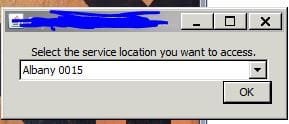
The final program I need to launch is an internal program we use to manage our clients. I need to have 9 instances of this window open, and each window requires you to select from a drop down menu which version you wish to access. I am able to launch all 9 windows with no problem, however I am stuck on how to make the bat select the correct version I need. If I can get it to select OK as well, that'd be awesome.

But my question is, how do I code the bat file to launch the application and then select from the drop down menu the version I need? I attached a screenshot of how the application opens. Please let me know if it didn't work.

Thanks for your help!!!
 

Attachments

  • menu.jpg
    menu.jpg
    15.5 KB · Views: 3,252

My Computer

Computer type
PC/Desktop
OS
Windows 7 Enterprise 64-bit and Windows 7 Ultimate 64 bit
3rd party app as alternative to batch file

Is there a

3rd party app as alternative to batch file

Thanks
 

My Computer

Computer type
PC/Desktop
OS
10 Pro
How to make commands with wildcard combination to delete a folder

I always use a batch file to easily remove unnecessary files in %TEMP% that I put in my Startup on Startmenu.
But I had trouble using a combination wildcard asterisk(*) to delete a folder with its name contains a dot(.) mark.
Here's details, if I open Photoshop CS6, there always made 8-9 useless files (files + folders) in profile Temp. There is no problem to remove all by using batch file, but there is one obstacle for me to remove it using asterisk to a folder as the name lilo.3248.

Actually, it's so easy to remove if I use full name, example:
Code:
@echo off
if exist %TEMP%\lilo.3248 rd /s /q %TEMP%\lilo.3248 => works without problem
But it's a problem if I try using wildcard(*), like this:
Code:
@echo off
if exist %TEMP%\lilo.* rd /s /q %TEMP%\lilo.* => failed
if exist %TEMP%\lil*.* rd /s /q %TEMP%\lil*.* => Same failed
Why I use a wildcard.. because the figures after the dot could always be changed to new numbers each time when I open new Photoshop, sometimes 3digits, sometimes 4digits erratically. The numbers were created randomly as lilo.743, lilo.2935 etc.. Therefore I use wildcards to be easier, but failed.
I confused, for directory name without dot + wildcard, I usually can remove them easily. However, this method not work to this case.

So, does anyone know how to make the commands work according to my needs like above? Thanks in advance.
 
Last edited:

My Computer

Computer type
PC/Desktop
Computer Manufacturer/Model Number
own assembly
OS
Windows 7 Ult x64
CPU
AMD X4 Quad Core 3.1GHz
Motherboard
Gigabyte socket FM2+
Memory
DDR3 16GB
Graphics Card(s)
Radeon R5 230 2GB
Sound Card
Xonar D-KARAX
Monitor(s) Displays
ViewSonic 24'
Hard Drives
SSD + WDC
PSU
Antec VP500W
Antivirus
Kaspersky
Browser
Firefox
This great thanks, I'm looking for a more advanced version and the menu to by dynamic based on the folders existing within a path, can anyone help me?

So I have various folders with in a folder, like this:
\FOLDER\?
\FOLDER\??
\FOLDER\???
\FOLDER\???
And seemingly the ??? folders could be anything and I cannot predict the folder names.

I want to create a dos menu system to give the user a multiple choice of which folder to choose:
? or ?? or ?? or ?? or whatever else is there (at that level) ignoring any sub folders in their ? folders.

And then based on the users selection, insert that path into a variable so I can use it with a command
eg: XCOPY %VARIABLE% TO MY PATH
so if the user choose \FOLDER\djfng
then my commnd is XCOPY "FOLDER\djfng" TO MY PATH

Can anyone help me?

thank you thank you
 

My Computer

Computer type
PC/Desktop
OS
New South Wales
Good afternoon,

Just a couple of points please.

Firstly, does the file need to be saved in the Computer > C: > Windows > System32 directory?

Secondly, how easy would it to create a batch file with a menu...

Administrative Tools.
CCleaner.
Command Prompt.
Computer Management.
Defrag.
Device Manager.
Disk Management.
Notepad.
Performance Information and Tools.
Personalization.
Power Options.
Programs and Features.
Security Centre.
System.
Taskbar and Start Menu.
User Accounts.
Windows Update.

...or is this beyond that please?

Thanks in advance.
 

My Computer

Computer type
Laptop
Computer Manufacturer/Model Number
Fujitsu LIFEBOOK
OS
Win 7 HP SP1 64-bit Vista HB SP2 32-bit Linux Mint 18.3
CPU
Intel(R) Pentium(R) CPU P6200 @ 2.13GHz
Motherboard
FUJITSU FJNBB06
Memory
4.00 GB
Graphics Card(s)
Intel(R) Graphics Media Accelerator HD
Sound Card
[1] Realtek High Definition Audio [2] Intel(R) Display Audio
Screen Resolution
1366 x 768 x 32 bits (4294967296 colors) @ 59 Hz
Hard Drives
TOSHIBA MK5076GSX
Antivirus
AVG FREE
hi,

I am newbie in programming
please kindly supply a batch code to execute a batch file to know the status page details

i use telnet ip x x x x to go to router page
then i want to get the userid: as admin and it should automatically Enterkey to get password. i want this to be automated

after entering , the promtwill give password:, this i will fill my pw
after this i wll get to telnet screen with prompt c:\windows\system32>
Here iwill issue command show status
This will give the details of the router status page
This details should be shown in desktop, waiting for my closing.
after closing, the program should stop execute. If some experts give codes for batch file, i will make ti execute with task scheduler
Now, each time i have to login to the router and supply pw to get the status age.
expecing your replies
 

My Computer

Computer type
PC/Desktop
Computer Manufacturer/Model Number
custom build
OS
Microsoft Windows 7 Ultimate 64-bit 7601 Multiprocessor Free Service Pack 1
CPU
Intel(R) Core(TM)2 Duo CPU E7200 @ 2.53GHz
Motherboard
To be filled by O.E.M. To be filled by O.E.M.
Memory
4.00 GB
Graphics Card(s)
NVIDIA GeForce 210
Sound Card
(1) NVIDIA High Definition Audio (2) Realtek High Definiti
Screen Resolution
1920 x 1080 x 32 bits (4294967296 colors) @ 60 Hz
Hard Drives
ST3500312CS ATA Device
Hi, notso grey matter,

As the author of the tutorial, if you could help me coin codes for my task
just 5 to ten lines of codes, which i do not know
it is very useful if the status of router could be had in the desktop itself
hope that you would see this post
or any other experts,
 

Attachments

Last edited:

My Computer

Computer type
PC/Desktop
Computer Manufacturer/Model Number
custom build
OS
Microsoft Windows 7 Ultimate 64-bit 7601 Multiprocessor Free Service Pack 1
CPU
Intel(R) Core(TM)2 Duo CPU E7200 @ 2.53GHz
Motherboard
To be filled by O.E.M. To be filled by O.E.M.
Memory
4.00 GB
Graphics Card(s)
NVIDIA GeForce 210
Sound Card
(1) NVIDIA High Definition Audio (2) Realtek High Definiti
Screen Resolution
1920 x 1080 x 32 bits (4294967296 colors) @ 60 Hz
Hard Drives
ST3500312CS ATA Device
i use telnet ip x x x x to go to router page
then i want to get the userid: as admin and it should automatically Enterkey to get password. i want this to be automated...
after closing, the program should stop execute. If some experts give codes for batch file, i will make ti execute with task scheduler

I don't know exactly what you mean, but please try to see here.. hoping solve your problem:
How to schedule a Batch File to run automatically
 

My Computer

Computer type
PC/Desktop
Computer Manufacturer/Model Number
own assembly
OS
Windows 7 Ult x64
CPU
AMD X4 Quad Core 3.1GHz
Motherboard
Gigabyte socket FM2+
Memory
DDR3 16GB
Graphics Card(s)
Radeon R5 230 2GB
Sound Card
Xonar D-KARAX
Monitor(s) Displays
ViewSonic 24'
Hard Drives
SSD + WDC
PSU
Antec VP500W
Antivirus
Kaspersky
Browser
Firefox
Back
Top