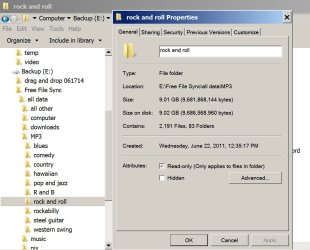
ignatzatsonic did a good job of describing it. FreeFileSync works by syncing folder pairs; HDDs can be treated as folders. To be able to sync from Computer A to Computer B, first, Computer A has to able "see" all the HDDs and folders on Computer B and Computer B has to be able to "see" all the HDDs and folders on Computer A. For that to happen, the HDDs you want to sync from A to B have to have different drive letters. In other words, you can't do this if both HDDs you are syncing are D:. For example, you would have to have the HDD on Computer A named D: and the one on Computer B named E:
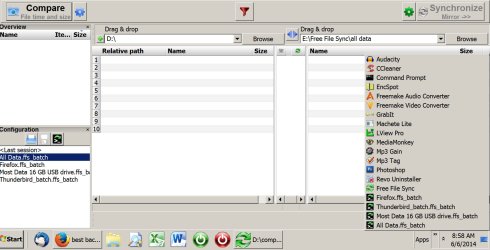
I do something similar between my desktop machine and my notebook but I use an intermediary HDD to actually transfer the data. Since I maintain a backup of the notebook on an external HDD any way, I first set up empty folders on the backup external HDD with the same names as the folders on the notebook I wanted to backup, making sure the folder pairs had the same folder names as the ones I was going to later sync with on my desktop. A simplified example is I wanted the folder named Doohickey and its contents to also be on my notebook. I made an empty folder named Doohickey on both the notebook's drive and the external drive. I then made and saved a configuration in the installation of FFS on the desktop computer that was set to Mirror and would sync the data from my desktop's Doohickey folder to the external drive's doohickey folder. Then I made and saved a second configuration in FFS in the notebook that was set to Mirror and would sync data from the external HDD's Doohicky folder to the notebook's doohickey folder.
For backing up the notebook's Doohickey folder, I made and saved yet another configuration in FFS on the notebook, again using Mirror to ensure data transfer was strictly one way and the source folder would remain unchanged, that would sync data from the notebook's Doohickey folder to the external HDD's Doohickey folder. I did the same in the desktop computer's FFS, still using Mirror, to sync the data in the external HDD's Doohickey's folder to the desktop's Doohickey folder.
It was actually much more complicated to set up in actual practice because of the number of folders actually involved but, once the configurations were set up and saved, it's extremely easy to use. I only use the notebook when I travel. Shortly before my trip, I dig out the notebook, do any necessary updates (there are usually a bunch), then connect the external HDD to my desktop to update the folders that are paired with folders on the desktop. I then connect the external HDD to the notebook and update the folders on the notebook that are paired with the folders on the external HDD. To make my life much simpler, while on the trip, I save any new files (mostly photos taken on the trip) and changed files to a single folder on the notebook. That folder gets backed up to the external HDD. When I get home, I connect the external HDD to my desktop and let FFS transfer the new and changed files from the external HDD to a matching folder on the desktop. I can later redistribute the files in that folder.
Have I thoroughly confused you?





 to right (D