BIOS does not boot from ODD or External Drive

Falco276

New member
Local time
10:30 AM
Messages
5
I own a 2010 gunmetal black Sony Vaio E-Series laptop (VPCEB23FM)
Specs about this laptop can be found on my profile :)
and I have an issue with my BIOS.

Here's the story:
I used my Samsung 840 EVO SSD for 5 years since I bought it in 2014 and it ran perfectly well until during bootup, it took a very LONG time to reach my Desktop screen. I started getting worried due to the fact that I owned this computer ever since I bought it in 2009 and everything went perfectly well (motherboard, CPU fan, OS, RAM, etc.) until the black screen. I questioned my dad about this and he suggested me to wait until the desktop screen popped up (after about a painful 10 minutes- It did!). I then knew what the problem was. The storage capacity was about over 70% (Remember people, always store data at about 50% or less in an SSD!) and that resulted to slowing down the read/write and boot times on each NAND Flash block. I tried a system restore but that did not work. I started backing up my personal data on two external drives before discovering an option where I could do 'Disk Clean up'.
The most important thing I was not completely aware of were the important system OS log files that were check marked. That went downhill and overboard into a BSOD. I started to panic (Trust me, not that much) and finally decided to get rid of the SSD. Bought a new 512 GB Toshiba Q Series Pro SSD from my local electronics store in Switzerland and started to refresh my mood from being worried and panicked to relaxing relief.
Did everything I was told to do. Flipped it upside down, switched drives, booted to BIOS, swapped Boot order to ODD, then restarted it.
Instead of booting to the Windows 7 Ultimate Service Pack 1 ISO disc, my BIOS still thinks it's set to Internal Disc Drive and resulted me with a No Operating System Found
Dreaded with unsatisfaction, I tried again, this time booting from an external flash drive.
My Vaio flipped out and displayed the same message. :(

Conclusion, guys. Is it my BIOS or ODD that is malfunctioned? Cuz the only hardware I upgraded into this laptop were the Drives and RAM. I really LOVE this laptop to death and I can't afford on using my New Acer laptop with a crappy European keyboard.:cry: I even booted to Safe Mode on my old Samsung SSD and tried to flash my BIOS but it resulted me with a BIOS is already up to date

If anyone here is willing to help me out, it would be great. :D

Note: I typed this post from my Acer Aspire F15!
 

My Computer

Computer type
Laptop
Computer Manufacturer/Model Number
Sony Vaio VPCEB23FM
OS
Windows 7
CPU
Intel Core i3 M350 2.27 GHZ
Motherboard
Foxconn motherboard
Memory
TEAM 8 GB DDR3 133MHZ
Graphics Card(s)
Intel Graphics Card
Hard Drives
Toshiba 320 GB Hard Disk Drive (MK3265GSX) -REPLACED/NOT IN USE
Samsung 840 EVO SSD 250 GB - REPLACED/NOT IN USE
Toshiba Q Series Pro 512 GB SSD - IN PROCESS OF INSTALLATION
Antivirus
Webroot
Browser
Google Chrome
Welcome to the forums. Can you test DVD to make sure it boots ok on another PC so you know that's not the fault. Does your BIOS have uefi option which may been turned on if so set to legacy
 

My Computer

Computer type
PC/Desktop
OS
win 8 32 bit
Thanks for replying.

I checked my BIOS menu and it seems that I don't have a UEFI or Legacy option to choose from.

All I'm able to do is:
-Set the system clock or date
-Choose from Intel Virtualization Tech. or CPU 3/6 Support
-Create passwords and lock hardware / software.
- Set Boot Order (Internal, External, ODD, Network)
- Save changes, Revert Default settings, Save and Exit Configuration, Shutdown.

I also tried to boot the BIOS from an External Flash drive but this time it gave me this message:

"Invalid System Disk. Operating System Not Found"

Is there another solution? :/
 

My Computer

Computer type
Laptop
Computer Manufacturer/Model Number
Sony Vaio VPCEB23FM
OS
Windows 7
CPU
Intel Core i3 M350 2.27 GHZ
Motherboard
Foxconn motherboard
Memory
TEAM 8 GB DDR3 133MHZ
Graphics Card(s)
Intel Graphics Card
Hard Drives
Toshiba 320 GB Hard Disk Drive (MK3265GSX) -REPLACED/NOT IN USE
Samsung 840 EVO SSD 250 GB - REPLACED/NOT IN USE
Toshiba Q Series Pro 512 GB SSD - IN PROCESS OF INSTALLATION
Antivirus
Webroot
Browser
Google Chrome
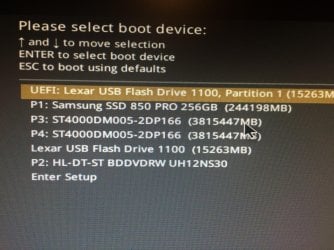
Use the one time boot menu key (usually F8) when you turn on the PC. This will bring up a list of bootable items, just highlight the one you want and hit enter.

Example
 

Attachments

  • Boot Menu.jpg
    Boot Menu.jpg
    1.3 MB · Views: 0

My Computer

Computer type
PC/Desktop
Computer Manufacturer/Model Number
Skylake Special #666
OS
Windows 10 Pro x64
CPU
Intel Core i7 6700K
Motherboard
Asus Sabertooth Z170 Mark 1
Memory
GSkill TridentZ RGB 16GB 3600 16-16-16-36
Graphics Card(s)
EVGA GTX 980 Ti SC x2
Sound Card
Realtek High Definition
Monitor(s) Displays
AOC G2460PG
Screen Resolution
1920 x 1080 144Hz
Hard Drives
Samsung 860 Pro 256GB, Seagate Barracuda 4TB x2
PSU
EVGA 1000 P2, EVGA White Custom Braided Cables
Case
Corsair Vengeance C70 Gunmetal Black
Cooling
Corsair H100i v2, Corsair ML120 x2, Thermal Grizzly Kryonaut
Keyboard
Logitech G910 Orion Spectrum
Mouse
Logitech G700s
Internet Speed
Verizon Fios Quantum Gateway 75/75
Antivirus
Windows Defender, Malwarebytes Free 3.8.3
Browser
Chrome
Other Info
Corsair SP120 x4, LG Blu-ray Drive, Durabrand HT-395 100 Watt Dolby Digital Amp, Corsair H2100 Wireless 7.1 Headset
To be honest with you, I can't boot to F8.
All I get is a black screen during boot up labelled with No Operating System Found 3 times.
I also toggled with the Num Lock key to make it work but sadly I still get the same black screen. :(
 

My Computer

Computer type
Laptop
Computer Manufacturer/Model Number
Sony Vaio VPCEB23FM
OS
Windows 7
CPU
Intel Core i3 M350 2.27 GHZ
Motherboard
Foxconn motherboard
Memory
TEAM 8 GB DDR3 133MHZ
Graphics Card(s)
Intel Graphics Card
Hard Drives
Toshiba 320 GB Hard Disk Drive (MK3265GSX) -REPLACED/NOT IN USE
Samsung 840 EVO SSD 250 GB - REPLACED/NOT IN USE
Toshiba Q Series Pro 512 GB SSD - IN PROCESS OF INSTALLATION
Antivirus
Webroot
Browser
Google Chrome
Have you set dvd to be first boot drive in the bios or it will try and boot the hard drive
 

My Computer

Computer type
PC/Desktop
OS
win 8 32 bit
Well if it's skipping everything, dvd, hard drive, usb stick, etc then you just don't have anything bootable attached.

I am re reading your paragraph. :)
 

My Computer

Computer type
PC/Desktop
Computer Manufacturer/Model Number
Skylake Special #666
OS
Windows 10 Pro x64
CPU
Intel Core i7 6700K
Motherboard
Asus Sabertooth Z170 Mark 1
Memory
GSkill TridentZ RGB 16GB 3600 16-16-16-36
Graphics Card(s)
EVGA GTX 980 Ti SC x2
Sound Card
Realtek High Definition
Monitor(s) Displays
AOC G2460PG
Screen Resolution
1920 x 1080 144Hz
Hard Drives
Samsung 860 Pro 256GB, Seagate Barracuda 4TB x2
PSU
EVGA 1000 P2, EVGA White Custom Braided Cables
Case
Corsair Vengeance C70 Gunmetal Black
Cooling
Corsair H100i v2, Corsair ML120 x2, Thermal Grizzly Kryonaut
Keyboard
Logitech G910 Orion Spectrum
Mouse
Logitech G700s
Internet Speed
Verizon Fios Quantum Gateway 75/75
Antivirus
Windows Defender, Malwarebytes Free 3.8.3
Browser
Chrome
Other Info
Corsair SP120 x4, LG Blu-ray Drive, Durabrand HT-395 100 Watt Dolby Digital Amp, Corsair H2100 Wireless 7.1 Headset
If the Boot Menu is not coming up then you are not hitting the F8 key soon enough, or it's not the right key for your PC.

Watch the screen when you turn on the PC, it should show you which key to get into setup (Bios) and which key to bring up the Boot menu.

Your PC Bios is most likely just that a Bios, which means it`s Legacy, but that`s neither here nor there if yoy haven`t made any changes in the Bios, but I would set it to Defaults (F5) and save (F10) usually, and exit.

If no USB item shows up to boot from then maybe it can`t boot from USB, I don`t see it in your list you provided in reply #3, although you do mention External.
 

My Computer

Computer type
PC/Desktop
Computer Manufacturer/Model Number
Skylake Special #666
OS
Windows 10 Pro x64
CPU
Intel Core i7 6700K
Motherboard
Asus Sabertooth Z170 Mark 1
Memory
GSkill TridentZ RGB 16GB 3600 16-16-16-36
Graphics Card(s)
EVGA GTX 980 Ti SC x2
Sound Card
Realtek High Definition
Monitor(s) Displays
AOC G2460PG
Screen Resolution
1920 x 1080 144Hz
Hard Drives
Samsung 860 Pro 256GB, Seagate Barracuda 4TB x2
PSU
EVGA 1000 P2, EVGA White Custom Braided Cables
Case
Corsair Vengeance C70 Gunmetal Black
Cooling
Corsair H100i v2, Corsair ML120 x2, Thermal Grizzly Kryonaut
Keyboard
Logitech G910 Orion Spectrum
Mouse
Logitech G700s
Internet Speed
Verizon Fios Quantum Gateway 75/75
Antivirus
Windows Defender, Malwarebytes Free 3.8.3
Browser
Chrome
Other Info
Corsair SP120 x4, LG Blu-ray Drive, Durabrand HT-395 100 Watt Dolby Digital Amp, Corsair H2100 Wireless 7.1 Headset
I also have a Windows 7 Boot Repair disc by Computer Guy's. I also tried that but I could't make BIOS boot to the ODD once again. Do I need a special boot driver since I (may) have accidentally deleted the important files from the BIOS itself?
 

My Computer

Computer type
Laptop
Computer Manufacturer/Model Number
Sony Vaio VPCEB23FM
OS
Windows 7
CPU
Intel Core i3 M350 2.27 GHZ
Motherboard
Foxconn motherboard
Memory
TEAM 8 GB DDR3 133MHZ
Graphics Card(s)
Intel Graphics Card
Hard Drives
Toshiba 320 GB Hard Disk Drive (MK3265GSX) -REPLACED/NOT IN USE
Samsung 840 EVO SSD 250 GB - REPLACED/NOT IN USE
Toshiba Q Series Pro 512 GB SSD - IN PROCESS OF INSTALLATION
Antivirus
Webroot
Browser
Google Chrome
No, I don't think you`ve messed up the Bios. Stop trying to flash it, you don't need to.

How is this ODD you are trying to use connected to the PC, is it part of the laptop or is it connected by usb ?

Who and how was Windows installed on the SSD you bought in 2014 ?
 

My Computer

Computer type
PC/Desktop
Computer Manufacturer/Model Number
Skylake Special #666
OS
Windows 10 Pro x64
CPU
Intel Core i7 6700K
Motherboard
Asus Sabertooth Z170 Mark 1
Memory
GSkill TridentZ RGB 16GB 3600 16-16-16-36
Graphics Card(s)
EVGA GTX 980 Ti SC x2
Sound Card
Realtek High Definition
Monitor(s) Displays
AOC G2460PG
Screen Resolution
1920 x 1080 144Hz
Hard Drives
Samsung 860 Pro 256GB, Seagate Barracuda 4TB x2
PSU
EVGA 1000 P2, EVGA White Custom Braided Cables
Case
Corsair Vengeance C70 Gunmetal Black
Cooling
Corsair H100i v2, Corsair ML120 x2, Thermal Grizzly Kryonaut
Keyboard
Logitech G910 Orion Spectrum
Mouse
Logitech G700s
Internet Speed
Verizon Fios Quantum Gateway 75/75
Antivirus
Windows Defender, Malwarebytes Free 3.8.3
Browser
Chrome
Other Info
Corsair SP120 x4, LG Blu-ray Drive, Durabrand HT-395 100 Watt Dolby Digital Amp, Corsair H2100 Wireless 7.1 Headset

My Computers

System One System Two

  • Computer type
    PC/Desktop
    Computer Manufacturer/Model Number
    custom build
    OS
    Windows 7 HP 64
    CPU
    i5 6600K - 800MHz to 4200MHz
    Motherboard
    GA-Z170-HD3P
    Memory
    4+4G GSkill DDR4 3000
    Graphics Card(s)
    IG - Intel 530
    Monitor(s) Displays
    Samsung 226BW
    Screen Resolution
    1680x1050
    Hard Drives
    (1) -1 SM951 – 128GB M.2 AHCI PCIe SSD drive for Windows 7 and Lubuntu
    (2) -1 WD SATA 3 - 1T for Data
    (3) -1 WD SATA 3 - 1T for backup
    PSU
    Thermaltake 450W TR2 gold
    Keyboard
    Old and good Chicony mechanical keyboard
    Mouse
    Logitech mX performance - 9 buttons (had to disable some)
    Internet Speed
    500Mb/s
    Browser
    Firefox 64
    Other Info
    TinyWall firewall
  • Computer type
    Laptop
    System Manufacturer/Model Number
    Asus Q550LF
    OS
    Windows 7 Pro
    CPU
    i7-4500U 800MHz to 3.0GHz
    Motherboard
    Asus Q550LF
    Memory
    (4+4)G DDR3 1600
    Graphics Card(s)
    IG intel 4400 + NVIDIA GeForce GT 745M
    Sound Card
    Realtek
    Monitor(s) Displays
    LG Display LP156WF4-SPH1
    Screen Resolution
    1920 x 1080
    Hard Drives
    BX500 120G SSD for Windows and programs +
    1T HDD for data
    Internet Speed
    500 Mb/s
    Browser
    Firefox
    Other Info
    TinyWall firewall
I apologize for not coming back to this. I did not want to leave this thread dead for days.

Out of the outcomes of this problem, let's break it down:

1) If I insert the Win 7 ISO disc, BIOS will not boot from it.

2) If I insert an external drive with Win7 ISO files, BIOS will not boot from it.

3) My BIOS does not possess Legacy or UEFI boot features.

4) My BIOS will only boot to internal drive, most preferably with the Samsung SSD resulting to a god awful boot to desktop screen or my Toshiba SSD with the 'No Operating system Found' message.

5) I can't replace my ODD because I think that's not the case of broken hardware resulted into this situation.

6) I have to say there is something wrong with my dual CMOS perhaps. If the RTC battery stores all of the important BIOS files then I say that it might be corrupted or something. I don't get any system beeps of any kind such as an RTC failure but I might have to say one my Dual CMOS cells are on the verge of dying.

Do anyone of you think it could be this problem perhaps?

Should I replace my CMOS instead? :/
 

My Computer

Computer type
Laptop
Computer Manufacturer/Model Number
Sony Vaio VPCEB23FM
OS
Windows 7
CPU
Intel Core i3 M350 2.27 GHZ
Motherboard
Foxconn motherboard
Memory
TEAM 8 GB DDR3 133MHZ
Graphics Card(s)
Intel Graphics Card
Hard Drives
Toshiba 320 GB Hard Disk Drive (MK3265GSX) -REPLACED/NOT IN USE
Samsung 840 EVO SSD 250 GB - REPLACED/NOT IN USE
Toshiba Q Series Pro 512 GB SSD - IN PROCESS OF INSTALLATION
Antivirus
Webroot
Browser
Google Chrome
It's almost impossible to provide an effective solution if you don't follow recommendations exactly and then post the results. I see this scenario repeat quite often and as an individual trying to provide free assistance, it is extremely frustrating, to say the least.

How have you been trying to enter boot sequence to boot from Optical Drive?

Method: insert DVD into OD, if you have to turn on the computer to open the drive, insert the disk, then power down the machine. Power on computer and immediately start pressing an F key Megahertz07 is probably correct that is is F2, (mine is F9 but have HP and Compaq machines), however, trial and error always works, and you'll then know what all the other F keys do at boot-time. If you don't begin pressing an F key soon enough it will boot to the first available drive in the current boot sequence. You only need to replace your CMOS battery if setting don't remain, i.e., most notably your system time changes. (your local time zones is most likely not the same as the bios default).

Even if you have no HDD or SSD in your machine, if you press the appropriate F key it will enter the boot screen as the BIOS chip is on the motherboard, you can then peruse the menu and determine which keys to press to select the OD. It's that simple. The first time I tried I started at F1 and when through F12, some keys do nothing, some keys do the same as another.

If BIOS doesn't recognize your OD there may be a connection issue or the drive may be defective. If the connection are ok and Bios NOT showing the drive its EITHER the drive itself....OR the drives motherboard controller.
 
Last edited:

My Computer

Computer type
PC/Desktop
Computer Manufacturer/Model Number
HP Desktop & Compaq Laptop
OS
Win 10 x64, Linux Lite, Win 7 x64, BlackArch, & Kali
Hard Drives
Samsung 850 Pro 256Gb,
Hitachi HDD 1Tb,
Crucial MX SSD 250Gb
Segate 3Tb USB 3.0 Ext. Backup HDD
Internet Speed
150Mbps dn, 20Mbps up
Antivirus
Avast Free, Malwarebytes Anti-Exploit & Anti-Ransomware
Browser
Firefox, Chrome, Opera, & VPN
Back
Top