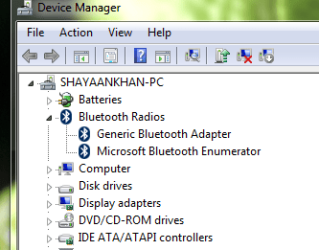
can this help me
1. Please update the BIOS on the computer using the link below
Dell Inspiron 3521 System BIOS Driver Details | Dell US
2. Connect the Ac Adapter before updating the BIOS and do not use the system until it restarts after the update. Also uninstall the wireless/Bluetooth driver from the programs and features. Follow the steps below.
3. Start > in search box type in program and features > select the wireless/Bluetooth driver > right click on it and click uninstall.
Once the driver is uninstalled, use the link below to install the wireless/ Bluetooth driver using the link below.
Support | Dell US
4. Type in the Service tag, Under Drivers and downloads select the Operating system and install the Wireless Drivers from Network option.
5. Once completed please restart the computer and
6. Launch Settings Charm and select Change PC settings
7. Under PC Settings, select Devices.
8. Click Add a device to search for the Bluetooth devices
9. Click your Bluetooth device to add.
Please check the image below:
In order to find the display Bluetooth devices you can Go to Start Screen, the Bluetooth devices that you have connected in the past and pinned to Start Screen will be listed as tiles