Solved Bootloader fails to start unless I press a key

reoperw

New member
Local time
6:33 PM
Messages
11
I'm asking this question for one of my friends.
My friend's netbook (Olive Zipbook 107h) has Windows 7 Professional Installed in it. When I switch it on, it keeps on restarting as it reaches windows bootloader, something like windows bootloader blinks for a second and disappears, system restarts and this keeps in happening. But during BIOS screen, if i press any key on keyboard, Windows starts normally, and do not even show any sign of errors, even Event log doesn't help. I tried resetting mbr/bootloader with recovery option, the "Startup Repair" Option in Recovery mode, nothing helped.
I tried using EazyBCD as well, but was of no use.
Any solutions? Will installing a third party bootloader like GRUB help me solve this?
 

My Computer My Computer

Computer type
Laptop
OS
Windows 7
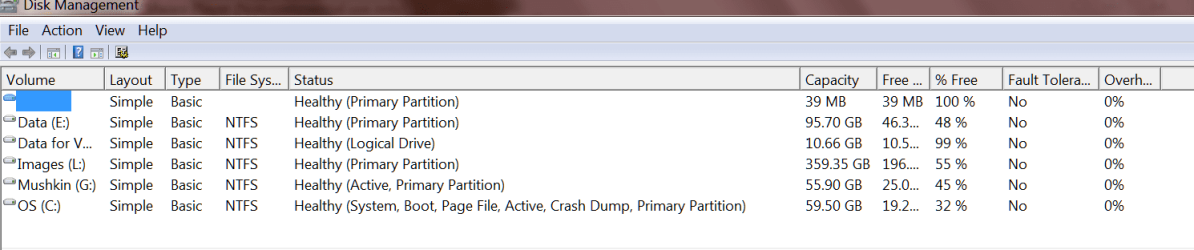
Please post back a screenshot of your maximized Disk Management drive map and listings:

1. Type Disk Management in Start :orb: Search box.
2. Open Disk Mgmt. window and maximize it.
3. Type Snipping Tool in Start Search box.
4. Open Snipping Tool, choose Rectangular Snip, click New, draw a box around full drive map and all listings.
5, Save Snip, attach using paper clip in Reply Box.

Tell us what is on each partition.
 
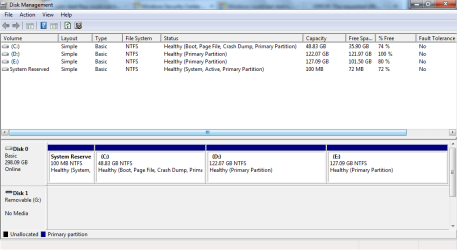
Disk Management Screenshot

C: is Windows installation and others are normal drives. System Reserved is Bootloader's if am not wrong!

Checked Event log, has nothing in particular regarding this, still, have attached few which stands out!
 

Attachments

My Computer My Computer

Computer type
Laptop
OS
Windows 7
Since you did not maximize the window as requested we cannot see the flags on the partitions to know they are set correctly.

System Reserved should be marked System Active - if it's not marked Active then do that now in Disk Mgmt: Partition - Mark as Active

Then boot into Win7 DVD or System Repair Disk to run a few Startup Repairs with reboots to see if it finds anything to repair.

In BIOS setup, set the HD first to boot. Trigger disks to boot using one-time BIOS boot menu key at boot. Check also the SATA controller setting in BIOS setup.
 
Last edited:
Right, especially expand the 'Status' field so that the full text is visible. Like this:
 

Attachments

  • 2013-03-04_2225.png
    2013-03-04_2225.png
    22.8 KB · Views: 6

My Computer My Computer

Computer Manufacturer/Model Number
HP, Dell, Gateway, Toshiba - 4 laptops and 2 desktops
OS
Vista, Windows7, Mint Mate, Zorin, Windows 8
CPU
from 1.6GHz Duo to i7
Monitor(s) Displays
2x HP w2207
Hard Drives
5x HDD, 7x SSD, 12x Externals
Keyboard
with trackball - no mices
Mouse
Trackball mice
Internet Speed
DSL 6000
Since you did not maximize the window as requested we cannot see the flags on the partitions to know they are set correctly.

System Reserved should be marked System Active - if it's not marked Active then do that now in Disk Mgmt: Partition - Mark as Active
it is active. Image attached as instructed.

Then boot into Win7 DVD or System Repair Disk to run a few Startup Repairs with reboots to see if it finds anything to repair.

Tried it, nothing detected.

In BIOS setup, set the HD first to boot. Trigger disks to boot using one-time BIOS boot menu key at boot. Check also the SATA controller setting in BIOS setup.
There is only HD as boot device!! Yet to check sata controller settings!!
 

Attachments

  • Capture.PNG
    Capture.PNG
    19.9 KB · Views: 6

My Computer My Computer

Computer type
Laptop
OS
Windows 7
There is nothing wrong with the boot configuration, so it is hard to say what's causing the problem. It could be the HD connection, faulty BIOS code, even bad boot code.

One way to remedy it almost for sure would be to do a Clean Reinstall - Factory OEM Windows 7 after wiping the HD of all boot code using Diskpart Clean Command. This is a vastly superior install to the preinstalled Win7 which comes with the PC.

Back up your files, reset the BIOS to defaults first, set SATA controller to AHCI, access DISKPART At PC Startup.
 
There is nothing wrong with the boot configuration, so it is hard to say what's causing the problem. It could be the HD connection, faulty BIOS code, even bad boot code.

If so, how is it booting normally if i press any random key on my keyboard?

One way to remedy it almost for sure would be to do a Clean Reinstall - Factory OEM Windows 7 after wiping the HD of all boot code using Diskpart Clean Command. This is a vastly superior install to the preinstalled Win7 which comes with the PC.

Only option left? :cry:

Back up your files, reset the BIOS to defaults first, set SATA controller to AHCI, access DISKPART At PC Startup.

BIOS: PhonixBIOS
Options under SATA:
Type: [ AUTO ] (Other options: ATAPI Removable, CD-ROM, IDE-Removable, Other ATAPI, User

Under Auto, only editable option is 32 bit I/O: [ Disabled ]
Hope you noted that its not for my system, it's Olive Zipbook 107h, netbook!
 

My Computer My Computer

Computer type
Laptop
OS
Windows 7
Solved it!

I solved it, I don't know exact idea of how solution works!
I changed the bootloader time, and created a new entry. next time, it started booting normal. and after that, I removed the other entry, cut short the time, everything still worked normal!! :D

This might be the reason: there could have been some error in time-settings, and when i press a key, bootloader skips the countdown, may be thats why it used ti work normal.
 

My Computer My Computer

Computer type
Laptop
OS
Windows 7
I knew it was some issue with bootloader alone, and also, some part which can be skipped with keypress when bootloader kicks off itself (else event log would have captured it). Pure luck, I thought I'll try create one more boot entry, and restarted. Then they showed the boot menu without any keypress, next step, I tried deleting the bootloader and keeping time the same- again it was normal (that tells that it was not the second item in boot menu which helped me), and next I cut time. That made me come to the conclusion that it was some error over there!
 

My Computer My Computer

Computer type
Laptop
OS
Windows 7
What did you use to edit the bootloader? Please describe exactly how this was done, the sequence.
 
I used EasyBCD, (it was not EasyBCD's magic- coz I had tried rebuilding MBR and OSlist with it already, dint work!)
In it, added a new WIn7entry (duplicate) and set Waiting time to 10 or 20 sec. Rebooted, Everything was alright!
Then Kicked off Duplicate entry, and all was well!
 

My Computer My Computer

Computer type
Laptop
OS
Windows 7
Very interesting. :geek:

Of course you'd need to be able to boot Win7 to use EasyBCD, but I've never heard of this solution to resolve boot problems.

You don't need any timeout at all for a single OS boot using EasyBCD. You can still adjust that now.
 
I'm just born :geek:, can't resist it ;-)
yes, it has already been done:-)
 

My Computer My Computer

Computer type
Laptop
OS
Windows 7
Sorry for post after a long time. I thought that was just mere luck, and had nothing to do with real solution to the issue. Recently I came across the same issue in a Dell Optiplex 990 Desktop, and the same steps solved the issue to my amazement! Still, not able to figure out how this happens!
 

My Computer My Computer

Computer type
Laptop
OS
Windows 7
Back
Top