Solved BOOTMGR is missing - error message

GRoston

New member
Power User
Local time
12:31 PM
Messages
374
(Not sure if this is the right section of the forums, but...)

I decided to replace my C: drive, which is on a hard drive, with a SSD. The hard disk is about 500 GB in size, so I purchased a 1 TB SSD, installed it into my computer, and created three partitions. I then used Macrium Reflect to clone both the System Reserved partition and the root partition to the SSD. No problem.

I then rebooted my machine, went into the BIOS, and put the SSD ahead of the hard disk in the boot order. However, when the machine then tried to boot, I got the error message “BOOTMGR is missing”. I did some looking around, but found nothing to suggest why I am getting this error. What would you suggest I try?
 

My Computer

Computer type
PC/Desktop
OS
Windows 7 x64 Pro
CPU
Core i7 860 @ 3.8 GHz
Motherboard
MSI P55-GD80
Memory
16 GB F3-12800CL7D (DDR3 1600 7-7-7-24)
Graphics Card(s)
Sapphire Vapor-X 100283VXL Radeon HD 5770
Monitor(s) Displays
NEC LCD3090WQXi-BK
If you can stil boot into the os on the hd, post a screenshot of disk management showing both disks
 

My Computers

System One System Two

  • Computer type
    PC/Desktop
    OS
    7 X64
    CPU
    i5 8400
    Motherboard
    gigabyte b365m ds3h
    Memory
    2x8gb 3200mhz
    Hard Drives
    various
    PSU
    pure power 11 400w cm
    Case
    Coolermaster
    Cooling
    cryorig m9i
  • Computer type
    PC/Desktop
    OS
    7x64
    CPU
    g5400
    Motherboard
    ga b365m ds3h
    Memory
    8gb ddr4 2400
    PSU
    xfx pro 450w
SIW2 - thanks for offering to help. Two comments:
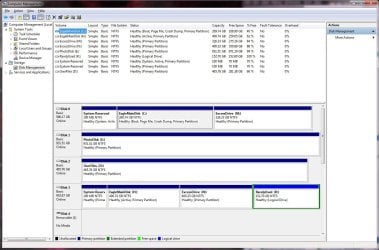
  • In the picture, Disk 0 is the hard drive that works as C: and Disk 3, the SSD, is the new drive
  • In my original posting, I over-simplified - there are some additional partitions on the drives, but I strongly suspect that they don't matter.
 

Attachments

  • DiskManagement.jpg
    DiskManagement.jpg
    274.2 KB · Views: 1

My Computer

Computer type
PC/Desktop
OS
Windows 7 x64 Pro
CPU
Core i7 860 @ 3.8 GHz
Motherboard
MSI P55-GD80
Memory
16 GB F3-12800CL7D (DDR3 1600 7-7-7-24)
Graphics Card(s)
Sapphire Vapor-X 100283VXL Radeon HD 5770
Monitor(s) Displays
NEC LCD3090WQXi-BK
Open an administrator command pompt

type

bcdboot H:\windows /s H:
(then press enter)
 
Last edited:

My Computers

System One System Two

  • Computer type
    PC/Desktop
    OS
    7 X64
    CPU
    i5 8400
    Motherboard
    gigabyte b365m ds3h
    Memory
    2x8gb 3200mhz
    Hard Drives
    various
    PSU
    pure power 11 400w cm
    Case
    Coolermaster
    Cooling
    cryorig m9i
  • Computer type
    PC/Desktop
    OS
    7x64
    CPU
    g5400
    Motherboard
    ga b365m ds3h
    Memory
    8gb ddr4 2400
    PSU
    xfx pro 450w
"System Reserved" is supposed to be active. Mark "System Reserved" as active. Your Disk 3 tries to boot from Partition 2 and can't find any boot files there (BOOTMGR is missing). Because they're on Partition 1.

The "Active" flag is NOT about marking a Windows partition. See Disk 0.
 
Last edited:

My Computer

Computer type
PC/Desktop
OS
Windows 7 Home Premium
SIW2: Thanks, but an issue:

C:\Windows\system32>bcdboot H:\windows /s H
Failure when setting library system volume path.

Bcdboot - Bcd boot file creation and repair tool.

It seems that the H: should be a C:, since "source - Specifies the location of the windows system root.", but then I am not sure that the proper files would be updated...
 

My Computer

Computer type
PC/Desktop
OS
Windows 7 x64 Pro
CPU
Core i7 860 @ 3.8 GHz
Motherboard
MSI P55-GD80
Memory
16 GB F3-12800CL7D (DDR3 1600 7-7-7-24)
Graphics Card(s)
Sapphire Vapor-X 100283VXL Radeon HD 5770
Monitor(s) Displays
NEC LCD3090WQXi-BK
You have 2 systemroots , one is C:\windows which is fine because you can boot into it.
The other is H:\windows which is what you want to be able to boot into.

Something went wrong in the clone process, some corruption. I suggest you do it again and use a program that can do the job.

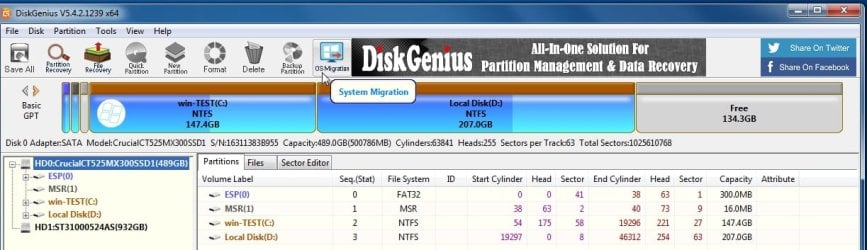
Diskgenius is best for this job. DiskGenius: Data Recovery, Partition Manager, Backup & Disk Utilities

Delete those first two partition on the target disk.

click os migration

osmigrate3.jpg

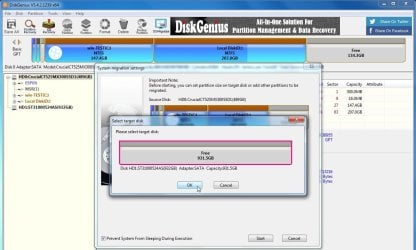
select the target disk

osmigrate5.jpg

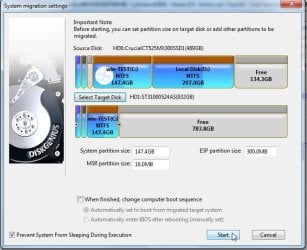
you can adjust partition sizes if you want

click start

osmigrate7.jpg

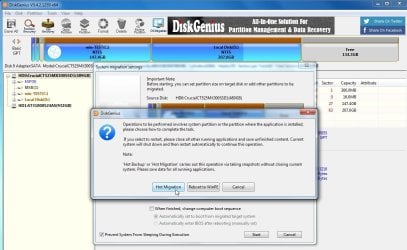
select hot migration

osmigrate8.jpg
 
Last edited:

My Computers

System One System Two

  • Computer type
    PC/Desktop
    OS
    7 X64
    CPU
    i5 8400
    Motherboard
    gigabyte b365m ds3h
    Memory
    2x8gb 3200mhz
    Hard Drives
    various
    PSU
    pure power 11 400w cm
    Case
    Coolermaster
    Cooling
    cryorig m9i
  • Computer type
    PC/Desktop
    OS
    7x64
    CPU
    g5400
    Motherboard
    ga b365m ds3h
    Memory
    8gb ddr4 2400
    PSU
    xfx pro 450w
some corruption.

The corruption is in your reply. A colon is missing in that command. Why can't you agree to swap the active flag?
 
Last edited:

My Computer

Computer type
PC/Desktop
OS
Windows 7 Home Premium
SIW2 - the program you recommended, DiskGenius, worked. I was able to boot to the SSD. Now, I am trying (very tough) to be patient because some program need to re-index (Outlook) and some are requesting that I register (PhotoShop).

- - - Updated - - -

Something isn't working write. After cloning the SSD (as described above) and booting from it, I am getting the following:
I have legit license for both and have used them for years. What is going on????
 
Last edited:

My Computer

Computer type
PC/Desktop
OS
Windows 7 x64 Pro
CPU
Core i7 860 @ 3.8 GHz
Motherboard
MSI P55-GD80
Memory
16 GB F3-12800CL7D (DDR3 1600 7-7-7-24)
Graphics Card(s)
Sapphire Vapor-X 100283VXL Radeon HD 5770
Monitor(s) Displays
NEC LCD3090WQXi-BK
Back
Top