Bootmgr is missing

live2ride184

New member
Local time
4:58 PM
Messages
24
I have an hp touchsmart 600 with windows 7 home premium and when I try and turn it on, it says bootmgr is missing. I have tried restoring it with this method: http://www.sevenforums.com/tutorials/104341-bootmgr-missing-fix.html
but when I get to the last step, it says Windows Installations Found: 0.
I have also tried sfc /scannow and chkdsk. I could reinstall but as a last resort. I would rather solve this.
 

My Computer

OS
Windows 7 Home Premium 64bit
bootrec/fixboot was succesfull?
bootrec/fixmbr as well?

Try startup repair again. After it finishes click "view diagnostic and repair details" You see kind of logfile. Status 0x0 means success... I'm not interested in that. Any other status code? Which one in which step?

What picture did you see just before clicking startup repair?

So did it detect your win7 installation? If so which drive letter did it show?
 

My Computer

Computer type
Laptop
Computer Manufacturer/Model Number
ACER ASPIRE 5742G
OS
Microsoft Windows 7 Home Premium 64-bits 7601 Multiprocessor Free Service Pack 1
CPU
Intel(R) Core(TM) i3 CPU M 370 @ 2.40GHz
Motherboard
Acer Aspire 5742G
Memory
4,00 GB
Graphics Card(s)
ATI Mobility Radeon HD 5400 Series
Sound Card
(1) AMD High Definition Audio Device (2) Realtek High Defi
Screen Resolution
1366 x 768 x 32 bits (4294967296 colors) @ 60 Hz
Hard Drives
WDC WD5000BEVT-22ZAT0
I have an hp touchsmart 600 with windows 7 home premium and when I try and turn it on, it says bootmgr is missing. I have tried restoring it with this method: http://www.sevenforums.com/tutorials/104341-bootmgr-missing-fix.html
but when I get to the last step, it says Windows Installations Found: 0.
I have also tried sfc /scannow and chkdsk. I could reinstall but as a last resort. I would rather solve this.
Windows Installations Found: 0 can mean... it really can't find any win7 installation. But most likely... all found win7 installations are alreay in boot menu.

bootmgr not found: Did you connect another disk and is it trying to boot from that disk? Did you make another partition active? Did you other strange things just before this problem happened the first time?

Problem is easy to fix.... only boot manager which reads the bootmenu is missing. But why????? hopefully this is the only problem
 

My Computer

Computer type
Laptop
Computer Manufacturer/Model Number
ACER ASPIRE 5742G
OS
Microsoft Windows 7 Home Premium 64-bits 7601 Multiprocessor Free Service Pack 1
CPU
Intel(R) Core(TM) i3 CPU M 370 @ 2.40GHz
Motherboard
Acer Aspire 5742G
Memory
4,00 GB
Graphics Card(s)
ATI Mobility Radeon HD 5400 Series
Sound Card
(1) AMD High Definition Audio Device (2) Realtek High Defi
Screen Resolution
1366 x 768 x 32 bits (4294967296 colors) @ 60 Hz
Hard Drives
WDC WD5000BEVT-22ZAT0
Work through these steps for Troubleshooting Windows 7 Failure to Start.

If no installation shows up for repair, running the bootrec commands step as suggested may force it to appear. If not after confirming the Active partition as given then run the 3 Startup Repairs no matter what it reports.
 
You also want to make sure that WinRE can see your disk. When you get the the Install/repair screen hold shift + F10. This should bring up a command prompt. From the command prompt type in the commands below:

1.diskpart
2. list disk
3 look for the disk that you have installed on your system (verifying that windows can see it)
4.list volume (Verify that windows can see your OS volume)
 
Last edited:

My Computer

OS
Windows 7 Ultimate x64
bootrec/fixboot was succesfull?
bootrec/fixmbr as well?

Try startup repair again. After it finishes click "view diagnostic and repair details" You see kind of logfile. Status 0x0 means success... I'm not interested in that. Any other status code? Which one in which step?

What picture did you see just before clicking startup repair?

So did it detect your win7 installation? If so which drive letter did it show?

Fix boot and fixmbr were both successful.

Before the startup repair I see the second picture with no OS.

After running startup repair at the bottom of the logfile, it says:
Root cause found:
Boot manager is missing or corrupt.
Repair action: File repair
Result: Failed. Error code = 0x15
 

My Computer

OS
Windows 7 Home Premium 64bit
I have an hp touchsmart 600 with windows 7 home premium and when I try and turn it on, it says bootmgr is missing. I have tried restoring it with this method: http://www.sevenforums.com/tutorials/104341-bootmgr-missing-fix.html
but when I get to the last step, it says Windows Installations Found: 0.
I have also tried sfc /scannow and chkdsk. I could reinstall but as a last resort. I would rather solve this.
Windows Installations Found: 0 can mean... it really can't find any win7 installation. But most likely... all found win7 installations are alreay in boot menu.

bootmgr not found: Did you connect another disk and is it trying to boot from that disk? Did you make another partition active? Did you other strange things just before this problem happened the first time?

Problem is easy to fix.... only boot manager which reads the bootmenu is missing. But why????? hopefully this is the only problem

I am booting a repair disk from a usb. I didnt mark any partitions active and wasnt doing anything weird before....
 

My Computer

OS
Windows 7 Home Premium 64bit
bootrec/fixboot was succesfull?
bootrec/fixmbr as well?

Try startup repair again. After it finishes click "view diagnostic and repair details" You see kind of logfile. Status 0x0 means success... I'm not interested in that. Any other status code? Which one in which step?

What picture did you see just before clicking startup repair?

So did it detect your win7 installation? If so which drive letter did it show?

Fix boot and fixmbr were both successful.

Before the startup repair I see the second picture with no OS.

After running startup repair at the bottom of the logfile, it says:
Root cause found:
Boot manager is missing or corrupt.
Repair action: File repair
Result: Failed. Error code = 0x15
bootrec/fixboot
and bootrec/fixmbr

were succesfull?

recovery environment->command prompt

Code:
diskpart
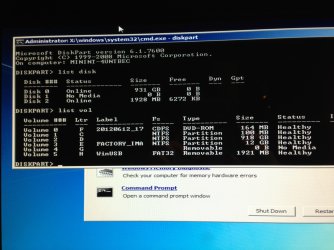
list disk  (is there only 1 disk?)
list vol
exit
What volumes do you see and explaind what they're for
 

My Computer

Computer type
Laptop
Computer Manufacturer/Model Number
ACER ASPIRE 5742G
OS
Microsoft Windows 7 Home Premium 64-bits 7601 Multiprocessor Free Service Pack 1
CPU
Intel(R) Core(TM) i3 CPU M 370 @ 2.40GHz
Motherboard
Acer Aspire 5742G
Memory
4,00 GB
Graphics Card(s)
ATI Mobility Radeon HD 5400 Series
Sound Card
(1) AMD High Definition Audio Device (2) Realtek High Defi
Screen Resolution
1366 x 768 x 32 bits (4294967296 colors) @ 60 Hz
Hard Drives
WDC WD5000BEVT-22ZAT0
bootrec/fixboot was succesfull?
bootrec/fixmbr as well?

Try startup repair again. After it finishes click "view diagnostic and repair details" You see kind of logfile. Status 0x0 means success... I'm not interested in that. Any other status code? Which one in which step?

What picture did you see just before clicking startup repair?

So did it detect your win7 installation? If so which drive letter did it show?

Fix boot and fixmbr were both successful.

Before the startup repair I see the second picture with no OS.

After running startup repair at the bottom of the logfile, it says:
Root cause found:
Boot manager is missing or corrupt.
Repair action: File repair
Result: Failed. Error code = 0x15
bootrec/fixboot
and bootrec/fixmbr

were succesfull?

recovery environment->command prompt

Code:
diskpart
list disk  (is there only 1 disk?)
list vol
exit
What volumes do you see and explaind what they're for

Yes they were both successful.

I just took a picture of the diskpart
 

Attachments

  • Photo Jan 08, 6 05 22 PM.jpg
    Photo Jan 08, 6 05 22 PM.jpg
    507.3 KB · Views: 20

My Computer

OS
Windows 7 Home Premium 64bit
Type:

sel dis 0
list part
sel part 1 (for System Rserved partition)
Det part

Doe it say it's Active?

If not type:

Active
exit

Now run Startup Repair - Run up to 3 Separate Times no matter what it reports.

If this fails to Start Win7 change the Active flag to C and try again.

These are listed in Troubleshooting Windows 7 Failure to Start
along with everything else that can be done to start unbootable Win7.

It said active and I was trying to do what you recommended but when I was supposed to type in Del partition, I didnt capitalize the d so it deleted it...I know stupid...
 

My Computer

OS
Windows 7 Home Premium 64bit
Would I be able to take the hard drive out and try to restore the bootmgr by plugging it in to my desktop and using a program such as easybcd? Or would that mess up the booting of my desktop?
 

My Computer

OS
Windows 7 Home Premium 64bit
No, it's different hardware which will interfere.

Have you worked through all of the steps in Troubleshooting Windows 7 Failure to Start

The command is Det(tail) partition. If you deleted the partition instead, run free Partition Wizard Partition Recovery Wizard - Video Help.

But first try moving the Active flag to C to run the three separate Repairs.

You haven't confirmed you've done any of this. So please report back what you've done.
http://partitionwizard.com/video-help/partition-recovery-wizard/partition-recovery-wizard.html
There are other steps using PW CD in the tutorial.
http://partitionwizard.com/video-help/partition-recovery-wizard/partition-recovery-wizard.html
 
No, it's different hardware which will interfere.

Have you worked through all of the steps in Troubleshooting Windows 7 Failure to Start

The command is Det(tail) partition. If you deleted the partition instead, run free Partition Wizard Partition Recovery Wizard - Video Help.

But first try moving the Active flag to C to run the three separate Repairs.

You haven't confirmed you've done any of this. So please report back what you've done.
http://partitionwizard.com/video-help/partition-recovery-wizard/partition-recovery-wizard.html
There are other steps using PW CD in the tutorial.
http://partitionwizard.com/video-help/partition-recovery-wizard/partition-recovery-wizard.html

I have been trying to go through all the steps in your first link and I'm almost done. How do I move the active flag to c?
 

My Computer

OS
Windows 7 Home Premium 64bit
It said active and I was trying to do what you recommended but when I was supposed to type in Del partition, I didnt capitalize the d so it deleted it...I know stupid...

det part not del part

Uppercase ot lowercase doesn't matter is most commands.
Did you really delete system reserved?
 

My Computer

Computer type
Laptop
Computer Manufacturer/Model Number
ACER ASPIRE 5742G
OS
Microsoft Windows 7 Home Premium 64-bits 7601 Multiprocessor Free Service Pack 1
CPU
Intel(R) Core(TM) i3 CPU M 370 @ 2.40GHz
Motherboard
Acer Aspire 5742G
Memory
4,00 GB
Graphics Card(s)
ATI Mobility Radeon HD 5400 Series
Sound Card
(1) AMD High Definition Audio Device (2) Realtek High Defi
Screen Resolution
1366 x 768 x 32 bits (4294967296 colors) @ 60 Hz
Hard Drives
WDC WD5000BEVT-22ZAT0
Either using the Partition Wizard CD to rightclick on C to Modify>Set to Active

or using the Win7 DVD or Repair CD use Option Two to Mark Partition Active

So I plugged the hard drive into my desktop, and in disk management, saw the 100mb partition I deleted and went through the steps so I could use it. I then put the HD back into the touchsmart and made the partition active and ran startup repair three times. But I still get bootmrg is missing. Also I went into the bios settings and saw that the DVD was first in boot priority so I restored the defaults but it still is. Why is that?
After everytime I run startup repair I get this screen.
 

Attachments

  • Photo Jan 09, 4 07 30 PM.jpg
    Photo Jan 09, 4 07 30 PM.jpg
    977.6 KB · Views: 7

My Computer

OS
Windows 7 Home Premium 64bit
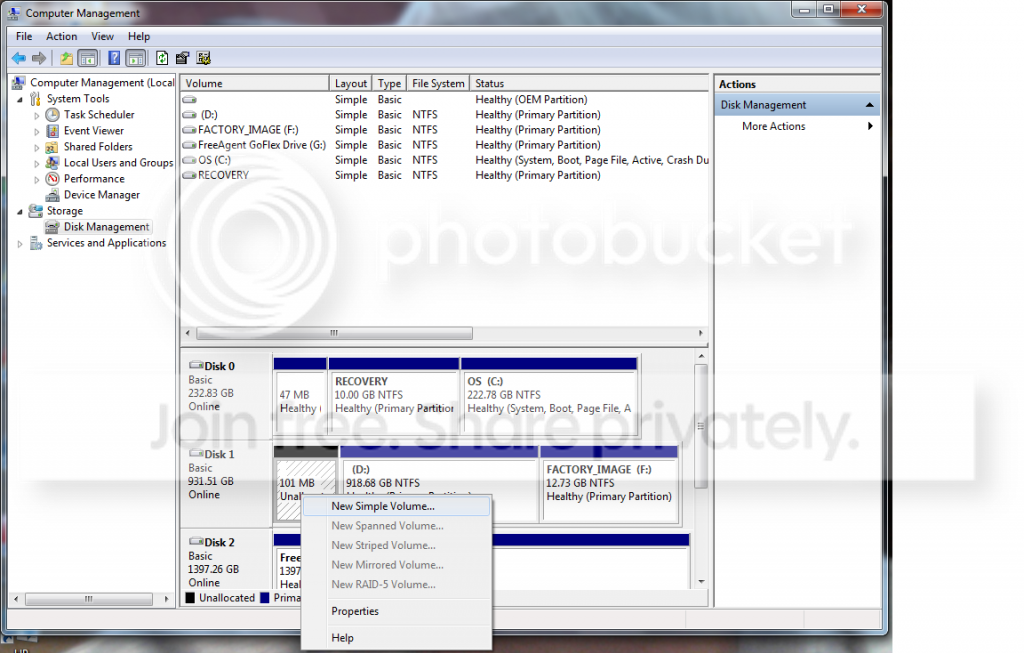
We have no idea what you did when you plugged in the HD to recover the 100mb partition. Can you post back a screenshot of the maximized DIsk Mgmt window showing drive map with all listings?

Did you run 3 separate Startup Repairs no matter what it reports, each with reboot? Have you already done this with C itself marked Active as it says in the Troubleshooting steps?
 
We have no idea what you did when you plugged in the HD to recover the 100mb partition. Can you post back a screenshot of the maximized DIsk Mgmt window showing drive map with all listings?

Did you run 3 separate Startup Repairs no matter what it reports, each with reboot? Have you already done this with C itself marked Active as it says in the Troubleshooting steps?

I plugged it in to my desktop and opened disk managment. I saw the partition said unalocatted.
Capture_zpsd9760e45.png


I right clicked and clicked on create new simple volume.
Untitled_zps9c0d4d91.png


Then it looked as it does below.
Capture1_zpsb4f997ee.png


Then I plugged it back in to the touchsmart and booted the repair disk and then in diskpart, made the partition active, rebooted, ran startup repair, rebooted, ran startup repair, rebooted, ran startup repair, and tried to boot into windows and I am still gettting the bootmgr is missing message.
 

My Computer

OS
Windows 7 Home Premium 64bit
Back
Top