BSOD Normal PC usage, error "clock interval not received"

Dekwa

New member
Local time
8:29 PM
Messages
4
Lately I have been having these BSOD "A clock interrupt was not received on a secondary processor within the allocated time interval."

This is when using the PC in a normal way (like browsing, checking email), nothing intensive
After the restart, everything works fine, and I receive no more BSOD, untill I start up my pc the next day.

the crash happens withing 5-10minutes after I start to use it.

I have already done the diagnostics tool, and added the result.

my specs are:
WIN7 home premium 64bit
intel core i7-3820 @ 3.60 GHZ (x8)
MSI MS7760
16GB ram
firefox 24.0 (I always have this running, but it noticably crashes when I'm using it actively)


I would appreciate some help in this matter.
On a side note, I'm interested in what a clock interrupt is, and does.
 

My Computer

Computer type
PC/Desktop
Computer Manufacturer/Model Number
custom build
OS
Windows 7 Home Premium 64bit
CPU
Intel Core i7-3820 @3.60GHz (x8)
Motherboard
MSI MS7760
Memory
16384MB
Graphics Card(s)
Nvidia Geforce GTX560 Ti
Hard Drives
SSD SATA 238GB
SATA 750 GB
Antivirus
McAfee Internet Security
Browser
Firefox 24.0
Welcome to SF :) .

Unfortunately the uploaded file doesn't contain recent dumps.
The other thing we need is the kernel dump because you are describing bugcheck 0x101 which
can not be analyzed using a minidump.

Please follow this tutorial to confirm you have Windows set to create a Kernel Dump (#7)
then look in the system root folder for a file called MEMORY.dmp and upload it using
an online hosting service the likes of dropbox or skydrive.


The file should be located in this folder:
Code:
C:\Windows\[B]MEMORY.dmp[/B]
 

My Computer

Computer type
PC/Desktop
OS
Windows 10
CPU
Intel Core i5 3570K
Motherboard
Asus P8Z77V-PRO
Memory
16GB 1600Mhz G.Skill
Graphics Card(s)
Gigabyte GTX 970 G1-Gaming
PSU
Seasonic 1000W Platinum
Case
Fractal Design Define R4
Cooling
Noctua NH-D14
I guess I'll have to wait for the next BSOD then...
 

My Computer

Computer type
PC/Desktop
Computer Manufacturer/Model Number
custom build
OS
Windows 7 Home Premium 64bit
CPU
Intel Core i7-3820 @3.60GHz (x8)
Motherboard
MSI MS7760
Memory
16384MB
Graphics Card(s)
Nvidia Geforce GTX560 Ti
Hard Drives
SSD SATA 238GB
SATA 750 GB
Antivirus
McAfee Internet Security
Browser
Firefox 24.0
set up the kernel dump, but after the recent BSOD, it didn't create one... is it possible that the dump wasn't created due to compressing the files on the C drive? :/
 

My Computer

Computer type
PC/Desktop
Computer Manufacturer/Model Number
custom build
OS
Windows 7 Home Premium 64bit
CPU
Intel Core i7-3820 @3.60GHz (x8)
Motherboard
MSI MS7760
Memory
16384MB
Graphics Card(s)
Nvidia Geforce GTX560 Ti
Hard Drives
SSD SATA 238GB
SATA 750 GB
Antivirus
McAfee Internet Security
Browser
Firefox 24.0
Sorry for the late reply :zip:!
Well I don't think so I've never encountered that to be the case.
You can go through this check list of things to verify in-order to be able to generate a dump.


My Computer

Computer type
PC/Desktop
OS
Windows 10
CPU
Intel Core i5 3570K
Motherboard
Asus P8Z77V-PRO
Memory
16GB 1600Mhz G.Skill
Graphics Card(s)
Gigabyte GTX 970 G1-Gaming
PSU
Seasonic 1000W Platinum
Case
Fractal Design Define R4
Cooling
Noctua NH-D14
had a different BSOD the other day, but it keeps getting stuck on Initializing the memory dump. I can go away and return after 5 hours, and it will still sit there on initializing... and the last dump dates from Feb 3rd... :/
 

My Computer

Computer type
PC/Desktop
Computer Manufacturer/Model Number
custom build
OS
Windows 7 Home Premium 64bit
CPU
Intel Core i7-3820 @3.60GHz (x8)
Motherboard
MSI MS7760
Memory
16384MB
Graphics Card(s)
Nvidia Geforce GTX560 Ti
Hard Drives
SSD SATA 238GB
SATA 750 GB
Antivirus
McAfee Internet Security
Browser
Firefox 24.0
Hmm, did you happen to catch the bug check codes?

I would test the hardware starting with the RAM and HDD as well as going through the check list for the SSD.

writhziden said:
  • If you have an SSD, make sure the following are up to date:
    • SSD firmware
    • BIOS Version
    • Chipset Drivers
    • Hard disk controller drivers/SATA drivers
    • If you have a Marvell IDE ATA/ATAPI device, make sure the drivers are up to date from the Intel site or Marvell site and not from your motherboard/vendor support site.

   Warning
The Following Method Should NOT Be Performed On An SSD!


Testing the HDD:


  1. Perform a Disk Check | Disk Check- Scroll down to OPTION TWO of the tutorial and use the /R switch in the CHKDSK command | chkdsk C: /R.
  2. Then Post the Disk Check results following | This Tutorial.
  3. Once back in Windows, download Crystal Disk Info and post a screenshot (multiple shots if you have more than one drive).
  4. Download SeaTools for DOS if you don't want to use a CD to test the HDD you can use YUMI – Multiboot USB Creator to create a bootable USB (instructions are found at the bottom of both pages).
  5. If SeaTools for DOS is unable to recognize your HDD:
  6. Visit HDDdiag and follow the instructions | Or follow the instructions below.
If SeaTools For DOS does not recognize the drive;
Boot into the BIOS using the *Fx key.
Look for an entry called SATA Mode (or something similar), it should be set to IDE / AHCI.
It's probably set to AHCI which is why SeaTools doesn't recognize them in the DOS environment.
Set it to IDE then save and exit usually by pressing the F10 key.
Now boot into SeaTools and it should detect the drives.
Start the Long Test and let it run.
Upon completion don't try to boot into Windows as it will only result in a BSOD, go back into the BIOS
and change the SATA setting back to what it was in the first place.


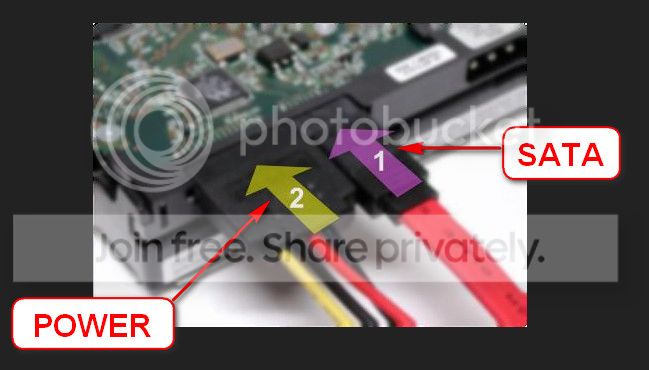
Re-seat the sata and power.

72974453_zps85c47d93.jpg

Testing the RAM:

Test and Diagnose RAM Issues with Memtest86+:
   Tip

  • :info: Pay close attention to part 3 of the tutorial "If you have errors"
  • :tip: Test the RAM with Memtest86+ for at least 7-10 passes. It may take up to 22 passes to find problems. Make sure to run it once after the system has been on for a few hours and is warm, and then also run it again when the system has been off for a few hours and is cold.
When done with the testing procedure take a picture and upload it here.
Let us know the results.
 

My Computer

Computer type
PC/Desktop
OS
Windows 10
CPU
Intel Core i5 3570K
Motherboard
Asus P8Z77V-PRO
Memory
16GB 1600Mhz G.Skill
Graphics Card(s)
Gigabyte GTX 970 G1-Gaming
PSU
Seasonic 1000W Platinum
Case
Fractal Design Define R4
Cooling
Noctua NH-D14
Back
Top