
Built-in Administrator Account - Enable or Disable

How to Enable or Disable the Built-in Elevated Administrator Account in Windows 7

   Information
This tutorial will show you how to enable or disable the built-in elevated Administrator account in Windows 7.

You must be logged in as an administrator to be able to do the options in this tutorial.

   Note
Standard user (Users) - The standard account is an unelevated restricted users account. It can help protect your computer by preventing users from making changes that affect everyone who uses the computer, such as deleting files that are required for the computer to work. It is recommend to create a standard account for each user instead of an administrator account for the user. When you are logged on to Windows with a standard account, you can do almost anything that you can do with an administrator account, but if a standard user wanted to do something that requires elevated rights that affects other users of the computer, such as installing software or changing security settings, Windows will give the standard user a UAC prompt to enter the password of an administrator account for approval and confirmation before allowing the action.

administrator user - Is an unelevated administrator account that is created by default during the installation of Windows 7, or is already setup or you on a OEM (ex: Dell) computer. An administrator account has complete access to the computer, and can make any desired changes. To help make the computer more secure, this administrator account type will be prompted by UAC by default to give confirmation before allowed to make any changes that require elevated administrator rights. Such as those that affect the system, other users, or when running anything elevated (Run as Administrator) since running elevated will allow it to have access to the entire computer.

Built-in "Administrator" - Is the hidden elevated administrator account that has full unrestricted access rights and permission on the computer. By default, this elevated "Administrator" account is not prompted by UAC by default to provide confirmation before allowed to make any changes that require elevated administrator permissions since it is an elevated account.

   Warning
If you enable the built-in Administrator account, then it is recommended to create a password for better security.

For additional security purposes, it is also not recommended to leave the built-in Administrator account always enabled, or to use it for everyday purposes.


:note: For the updated Windows 10 tutorial, please see here: Administrator account - Enable or Disable in Windows 10 - Windows 10 User Accounts Tutorials


OPTION ONE

Enable built-in Administrator in Local Users and Groups


NOTE: This option will only be available in the Windows 7 Professional, Ultimate, and Enterprise editions.
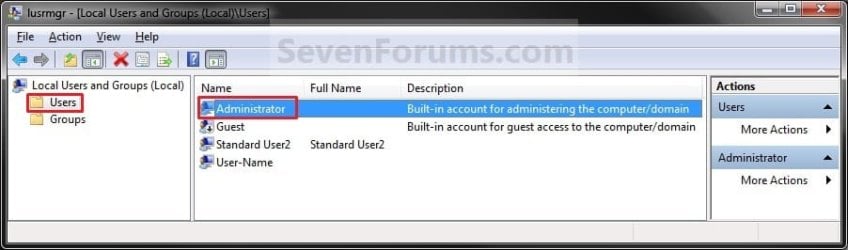
1. Open the Local Users and Groups manager.

2. In the left pane, click on the Users folder. (See screenshot below step 3)

3. In the middle pane, right click on Administrator and click on Properties. (See screenshot below)
Local_Users_and_Group.jpg
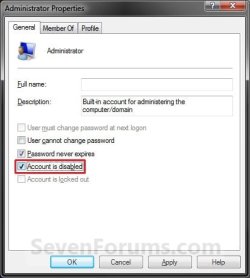
4. To Enable the Built-in Elevated Administrator Account
A) Uncheck the Account is disabled box. (See screenshot below step 6)

B) Go to step 6.
5. To Disable the Built-in Elevated Administrator Account
NOTE: This is the default setting.
A) Check the Account is disabled box. (See screenshot below step 6)
6. Click on OK. (See screenshot below)
Properties.jpg
7. Close the Local Users and Groups window. (See screenshot below step 3)

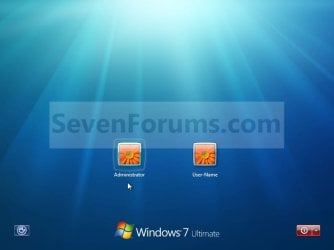
8. Log off, and you will now see the built-in Administrator account log on icon added (enabled) or removed (disabled) from the log on screen. (See screeenshot below)
NOTE: Click on the Administrator icon to log on to the built-in Administrator account.
Log-on.jpg


OPTION TWO

Enable built-in Administrator in an Elevated Command Prompt


NOTE: This option can be used in all editions of Windows 7. If your Windows 7 uses another language than English, then you may need to translate the word administrator part of the commands below to your language to use instead.
1. Open an elevated command prompt, and do step 2, 3, or 4 below for what you want to do.

2. To Enable the Hidden Built-in Elevated Administrator Account
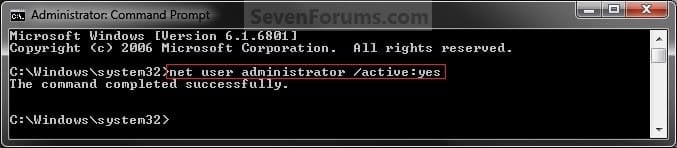
A) In the elevated command prompt, copy and paste the command below and press Enter, and go to step 5 below. (See screenshot below)
NOTE: If you had previously renamed the built-in "Administrator" account's name, then you will need to substitute administrator in the command below with the new name instead.
net user administrator /active:yes
Command_Enable.jpg
3. To Enable the Hidden Built-in Elevated Administrator Account with Password
A) In the elevated command prompt, copy and paste the command below and press Enter, and go to step 5 below. (See screenshot below)
NOTE: If you had previously renamed the built-in "Administrator" account's name, then you will need to substitute administrator in the command below with the new name instead.
net user administrator password /active:yes

   Note
Substitute password in the command above with the password you want to use to log on to the built-in Administrator account.


4. To Disable the Hidden Built-in Elevated Administrator Account
NOTE: This is the default setting.
A) In the elevated command prompt, copy and paste the command below and press Enter, and go to step 5 below. (See screenshot below)
NOTE: If you had previously renamed the built-in "Administrator" account's name, then you will need to substitute administrator in the command below with the new name instead.
net user administrator /active:no
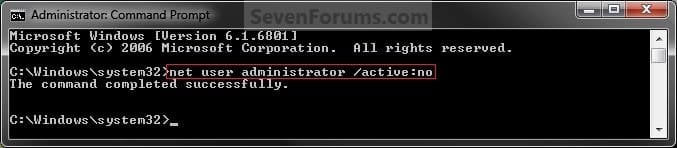
Command_Disable.jpg
5. Close the elevated command prompt.

6. Log off, and you will now see the built-in Administrator account log on icon added (enabled) or removed (disabled) from the log on screen. (See screeenshot below)
NOTE: Click on the Administrator icon to log on to the built-in Administrator account.
Log-on.jpg


OPTION THREE

Enable built-in Administrator in Local Security Policy


NOTE: This option will only be available in the Windows 7 Professional, Ultimate, and Enterprise editions.
1. Open the Local Security Policy editor.

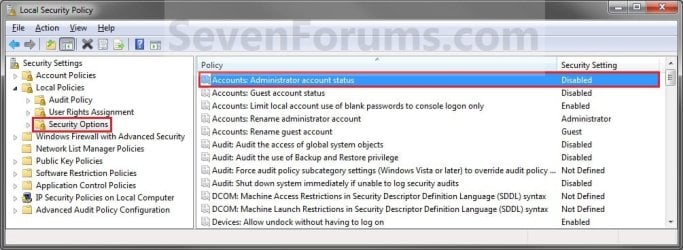
2. In the left pane, expand Local Policies, and click on Security Options. (See screenshot below)
Secpol-1.jpg
3. In the right pane, right click on Accounts: Administrator account status and click on Properties. (See screenshot above)

4. To Enable the Hidden Built-in Elevated Administrator Account
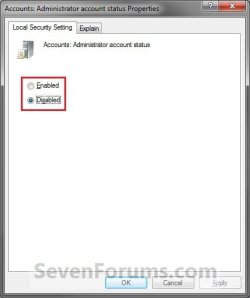
A) Select (dot) Enabled. (See screenshot below step 6)

B) Go to step 6.
5. To Disable the Hidden Built-in Elevated Administrator Account
NOTE: This is the default setting.
A) Select (dot) Disabled. (See screenshot below step 6)
6. Click on OK. (See screenshot below)
Secpol-2.jpg
7. Close the Local Security Policy window. (See screenshot below step 2)

8. Log off, and you will now see the built-in Administrator account log on icon added (enabled) or removed (disabled) from the log on screen. (See screeenshot below)
NOTE: Click on the Administrator icon to log on to the built-in Administrator account.
Log-on.jpg


OPTION FOUR

Enable built-in Administrator from System Recovery (WinRE) at Boot


1. For how, see: How to Enable the Built-in Administrator Account from WinRE
That's it,
Shawn


Last edited:
If I disable the Administrator account will the settings go back to default or will any changes made remain after the disable?
 

My Computer My Computer

At a glance

Windows 7 Home Premium 64 Bit2.53 GHz4 GBNvidia Geforce GT 555M Cuda 2GB
Computer Manufacturer/Model Number
Acer Aspire 5742G-7200
OS
Windows 7 Home Premium 64 Bit
CPU
2.53 GHz
Memory
4 GB
Graphics Card(s)
Nvidia Geforce GT 555M Cuda 2GB
Hello Casey,

The settings will remain so that you can continue using them each time you enable the built-in Administrator next.

If you wanted to reset the settings, you could delete the C:\Users\Administrator folder after disabling the built-in Administrator. This would cause it to be recreated to default the next time it's enabled.

Hope this helps. :)
 
Last edited:

My Computer My Computer

At a glance

64-bit Windows 11 Pro for WorkstationsIntel i7-8700K OC'd to 5 GHz64 GB (4x16GB) G.SKILL TridentZ RGB DDR4 3600...ASUS ROG-STRIX-GTX1080TI-O11G-GAMING
Computer type
PC/Desktop
Computer Manufacturer/Model Number
Self built custom
OS
64-bit Windows 11 Pro for Workstations
CPU
Intel i7-8700K OC'd to 5 GHz
Motherboard
ASUS ROG Maximus XI Formula Z390
Memory
64 GB (4x16GB) G.SKILL TridentZ RGB DDR4 3600 MHz
Graphics Card(s)
ASUS ROG-STRIX-GTX1080TI-O11G-GAMING
Sound Card
Integrated
Monitor(s) Displays
2 x Samsung Odyssey G7 27"
Screen Resolution
2560x1440
Hard Drives
1TB Samsung 990 PRO M.2,
4TB Samsung 990 PRO PRO M.2,
TerraMaster F8 SSD Plus NAS
PSU
Seasonic Prime Titanium 850W
Case
Thermaltake Core P3
Cooling
Corsair Hydro H115i
Keyboard
Logitech wireless K800
Mouse
Logitech MX Master 4
Internet Speed
2 Gb/s Download and 100 Mb/s Upload
Antivirus
Malwarebyte Anti-Malware Premium
Browser
Google Chrome
Other Info
Logitech Z625 speaker system,
Logitech BRIO 4K Pro webcam,
HP Color LaserJet Pro MFP M477fdn,
APC SMART-UPS RT 1000 XL - SURT1000XLI,
Galaxy S23 Plus phone
Hello Casey,

The settings will remain so that you can continue using them each time you enable the built-in Administrator next.

If you wanted to reset the settings, you could delete the C:\Users\Administrator folder after disabling the built-in Administrator. This would cause it to recreated to default the next time it's enabled.

Hope this helps. :)

Thanks. That's just what I needed to know. :)
 

My Computer My Computer

At a glance

Windows 7 Home Premium 64 Bit2.53 GHz4 GBNvidia Geforce GT 555M Cuda 2GB
Computer Manufacturer/Model Number
Acer Aspire 5742G-7200
OS
Windows 7 Home Premium 64 Bit
CPU
2.53 GHz
Memory
4 GB
Graphics Card(s)
Nvidia Geforce GT 555M Cuda 2GB
You're most welcome. :)
 

My Computer My Computer

At a glance

64-bit Windows 11 Pro for WorkstationsIntel i7-8700K OC'd to 5 GHz64 GB (4x16GB) G.SKILL TridentZ RGB DDR4 3600...ASUS ROG-STRIX-GTX1080TI-O11G-GAMING
Computer type
PC/Desktop
Computer Manufacturer/Model Number
Self built custom
OS
64-bit Windows 11 Pro for Workstations
CPU
Intel i7-8700K OC'd to 5 GHz
Motherboard
ASUS ROG Maximus XI Formula Z390
Memory
64 GB (4x16GB) G.SKILL TridentZ RGB DDR4 3600 MHz
Graphics Card(s)
ASUS ROG-STRIX-GTX1080TI-O11G-GAMING
Sound Card
Integrated
Monitor(s) Displays
2 x Samsung Odyssey G7 27"
Screen Resolution
2560x1440
Hard Drives
1TB Samsung 990 PRO M.2,
4TB Samsung 990 PRO PRO M.2,
TerraMaster F8 SSD Plus NAS
PSU
Seasonic Prime Titanium 850W
Case
Thermaltake Core P3
Cooling
Corsair Hydro H115i
Keyboard
Logitech wireless K800
Mouse
Logitech MX Master 4
Internet Speed
2 Gb/s Download and 100 Mb/s Upload
Antivirus
Malwarebyte Anti-Malware Premium
Browser
Google Chrome
Other Info
Logitech Z625 speaker system,
Logitech BRIO 4K Pro webcam,
HP Color LaserJet Pro MFP M477fdn,
APC SMART-UPS RT 1000 XL - SURT1000XLI,
Galaxy S23 Plus phone
I know this is a very old thread but it popped up when I had the System Error 5 problem so I'm posting this for future reference if someone else has the same problem.

I tried everything I could find on Google but nothing worked - the I saw I had 2 domains on the PC and I was logging onto the wrong one with the Administrator PW - that's why it seemed that my Administrator account was deleted.

I picked it up by going to Manage Users - Users - then I viewed the list of users (of which administrator was one) and I saw the domain read something different as to the one i was trying to log on to.

I switched user, typed in DOMAINNAME\Administrator (no PW) and VOILA! I could do what was needed to do.

I hope this helps someone somewhere that also gained gray hairs of struggling with this problem
 

My Computer My Computer

At a glance

Gautengi34GB-
Computer type
Laptop
Computer Manufacturer/Model Number
Toshiba
OS
Gauteng
CPU
i3
Motherboard
Intel
Memory
4GB
Graphics Card(s)
-
Hard Drives
500GB
Antivirus
ESET NOD32
Browser
Google Chrome
I tried Options 1, 2, 3. I keep getting "Access is denied"

I couldn't even complete Option 4!

Please help!


Some details about what happened:

I accidentally deleted the domain administrator from my computer!

I am logged into my computer using a local user, which has no administrator privileges. Then, I logged in as the domain administrator, and was trying to remove the domain administrator as being the only one in charge, but I didn't know that that meant I would be removing all administrators! :/

I went to MANAGE USER ACCOUNTS (from User Accounts in Control Panel) and saw two users, and thought that by deleting both, that would be fine.

DUMB MISTAKE!

Now I can't make ANY changes to this computer because it has no administrator!
 

My Computer My Computer

At a glance

Windows 7 Ultimate
Computer type
PC/Desktop
OS
Windows 7 Ultimate
Hello Isahrangme, and welcome to Seven Forums.

Yeah, without being logged in to an administrator account, you will not be able to use Options 1, 2, 3 as you found out the hard way since you do no have access rights to do so.

What happened with Method II in Option 4? Any error messages?
 

My Computer My Computer

At a glance

64-bit Windows 11 Pro for WorkstationsIntel i7-8700K OC'd to 5 GHz64 GB (4x16GB) G.SKILL TridentZ RGB DDR4 3600...ASUS ROG-STRIX-GTX1080TI-O11G-GAMING
Computer type
PC/Desktop
Computer Manufacturer/Model Number
Self built custom
OS
64-bit Windows 11 Pro for Workstations
CPU
Intel i7-8700K OC'd to 5 GHz
Motherboard
ASUS ROG Maximus XI Formula Z390
Memory
64 GB (4x16GB) G.SKILL TridentZ RGB DDR4 3600 MHz
Graphics Card(s)
ASUS ROG-STRIX-GTX1080TI-O11G-GAMING
Sound Card
Integrated
Monitor(s) Displays
2 x Samsung Odyssey G7 27"
Screen Resolution
2560x1440
Hard Drives
1TB Samsung 990 PRO M.2,
4TB Samsung 990 PRO PRO M.2,
TerraMaster F8 SSD Plus NAS
PSU
Seasonic Prime Titanium 850W
Case
Thermaltake Core P3
Cooling
Corsair Hydro H115i
Keyboard
Logitech wireless K800
Mouse
Logitech MX Master 4
Internet Speed
2 Gb/s Download and 100 Mb/s Upload
Antivirus
Malwarebyte Anti-Malware Premium
Browser
Google Chrome
Other Info
Logitech Z625 speaker system,
Logitech BRIO 4K Pro webcam,
HP Color LaserJet Pro MFP M477fdn,
APC SMART-UPS RT 1000 XL - SURT1000XLI,
Galaxy S23 Plus phone
THANKS FOR THE QUICK RESPONSE!

Haven't gotten around to Method II! I meant to try that tomorrow. I tried Method I, and when I typed in "list volume", it gave me some error (which I didn't record down).

If Method II does not work, is there no other way?!

There has to be SOME way to be able to add/remove users or remove the computer from the domain! :cry:
 

My Computer My Computer

At a glance

Windows 7 Ultimate
Computer type
PC/Desktop
OS
Windows 7 Ultimate
Format and reinstall at boot would be an option, but let's hope it doesn't come to that.
 

My Computer My Computer

At a glance

64-bit Windows 11 Pro for WorkstationsIntel i7-8700K OC'd to 5 GHz64 GB (4x16GB) G.SKILL TridentZ RGB DDR4 3600...ASUS ROG-STRIX-GTX1080TI-O11G-GAMING
Computer type
PC/Desktop
Computer Manufacturer/Model Number
Self built custom
OS
64-bit Windows 11 Pro for Workstations
CPU
Intel i7-8700K OC'd to 5 GHz
Motherboard
ASUS ROG Maximus XI Formula Z390
Memory
64 GB (4x16GB) G.SKILL TridentZ RGB DDR4 3600 MHz
Graphics Card(s)
ASUS ROG-STRIX-GTX1080TI-O11G-GAMING
Sound Card
Integrated
Monitor(s) Displays
2 x Samsung Odyssey G7 27"
Screen Resolution
2560x1440
Hard Drives
1TB Samsung 990 PRO M.2,
4TB Samsung 990 PRO PRO M.2,
TerraMaster F8 SSD Plus NAS
PSU
Seasonic Prime Titanium 850W
Case
Thermaltake Core P3
Cooling
Corsair Hydro H115i
Keyboard
Logitech wireless K800
Mouse
Logitech MX Master 4
Internet Speed
2 Gb/s Download and 100 Mb/s Upload
Antivirus
Malwarebyte Anti-Malware Premium
Browser
Google Chrome
Other Info
Logitech Z625 speaker system,
Logitech BRIO 4K Pro webcam,
HP Color LaserJet Pro MFP M477fdn,
APC SMART-UPS RT 1000 XL - SURT1000XLI,
Galaxy S23 Plus phone
ok i finally got it typed right and i think accepted how can i check to make sure?
 

My Computer My Computer

At a glance

windows home premium 64bitamd
Computer type
PC/Desktop
Computer Manufacturer/Model Number
hp pavillion
OS
windows home premium 64bit
CPU
amd
Antivirus
microsoft security essentials
Browser
firefox and ie
Hello quietsnature,

You could log out and see if you see "Administrator" on the log on screen. If so, then you successfully enabled the built-in Administrator account. :)
 

My Computer My Computer

At a glance

64-bit Windows 11 Pro for WorkstationsIntel i7-8700K OC'd to 5 GHz64 GB (4x16GB) G.SKILL TridentZ RGB DDR4 3600...ASUS ROG-STRIX-GTX1080TI-O11G-GAMING
Computer type
PC/Desktop
Computer Manufacturer/Model Number
Self built custom
OS
64-bit Windows 11 Pro for Workstations
CPU
Intel i7-8700K OC'd to 5 GHz
Motherboard
ASUS ROG Maximus XI Formula Z390
Memory
64 GB (4x16GB) G.SKILL TridentZ RGB DDR4 3600 MHz
Graphics Card(s)
ASUS ROG-STRIX-GTX1080TI-O11G-GAMING
Sound Card
Integrated
Monitor(s) Displays
2 x Samsung Odyssey G7 27"
Screen Resolution
2560x1440
Hard Drives
1TB Samsung 990 PRO M.2,
4TB Samsung 990 PRO PRO M.2,
TerraMaster F8 SSD Plus NAS
PSU
Seasonic Prime Titanium 850W
Case
Thermaltake Core P3
Cooling
Corsair Hydro H115i
Keyboard
Logitech wireless K800
Mouse
Logitech MX Master 4
Internet Speed
2 Gb/s Download and 100 Mb/s Upload
Antivirus
Malwarebyte Anti-Malware Premium
Browser
Google Chrome
Other Info
Logitech Z625 speaker system,
Logitech BRIO 4K Pro webcam,
HP Color LaserJet Pro MFP M477fdn,
APC SMART-UPS RT 1000 XL - SURT1000XLI,
Galaxy S23 Plus phone
it doesn't like how i am saying /active:yes
 

My Computer My Computer

At a glance

windows home premium 64bitamd
Computer type
PC/Desktop
Computer Manufacturer/Model Number
hp pavillion
OS
windows home premium 64bit
CPU
amd
Antivirus
microsoft security essentials
Browser
firefox and ie

My Computer My Computer

At a glance

64-bit Windows 11 Pro for WorkstationsIntel i7-8700K OC'd to 5 GHz64 GB (4x16GB) G.SKILL TridentZ RGB DDR4 3600...ASUS ROG-STRIX-GTX1080TI-O11G-GAMING
Computer type
PC/Desktop
Computer Manufacturer/Model Number
Self built custom
OS
64-bit Windows 11 Pro for Workstations
CPU
Intel i7-8700K OC'd to 5 GHz
Motherboard
ASUS ROG Maximus XI Formula Z390
Memory
64 GB (4x16GB) G.SKILL TridentZ RGB DDR4 3600 MHz
Graphics Card(s)
ASUS ROG-STRIX-GTX1080TI-O11G-GAMING
Sound Card
Integrated
Monitor(s) Displays
2 x Samsung Odyssey G7 27"
Screen Resolution
2560x1440
Hard Drives
1TB Samsung 990 PRO M.2,
4TB Samsung 990 PRO PRO M.2,
TerraMaster F8 SSD Plus NAS
PSU
Seasonic Prime Titanium 850W
Case
Thermaltake Core P3
Cooling
Corsair Hydro H115i
Keyboard
Logitech wireless K800
Mouse
Logitech MX Master 4
Internet Speed
2 Gb/s Download and 100 Mb/s Upload
Antivirus
Malwarebyte Anti-Malware Premium
Browser
Google Chrome
Other Info
Logitech Z625 speaker system,
Logitech BRIO 4K Pro webcam,
HP Color LaserJet Pro MFP M477fdn,
APC SMART-UPS RT 1000 XL - SURT1000XLI,
Galaxy S23 Plus phone

My Computer My Computer

At a glance

Windows 7 Home Premium 64 Bit2.53 GHz4 GBNvidia Geforce GT 555M Cuda 2GB
Computer Manufacturer/Model Number
Acer Aspire 5742G-7200
OS
Windows 7 Home Premium 64 Bit
CPU
2.53 GHz
Memory
4 GB
Graphics Card(s)
Nvidia Geforce GT 555M Cuda 2GB
I created a batch file with the command:

Code:
net user administrator /active:yes

Does this work as another method of enabling the built-in Admin account?
 

My Computer My Computer

At a glance

Windows 7 Ultimate 32bit
OS
Windows 7 Ultimate 32bit
Hello PocketAppZ, and welcome to Eight Forums.

You would need to use "Run as administrator" on the .bat file, but it's essentially the same thing since a .bat file runs in a command prompt. :)
 

My Computer My Computer

At a glance

64-bit Windows 11 Pro for WorkstationsIntel i7-8700K OC'd to 5 GHz64 GB (4x16GB) G.SKILL TridentZ RGB DDR4 3600...ASUS ROG-STRIX-GTX1080TI-O11G-GAMING
Computer type
PC/Desktop
Computer Manufacturer/Model Number
Self built custom
OS
64-bit Windows 11 Pro for Workstations
CPU
Intel i7-8700K OC'd to 5 GHz
Motherboard
ASUS ROG Maximus XI Formula Z390
Memory
64 GB (4x16GB) G.SKILL TridentZ RGB DDR4 3600 MHz
Graphics Card(s)
ASUS ROG-STRIX-GTX1080TI-O11G-GAMING
Sound Card
Integrated
Monitor(s) Displays
2 x Samsung Odyssey G7 27"
Screen Resolution
2560x1440
Hard Drives
1TB Samsung 990 PRO M.2,
4TB Samsung 990 PRO PRO M.2,
TerraMaster F8 SSD Plus NAS
PSU
Seasonic Prime Titanium 850W
Case
Thermaltake Core P3
Cooling
Corsair Hydro H115i
Keyboard
Logitech wireless K800
Mouse
Logitech MX Master 4
Internet Speed
2 Gb/s Download and 100 Mb/s Upload
Antivirus
Malwarebyte Anti-Malware Premium
Browser
Google Chrome
Other Info
Logitech Z625 speaker system,
Logitech BRIO 4K Pro webcam,
HP Color LaserJet Pro MFP M477fdn,
APC SMART-UPS RT 1000 XL - SURT1000XLI,
Galaxy S23 Plus phone
I made both an Enable and a Disable .bat file for enabling/disabling the built-in Admin account

I think this method should be added as another option in the tutorial, considering it is a much easier method :)
 

My Computer My Computer

At a glance

Windows 7 Ultimate 32bit
OS
Windows 7 Ultimate 32bit
I've always used standard (not built-in) administrator account with User Account Control (UAC) notifications disabled (in never notify mode) and “Open File Security Warning” disabled as suggested in these threads:

http://www.sevenforums.com/tutorials/299-user-account-control-uac-change-notification-settings.html
http://www.sevenforums.com/tutorials/182353-open-file-security-warning-enable-disable.html


  • What's the difference between using my setup described above (standard administrator account with UAC and “Open File Security Warning” in never ask/notify mode) and using the built-in administrator account on Windows 7 Ultimate?

  • Does the built-in administrator account still has some more privileges, powers or risks than my setup described above?
 

My Computer My Computer

At a glance

Windows 7 Ultimate x64
Computer type
PC/Desktop
OS
Windows 7 Ultimate x64
I've always used standard (not built-in) administrator account with User Account Control (UAC) notifications disabled (in never notify mode) and “Open File Security Warning” disabled as suggested in these threads:

http://www.sevenforums.com/tutorials/299-user-account-control-uac-change-notification-settings.html
http://www.sevenforums.com/tutorials/182353-open-file-security-warning-enable-disable.html


  • What's the difference between using my setup described above (standard administrator account with UAC and “Open File Security Warning” in never ask/notify mode) and using the built-in administrator account on Windows 7 Ultimate?
  • Does the built-in administrator account still has some more privileges, powers or risks than my setup described above?

Hello Ramos,

The difference between a standard administrator account and the built-in "Administrator" is their privilege level.

A standard administrator account is not elevated, is prompted by UAC to approve to run anything elevated, and is prompted to allow access permission for say before opening another account's user folders.

The built-in "Administrator" is an elevated account, is not prompted by UAC, and has full unrestricted access permission rights.

If you like, you can use this below to basically elevate all standard administrator accounts to be the same as the built-in Administrator though.

User Account Control (UAC) - Elevate Privilege Level


Hope this helps, :)
Shawn
 

My Computer My Computer

At a glance

64-bit Windows 11 Pro for WorkstationsIntel i7-8700K OC'd to 5 GHz64 GB (4x16GB) G.SKILL TridentZ RGB DDR4 3600...ASUS ROG-STRIX-GTX1080TI-O11G-GAMING
Computer type
PC/Desktop
Computer Manufacturer/Model Number
Self built custom
OS
64-bit Windows 11 Pro for Workstations
CPU
Intel i7-8700K OC'd to 5 GHz
Motherboard
ASUS ROG Maximus XI Formula Z390
Memory
64 GB (4x16GB) G.SKILL TridentZ RGB DDR4 3600 MHz
Graphics Card(s)
ASUS ROG-STRIX-GTX1080TI-O11G-GAMING
Sound Card
Integrated
Monitor(s) Displays
2 x Samsung Odyssey G7 27"
Screen Resolution
2560x1440
Hard Drives
1TB Samsung 990 PRO M.2,
4TB Samsung 990 PRO PRO M.2,
TerraMaster F8 SSD Plus NAS
PSU
Seasonic Prime Titanium 850W
Case
Thermaltake Core P3
Cooling
Corsair Hydro H115i
Keyboard
Logitech wireless K800
Mouse
Logitech MX Master 4
Internet Speed
2 Gb/s Download and 100 Mb/s Upload
Antivirus
Malwarebyte Anti-Malware Premium
Browser
Google Chrome
Other Info
Logitech Z625 speaker system,
Logitech BRIO 4K Pro webcam,
HP Color LaserJet Pro MFP M477fdn,
APC SMART-UPS RT 1000 XL - SURT1000XLI,
Galaxy S23 Plus phone
Thanks for reply, Shawn.

The link you've given is for Windows Vista. Is it still valid for Windows 7?

I've used these two links below on my not elevated standard administrator account:
http://www.sevenforums.com/tutorials/299-user-account-control-uac-change-notification-settings.html
http://www.sevenforums.com/tutorials/182353-open-file-security-warning-enable-disable.html

After applying the changes in the links above I'm totally UAC prompts free, I never need to confirm anything, I never need to run a program as administrator. Everything just runs as elevated as on the old Windows XP Administrator account.

It makes me ask these questions:

1. Did applying the changes in the links above made my standard not elevated administrator account fully elevated and equal to built-in administrator account?


2. What's the difference between changing UAC Notification Settings to 'Never notify' and disabling the "Open File Security Warning" as suggested on those two links above, when compared to the method, described in the link you gave below:
User Account Control (UAC) - Elevate Privilege Level ?
 

My Computer My Computer

At a glance

Windows 7 Ultimate x64
Computer type
PC/Desktop
OS
Windows 7 Ultimate x64
Back
Top