
Built-in Administrator Account - Enable or Disable

How to Enable or Disable the Built-in Elevated Administrator Account in Windows 7

   Information
This tutorial will show you how to enable or disable the built-in elevated Administrator account in Windows 7.

You must be logged in as an administrator to be able to do the options in this tutorial.

   Note
Standard user (Users) - The standard account is an unelevated restricted users account. It can help protect your computer by preventing users from making changes that affect everyone who uses the computer, such as deleting files that are required for the computer to work. It is recommend to create a standard account for each user instead of an administrator account for the user. When you are logged on to Windows with a standard account, you can do almost anything that you can do with an administrator account, but if a standard user wanted to do something that requires elevated rights that affects other users of the computer, such as installing software or changing security settings, Windows will give the standard user a UAC prompt to enter the password of an administrator account for approval and confirmation before allowing the action.

administrator user - Is an unelevated administrator account that is created by default during the installation of Windows 7, or is already setup or you on a OEM (ex: Dell) computer. An administrator account has complete access to the computer, and can make any desired changes. To help make the computer more secure, this administrator account type will be prompted by UAC by default to give confirmation before allowed to make any changes that require elevated administrator rights. Such as those that affect the system, other users, or when running anything elevated (Run as Administrator) since running elevated will allow it to have access to the entire computer.

Built-in "Administrator" - Is the hidden elevated administrator account that has full unrestricted access rights and permission on the computer. By default, this elevated "Administrator" account is not prompted by UAC by default to provide confirmation before allowed to make any changes that require elevated administrator permissions since it is an elevated account.

   Warning
If you enable the built-in Administrator account, then it is recommended to create a password for better security.

For additional security purposes, it is also not recommended to leave the built-in Administrator account always enabled, or to use it for everyday purposes.


:note: For the updated Windows 10 tutorial, please see here: Administrator account - Enable or Disable in Windows 10 - Windows 10 User Accounts Tutorials


OPTION ONE

Enable built-in Administrator in Local Users and Groups


NOTE: This option will only be available in the Windows 7 Professional, Ultimate, and Enterprise editions.
1. Open the Local Users and Groups manager.

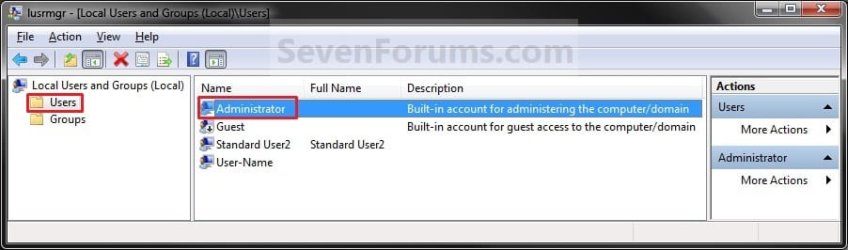
2. In the left pane, click on the Users folder. (See screenshot below step 3)

3. In the middle pane, right click on Administrator and click on Properties. (See screenshot below)
Local_Users_and_Group.jpg
4. To Enable the Built-in Elevated Administrator Account
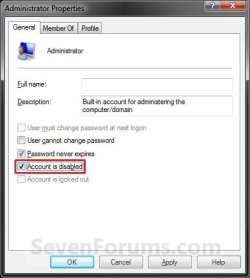
A) Uncheck the Account is disabled box. (See screenshot below step 6)

B) Go to step 6.
5. To Disable the Built-in Elevated Administrator Account
NOTE: This is the default setting.
A) Check the Account is disabled box. (See screenshot below step 6)
6. Click on OK. (See screenshot below)
Properties.jpg
7. Close the Local Users and Groups window. (See screenshot below step 3)

8. Log off, and you will now see the built-in Administrator account log on icon added (enabled) or removed (disabled) from the log on screen. (See screeenshot below)
NOTE: Click on the Administrator icon to log on to the built-in Administrator account.
Log-on.jpg


OPTION TWO

Enable built-in Administrator in an Elevated Command Prompt


NOTE: This option can be used in all editions of Windows 7. If your Windows 7 uses another language than English, then you may need to translate the word administrator part of the commands below to your language to use instead.
1. Open an elevated command prompt, and do step 2, 3, or 4 below for what you want to do.

2. To Enable the Hidden Built-in Elevated Administrator Account
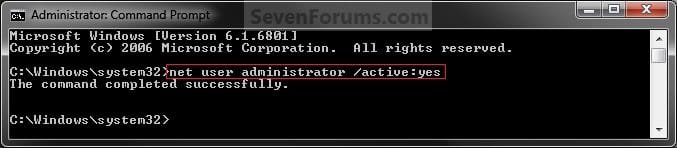
A) In the elevated command prompt, copy and paste the command below and press Enter, and go to step 5 below. (See screenshot below)
NOTE: If you had previously renamed the built-in "Administrator" account's name, then you will need to substitute administrator in the command below with the new name instead.
net user administrator /active:yes
Command_Enable.jpg
3. To Enable the Hidden Built-in Elevated Administrator Account with Password
A) In the elevated command prompt, copy and paste the command below and press Enter, and go to step 5 below. (See screenshot below)
NOTE: If you had previously renamed the built-in "Administrator" account's name, then you will need to substitute administrator in the command below with the new name instead.
net user administrator password /active:yes

   Note
Substitute password in the command above with the password you want to use to log on to the built-in Administrator account.


4. To Disable the Hidden Built-in Elevated Administrator Account
NOTE: This is the default setting.
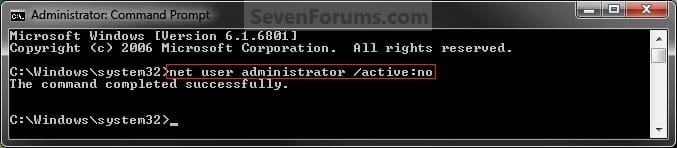
A) In the elevated command prompt, copy and paste the command below and press Enter, and go to step 5 below. (See screenshot below)
NOTE: If you had previously renamed the built-in "Administrator" account's name, then you will need to substitute administrator in the command below with the new name instead.
net user administrator /active:no
Command_Disable.jpg
5. Close the elevated command prompt.

6. Log off, and you will now see the built-in Administrator account log on icon added (enabled) or removed (disabled) from the log on screen. (See screeenshot below)
NOTE: Click on the Administrator icon to log on to the built-in Administrator account.
Log-on.jpg


OPTION THREE

Enable built-in Administrator in Local Security Policy


NOTE: This option will only be available in the Windows 7 Professional, Ultimate, and Enterprise editions.
1. Open the Local Security Policy editor.

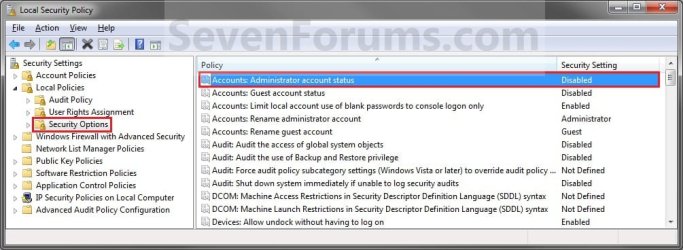
2. In the left pane, expand Local Policies, and click on Security Options. (See screenshot below)
Secpol-1.jpg
3. In the right pane, right click on Accounts: Administrator account status and click on Properties. (See screenshot above)

4. To Enable the Hidden Built-in Elevated Administrator Account
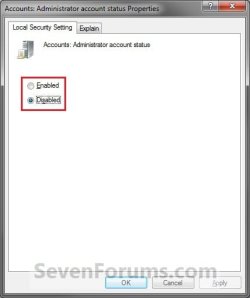
A) Select (dot) Enabled. (See screenshot below step 6)

B) Go to step 6.
5. To Disable the Hidden Built-in Elevated Administrator Account
NOTE: This is the default setting.
A) Select (dot) Disabled. (See screenshot below step 6)
6. Click on OK. (See screenshot below)
Secpol-2.jpg
7. Close the Local Security Policy window. (See screenshot below step 2)

8. Log off, and you will now see the built-in Administrator account log on icon added (enabled) or removed (disabled) from the log on screen. (See screeenshot below)
NOTE: Click on the Administrator icon to log on to the built-in Administrator account.
Log-on.jpg


OPTION FOUR

Enable built-in Administrator from System Recovery (WinRE) at Boot


1. For how, see: How to Enable the Built-in Administrator Account from WinRE
That's it,
Shawn


Last edited:
Excellent, works like a charm :D

Strange thing is that the 'Run as administrator' context menu item is still present LOL

Just had to re-install 7260 so was perfect chace to setup the Administrator account right from the get-go :D
 

My Computer

Computer Manufacturer/Model Number
Compaq Desktop
OS
Windows 7 Ultimate x64
CPU
AMD Sempron Dual Core
Memory
3GB
Graphics Card(s)
NVIDIA GeForce 6150SE nForce 430
Screen Resolution
1024x768
Hard Drives
150GB Sata
LOL, now that is funny that "Run as administrator" is still there in the built-in Administrator account. :huh:
 

My Computer

Computer type
PC/Desktop
Computer Manufacturer/Model Number
Self built custom
OS
64-bit Windows 11 Pro for Workstations
CPU
Intel i7-8700K OC'd to 5 GHz
Motherboard
ASUS ROG Maximus XI Formula Z390
Memory
64 GB (4x16GB) G.SKILL TridentZ RGB DDR4 3600 MHz
Graphics Card(s)
ASUS ROG-STRIX-GTX1080TI-O11G-GAMING
Sound Card
Integrated
Monitor(s) Displays
2 x Samsung Odyssey G7 27"
Screen Resolution
2560x1440
Hard Drives
1TB Samsung 990 PRO M.2,
4TB Samsung 990 PRO PRO M.2,
TerraMaster F8 SSD Plus NAS
PSU
Seasonic Prime Titanium 850W
Case
Thermaltake Core P3
Cooling
Corsair Hydro H115i
Keyboard
Logitech wireless K800
Mouse
Logitech MX Master 4
Internet Speed
2 Gb/s Download and 100 Mb/s Upload
Antivirus
Malwarebyte Anti-Malware Premium
Browser
Google Chrome
Other Info
Logitech Z625 speaker system,
Logitech BRIO 4K Pro webcam,
HP Color LaserJet Pro MFP M477fdn,
APC SMART-UPS RT 1000 XL - SURT1000XLI,
Galaxy S23 Plus phone
Message: 'Sorry you cannot give rep to this post...' :confused:

Will rep the post above this then ;)
 

My Computer

Computer Manufacturer/Model Number
Compaq Desktop
OS
Windows 7 Ultimate x64
CPU
AMD Sempron Dual Core
Memory
3GB
Graphics Card(s)
NVIDIA GeForce 6150SE nForce 430
Screen Resolution
1024x768
Hard Drives
150GB Sata
LOL, ok. ;)
 

My Computer

Computer type
PC/Desktop
Computer Manufacturer/Model Number
Self built custom
OS
64-bit Windows 11 Pro for Workstations
CPU
Intel i7-8700K OC'd to 5 GHz
Motherboard
ASUS ROG Maximus XI Formula Z390
Memory
64 GB (4x16GB) G.SKILL TridentZ RGB DDR4 3600 MHz
Graphics Card(s)
ASUS ROG-STRIX-GTX1080TI-O11G-GAMING
Sound Card
Integrated
Monitor(s) Displays
2 x Samsung Odyssey G7 27"
Screen Resolution
2560x1440
Hard Drives
1TB Samsung 990 PRO M.2,
4TB Samsung 990 PRO PRO M.2,
TerraMaster F8 SSD Plus NAS
PSU
Seasonic Prime Titanium 850W
Case
Thermaltake Core P3
Cooling
Corsair Hydro H115i
Keyboard
Logitech wireless K800
Mouse
Logitech MX Master 4
Internet Speed
2 Gb/s Download and 100 Mb/s Upload
Antivirus
Malwarebyte Anti-Malware Premium
Browser
Google Chrome
Other Info
Logitech Z625 speaker system,
Logitech BRIO 4K Pro webcam,
HP Color LaserJet Pro MFP M477fdn,
APC SMART-UPS RT 1000 XL - SURT1000XLI,
Galaxy S23 Plus phone
hello

thanx brother ....

but the problem is still there:(. . it is newer version of VISTA i am using. . if i do wat u said . . .i still can't find USER/GROUP tab:(. . i have tried through COMMAND PROMPT but no use!!!!!! simply i am not allowed to change any settings .... even time........ the main thing is that whenever i am accessing sumthing(like settings), it ask for a password but does'nt show where to type!!!!!

help !!!!:cry:
 

My Computer

OS
core 2 duo
It will not let you unless you do this while logged in an administrator account though to make the changes for the built-in Administrator. You cannot do it from a Standard account. :(

We assumed that you were using Windows 7 though. If you are using Vista, then you might also see are sister site Vista Forums to post this at for more help specifically for Vista instead.
 

My Computer

Computer type
PC/Desktop
Computer Manufacturer/Model Number
Self built custom
OS
64-bit Windows 11 Pro for Workstations
CPU
Intel i7-8700K OC'd to 5 GHz
Motherboard
ASUS ROG Maximus XI Formula Z390
Memory
64 GB (4x16GB) G.SKILL TridentZ RGB DDR4 3600 MHz
Graphics Card(s)
ASUS ROG-STRIX-GTX1080TI-O11G-GAMING
Sound Card
Integrated
Monitor(s) Displays
2 x Samsung Odyssey G7 27"
Screen Resolution
2560x1440
Hard Drives
1TB Samsung 990 PRO M.2,
4TB Samsung 990 PRO PRO M.2,
TerraMaster F8 SSD Plus NAS
PSU
Seasonic Prime Titanium 850W
Case
Thermaltake Core P3
Cooling
Corsair Hydro H115i
Keyboard
Logitech wireless K800
Mouse
Logitech MX Master 4
Internet Speed
2 Gb/s Download and 100 Mb/s Upload
Antivirus
Malwarebyte Anti-Malware Premium
Browser
Google Chrome
Other Info
Logitech Z625 speaker system,
Logitech BRIO 4K Pro webcam,
HP Color LaserJet Pro MFP M477fdn,
APC SMART-UPS RT 1000 XL - SURT1000XLI,
Galaxy S23 Plus phone
Brink, you are a star!
Why does Windows 7 have to be such a pain?
Corporates will never go for it.
PeterM
 

My Computer

Computer Manufacturer/Model Number
Dell Optiplex GX620
OS
Windows 7
CPU
Pentium 4
Memory
3Gb
Sound Card
yes
Hi peter and welcome to seven forums

I would think that corp's with their IT staff would like a more secure system. The IT guys (like myself) are the ones with the headache but hey its a job and somebody has to do it

Ken
 

My Computer

Computer Manufacturer/Model Number
HP Pavillion dv-7 1005 Tx
OS
Win 8 Release candidate 8400
CPU
[email protected]
Memory
4 gigs
Graphics Card(s)
Nvidia 9600M
Sound Card
HD built-in
Monitor(s) Displays
17" Wxga
Screen Resolution
1440x900
Cooling
none
Internet Speed
45Mb down 5Mb up
Hi Peter,

I'm with Ken. They want to be able to keep control of their systems to make them easier to maintain and help keep them problem free.
 

My Computer

Computer type
PC/Desktop
Computer Manufacturer/Model Number
Self built custom
OS
64-bit Windows 11 Pro for Workstations
CPU
Intel i7-8700K OC'd to 5 GHz
Motherboard
ASUS ROG Maximus XI Formula Z390
Memory
64 GB (4x16GB) G.SKILL TridentZ RGB DDR4 3600 MHz
Graphics Card(s)
ASUS ROG-STRIX-GTX1080TI-O11G-GAMING
Sound Card
Integrated
Monitor(s) Displays
2 x Samsung Odyssey G7 27"
Screen Resolution
2560x1440
Hard Drives
1TB Samsung 990 PRO M.2,
4TB Samsung 990 PRO PRO M.2,
TerraMaster F8 SSD Plus NAS
PSU
Seasonic Prime Titanium 850W
Case
Thermaltake Core P3
Cooling
Corsair Hydro H115i
Keyboard
Logitech wireless K800
Mouse
Logitech MX Master 4
Internet Speed
2 Gb/s Download and 100 Mb/s Upload
Antivirus
Malwarebyte Anti-Malware Premium
Browser
Google Chrome
Other Info
Logitech Z625 speaker system,
Logitech BRIO 4K Pro webcam,
HP Color LaserJet Pro MFP M477fdn,
APC SMART-UPS RT 1000 XL - SURT1000XLI,
Galaxy S23 Plus phone
Im with brink

Not running as admin can be a pita, but it also helps keep out infections, and poorly coded apps.

Aside from the prestige (is there any?) of being called admin, and having to fix anything that breaks a std user can do almost anything
 

My Computer

Computer Manufacturer/Model Number
HP Pavillion dv-7 1005 Tx
OS
Win 8 Release candidate 8400
CPU
[email protected]
Memory
4 gigs
Graphics Card(s)
Nvidia 9600M
Sound Card
HD built-in
Monitor(s) Displays
17" Wxga
Screen Resolution
1440x900
Cooling
none
Internet Speed
45Mb down 5Mb up
Ah...Am I the only one with a problem:
I followed directions in Option-1; enabled Admin by unchecking the 'Admin disabled' box.
Reloaded and there is an icon created, labeled 'Administrator'...but it is NOT password protected.
Yet, when I initially loaded Win-7 it asked for a PW...which I input use gain access the OS/files.
So now I have 2-icons on start up: the one with the PW and one labeled 'Administrator' that was created after unchecking 'disable Admin'.
Q?: Is the original the icon with the PW now become my 'Admin' access... and the one that was labeled 'Administrator' after I activated (enabled) Admin, and lacks a PW yet allows acces to files, is really just for non-Admin users?
Or...where did I mess up...;-)
I hope this was clear and not too confusing.
Thx...
 

My Computer

Computer Manufacturer/Model Number
home built
OS
Windows 7 Ultimate
CPU
E8400
Motherboard
Asus P5Q Pro Turbo
Memory
OCZ Reaper DDR2 1066
Graphics Card(s)
Radeon HD4870
Sound Card
VIA HD onboard
Monitor(s) Displays
Samsung 940BW
Screen Resolution
1440x900
Hard Drives
3- Samsung Barracuda 500GB (1 external), SATA II
1-WD Caviar 350GB
PSU
PCP&C 500W
Case
Thermaltake M5
Cooling
Intel OEM
Keyboard
SUH
Mouse
Genius
Hello Grathiam, and welcome to Seven Forums.

The original icon with the password is your default "limited" (UAC) administrator account (with your user name) that was setup during the installation of Windows 7.

The new icon without a password is the built-in Administrator account that you just enabled that has no access limits.

Hope this helps clarify this some for you.
 

My Computer

Computer type
PC/Desktop
Computer Manufacturer/Model Number
Self built custom
OS
64-bit Windows 11 Pro for Workstations
CPU
Intel i7-8700K OC'd to 5 GHz
Motherboard
ASUS ROG Maximus XI Formula Z390
Memory
64 GB (4x16GB) G.SKILL TridentZ RGB DDR4 3600 MHz
Graphics Card(s)
ASUS ROG-STRIX-GTX1080TI-O11G-GAMING
Sound Card
Integrated
Monitor(s) Displays
2 x Samsung Odyssey G7 27"
Screen Resolution
2560x1440
Hard Drives
1TB Samsung 990 PRO M.2,
4TB Samsung 990 PRO PRO M.2,
TerraMaster F8 SSD Plus NAS
PSU
Seasonic Prime Titanium 850W
Case
Thermaltake Core P3
Cooling
Corsair Hydro H115i
Keyboard
Logitech wireless K800
Mouse
Logitech MX Master 4
Internet Speed
2 Gb/s Download and 100 Mb/s Upload
Antivirus
Malwarebyte Anti-Malware Premium
Browser
Google Chrome
Other Info
Logitech Z625 speaker system,
Logitech BRIO 4K Pro webcam,
HP Color LaserJet Pro MFP M477fdn,
APC SMART-UPS RT 1000 XL - SURT1000XLI,
Galaxy S23 Plus phone
Brink...thank you for the quick response.

I discovered that by not entering a user name in "administrator properties', that no PW is asked upon logging on via the 'administrator' icon. Also, when a name is entered in 'admin properties', a PW is then required to access files via the 'administrator' icon, however, the PW is the _same_ as that initially required when the OS was first loaded.
Hence, the same PW is now for both regular and Admin logon. The latter is simply changed by logging onto 'administrator' then hit CNTL-ALT-DEL and change the PW for that icon.
So all is well..(at lest for the time being ;) )....thank you!

Lastly, I must say how much I appreciate the extensive amount of user friendly info on 'sevenforums', as well as the efforts the admin and others have made to make this site so valuable. I vaguely recall (dementia? ) the lack of user info available on a single site when DOS, Win 3.1 and later OS's became available. This site is the best I've encountered for a primary OS!
 

My Computer

Computer Manufacturer/Model Number
home built
OS
Windows 7 Ultimate
CPU
E8400
Motherboard
Asus P5Q Pro Turbo
Memory
OCZ Reaper DDR2 1066
Graphics Card(s)
Radeon HD4870
Sound Card
VIA HD onboard
Monitor(s) Displays
Samsung 940BW
Screen Resolution
1440x900
Hard Drives
3- Samsung Barracuda 500GB (1 external), SATA II
1-WD Caviar 350GB
PSU
PCP&C 500W
Case
Thermaltake M5
Cooling
Intel OEM
Keyboard
SUH
Mouse
Genius
You're most welcome Grathiam, and thank you for the kind words. Everyone here works hard together to try and help everyone we can. I'm happy to hear that you got it sorted out. :)
 

My Computer

Computer type
PC/Desktop
Computer Manufacturer/Model Number
Self built custom
OS
64-bit Windows 11 Pro for Workstations
CPU
Intel i7-8700K OC'd to 5 GHz
Motherboard
ASUS ROG Maximus XI Formula Z390
Memory
64 GB (4x16GB) G.SKILL TridentZ RGB DDR4 3600 MHz
Graphics Card(s)
ASUS ROG-STRIX-GTX1080TI-O11G-GAMING
Sound Card
Integrated
Monitor(s) Displays
2 x Samsung Odyssey G7 27"
Screen Resolution
2560x1440
Hard Drives
1TB Samsung 990 PRO M.2,
4TB Samsung 990 PRO PRO M.2,
TerraMaster F8 SSD Plus NAS
PSU
Seasonic Prime Titanium 850W
Case
Thermaltake Core P3
Cooling
Corsair Hydro H115i
Keyboard
Logitech wireless K800
Mouse
Logitech MX Master 4
Internet Speed
2 Gb/s Download and 100 Mb/s Upload
Antivirus
Malwarebyte Anti-Malware Premium
Browser
Google Chrome
Other Info
Logitech Z625 speaker system,
Logitech BRIO 4K Pro webcam,
HP Color LaserJet Pro MFP M477fdn,
APC SMART-UPS RT 1000 XL - SURT1000XLI,
Galaxy S23 Plus phone
Can no longer enable administrator account

As a new member (this is my first post), I have been reading through this, and similar forums about enabling the built-in (hidden) administrator account.

First, a little background in what brought me here today. I have a Dell Studio computer that I bought this past summer with Windows Vista, which I upgraded to Windows 7 a month or so ago. After doing some reading into the various features of Windows 7, I noticed one option not working, and that was to show recently used programs in popups & "jump lists". I found that in administrator mode (once I enabled it through this tutorial), I could check that feature in the "Customize Start Menu" dialog box, and it was showing these recent/frequent sites/programs, but would not display while I was logged in just as user.

But now to the current delima. I gave up on trying to make the recent items display while logged in as a user, and decided to go back to where I was, set my user account to a standard user (or maybe it was set as an administrator rights???) and disable the administrator account.

Apparently I demoted my account, it must have been set as an administrator account, not set as a standard user. Now I find that I can no longer do many things I could do before as it requires administrator rights, but I cannot turn it back on. When I go to an elevated command prompt, and enter net user administrator /active:yes, I only get "System error 5 has occurred. Access is denied." I also cannot go to user accounts and change the account to administrator - it ignores it when I click to change the account to administrator. Cannot even restore to a previous setpoint or restore an old backup image, have to be an administrator.

I've seen references to a solution at the following site
What do I do: I can no longer log in or elevate to an administrator account
but am worried this may be a little outdated (predates Windows 7). I tried the first option to boot up in safe mode and see if I can login as administrator that way, but cannot even get into safe mode, nor does msconfig mode work to get there (have to be an administrator - never ending circle!!).

Basically, I need to force the administrator account back open and return my user account to administrator privaledges, but not sure how to get back there.

Sorry to be so wordy, but thought it would save time to describe what does & doesn't work.

Thanks,
David
 

My Computer

Computer Manufacturer/Model Number
Dell Studio desktop
OS
Windows 7 Home Premium
Hello David, and welcome to Seven Forums.

You can try to see if doing a system restore at boot using a restore point dated before you changed your user account type may be able to undo it and fix this for you.

If not, then you can do a repair install to get a administrator account back, then change your account back into a administrator type again.

Hope this helps,
Shawn
 

My Computer

Computer type
PC/Desktop
Computer Manufacturer/Model Number
Self built custom
OS
64-bit Windows 11 Pro for Workstations
CPU
Intel i7-8700K OC'd to 5 GHz
Motherboard
ASUS ROG Maximus XI Formula Z390
Memory
64 GB (4x16GB) G.SKILL TridentZ RGB DDR4 3600 MHz
Graphics Card(s)
ASUS ROG-STRIX-GTX1080TI-O11G-GAMING
Sound Card
Integrated
Monitor(s) Displays
2 x Samsung Odyssey G7 27"
Screen Resolution
2560x1440
Hard Drives
1TB Samsung 990 PRO M.2,
4TB Samsung 990 PRO PRO M.2,
TerraMaster F8 SSD Plus NAS
PSU
Seasonic Prime Titanium 850W
Case
Thermaltake Core P3
Cooling
Corsair Hydro H115i
Keyboard
Logitech wireless K800
Mouse
Logitech MX Master 4
Internet Speed
2 Gb/s Download and 100 Mb/s Upload
Antivirus
Malwarebyte Anti-Malware Premium
Browser
Google Chrome
Other Info
Logitech Z625 speaker system,
Logitech BRIO 4K Pro webcam,
HP Color LaserJet Pro MFP M477fdn,
APC SMART-UPS RT 1000 XL - SURT1000XLI,
Galaxy S23 Plus phone
Thank you, Thank you, Thank you

I was able to reboot to the Windows disk and restore an earlier set point (from about a week ago), and now all is well. Your instructions & the tutorials were a great help in accomplishing this.

Just seems strange how more recent versions of Windows have so complicated this "administrator" concept. I can see how this can be useful if you have multiple accounts, such as ones with limited access/control for kids or office workers, but for a home PC with a single full control account such as what I have, just seems more trouble than it's worth.

Have set www.sevenforums.com as a favorite so that the next time something gets screwed up like this I have a source to get me out of trouble again.

Thanks again,
David
 

My Computer

Computer Manufacturer/Model Number
Dell Studio desktop
OS
Windows 7 Home Premium
You're welcome David. I'm happy to hear that you got it sorted. :)
 

My Computer

Computer type
PC/Desktop
Computer Manufacturer/Model Number
Self built custom
OS
64-bit Windows 11 Pro for Workstations
CPU
Intel i7-8700K OC'd to 5 GHz
Motherboard
ASUS ROG Maximus XI Formula Z390
Memory
64 GB (4x16GB) G.SKILL TridentZ RGB DDR4 3600 MHz
Graphics Card(s)
ASUS ROG-STRIX-GTX1080TI-O11G-GAMING
Sound Card
Integrated
Monitor(s) Displays
2 x Samsung Odyssey G7 27"
Screen Resolution
2560x1440
Hard Drives
1TB Samsung 990 PRO M.2,
4TB Samsung 990 PRO PRO M.2,
TerraMaster F8 SSD Plus NAS
PSU
Seasonic Prime Titanium 850W
Case
Thermaltake Core P3
Cooling
Corsair Hydro H115i
Keyboard
Logitech wireless K800
Mouse
Logitech MX Master 4
Internet Speed
2 Gb/s Download and 100 Mb/s Upload
Antivirus
Malwarebyte Anti-Malware Premium
Browser
Google Chrome
Other Info
Logitech Z625 speaker system,
Logitech BRIO 4K Pro webcam,
HP Color LaserJet Pro MFP M477fdn,
APC SMART-UPS RT 1000 XL - SURT1000XLI,
Galaxy S23 Plus phone
Not working

I just bought an E-Machines sysytem running Windows 7 Home Premium. I am following the instructions here to activate the Administrator account but they are not working.

Using your procedure for "Computer Management", the Local Users and Groups icon does not appear in the left pane.

A search for secpol.msc turns up no results and running it on the command promp brings up an "unreconized" error message.

Running "net user administrator /active:yes " at the command prompt brings up "System error 5 has occurred. Access is denied. "

Going through "Local Users and Groups" via lusrmgr.msc brings up another error message - "This computer is running Windows 7 home Premium. This snapin may not be used with this version of Windows. To manage user accounts for this computer, use the User Accounts tool in the Control Panel."

The User Accounts tool does not show the Administrator account.

Are these defects standard on all Windows 7 Home editions or is this an E-Machines problem?

Thanks for your help!
 

My Computer

OS
Windows 7
Back
Top