Can connect to share by IP but not computer name

jk1

New member
Local time
10:28 PM
Messages
4
Hi,

I have a Win7 home Premium box and I want to share folders and a printer with 2 XP laptops. I've turned off homegroups and all PCs are using the same workgroup.

One XP laptop can connect to the shared folders and printer with no problem and the shares appear in My Network places etc.

The other XP laptop ** can't ** connect via \\COMPUTERNAME (I get access denied error). Nor does anything show up in My Network Places. One way I can get it to connect is do this:

- Connect via IP - \\102.168.1.101
- a password box appears, so I enter the my user name and password for my Win 7 account (I don't have a password account set up on the XP laptop, but I am using the same username as on the Win 7 box)
- I can then see the shares on the Win 7 box
- If I then type \\COMPUTERNAME I can now connect to the Win7 box and access the shares and printer no problem. Also everything appears correctly in My Network Places

Any ideas on how I can fix things so that I don't have to go in via IP first would be much appreciated!

:)

Cheers

JK
 

My Computer My Computer

At a glance

Win 7
OS
Win 7
This may sound silly suggestion to even post on Windows Reference but will help avoid some annoyance with Windows Vista and Windows 7. The host file is the one where one enters hostname and IP Address pair manually as against being served by a Name server (ex: DNS). As always the “host” file is under C:\windows\system32\drivers\etc\ or %systemroot%\system32\drivers\etc\ and hence cannot be edited by normal users.

To edit the host file,
Click Start – search for “Notepad“, right-click and select “Run as Administrator“. This should launch notepad with elevated privileges. Now, open the host file from the File menu, edit and save.

Work Cited​


My Computer My Computer

At a glance

Windows 7 Ultimate x64AMD Phenom x6 1045t8 GBATI Radeon HD 5570
Computer Manufacturer/Model Number
HP Pavilion Elite HPE-410f
OS
Windows 7 Ultimate x64
CPU
AMD Phenom x6 1045t
Motherboard
N/A
Memory
8 GB
Graphics Card(s)
ATI Radeon HD 5570
Sound Card
Realtek Highdefinition Audio / 5.1 Dolby Setup
Monitor(s) Displays
HP w2207h Widescreen
Screen Resolution
1680*1050
Hard Drives
1 TB (fixed), 320 Portable maxtor, Server Hard drives
PSU
350 Watt
Case
HP CASE
Cooling
Bass
Keyboard
Logitech MX 5500
Mouse
Logitech MX 5500
Internet Speed
ROAD RUNNER 16MB D/512 U
This may sound silly suggestion to even post on Windows Reference but will help avoid some annoyance with Windows Vista and Windows 7. The host file is the one where one enters hostname and IP Address pair manually as against being served by a Name server (ex: DNS). As always the “host” file is under C:\windows\system32\drivers\etc\ or %systemroot%\system32\drivers\etc\ and hence cannot be edited by normal users.

To edit the host file,
Click Start – search for “Notepad“, right-click and select “Run as Administrator“. This should launch notepad with elevated privileges. Now, open the host file from the File menu, edit and save.

Work Cited​


Thanks for this suggestion. I was hoping that I wouldn't have to configure the Windows box with a static IP. Is there a way to fix the actual problem rather than work round it?

Cheers

JK
 

My Computer My Computer

At a glance

Win 7
OS
Win 7
Hi,

I have a Win7 home Premium box and I want to share folders and a printer with 2 XP laptops. I've turned off homegroups and all PCs are using the same workgroup.

One XP laptop can connect to the shared folders and printer with no problem and the shares appear in My Network places etc.

The other XP laptop ** can't ** connect via \\COMPUTERNAME (I get access denied error). Nor does anything show up in My Network Places. One way I can get it to connect is do this:

- Connect via IP - \\102.168.1.101
- a password box appears, so I enter the my user name and password for my Win 7 account (I don't have a password account set up on the XP laptop, but I am using the same username as on the Win 7 box)
- I can then see the shares on the Win 7 box
- If I then type \\COMPUTERNAME I can now connect to the Win7 box and access the shares and printer no problem. Also everything appears correctly in My Network Places

Any ideas on how I can fix things so that I don't have to go in via IP first would be much appreciated!

:)

Cheers

JK

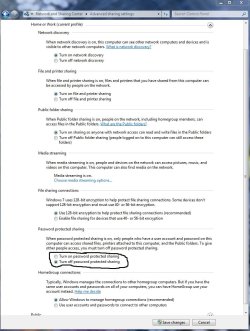
For the access denied errors usually there is a problem under the Advanced Network settings page. Make sure they look like the pictures below on the Win 7 machine.

It sometimes helps to turn either off or on "try both ways" the password protected sharing feature.

If you get any password prompts after that do this on the XP machines.

Goto... Control Panel > Administrative Tools > Local Security Policy > Local Policies > Security Options

Scroll down to... Network Access: Sharing and security model for local accounts

Select... Guest only and not Classic. I checked on XP machine and Guest seems to be the default.

After going through all of that if you are still having file access problems try doing this registry adjustment on the Win 7 machine with the problem.

Solution is really easy just modify one key in registry:
HKEY_LOCAL_MACHINE\SOFTWARE\Microsoft\Windows\CurrentVersion\Policies\System
create or modify 32-bit DWORD: LocalAccountTokenFilterPolicy
set the value to: 1
 

Attachments

  • PASSWORD PROTECTED SHARING ON OR OFF.jpg
    PASSWORD PROTECTED SHARING ON OR OFF.jpg
    99.5 KB · Views: 2,007
  • Home or work homegroup enable.PNG
    Home or work homegroup enable.PNG
    45 KB · Views: 875

My Computer My Computer

At a glance

Windows 7 Ult, Windows 8.1 Pro,Q9650-4.275GHz, E8600 4.5GHz, E6750-3.8GHzG.Skill PC2 9600 1200Mhz 5 5 5 15 2TGTX480
Computer type
PC/Desktop
Computer Manufacturer/Model Number
Home built
OS
Windows 7 Ult, Windows 8.1 Pro,
CPU
Q9650-4.275GHz, E8600 4.5GHz, E6750-3.8GHz
Motherboard
Evga 780i FTW
Memory
G.Skill PC2 9600 1200Mhz 5 5 5 15 2T
Graphics Card(s)
GTX480
Sound Card
Asus Xonar D2
Monitor(s) Displays
HannsG
Screen Resolution
1680X1050
Hard Drives
GSkill Phoenix Pro 120GB SSD
PSU
ThermalTake Toughpower 1000Watt modular
Case
ThermalTake XaserV
Cooling
Xigmatek S1283
Keyboard
Logitech G15
Mouse
Logitech G9
Internet Speed
T1
Thanks for the suggestions. I'll try them out when I get home and post back the results.

Cheers

JK
 

My Computer My Computer

At a glance

Win 7
OS
Win 7
It sometimes helps to turn either off or on "try both ways" the password protected sharing feature.

Tried this but no difference.

If you get any password prompts after that do this on the XP machines.

Goto... Control Panel > Administrative Tools > Local Security Policy > Local Policies > Security Options

Scroll down to... Network Access: Sharing and security model for local accounts

Select... Guest only and not Classic. I checked on XP machine and Guest seems to be the default.

Couldn't do the above, as I have XP Home edition.

After going through all of that if you are still having file access problems try doing this registry adjustment on the Win 7 machine with the problem.

Solution is really easy just modify one key in registry:
HKEY_LOCAL_MACHINE\SOFTWARE\Microsoft\Windows\CurrentVersion\Policies\System
create or modify 32-bit DWORD: LocalAccountTokenFilterPolicy
set the value to: 1

Tried the above, but no difference.

Looks like I'm stuck with giving the Win 7 box a static IP and then shoving its name in the XP laptop's host file then.

Would be nice to know why it doesn't work though!:mad:
 

My Computer My Computer

At a glance

Win 7
OS
Win 7
Oh it works perfectly I can assure you. Your first mistake was attempting to create a share the old fashioned way using \\computer name. This method is outdated and for good reason. I highly suggest you use the GUI to set shares up.

There are far too many good reasons for using the GUI for me to list here but to sum it up, permissions and security won't be set up correctly. This isn't windows 98.

Follow the one for XP set up and run the network set up wizard on both of your XP machines.
Sharing files and printers with different versions of Windows - Help & How-to - Microsoft Windows

If you are running ANY type of A/V software or third party firewall you will need to delate them and I mean completely. ;)
 

My Computer My Computer

At a glance

Windows 7 Ult, Windows 8.1 Pro,Q9650-4.275GHz, E8600 4.5GHz, E6750-3.8GHzG.Skill PC2 9600 1200Mhz 5 5 5 15 2TGTX480
Computer type
PC/Desktop
Computer Manufacturer/Model Number
Home built
OS
Windows 7 Ult, Windows 8.1 Pro,
CPU
Q9650-4.275GHz, E8600 4.5GHz, E6750-3.8GHz
Motherboard
Evga 780i FTW
Memory
G.Skill PC2 9600 1200Mhz 5 5 5 15 2T
Graphics Card(s)
GTX480
Sound Card
Asus Xonar D2
Monitor(s) Displays
HannsG
Screen Resolution
1680X1050
Hard Drives
GSkill Phoenix Pro 120GB SSD
PSU
ThermalTake Toughpower 1000Watt modular
Case
ThermalTake XaserV
Cooling
Xigmatek S1283
Keyboard
Logitech G15
Mouse
Logitech G9
Internet Speed
T1
Back
Top