eb2phkingood
New member
- Local time
- 1:32 PM
- Messages
- 14
Ok i have windows 7 ultimate 64bit. my computer is a HP pavilion dv6-1259dx. the front of this computer has 1 microphone 3.5mm jack, and 2 3.5mm headphone jacks. (so that you dont have to have a splitter to have 2 headsets, it already has 2 built in)
first 3.5mm headphone jack is hooked up to a set of computer speakers
second 3.5mm headphone jack is hooked up to a stereo system
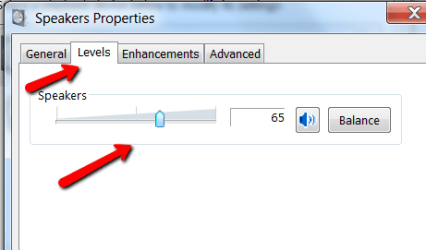
both play perfectly fine, the problem however is: when i have both the computer speakers and stereo plugged in at the same time playing, obviously the stereo system is a lot louder than the computer speakers. so what i am wanting to know is, since this laptop has 2 built in 3.5mm headphone jacks, is there a way i can independently control the volume of each jack. I.E. have the computer speaker jack volume at 80% and the stereo speaker jack at 40%??
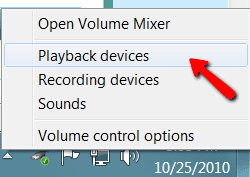
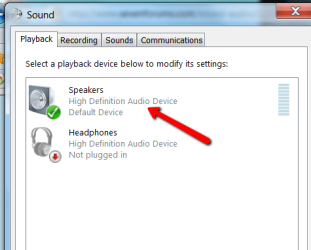
if i click on playback devices, my speakers and dual headphones are set as the default device. i need the independent dual headphones to be set as the default device, however my computer will only let me set it as default communication device. i have re-installed the driver with no success. i KNOW it has to work because in the independent dual headphones there is a setting to control jack 1 and jack 2 volume and HP wouldnt put it there without it working. I just have to figure out how to make my independent dual headphones as my default device.
if not, are there any programs out there that make this possible?
thanks so much!
first 3.5mm headphone jack is hooked up to a set of computer speakers
second 3.5mm headphone jack is hooked up to a stereo system
both play perfectly fine, the problem however is: when i have both the computer speakers and stereo plugged in at the same time playing, obviously the stereo system is a lot louder than the computer speakers. so what i am wanting to know is, since this laptop has 2 built in 3.5mm headphone jacks, is there a way i can independently control the volume of each jack. I.E. have the computer speaker jack volume at 80% and the stereo speaker jack at 40%??
if i click on playback devices, my speakers and dual headphones are set as the default device. i need the independent dual headphones to be set as the default device, however my computer will only let me set it as default communication device. i have re-installed the driver with no success. i KNOW it has to work because in the independent dual headphones there is a setting to control jack 1 and jack 2 volume and HP wouldnt put it there without it working. I just have to figure out how to make my independent dual headphones as my default device.
if not, are there any programs out there that make this possible?
thanks so much!
Last edited:
My Computer
At a glance
win 7 ultimate 648gb
- Computer Manufacturer/Model Number
- pavilion dv6
- OS
- win 7 ultimate 64
- Memory
- 8gb
- Hard Drives
- 500gb solid
- Cooling
- coolermaster notepal