
Cannot assign physical hard drive to VM

soho1

New member
Power User
Local time
2:21 AM
Messages
458
Location
Earth, Mostly Chicago and London
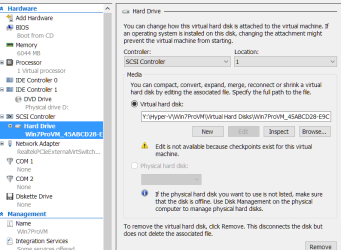
I created a Win 7 VM using Hyper V (not an expert) and it seems to work just fine except that I cannot get it to see the host physical drive. The VHDX is fine, the CD is fine, but the in the VM settings, the Physical hard disk setting is greyed out. Iwant to share files between the host and the VM, What am I missing?
 

Attachments
  • cannot_connect_physical_drive.png
    cannot_connect_physical_drive.png
    25.5 KB · Views: 0

My Computer My Computer

Computer type
Laptop
Computer Manufacturer/Model Number
Dell Insprion 7559 next to a Toshiba Portege
OS
Win 7 Pro 64-bit
CPU
Intel Core i5
Motherboard
Intel
Memory
16 GB Dell, 6 GB Toshiba
Graphics Card(s)
Intel crap on both but Dell also has nVidia GeForce GTX960M
Sound Card
RealTek
Monitor(s) Displays
internal and external ACER KA270H 27"
Screen Resolution
1920x1080
Hard Drives
SSD 256 GB plus numerous WD Red or Purple on USB3 docks. Used to buy a lot of Seagate but tossed them the second time I got unrecoverable disc corruption in the midst of use.
Keyboard
Garage Mouse SW and some cheap Amazon China made USB device
Mouse
Garage Mouse and some cheap Amazon China made USB device
Internet Speed
50 Mbps (allegedly, depends on server)
Antivirus
Defender, Malwarebytes Premium and Kaspersky
Browser
IE 11, and Chrome something
The screenshots hints a possible cause, the disk must be offline. That is, it must not have been assigned any letter to any partition on the host system, so that the VM can take over it.

Is mounting the whole HD really needed? If you need to share files, you could use some other, more normal way to share them, like using standard Windows shares on those files, or mounting a FTP or SSH server, for example, just as if they were separate physical machines.
 

My Computer My Computer

Computer type
Laptop
Computer Manufacturer/Model Number
Toshiba Sattelite A665-S6092
OS
Windows 7 Ultimate x64
CPU
Intel Core i7-740QM
Memory
8 GB DDR3
Graphics Card(s)
NVIDIA GeForce 330GT
Screen Resolution
1366x768
Hard Drives
Samsung 840 SSD 500GB
1TB USB3 external HD
Cooling
Coolermaster Notepal U3 notebook cooling pad
Internet Speed
3mbps ASDL
Antivirus
ClamWin 0.98.7
Browser
Opera 12.17 x86 (main), Firefox 38 (sec), IE11 (last resort)
The screenshots hints a possible cause, the disk must be offline. That is, it must not have been assigned any letter to any partition on the host system, so that the VM can take over it.

Exactly. Using Disk Management on host you have to unmount / make offline every host disk you want to use on a vm. Of course you cannot make the host system disk offline, making it impossible to use it on vm.


Is mounting the whole HD really needed? If you need to share files, you could use some other, more normal way to share them, like using standard Windows shares on those files, or mounting a FTP or SSH server, for example, just as if they were separate physical machines.

Repeating myself but again: Exactly!

Another option: Your vm seems to run Windows 7 Pro, why don't you connect to it using Remote Desktop Connection? Simply run the vm, allow remote connections to it, close the Virtual Machine Connection (the vm) window and connect to it from host using remote desktop.

Remote Desktop tutorial at Seven Forums: http://www.sevenforums.com/tutorials/3922-remote-desktop-connection-rdc-network.html

A bit more in-depth Remote Desktop connection tutorial on our sister site the Ten Forums, applies to Windows 7, 8, 8.1 & 10 (step 3.6 shows how to give the vm / remote computer access to your host drives): RDC - Connect Remotely to your Windows 10 PC - Windows 10 Forums

Kari
 

My Computer My Computer

Computer type
Laptop
Computer Manufacturer/Model Number
HP ENVY 17-1150eg
OS
Windows 10 Pro x64 EN-GB
CPU
1.6 GHz Intel Core i7-720QM Processor
Memory
6 GB
Graphics Card(s)
ATI Mobility Radeon HD 5850 Graphics
Sound Card
Beats sound system with integrated subwoofer
Monitor(s) Displays
17" laptop display, 22" LED and 32" Full HD TV through HDMI
Screen Resolution
1600*900 (1), 1920*1080 (2&3)
Hard Drives
Internal: 2 x 500 GB SATA Hard Disk Drive 7200 rpm
External: 2TB for backups, 3TB USB3 network drive for media
Cooling
As Envy runs a bit warm, I have it on a Cooler Master pad
Keyboard
Logitech diNovo Media Desktop Laser (bluetooth)
Mouse
Logitech Performance Mouse MX
Internet Speed
50/10 Mbps VDSL
Antivirus
Windows Defender 4.3.9431.0
Browser
Maxthon 3.5.2., IE11
Back
Top