Solved Cannot associate file types with custom programs

icelava

New member
Local time
7:04 AM
Messages
4
I have a gaming computer loaded with Windows 7. It might have been years for all I know, but this particular OS cannot associate file types to a new custom program. Be it from Windows Explorer or Control Panel, they open the same Open with dialog box.


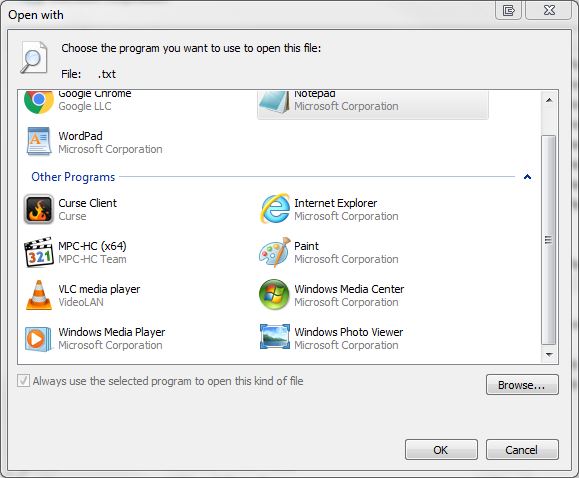
Despite navigating and explicitly selecting C:\Program Files\Notepad++\notepad++.exe, the Notepad++ does not appear in the updated dialog box, making it impossible to re-associate.


fGGIumm.jpg


Even if I tried to associate via Notepad++ Preferences UI, the file extensions will be reverted back to regular Notepad the next time I launch up Notepadd++.

What about this OS has been set to "read-only" mode for file associations? The only programs truly permitted to be the default program handler are the three listed Notepad, Wordpad, and Google Chrome.
 

My Computer

Computer type
PC/Desktop
Computer Manufacturer/Model Number
custom
OS
Windows 7 HP x64
CPU
Intel Core i7-3770
Motherboard
ASUS P8Z77-V
Memory
2x Kingston 8GB Savage DDR3-1600
Graphics Card(s)
Nvidia Geforce GTX 970
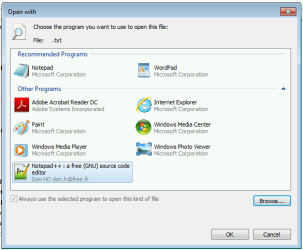
Clicking the 'Browse...' button shown in your screenshot, navigating and finding the Notepad++ .exe file, select it then click 'Open'. This should add Notepad++ to the list of Other Programs.


If that is what you were doing, then it is not clear why it doesn't work - it should.
 

My Computers

System One System Two

  • Computer type
    Laptop
    Computer Manufacturer/Model Number
    Toshiba satellite C650D
    OS
    Windows 7 Home Premium x64
    CPU
    AMD V120
    Memory
    4GB
    Internet Speed
    150 Mbps
    Antivirus
    MSE
    Browser
    IE11, Edge, Firefox
    Other Info
    I also have W7 Pro on my System Two, and several W7 Hyper-V VMs. My other machines run Windows 10/11. Their specs are in my Ten Forums & Eleven Forum profiles.
  • Computer type
    Laptop
    System Manufacturer/Model Number
    Lenovo Thinkpad T430
    OS
    Windows 7 Pro x64
    CPU
    Intel i5-3320M
    Memory
    8 GB
    Hard Drives
    250GB Samsung SSD 860 EVO
    Antivirus
    MSE
That is exactly what I've been doing all along. It refuses to put Notepad++ in the bottom list.
 

My Computer

Computer type
PC/Desktop
Computer Manufacturer/Model Number
custom
OS
Windows 7 HP x64
CPU
Intel Core i7-3770
Motherboard
ASUS P8Z77-V
Memory
2x Kingston 8GB Savage DDR3-1600
Graphics Card(s)
Nvidia Geforce GTX 970
That is exactly what I've been doing all along. It refuses to put Notepad++ in the bottom list.
Odd, I've just installed Notepad++ as a test and it works for me. Have you tried reinstalling Notepad++?
 

Attachments

  • Notepad++ associations.PNG
    Notepad++ associations.PNG
    28.6 KB · Views: 7

My Computers

System One System Two

  • Computer type
    Laptop
    Computer Manufacturer/Model Number
    Toshiba satellite C650D
    OS
    Windows 7 Home Premium x64
    CPU
    AMD V120
    Memory
    4GB
    Internet Speed
    150 Mbps
    Antivirus
    MSE
    Browser
    IE11, Edge, Firefox
    Other Info
    I also have W7 Pro on my System Two, and several W7 Hyper-V VMs. My other machines run Windows 10/11. Their specs are in my Ten Forums & Eleven Forum profiles.
  • Computer type
    Laptop
    System Manufacturer/Model Number
    Lenovo Thinkpad T430
    OS
    Windows 7 Pro x64
    CPU
    Intel i5-3320M
    Memory
    8 GB
    Hard Drives
    250GB Samsung SSD 860 EVO
    Antivirus
    MSE
I tested assigning IE or Firefox as the default program for .txt and that seem to stick, so something's peculiar about Notepad++ itself. Downloaded and installed the latest 7.8.3, but still it won't show up in the bottom [Other Programs] list after browsing to its directory path.


Looking again from within Notepad++ preferences, this time I see that it complains about wanting to run as Administrator mode in order to work. So after running as Administrator, I set it as default for the common text file types, and it sticks now.


I am unsure why previous versions did not ask for Adminstrator mode...
 

My Computer

Computer type
PC/Desktop
Computer Manufacturer/Model Number
custom
OS
Windows 7 HP x64
CPU
Intel Core i7-3770
Motherboard
ASUS P8Z77-V
Memory
2x Kingston 8GB Savage DDR3-1600
Graphics Card(s)
Nvidia Geforce GTX 970
I am unsure why previous versions did not ask for Adminstrator mode...
Maybe you were not signed in as an administrator when you first installed it? I was when I did my tests.
 

My Computers

System One System Two

  • Computer type
    Laptop
    Computer Manufacturer/Model Number
    Toshiba satellite C650D
    OS
    Windows 7 Home Premium x64
    CPU
    AMD V120
    Memory
    4GB
    Internet Speed
    150 Mbps
    Antivirus
    MSE
    Browser
    IE11, Edge, Firefox
    Other Info
    I also have W7 Pro on my System Two, and several W7 Hyper-V VMs. My other machines run Windows 10/11. Their specs are in my Ten Forums & Eleven Forum profiles.
  • Computer type
    Laptop
    System Manufacturer/Model Number
    Lenovo Thinkpad T430
    OS
    Windows 7 Pro x64
    CPU
    Intel i5-3320M
    Memory
    8 GB
    Hard Drives
    250GB Samsung SSD 860 EVO
    Antivirus
    MSE
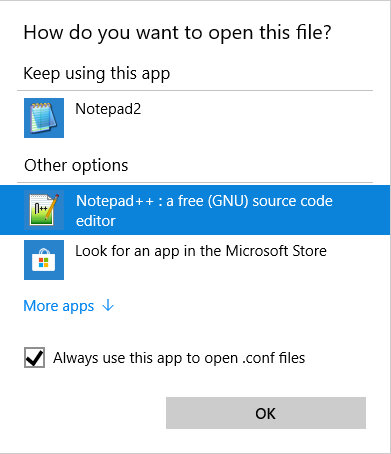
Honestly I don't ever remember having to install Notepad++ as Administrator mode in the decade of using in on multiple computers. For other computers, I have been able to assign Notepad++ as default program, as it successfully shows up in the [Other Programs] or [Other options] list.

Mp0oICS.jpg


Also, good thing is for un-registered file extensions, it has the convenient [Edit with Notepad++] option in the extended Windows Explorer context menu. Still workable albeit slower than double-clicking.
 

My Computer

Computer type
PC/Desktop
Computer Manufacturer/Model Number
custom
OS
Windows 7 HP x64
CPU
Intel Core i7-3770
Motherboard
ASUS P8Z77-V
Memory
2x Kingston 8GB Savage DDR3-1600
Graphics Card(s)
Nvidia Geforce GTX 970
Back
Top