Cannot change folder icons - HELP

risingsuns

New member
Local time
10:23 AM
Messages
8
Hello,
I have been running into a interesting issue with my two computers; one has Home Premium 64, and the other is 32.

When I right click on a folder, and click "properties", then go to the "customize" tab to change the folder icon, nothing happens. I have tried using the standard built-in System32.dll icons, as well as custom .ico files that I've downloaded. But it is a hit or miss. Sometimes it works, sometimes it doesn't.

I thought maybe it was not refreshing immediately. But even when I restart the computer, the old icon is still there.

Any ideas?
 

My Computer

OS
Windows 7 Home Premium 32bit
If I well understand this you've to turn off thumbnails to change your icons. Use Icon Packager to change your icons. Great software. :)


ScreenShot003.jpg
 

My Computer

OS
Windows 7 Ultimate x64
CPU
Intel(R) Core (TM) 2 Duo CPU T5870 @2.00 GHZ
Memory
4 GB
Mouse
Sharkoon,
Internet Speed
4 Mbps
Hello, thank you for the reply.

I have already turned off thumbnails, but I don't think it matters because I set everything to view in "list", so I never see thumbnails anyway.

Also, I have also tried using Icon Changer, but it is not able to change icons for individual folders, which is what I need.

Any other ideas?
 

My Computer

OS
Windows 7 Home Premium 32bit
what folder did you want to change
 

My Computer

Computer Manufacturer/Model Number
AMD
OS
Windows 7 Ultimate x64 Build 7600[Desktop] , Windows XP Pro SP3 x86[Notebook]
CPU
Acer Aspire
Motherboard
Acer
Memory
1GB + 2GB
Graphics Card(s)
ATI Radeon 2100[Integrated]
Sound Card
Realtek High Definition Audio
Monitor(s) Displays
Acer X203H
Screen Resolution
1600 X 900
Hard Drives
160GB
Case
Acer
Cooling
Air conditioner xD
Keyboard
Logitech Compact Keyboard K300
Mouse
Nortek (Wireless mouse)
Internet Speed
DL 16mbps / UL 8mbps (Half)
If I well understand this you've to turn off thumbnails to change your icons. Use Icon Packager to change your icons. Great software. :)


View attachment 98569
Great software , really... but paid one :o

Hello,
I have been running into a interesting issue with my two computers; one has Home Premium 64, and the other is 32.

When I right click on a folder, and click "properties", then go to the "customize" tab to change the folder icon, nothing happens. I have tried using the standard built-in System32.dll icons, as well as custom .ico files that I've downloaded. But it is a hit or miss. Sometimes it works, sometimes it doesn't.

I thought maybe it was not refreshing immediately. But even when I restart the computer, the old icon is still there.

Any ideas?

You may try this : http://www.sevenforums.com/943862-post22.html

As you are using 64 bit software, you may need to edit imageres.dll in syswow64, too .
 

My Computer

Computer type
PC/Desktop
Computer Manufacturer/Model Number
Self Assembled
OS
Microsoft Windows 10 Pro Insider Preview 64-bit
CPU
Intel(R) Core(TM) i3-4130 CPU @ 3.40GHz
Motherboard
Gigabyte Technology Co., Ltd. B85M-D3H
Memory
Corsair Vengence 4GB x2 (8.00GB Dual-Channel DDR3 @ 798MHz)
Graphics Card(s)
2047MB GeForce GTS 450 (ZOTAC International)
Sound Card
Onboard (Realtek High Definition Audio)
Monitor(s) Displays
LG Flatron E2040T
Screen Resolution
1600x900
Hard Drives
Western Digital 1 TB
Seagate 500 GB
PSU
Corsair VS550
Case
Cooler Master K380
Cooling
Cooler Master Seidon 120V Plus
Keyboard
Logitech MK260r
Mouse
Logitech MK260r
Internet Speed
PMPL Broadband
Antivirus
Windows Defender + MBAM
Browser
Firefox
Other Info
Dell Studio 15" Laptop
Thank you for the suggestions.

Unfortunately, I need a solution that is very simple, because I change many icons on a daily basis (It is for my job. I change icons of work-related folders as a way to keep organized), and I work with many different folders at once. I do not need the ability to do global changes of system/filetype folders. But rather, all I do is just change the icon of an individual folder when the job/task has been completed for that single folder.

I would be happy just using the built-in propterties>>>custom>>change folder icon...but for some reason is works only intermittently.
 

My Computer

OS
Windows 7 Home Premium 32bit
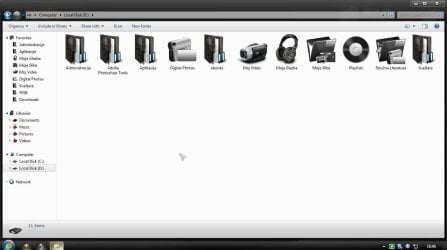
Sorry pal .... under properties > customize ... you can change the icon only ... but not the folder icon . If you are to change folder icons , you are either to edit imageres manually with reshacker or restorator ; or you are to use Stardock Iconpackager . But both of those techniques changes folder icons throughout the system, not for a single folder . What you can get with propertise >change icon tab is to change folder icon to any other icon ... but that will not behave like a windows live folder icon; like this

sshot-1.jpg

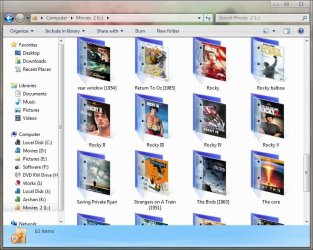
Reading your first post again I understood you need a ready reference of your works just viewing the folder. So you do not need to change the icon. You place the work related picture (in jpeg format ) in the intended folder, and rename it as Folder.jpg. Now just seeing the pic you can identify your folder which you need at once . Later you can delete that pic, and place another one there in a same way . I think it will be the best and easyest way to accomplish your goal . I mean like this ....
Capture.JPG

What do you think abut it ?
 

My Computer

Computer type
PC/Desktop
Computer Manufacturer/Model Number
Self Assembled
OS
Microsoft Windows 10 Pro Insider Preview 64-bit
CPU
Intel(R) Core(TM) i3-4130 CPU @ 3.40GHz
Motherboard
Gigabyte Technology Co., Ltd. B85M-D3H
Memory
Corsair Vengence 4GB x2 (8.00GB Dual-Channel DDR3 @ 798MHz)
Graphics Card(s)
2047MB GeForce GTS 450 (ZOTAC International)
Sound Card
Onboard (Realtek High Definition Audio)
Monitor(s) Displays
LG Flatron E2040T
Screen Resolution
1600x900
Hard Drives
Western Digital 1 TB
Seagate 500 GB
PSU
Corsair VS550
Case
Cooler Master K380
Cooling
Cooler Master Seidon 120V Plus
Keyboard
Logitech MK260r
Mouse
Logitech MK260r
Internet Speed
PMPL Broadband
Antivirus
Windows Defender + MBAM
Browser
Firefox
Other Info
Dell Studio 15" Laptop
I am sorry, I must not have been clear enough. All I want to do is change the icon of a folder, like you did with in the first image above with the icon of the tree. I do not need it to behave like Windows Live folder icon, since I normally view my icons as "list".

I just need to change the icons of certain folders from the plain yellow, to a different picture, to help me keep organized in my tasks (all my tasks are divided up into various folders). Normally, right clicking on the folder and going to properties should be able to change the image. But for some reason it is not working consistently for me on Windows 7.

I like your suggestion to use JPG images placed within the folder, but I cannot use it because I need to be able to view in explorer as "list", since there are hundreds and hundreds of folders in my working directory---I need to view them as list so I can quickly glance at them all at once.
 

My Computer

OS
Windows 7 Home Premium 32bit
You place the work related picture (in jpeg format ) in the intended folder, and rename it as Folder.jpg. Now just seeing the pic you can identify your folder which you need at once . Later you can delete that pic, and place another one there in a same way . I think it will be the best and easyest way to accomplish your goal . I mean like this ....
View attachment 98605

What do you think abut it ?

I tried this suggestion, just to see if it works (I am desparate at this point), but no luck. I placed an image which I renamed to "Folder.jpg" into the folder, and changed the view to larger icons, but the image does not appear nestled between the folder leaves as shown above. I still only see a plain yellow folder. I even refreshed, and restarted.

Any ideas?
 

My Computer

OS
Windows 7 Home Premium 32bit
Well I got similar problem. I just migrated data from windows XP to windows 7

And I found the answer:

Apparently all folders that was created in win XP, the folder icon cannot be changed in Windows 7 :mad:

What i did is I created new folder with similar name, and change icon in the new created folder
 

My Computer

OS
Home Premium 64 bit
CPU
i5 2500
if youre looking a fast way to create/copy new folder from the old one, this one might help:

===========================================================

Am using a PC with WinXPpro, is there a way to "copy" a folder structure
without the files?

For instance, suppose I have something like this, even though this example
is much smaller than the multi-folder arrangement on his PC that I need to
copy...

Answer:

First get to "DOS" : Windows key+R
then type the command

XCOPY /t /e /i "C:\Movies\2005" "C:\Movies\2006"

which will create an empty tree the same as ...2005 as ...2006
 

My Computer

OS
Home Premium 64 bit
CPU
i5 2500
Hello, thank you for the reply.

I have already turned off thumbnails, but I don't think it matters because I set everything to view in "list", so I never see thumbnails anyway.

Also, I have also tried using Icon Changer, but it is not able to change icons for individual folders, which is what I need.

Any other ideas?

Could somebody tell me how to TURN ON thumbnails??? Lol, I can't seem to get them when I look in view like in XP. Thanks to anyone who can help!!!
 

My Computer

Computer Manufacturer/Model Number
e-machine
OS
windows 7 home premium, 64 bit
Memory
2 gig
Monitor(s) Displays
HNC 25 inch
Hard Drives
400 gig
Hello, thank you for the reply.

I have already turned off thumbnails, but I don't think it matters because I set everything to view in "list", so I never see thumbnails anyway.

Also, I have also tried using Icon Changer, but it is not able to change icons for individual folders, which is what I need.

Any other ideas?

Could somebody tell me how to TURN ON thumbnails??? Lol, I can't seem to get them when I look in view like in XP. Thanks to anyone who can help!!!

In Explorer. Press Organize, select Folder and Search Options, On the View tab make sur the top box (Always show icons never thumbnails) is unchecked.
 

My Computer

Computer type
Laptop
Computer Manufacturer/Model Number
Hewlett-Packard/G62-107SA Notebook
OS
Microsoft Windows 7 Home Premium 64-bit Service Pack 1
CPU
Intel(R) Core(TM) i3 CPU M 330 @ 2.13GHz
Motherboard
Hewlett-Packard 1425
Memory
8 GB DDR3
Graphics Card(s)
Intel(R) HD Graphics
Sound Card
Realtek High Definition Audio
Monitor(s) Displays
Builtin
Screen Resolution
1366 x 768 x 32 bits (4294967296 colors) @ 60 Hz
Hard Drives
250 GB SATA Hard Disk Drive 7200 rpm
2TB Seagate GoFlex USB 2 Drive
1TB Iomega Prestige USB 2 Drive
1.5TB Iomega Prestige USB 2 Drive (Samsung)
2TB WD MyBook Live NAS.
Mouse
Logitech Anywhere MX
Internet Speed
152 Mbs download 10 Mbs upload
Antivirus
Norton 360
Browser
Chrome
Back
Top