Cannot create system image only.

Afflictionz

New member
Local time
1:38 PM
Messages
2
I've got a problem with the backup area, I'm attempting to create a system image to restore my pc if it gets damaged. The problem is I've had this pc for about 2 years so I've never created a system image for it, I've got a small external harddrive with 60gb left on it (includes my laptop system Image in a separate folder)
My pc 1st harddrive containing all the files needed for the system image has about 1.4tb of information stored on it, which the system backup wants me to include in the system image which I've obviously not got the space. I've tried to only include the system image in the backup process but it is listing it a "backup size 0 bytes"
with an error code: 0x80780048 "check backup disk space" the system image on its own should be under 25gb? I can't really fix the issue because the back and restore is not showing me the size of the system image.

What is wrong with it?

I'm running Windows 7
 

My Computer

Computer Manufacturer/Model Number
Custom built.
OS
Windows 7 64b
CPU
???
Motherboard
???
Memory
16gb 1600mhz
Graphics Card(s)
nvidia GeForce GTX 460 2gb
Sound Card
???
Monitor(s) Displays
2 LG monitors, dual display.
Hard Drives
3; 2tb internal hardrives
PSU
???
Case
???
Cooling
3 fan setup with liquid cooling.
Windows backup will try to backup everything and your options with it are quite limited

There are other free backup programs out there that are more useful as you can unselect your user folders and stuff and just backup the important you need to which should fit in your 60GB space will find some links for you and post back shortly

This what i was thinking of
http://www.macrium.com/reflectfree.aspx
but looking now im not so sure you can do all that with the free version
 

My Computer

Computer type
PC/Desktop
Computer Manufacturer/Model Number
Pauly Special
OS
Win7 Ultimate X64
CPU
Intel i5 3570K
Motherboard
Gigabyte Z77X-DS3H
Memory
8GB DDR3 1600
Graphics Card(s)
Onboard
Sound Card
Onboard
Screen Resolution
1280x1024
Hard Drives
Samsung 840 Evo SSD (OS)
1TB Spinner (Data)
PSU
800W Arctic
Case
Cooler Master
Cooling
3x120mm Fans
Keyboard
MS Wireless
Mouse
MS Wireless
Internet Speed
20M
Hello Afflictionz and welcome to Seven Forums. My usual disclaimer: I'm not an expert at anything. :)
If I'm understanding your situation:

I've had this pc for about 2 years so I've never created a system image for it, I've got a small external harddrive with 60gb left on it (includes my laptop system Image in a separate folder)

So we're talking about two different PCs - a laptop that already has a system image created and stored on the external hard drive, and a second computer that you're trying to image to the same external hard drive. And this external hard drive has 60GB of free space left on it.

My pc 1st harddrive containing all the files needed for the system image has about 1.4tb of information stored on it

When you say "1st harddrive", is this hard drive labeled the C: drive or perhaps the C: partition? And does it contain the Windows 7 operating system as well as other data, programs, etc? If so, and if you're using the native (built-in) Windows 7 imaging tool, it will want to image that entire C: drive / C: partition. You'd need to move pretty much the entire 1.4TB of information to either a different hard drive or create a different partition on that "1st harddrive" and put your information on that newly created partition. Then you should be able to select just the C: drive / C: partition for imaging.

the system image on its own should be under 25gb?

There's no guarantee how large the system image will be. It depends on how much data is being imaged and how much compression the imaging tool provides. On my computer I use the Windows 7 imaging tool and the free Macrium that Pauly suggested. They both provide about a 50% compression rate.

If you could post a screenshot of your disk management it will provide a better understanding of how your hard drive(s) are set up and what your options are.

How To Access Disk Management in Windows 7

http://www.sevenforums.com/tutorials/9733-screenshots-files-upload-post-seven-forums.html
 

My Computer

Computer type
Laptop
Computer Manufacturer/Model Number
Sony Vaio VPCEB47GM Laptop
OS
Win 7 Pro 64-bit
CPU
Intel i5 2.4 Ghz
Memory
8GB DDR3
Graphics Card(s)
Intel HD 3000
Sound Card
IDT High Definition
Monitor(s) Displays
15.6 WGXA Anti-Glare LED
Screen Resolution
1280x800
Hard Drives
640Gb 7200rpm
Antivirus
MSE
Browser
Opera (primary) with IE9 backup
heres the disk screenshot you asked for Marsmimar
 

Attachments

  • Untitled.png
    Untitled.png
    250.8 KB · Views: 45

My Computer

Computer Manufacturer/Model Number
Custom built.
OS
Windows 7 64b
CPU
???
Motherboard
???
Memory
16gb 1600mhz
Graphics Card(s)
nvidia GeForce GTX 460 2gb
Sound Card
???
Monitor(s) Displays
2 LG monitors, dual display.
Hard Drives
3; 2tb internal hardrives
PSU
???
Case
???
Cooling
3 fan setup with liquid cooling.
Sorry. I should have specified a maximized view of the disk management screen so all of your disk info can be seen. My apologies.

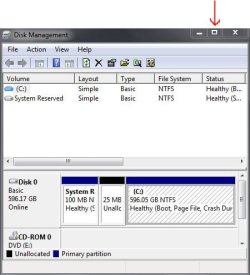
Click on the "maximize" button and if necessary, put your cursor on the right edge of the screen. If you get a double-headed arrow it means you can drag the edge of the screen even further to the right.

You should see some additional columns of information (to the right of Status) called Capacity, Free Space, % Free, Fault Tolerance, and Overhead.

disk mgt.JPG
 

My Computer

Computer type
Laptop
Computer Manufacturer/Model Number
Sony Vaio VPCEB47GM Laptop
OS
Win 7 Pro 64-bit
CPU
Intel i5 2.4 Ghz
Memory
8GB DDR3
Graphics Card(s)
Intel HD 3000
Sound Card
IDT High Definition
Monitor(s) Displays
15.6 WGXA Anti-Glare LED
Screen Resolution
1280x800
Hard Drives
640Gb 7200rpm
Antivirus
MSE
Browser
Opera (primary) with IE9 backup
If it helps any, I have an SSD with around 40 G used. The Backup Image is around 21 G. Seems to be inline with the earlier suggestion of possible size.

Also, in case you do not know, all the files needed for an image are not on Disk 0. Your boot files are on Disk 2, which would need to be imaged along with c: , but this should be automatic when making an image and should not have much effect on the backup size.
 

My Computer

Computer Manufacturer/Model Number
Homebuilt
OS
Windows 7 x64
CPU
i7-2600K
Motherboard
Asus P8Z77-v Pro
Memory
8 G
Graphics Card(s)
GTX 480
Sound Card
Onboard
Monitor(s) Displays
LG W2753V
Screen Resolution
1920x1080
Hard Drives
Crucial M4 128 G SSD
Back
Top