Solved Cannot increase system (C:) partition size

Francis93

New member
Guru
Gold Member
Local time
7:36 PM
Messages
1,113
Hello,

Is there any way that I can increase the size of the system (C: ) partition? When I had my PC reformatted some two years ago, the tech set its size to a meager 48.7 GB. For some time, the drive got nearly full (95-99%) inexplicably since I save my files and install programs in the other drive (D: ). I tried cleaning the drive using CCleaner and the built-in disk cleanup but it won't help, the drive still gets 95-99% full later on. I tried using partition software, both third party and the built-in disk manager, but for some reason I could not increase/add the size of the system partition. The size is apparently fixed, locked or something. Because of this, the system and several software are malfunctioning. I also get prompts/nags that my C: drive is full

Thank you for the help and Happy New Year!
 

My Computer

Computer type
PC/Desktop
Computer Manufacturer/Model Number
Custom Built
OS
Windows 7 Ultimate x64
CPU
Intel(R) Core(TM) 2 Quad Q8200 @ 2.33 GHz
Motherboard
Asus P5KPL-AM SE Motherboard
Memory
2x2GB Kingston DDR2
Graphics Card(s)
1GB AMD Radeon HD 5450
Sound Card
VIA Technologies High Definition Audio Device
Monitor(s) Displays
Samsung SyncMaster 733NW
Screen Resolution
1440x900
Hard Drives
SEAGATE 320GB Barracuda® 7200.12, SATA 3 Gb/s, 7200 RPM, 16MB cache x 2
Case
Custom Casing
Cooling
Ice cubes from the freezer ;)
Keyboard
Generic Plug & Play Keyboard
Mouse
Optical Mouse
Internet Speed
Very slow
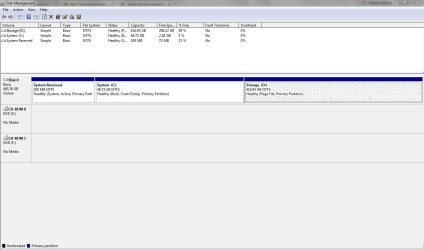
Post a screenshot of your Disk Management screen... :)
 

My Computer

Computer type
Laptop
Computer Manufacturer/Model Number
HP 17-ak0xx, dv7 3173nr
OS
Win7 Home Premium x64 W10Pro&Home
CPU
A12 9720p 4+8 TurionII M520
Motherboard
HP 3839
Memory
6GB 8GB
Graphics Card(s)
R7
Monitor(s) Displays
24" sa550
Screen Resolution
1600x900 1920x1080
Mouse
Logitechx2
Internet Speed
120Mb/s down 12up
Hello,

Is there any way that I can increase the size of the system (C: ) partition? When I had my PC reformatted some two years ago, the tech set its size to a meager 48.7 GB. For some time, the drive got nearly full (95-99%) inexplicably since I save my files and install programs in the other drive (D: ). I tried cleaning the drive using CCleaner and the built-in disk cleanup but it won't help, the drive still gets 95-99% full later on. I tried using partition software, both third party and the built-in disk manager, but for some reason I could not increase/add the size of the system partition. The size is apparently fixed, locked or something. Because of this, the system and several software are malfunctioning. I also get prompts/nags that my C: drive is full
Don't know what you've tried so far, but Minitool Partition Wizard Free has never failed me in all of the partition maintenance I've ever wanted to do.

You just have to understand that when you make adjustments to the boundaries of two adjacent partitions (e.g. your C and D are probably right next to each other, with the "right edge" of C matching the "left edge" of D, as shown in the GUI or in Windows DISKMGMT.MSC, etc.) you must first create some free space in between them so that the one you want to enlarge can expand to consume this newly available space.

So with Partition Wizard you would develop a scenario of several steps, and then finally push the APPLY button in order to perform the whole sequence. First step is the shrinking of the D partition size by dragging its "left edge" to the right. You're leaving its right upper-boundary where it is but reducing the partition size by reducing it, by sliding its left lower-boundary to the right in the GUI represenation. In the GUI that now creates what appears to be however much new unallocated free space you freed up by sliding the lower boundary of D.

Then set up the second step which is to expand (in the GUI) the right edge of C, dragging it to the right in order to use up all that newly available unallocated free space just freed by the shrink-from-the-left reduction you set up for D.

Once you're satisfied, you push APPLY. Partition Wizard understands that you're playing with operational Windows C-partition and that can't be done while Windows is running. But the shrinkage of D can certainly be done while Windows is still running, so that first step is actually performed right away. Then, when the shrinkage of D is complete Partition Wizard announces that it needs to re-boot so as to complete the remaining step(s) in your scenario, which will be affecting C and thus must run standalone at pre-desktop Windows boot time. You give it the OK, and re-boot takes place.

At re-boot time, during the process and before actually starting the Windows desktop, Partition Wizard will kick in to complete the final steps in your scenario. C will be enlarged, sliding its right boundary up to the new left edge of the shrunken D (or whatever else you prescribed in your scenario). When the process is complete it will resume the normal remainder of the Windows startup process placing you back at the Windows desktop just like normal.

And all of your partition adjustment scenario will now be complete. It's just that adjusting C must take place "standalone", as will happen automatically if maintenance to C is part of your multi-step scenario. Any maintenance to other partitions can take place by Partition Wizard running under real Windows.
 

My Computer

Computer type
PC/Desktop
Computer Manufacturer/Model Number
Home-built, two systems (1) and (2)
OS
Windows 7 Pro x64 (1), Win7 Pro X64 (2)
CPU
i5-3350p 3.1Ghz/6MB-cache (1); E8400 3.0Ghz/6MB-cache (2)
Motherboard
ASUS P8Z77-V Pro (1); ASUS P5Q3 (2)
Memory
8GB PC3-12800 DDR3 (1); 4GB PC3-10600 DDR3 (2)
Graphics Card(s)
ATI HD7750 (1), (see TV cards); ATI R7 250 (2)
Sound Card
Realtek ALC892 HD Audio (1); Realtek ALC1200 HD Audio (2)
Monitor(s) Displays
Eizo HD2441W LCD, Eizo S2433W (1); Eizo 24" S2433W (2)
Screen Resolution
1920x1200, 1920x1200 (1); 1920x1200 (2)
Hard Drives
(1) 1TB SATA-II (7200RPM), 2x2TB SATA-III (7200RPM), 250GB SATA-III (10000RPM) for OS; 2x2TB external USB 3.0

(2) 320GB SATA-II (7200RPM), 750GB SATA-II (7200RPM), 150GB SATA-II (10000RPM) for OS; 2TB external USB 3.0
PSU
Nesteq ECS-6001 600W (1); Nesteq ECS-5001 500W (2)
Case
Acousti-Case 360 (1) and (2)
Cooling
Noctua NH-U12P SE2 for CPU, 2x120mm case fans (1) and (2)
Keyboard
IBM PS/2 (1) and (2)
Mouse
Logitech MX Revolution wireless (1); Microsoft wired (2)
Internet Speed
100mbps down / 10mbps up
Antivirus
Microsoft Security Essentials; Malwarebyte Anti-Malware Pro
Browser
Firefox
Other Info
Ceton InfiniTV 4-tuner cablecard-enabled TV card as well as Hauppauge HVR-2250 OTA/ATSC 2-tuner TV card in (1), running under Win7 WMC

Attachments

  • disk management.JPG
    disk management.JPG
    80.1 KB · Views: 8

My Computer

Computer type
PC/Desktop
Computer Manufacturer/Model Number
Custom Built
OS
Windows 7 Ultimate x64
CPU
Intel(R) Core(TM) 2 Quad Q8200 @ 2.33 GHz
Motherboard
Asus P5KPL-AM SE Motherboard
Memory
2x2GB Kingston DDR2
Graphics Card(s)
1GB AMD Radeon HD 5450
Sound Card
VIA Technologies High Definition Audio Device
Monitor(s) Displays
Samsung SyncMaster 733NW
Screen Resolution
1440x900
Hard Drives
SEAGATE 320GB Barracuda® 7200.12, SATA 3 Gb/s, 7200 RPM, 16MB cache x 2
Case
Custom Casing
Cooling
Ice cubes from the freezer ;)
Keyboard
Generic Plug & Play Keyboard
Mouse
Optical Mouse
Internet Speed
Very slow
Aha!

You (or your IT technician) have placed your PAGEFILE.SYS on your D partition, probably because C was too small. This may be responsible for the problem you said you previously had in resizing things.

This could also cause a problem for Partition Wizard in trying to resize D while running the program under the operational Windows, since running Windows clearly needs to access PAGEFILE.SYS. Now as to whether Partition Wizard will realize this and place both of the two steps I described earlier in the pre-boot standalone stage as a result, I don't actually know. Haven't faced this issue before now.

However, you can also run Partition Wizard standalone bootable (from either CD/DVD or from USB), which is a WinPE environment for the program. I'm absolutely sure that you could perform both of these steps one and two standalone, and have absolutely no problem shrinking D and then enlarging C... even with PAGEFILE.SYS remaining on D (at some new location on the smaller D, probably).

Unfortunately the standalone bootable version of Partition Wizard is a feature you only get if you buy the non-free Pro version of the product (it's only $39, and in my opinion is worth it if only for this one feature, not to mention the other additional features you get with Pro). Standalone bootable USB is not available with the Free version of the product.

But that's the reason you've got a challenge here, i.e. PAGEFILE.SYS lives on D and cannot be moved while Windows is running. It can only be moved from a WinPE standalone running product like Partition Wizaard Bootable.

On the other hand there's a chance Partition Wizard Free will recognize that PAGEFILE.SYS is on D, and will schedule both the shrinkage for D along with the growth of C in its standalone pre-boot phase, and not even attempt to work on D while Windows is running. It's certainly worth a try, if you don't want to consider spending $39 to buy the Pro version with its guarantee that it would work standalone bootable.
 

My Computer

Computer type
PC/Desktop
Computer Manufacturer/Model Number
Home-built, two systems (1) and (2)
OS
Windows 7 Pro x64 (1), Win7 Pro X64 (2)
CPU
i5-3350p 3.1Ghz/6MB-cache (1); E8400 3.0Ghz/6MB-cache (2)
Motherboard
ASUS P8Z77-V Pro (1); ASUS P5Q3 (2)
Memory
8GB PC3-12800 DDR3 (1); 4GB PC3-10600 DDR3 (2)
Graphics Card(s)
ATI HD7750 (1), (see TV cards); ATI R7 250 (2)
Sound Card
Realtek ALC892 HD Audio (1); Realtek ALC1200 HD Audio (2)
Monitor(s) Displays
Eizo HD2441W LCD, Eizo S2433W (1); Eizo 24" S2433W (2)
Screen Resolution
1920x1200, 1920x1200 (1); 1920x1200 (2)
Hard Drives
(1) 1TB SATA-II (7200RPM), 2x2TB SATA-III (7200RPM), 250GB SATA-III (10000RPM) for OS; 2x2TB external USB 3.0

(2) 320GB SATA-II (7200RPM), 750GB SATA-II (7200RPM), 150GB SATA-II (10000RPM) for OS; 2TB external USB 3.0
PSU
Nesteq ECS-6001 600W (1); Nesteq ECS-5001 500W (2)
Case
Acousti-Case 360 (1) and (2)
Cooling
Noctua NH-U12P SE2 for CPU, 2x120mm case fans (1) and (2)
Keyboard
IBM PS/2 (1) and (2)
Mouse
Logitech MX Revolution wireless (1); Microsoft wired (2)
Internet Speed
100mbps down / 10mbps up
Antivirus
Microsoft Security Essentials; Malwarebyte Anti-Malware Pro
Browser
Firefox
Other Info
Ceton InfiniTV 4-tuner cablecard-enabled TV card as well as Hauppauge HVR-2250 OTA/ATSC 2-tuner TV card in (1), running under Win7 WMC
Minitool Partition Wizard Free worked like a charm for me. Thank you dsperber for the help!

Don't know what you've tried so far, but Minitool Partition Wizard Free has never failed me in all of the partition maintenance I've ever wanted to do.

You just have to understand that when you make adjustments to the boundaries of two adjacent partitions (e.g. your C and D are probably right next to each other, with the "right edge" of C matching the "left edge" of D, as shown in the GUI or in Windows DISKMGMT.MSC, etc.) you must first create some free space in between them so that the one you want to enlarge can expand to consume this newly available space.

So with Partition Wizard you would develop a scenario of several steps, and then finally push the APPLY button in order to perform the whole sequence. First step is the shrinking of the D partition size by dragging its "left edge" to the right. You're leaving its right upper-boundary where it is but reducing the partition size by reducing it, by sliding its left lower-boundary to the right in the GUI represenation. In the GUI that now creates what appears to be however much new unallocated free space you freed up by sliding the lower boundary of D.

Then set up the second step which is to expand (in the GUI) the right edge of C, dragging it to the right in order to use up all that newly available unallocated free space just freed by the shrink-from-the-left reduction you set up for D.

Once you're satisfied, you push APPLY. Partition Wizard understands that you're playing with operational Windows C-partition and that can't be done while Windows is running. But the shrinkage of D can certainly be done while Windows is still running, so that first step is actually performed right away. Then, when the shrinkage of D is complete Partition Wizard announces that it needs to re-boot so as to complete the remaining step(s) in your scenario, which will be affecting C and thus must run standalone at pre-desktop Windows boot time. You give it the OK, and re-boot takes place.

At re-boot time, during the process and before actually starting the Windows desktop, Partition Wizard will kick in to complete the final steps in your scenario. C will be enlarged, sliding its right boundary up to the new left edge of the shrunken D (or whatever else you prescribed in your scenario). When the process is complete it will resume the normal remainder of the Windows startup process placing you back at the Windows desktop just like normal.

And all of your partition adjustment scenario will now be complete. It's just that adjusting C must take place "standalone", as will happen automatically if maintenance to C is part of your multi-step scenario. Any maintenance to other partitions can take place by Partition Wizard running under real Windows.

Aha!

You (or your IT technician) have placed your PAGEFILE.SYS on your D partition, probably because C was too small. This may be responsible for the problem you said you previously had in resizing things.

This could also cause a problem for Partition Wizard in trying to resize D while running the program under the operational Windows, since running Windows clearly needs to access PAGEFILE.SYS. Now as to whether Partition Wizard will realize this and place both of the two steps I described earlier in the pre-boot standalone stage as a result, I don't actually know. Haven't faced this issue before now.

However, you can also run Partition Wizard standalone bootable (from either CD/DVD or from USB), which is a WinPE environment for the program. I'm absolutely sure that you could perform both of these steps one and two standalone, and have absolutely no problem shrinking D and then enlarging C... even with PAGEFILE.SYS remaining on D (at some new location on the smaller D, probably).

Unfortunately the standalone bootable version of Partition Wizard is a feature you only get if you buy the non-free Pro version of the product (it's only $39, and in my opinion is worth it if only for this one feature, not to mention the other additional features you get with Pro). Standalone bootable USB is not available with the Free version of the product.

But that's the reason you've got a challenge here, i.e. PAGEFILE.SYS lives on D and cannot be moved while Windows is running. It can only be moved from a WinPE standalone running product like Partition Wizaard Bootable.

On the other hand there's a chance Partition Wizard Free will recognize that PAGEFILE.SYS is on D, and will schedule both the shrinkage for D along with the growth of C in its standalone pre-boot phase, and not even attempt to work on D while Windows is running. It's certainly worth a try, if you don't want to consider spending $39 to buy the Pro version with its guarantee that it would work standalone bootable.
 

My Computer

Computer type
PC/Desktop
Computer Manufacturer/Model Number
Custom Built
OS
Windows 7 Ultimate x64
CPU
Intel(R) Core(TM) 2 Quad Q8200 @ 2.33 GHz
Motherboard
Asus P5KPL-AM SE Motherboard
Memory
2x2GB Kingston DDR2
Graphics Card(s)
1GB AMD Radeon HD 5450
Sound Card
VIA Technologies High Definition Audio Device
Monitor(s) Displays
Samsung SyncMaster 733NW
Screen Resolution
1440x900
Hard Drives
SEAGATE 320GB Barracuda® 7200.12, SATA 3 Gb/s, 7200 RPM, 16MB cache x 2
Case
Custom Casing
Cooling
Ice cubes from the freezer ;)
Keyboard
Generic Plug & Play Keyboard
Mouse
Optical Mouse
Internet Speed
Very slow
Excellent!

Just for closure, did you just go ahead and try using the Free Windows-version to accomplish this, instead of going with the Pro version with its standalone bootable capability? Or did you go with the non-free Pro version?

And if you did use the Free version, when you set up the first step of shrinking D by sliding its left edge to the right, did Partition Wizard accept that (even though PAGEFILE.SYS was on D)? I wonder if the location of PAGEFILE on D might have been to the right of where you slid the left boundary of the partition to, so that in fact it wouldn't have to be moved, so that work on D could take place even while Windows was still operating)?

And again if you did use the Free version, when you finally pushed the APPLY button did it perform the shrinkage work on D immediately and then ask for the re-boot to enlarge C, or did it immediately ask for re-boot permission and once in pre-boot performed BOTH the D and C operations there?

I'm just curious, since I've never done any maintenance that involved a partition other than C where PAGEFILE.SYS was located.

Anyway, I'm glad you got your partitions re-sized. What did you end up choosing for sizes?


Incidentally, if this drive of yours is an HDD spinner (so that there is arm motion in order to access the C and D partitions), locating PAGEFILE.SYS on D isn't a very good idea. If you had two drives that would be one thing, and placing PAGEFILE.SYS on the second physical drive would make sense. But with one drive it's actually counter-productive to not have PAGEFILE.SYS within the C-partition itself.

Now PAGEFILE.SYS is a function of how much memory you have in the machine. Could be typically 100% to 150% of the amount of memory you have. So it's a good size file. If you did move it back to C you'd likely re-size C and D one more time, reducing D and increasing C appropriately in order to have room for PAGEFILE.SYS relocated back to C where it really should be when there's only one physical drive in the machine.
 

My Computer

Computer type
PC/Desktop
Computer Manufacturer/Model Number
Home-built, two systems (1) and (2)
OS
Windows 7 Pro x64 (1), Win7 Pro X64 (2)
CPU
i5-3350p 3.1Ghz/6MB-cache (1); E8400 3.0Ghz/6MB-cache (2)
Motherboard
ASUS P8Z77-V Pro (1); ASUS P5Q3 (2)
Memory
8GB PC3-12800 DDR3 (1); 4GB PC3-10600 DDR3 (2)
Graphics Card(s)
ATI HD7750 (1), (see TV cards); ATI R7 250 (2)
Sound Card
Realtek ALC892 HD Audio (1); Realtek ALC1200 HD Audio (2)
Monitor(s) Displays
Eizo HD2441W LCD, Eizo S2433W (1); Eizo 24" S2433W (2)
Screen Resolution
1920x1200, 1920x1200 (1); 1920x1200 (2)
Hard Drives
(1) 1TB SATA-II (7200RPM), 2x2TB SATA-III (7200RPM), 250GB SATA-III (10000RPM) for OS; 2x2TB external USB 3.0

(2) 320GB SATA-II (7200RPM), 750GB SATA-II (7200RPM), 150GB SATA-II (10000RPM) for OS; 2TB external USB 3.0
PSU
Nesteq ECS-6001 600W (1); Nesteq ECS-5001 500W (2)
Case
Acousti-Case 360 (1) and (2)
Cooling
Noctua NH-U12P SE2 for CPU, 2x120mm case fans (1) and (2)
Keyboard
IBM PS/2 (1) and (2)
Mouse
Logitech MX Revolution wireless (1); Microsoft wired (2)
Internet Speed
100mbps down / 10mbps up
Antivirus
Microsoft Security Essentials; Malwarebyte Anti-Malware Pro
Browser
Firefox
Other Info
Ceton InfiniTV 4-tuner cablecard-enabled TV card as well as Hauppauge HVR-2250 OTA/ATSC 2-tuner TV card in (1), running under Win7 WMC
Back
Top