Found your solution worked in less than 1 minute , saved me having to look for drivers and software
Just in passing, this camera-settings "solution" is based on the same alternative method for connecting USB devices in general. In my Cowon J3 (portable music player), it is in the "USB connection" setting and the offerings are (a) MSC or (b) MTP.
MSC ("mass storage") is the "standard" and most common method of USB connection, where Windows recognized the connection of a removable device via USB, loads (or attempts to load) drivers for it, and then assigns a drive letter to it.
Also, an icon appears in the System Tray (or an additional item is added to the current list of removable devices already shown for that already existing icon) showing this removable device. If/when you are ready to disconnect the USB cable you must always first "safely remove hardware" by right-clicking on that System Tray icon, and select "EJECT" (or "REMOVE") or whatever it says for the particular device you now want to stop and remove.
After Windows finishes flushing out any unwritten buffers to the device, or just completes the disconnection process, the Windows drive letter will be "un-assigned" and a bubble popup message will appear saying "it is now safe to remove hardware". And you can then pull the connecting USB cable from the PC.
100% of all Windows programs as well as 100% of all 3rd-party programs can access this "drive letter" which has been assigned dynamically to this "external removable drive". 100%, because 100% of all Windows programs operate based on drive letters for the target "drive". So any program in the world can get to this drive (i.e. to the flash card currently inserted in the camera, with the camera acting as the "USB card reader").
That's why MSC is the universally preferred method of connection, because 100% of Windows and 100% of all 3rd-party software can access the contents of the card. But it requires that there be drivers available for the "USB card reader", i.e. the camera in this case.
And that's also why a generic external USB card reader (like the IOGear version I mentioned above) also works perfectly, because it connects using MSC and drivers for these universal MSC external USB card readers are built into Windows. They all conform to the "universal USB card reader standard". Put a card into such a reader, and you will guaranteed 100% get "installing drivers" (successfully) the first time you connect it via USB cable to the PC, and you will guaranteed 100% get a Windows drive letter assigned to it. And 100% of Windows and 3rd-party programs will work perfectly with that card through that card reader.
You will conceptually be in MSC mode, with all of the benefits I've just described.
Now the alternative USB connection method is referred to as MTP "media transfer protocol" (or "printer/PTP" as you describe the setting in your Canona). This is actually intended for use when the camera is connected via USB cable to a USB printer, for printing pictures directly from the camera by the printer.
This is very different to Windows when used, and doesn't depend on specific drivers for the "external USB card reader device" (i.e. drivers for the camera typically provided by the manufacturer or from them through Microsoft, or from the or generic external USB card reader using drivers built into Windows).
In fact, there is no Windows drive letter assigned at all! And that's because the device is not seen as a "removable external drive" supported through drivers.
Instead, it's supported through the generic "external USB printer" approach, which is not based on drive letters. And instead of the device showing up in Windows Explorer with a driver letter as it is using an MSC connection, it will simply appear in the "list" of items in Windows Explorer with a NAME of some sort. In the case of my Cowon J3, using MTP mode the PMP appears to Windows Explorer as "Cowon J3", and its internal and external storage then appear indented under the "Cowon J3" main item as two lines: "internal storage" and "external storage":

Furthermore, there is no System Tray icon which appears (or to which another device item is added to its list of currently connected removable devices/drives) through which the "safely remove hardware" procedure must be performed before disconnecting the USB cable (to guarantee that any unwritten data buffers will be flushed out to the device by Windows before it gets disconnected). And that's because Windows treats USB printers (and MTP/PTP-connected devices) that do not have drive letters very differently than it does for "USB-connected removable drives" (via MSC) that do have drive letters.
And finally, pretty much only Windows Explorer and other MTP-specific 3rd-party (or camera vendor provided) software products will work without a Windows drive letter. So there are extremely limited software options available to get to the pictures on the flash card inserted into the camera when MTP is used. But if Windows Explorer is acceptable, it is absolutely usable with MTP even though there is no Windows drive letter assigned.
I have the same two alternative USB connection capabilities on my Nikon D300 camera, if I choose to connect it directly to my PC instead of just removing the flash card and using an external USB card reader to transfer the pictures to the PC. Of course the capabilities of the two methods and what can be done (i.e. what software can be used) are slightly different.
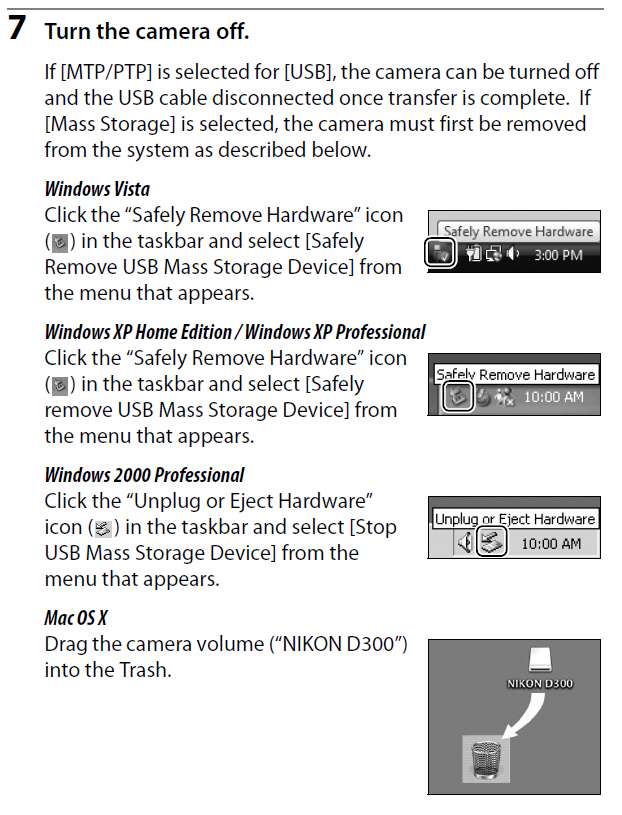
And as I described above, depending on whether MSC ("mass storage") or MTP is used, this determines whether or not the "safely remove hardware" steps are required before disconnecting the USB cable:
So, if the printer/PTP mode works for your Canon camera through the same type of optional USB connection setting as is available with my Nikon, then excellent.
However you will almost certainly be very limited in what software you can use to get to the images on the card inserted into the camera... with Windows Explorer certainly working, but probably very little else. In the case of my Nikon, the manufacturer has written their "Nikon Transfer" software to support either MSC or MTP mode, so I can use Nikon Transfer or Windows Explorer without concern. But the same may not be true of Canon-provided software for your Rebel.
On the other hand, you can completely avoid any possible inconveniences or special considerations by just removing the flash card FROM ANY CAMERA (not just Canon or Nikon) and putting it into a generic external USB card reader (which is absolutely supported 100% by Windows) that always connects using MSC protocol which then results in a Windows drive letter getting assigned, which thus results in 100% of all Windows and 3rd-party software products being able to get to the card.
It's up to you.
But MTP vs. MSC has considerations and consequences.