Hi All,
I spent a couple of hours today trying to replicate this issue, here's what I found:
- I could recreate two very similar errors, both of which match the problems experienced in this forum post and one of which was the error experienced.
- I Created a workaround that worked for both errors when tested.
- I tested the work-around successfully with two different model printers.
The attached WORD document shows the steps with screen prints and more information.
Or.....
The Workaround (I should say ‘A’ workaround)
• Uninstall all previous installation of this printer and reboot both machines
• Download the latest copy of the drivers for both your systems. Taking careful note to download the 64bit drivers for a 64bit operating system and 32bit for a 32bit operating system. Get these drivers from the manufacturers website (not MS update).
• On the Windows 7 machine, plug in the printer locally, install the drivers and test that it prints.
• Now unplug it from Windows 7 and plug it into your XP machine locally, Install the drivers and test that it prints. Leave the printer turned on.
• On the XP, share the printer and check that it has correct network and sharing permissions to grant the Windows 7 machine access.
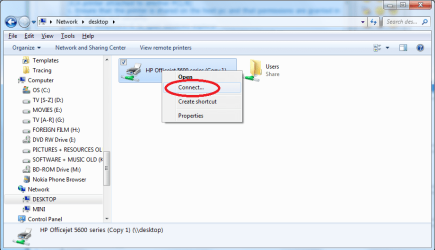
• On Win7, open Windows Explorer (WinKey+E) and type the name of the XP machine into the address bar proceeded by two backslashes.
• You should now see your printer. I will use the printer with the shared name CutePDFW for this example. Note that the network address of this printer is \\YourXPname\yourPRINTERsharedNAME or in my example \\media\CutePDFW . This will become our port name.
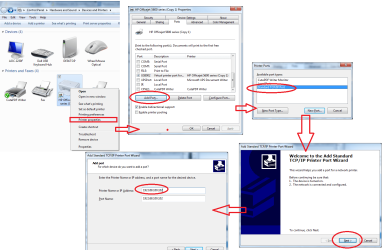
• Open ‘Devices and Printers’ on Win7 and look for your locally installed printer.
• Right click on it and select Printer properties.
• Click on the ‘Ports’ tab (note: You will see your local port highlighted)
• Click add Port
• Despite what you might think (and I believed previously) you need to select ‘Local Port’.
• Click ‘New Port…’
• In the Port name, type the network address that you noted earlier and click ‘OK’, followed by ‘Close’
• Nothing fantastic happens (no prompts anyway), your new port is simply configured and you can click on ‘apply’ followed by ‘ok’.
• Now reopen your ‘Printer Properties’ and print a test page.
• If you’re quick, you can see the document on the XP machine before it’s printed
Note: this solution was also tested with an HP 5600 series computer, which is where I got the error messages from.
I hope that this works for you too
Tim




 ):
):