Can't add Network Printer..

apollo911

New member
Local time
5:41 PM
Messages
55
I have Windows 7 HP on my laptop and have connected it to the office XP network..I can share files and folders OK with the office PCs but when I try and add the printer I get an 0x00000214 'cannot connect to printer' error despite the fact that W7 'sees' it in the Add Printer wizard.

I had to manually download the driver as Windows Update didn't find it - it's a Panasonic DP-1510P MFD.
 

My Computer

OS
Windows 7, Vista HP, XP Pro
Well you said that it is connected to an office network. the printer that you want to install is installed on another printer correct? is the sharing permissions set correctly that your able to install that printer.... I would defintily check that...

each user name might have different permissions set..
 

My Computer

Computer Manufacturer/Model Number
HP Pavilion Elite HPE-410f
OS
Windows 7 Ultimate x64
CPU
AMD Phenom x6 1045t
Motherboard
N/A
Memory
8 GB
Graphics Card(s)
ATI Radeon HD 5570
Sound Card
Realtek Highdefinition Audio / 5.1 Dolby Setup
Monitor(s) Displays
HP w2207h Widescreen
Screen Resolution
1680*1050
Hard Drives
1 TB (fixed), 320 Portable maxtor, Server Hard drives
PSU
350 Watt
Case
HP CASE
Cooling
Bass
Keyboard
Logitech MX 5500
Mouse
Logitech MX 5500
Internet Speed
ROAD RUNNER 16MB D/512 U
Are you adding via tcp/ip? and if so now far into the adding of the printer did you get to?

Could you ping the printer?
 

My Computer

Computer Manufacturer/Model Number
Lenovo ThinkPad T60
OS
Windows 7 Ultimate 64Bit
CPU
GenuineIntel Intel(R) Core(TM) DuoCore T2400 @ 1.83GHz
Motherboard
Intel(R) 82801G (ICH7 Family)
Memory
2.00 GB
Graphics Card(s)
Mobile Intel(R) 945 Express Chipset
Sound Card
SoundMAX Integrated Digital HD Audio
Monitor(s) Displays
ThinkPad Display
Screen Resolution
1400x1050
Hard Drives
100Gb SATA
Keyboard
Standard Keyboard
Mouse
HID-compliant Mouse
Internet Speed
Cable Broadband - 54Mbps
Other Info
Intel(R) PRO/1000 PL Network Connection
11a/b/g Wireless LAN Mini PCI Express Adapter
Hi apollo911,

You can skip the wizard by connecting to the printer as follows.

For a printer with a a network card and it's own IPADDRESS This is what I believe you have (based on your error message).
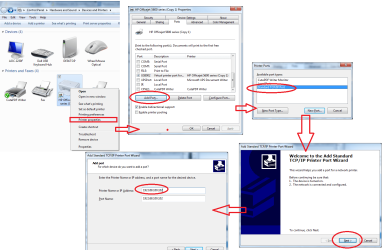
1. Install the printer as if it was a locally attached printer (LPT1 for example)
2. Right click on the printer and select printer properties.
3. On the Ports tab, click 'add port'
4. Select a standard TCP/IP port and choose 'New Port'
5. The port wizard opens
6. Type in the printer network name (or ipaddress) [NOTE: Ensure that the printer is turned on!)
7. Windows will now detect the printer on the NEW port you just created. Accept everything and ok -out.
(see pic)

A printer attached to another PC
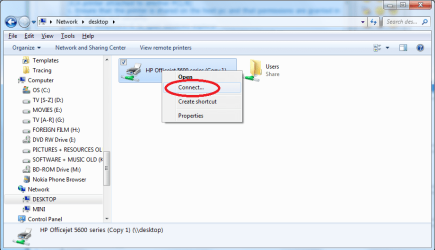
1. Ensure that the printer is shared on the host pc and that permissions are granted in both sharing and security.
2. Press WINDOWS+E to open windows explorer
3. Navigate to the host PC across the network (e.g \\192.168.1.5 or \\mycomputername)
4. The printers icon should be displayed in explorer.
5. Right click and select 'connect'
(see pic)

Good luck

Tim

EDIT: this is all providing that file and printer sharing/permissions are configured and working
 

Attachments

  • changing printer ports.png
    changing printer ports.png
    308 KB · Views: 3,632
  • connecting to a hosted printer.png
    connecting to a hosted printer.png
    118 KB · Views: 1,408

My Computer

Computer Manufacturer/Model Number
Custom Hack job
OS
Windows 7 Ultimate 64 bit
CPU
Intel(R) Core(TM)2 Quad CPU Q8200 @ 2.33GHz
Motherboard
GigaByte EP45-UD3
Memory
8 GB Kingston
Graphics Card(s)
Nvidia GeForce 9600GT
Sound Card
Soundblaster Audigy
Monitor(s) Displays
AOC x2 22"
Hard Drives
2 x Samsung 500GB (RAID)
2 x Samsung 2TB
1 x WD Green 2TB
1 x Seagate 1TB
1 x Samsung 500GB
PSU
Thermaltake QFan 750W
Case
CM Scout Gaming
Cooling
Coolermaster V10
Keyboard
Microsoft Wireless Keyboard 1000
Mouse
Microsoft Wireless Optical 2000
Internet Speed
320
Other Info
Winfast PVR2000CP
LG DVD-RAM DVD/RW/DL Super Multi
Linksys WMP300Nx2 Wireless Adapter
Thanks, but no luck. I installed the Laserjet on the laptop - Windows downloaded and installed the drivers automatically and it works perfectly, but when I re-connect it to the PC (via USB) and click connect as above Wndows goes off into Windows update again and then says it can't find a driver, despite the fact the driver is installed!
I backed up the driver and then pointed Windows to it when it fails to find the driver and gives you an opportunity to do so and it then give the 0x00000214 error. all permissions are granted, the printer is shared , I turned off both firewalls and anti-virus - nothing.

Yet the file and folder sharing works perfectly.
 

My Computer

OS
Windows 7, Vista HP, XP Pro
Are both pc and laptops, running W7s? It could be a driver discrepency.
 

My Computer

Computer Manufacturer/Model Number
Lenovo ThinkPad T60
OS
Windows 7 Ultimate 64Bit
CPU
GenuineIntel Intel(R) Core(TM) DuoCore T2400 @ 1.83GHz
Motherboard
Intel(R) 82801G (ICH7 Family)
Memory
2.00 GB
Graphics Card(s)
Mobile Intel(R) 945 Express Chipset
Sound Card
SoundMAX Integrated Digital HD Audio
Monitor(s) Displays
ThinkPad Display
Screen Resolution
1400x1050
Hard Drives
100Gb SATA
Keyboard
Standard Keyboard
Mouse
HID-compliant Mouse
Internet Speed
Cable Broadband - 54Mbps
Other Info
Intel(R) PRO/1000 PL Network Connection
11a/b/g Wireless LAN Mini PCI Express Adapter
no PC is running XP SP3, Laptop W7 HP 64-bit.
 

My Computer

OS
Windows 7, Vista HP, XP Pro
What methods have you tried when trying to install via USB? Did you installed the driver first, before inserting the USB or the other way around? Can you give details of what the driver installation look like?
 

My Computer

Computer Manufacturer/Model Number
Lenovo ThinkPad T60
OS
Windows 7 Ultimate 64Bit
CPU
GenuineIntel Intel(R) Core(TM) DuoCore T2400 @ 1.83GHz
Motherboard
Intel(R) 82801G (ICH7 Family)
Memory
2.00 GB
Graphics Card(s)
Mobile Intel(R) 945 Express Chipset
Sound Card
SoundMAX Integrated Digital HD Audio
Monitor(s) Displays
ThinkPad Display
Screen Resolution
1400x1050
Hard Drives
100Gb SATA
Keyboard
Standard Keyboard
Mouse
HID-compliant Mouse
Internet Speed
Cable Broadband - 54Mbps
Other Info
Intel(R) PRO/1000 PL Network Connection
11a/b/g Wireless LAN Mini PCI Express Adapter
I plugged it in, Windows said "Installing Device Driver Software" ad downloaded and installed OK. Printer works fine attached to laptop.

Printer works fine attached to PC running XP.

File sharing works fine between laptop and PC.

Can't install printer as a network printer on laptop.
 

My Computer

OS
Windows 7, Vista HP, XP Pro
How is the printer connected to the "network" in the scheme of things? ie is the printer attached to another machine, assumably a W7, or a router?
 

My Computer

Computer Manufacturer/Model Number
Lenovo ThinkPad T60
OS
Windows 7 Ultimate 64Bit
CPU
GenuineIntel Intel(R) Core(TM) DuoCore T2400 @ 1.83GHz
Motherboard
Intel(R) 82801G (ICH7 Family)
Memory
2.00 GB
Graphics Card(s)
Mobile Intel(R) 945 Express Chipset
Sound Card
SoundMAX Integrated Digital HD Audio
Monitor(s) Displays
ThinkPad Display
Screen Resolution
1400x1050
Hard Drives
100Gb SATA
Keyboard
Standard Keyboard
Mouse
HID-compliant Mouse
Internet Speed
Cable Broadband - 54Mbps
Other Info
Intel(R) PRO/1000 PL Network Connection
11a/b/g Wireless LAN Mini PCI Express Adapter
Thanks for your help but we seem to be going round in circles.
 

My Computer

OS
Windows 7, Vista HP, XP Pro
Ok can i ask you what it means to you to install a printer as a "network printer"?
 

My Computer

Computer Manufacturer/Model Number
Lenovo ThinkPad T60
OS
Windows 7 Ultimate 64Bit
CPU
GenuineIntel Intel(R) Core(TM) DuoCore T2400 @ 1.83GHz
Motherboard
Intel(R) 82801G (ICH7 Family)
Memory
2.00 GB
Graphics Card(s)
Mobile Intel(R) 945 Express Chipset
Sound Card
SoundMAX Integrated Digital HD Audio
Monitor(s) Displays
ThinkPad Display
Screen Resolution
1400x1050
Hard Drives
100Gb SATA
Keyboard
Standard Keyboard
Mouse
HID-compliant Mouse
Internet Speed
Cable Broadband - 54Mbps
Other Info
Intel(R) PRO/1000 PL Network Connection
11a/b/g Wireless LAN Mini PCI Express Adapter
Thanks, but no luck. I installed the Laserjet on the laptop - Windows downloaded and installed the drivers automatically and it works perfectly, but when I re-connect it to the PC (via USB) and click connect as above Wndows goes off into Windows update again and then says it can't find a driver, despite the fact the driver is installed!
I backed up the driver and then pointed Windows to it when it fails to find the driver and gives you an opportunity to do so and it then give the 0x00000214 error. all permissions are granted, the printer is shared , I turned off both firewalls and anti-virus - nothing.

Yet the file and folder sharing works perfectly.

Hi Apollo,

I hope I have this correct. The printer is physically on the 'PC' (which runs XP). You have shared it, but get the 0x00000214 error when you try to connect to it via the Laptop (running WIn7).

You can try this:
Add additional drivers to the PC (running XP) for Win7
  • On the PC, navigate to the printer, right click and select properties
  • On the sharing tab, click 'additional drivers'
  • tick the box for the required drivers and press OK
  • Go to the Win7 laptop and try to add the printer, the drivers should be added automatically from the XP machine to the Win7 machine.

Good Luck
 

My Computer

Computer Manufacturer/Model Number
Custom Hack job
OS
Windows 7 Ultimate 64 bit
CPU
Intel(R) Core(TM)2 Quad CPU Q8200 @ 2.33GHz
Motherboard
GigaByte EP45-UD3
Memory
8 GB Kingston
Graphics Card(s)
Nvidia GeForce 9600GT
Sound Card
Soundblaster Audigy
Monitor(s) Displays
AOC x2 22"
Hard Drives
2 x Samsung 500GB (RAID)
2 x Samsung 2TB
1 x WD Green 2TB
1 x Seagate 1TB
1 x Samsung 500GB
PSU
Thermaltake QFan 750W
Case
CM Scout Gaming
Cooling
Coolermaster V10
Keyboard
Microsoft Wireless Keyboard 1000
Mouse
Microsoft Wireless Optical 2000
Internet Speed
320
Other Info
Winfast PVR2000CP
LG DVD-RAM DVD/RW/DL Super Multi
Linksys WMP300Nx2 Wireless Adapter
Thanks..BUT..

the option to add additional drivers is grayed out until you select one of the OS check boxes - and there is no W7 or Vista option - I tried XP 64 but it didn't like that at all when I tried to add the W7 drivers.
 

My Computer

OS
Windows 7, Vista HP, XP Pro
That is becuase Windows XP didn't know about Windows 7, but Widows 7 knows about Windows XP.

I would install the true windows 7 drivers on the 7 box. Then go and add a local port (yes local port) and point it to the Windows xp box.
 

My Computer

Computer Manufacturer/Model Number
HP Pavilion Elite HPE-410f
OS
Windows 7 Ultimate x64
CPU
AMD Phenom x6 1045t
Motherboard
N/A
Memory
8 GB
Graphics Card(s)
ATI Radeon HD 5570
Sound Card
Realtek Highdefinition Audio / 5.1 Dolby Setup
Monitor(s) Displays
HP w2207h Widescreen
Screen Resolution
1680*1050
Hard Drives
1 TB (fixed), 320 Portable maxtor, Server Hard drives
PSU
350 Watt
Case
HP CASE
Cooling
Bass
Keyboard
Logitech MX 5500
Mouse
Logitech MX 5500
Internet Speed
ROAD RUNNER 16MB D/512 U
That is becuase Windows XP didn't know about Windows 7, but Widows 7 knows about Windows XP.
lol. yep of course, I didn't think it through. Thanks mate.

I would install the true windows 7 drivers on the 7 box. Then go and add a local port (yes local port) and point it to the Windows xp box.
I absolutely agree, this is good advice and basically what I recommended for a networked printer in my first post; i.e. it can also be done on a printer attached to another PC. For many years I installed point of sales systems and this was the only way to get some of the printers to recognised (until networked cards on printers became more mainstream)


The premise here is to install it locally, so that the drivers are already installed and then point it to a new location (i.e. on your XP computer)
1. Physically attach the printer via usb to the Win7y laptop and install it (do the same on the XP PC if you haven't already)
2. Physically leave it attached and working on the XP PC.
3. On the Win7 laptop, open 'devices and printers', Right click on the printer (locally installed) and select printing preferences
3. On the Ports tab, click 'add port'
4. Select a standard TCP/IP port and choose 'New Port'
5. The port wizard opens
6. Type in the printer network name (or ipaddress) [NOTE: Ensure that the printer is turned on!) e.g. //mycomputer/printername
7. Windows will now detect the printer on the NEW port you just created. Accept everything and ok -out.
NOTE: If windows doesn't detect it, look for it's name in the drop down list on the page that appears. If it still doesn't detect it, just click next and test once the wizard has closed (this worked for me in testing, before I sent posted this).

Good Luck
 

My Computer

Computer Manufacturer/Model Number
Custom Hack job
OS
Windows 7 Ultimate 64 bit
CPU
Intel(R) Core(TM)2 Quad CPU Q8200 @ 2.33GHz
Motherboard
GigaByte EP45-UD3
Memory
8 GB Kingston
Graphics Card(s)
Nvidia GeForce 9600GT
Sound Card
Soundblaster Audigy
Monitor(s) Displays
AOC x2 22"
Hard Drives
2 x Samsung 500GB (RAID)
2 x Samsung 2TB
1 x WD Green 2TB
1 x Seagate 1TB
1 x Samsung 500GB
PSU
Thermaltake QFan 750W
Case
CM Scout Gaming
Cooling
Coolermaster V10
Keyboard
Microsoft Wireless Keyboard 1000
Mouse
Microsoft Wireless Optical 2000
Internet Speed
320
Other Info
Winfast PVR2000CP
LG DVD-RAM DVD/RW/DL Super Multi
Linksys WMP300Nx2 Wireless Adapter
I have the same problem (even to the Win7 64-bit laptop).
I've followed TimStitt's instructions through to item 7 (except that in item 3 I've selected 'Printer Properties' in order to get a 'Ports' tab).
In the list of Ports I have one called '//Islay/hppsc2115' (//XPcomputer/printersharename), Description: 'Standard TCP/IP Port', Printer: 'HP psc 2100 Series'.

That looks as if it might be OK, although in fact the printer is connected to the XP computer via a USB connector, not a network card. Then I'm asked to 'configure' this port, and get options I don't fully understand. I have Port Name: '//Islay/hppsc2115', Printer Name or IP Address: 'hppsc2115'. The options for Protocol are 'Raw' or 'LPR'. Raw is selected by default, but I've no idea if that's correct, nor what to do about the other options. I have tried accepting defaults and 'ok -out'.

I end up with Status: Needs Troubleshooting. But the trouble shooter doesn't solve the problem, because it can't find the printer...
I've lost count of the number of times I've been going round this loop. what am I doing wrong, please ?
 
Last edited:

My Computer

OS
Win XP SP3
Hi All,

I spent a couple of hours today trying to replicate this issue, here's what I found:
  • I could recreate two very similar errors, both of which match the problems experienced in this forum post and one of which was the error experienced.
  • I Created a workaround that worked for both errors when tested.
  • I tested the work-around successfully with two different model printers.

The attached WORD document shows the steps with screen prints and more information.

Or.....

The Workaround (I should say ‘A’ workaround)

• Uninstall all previous installation of this printer and reboot both machines
• Download the latest copy of the drivers for both your systems. Taking careful note to download the 64bit drivers for a 64bit operating system and 32bit for a 32bit operating system. Get these drivers from the manufacturers website (not MS update).
• On the Windows 7 machine, plug in the printer locally, install the drivers and test that it prints.
• Now unplug it from Windows 7 and plug it into your XP machine locally, Install the drivers and test that it prints. Leave the printer turned on.
• On the XP, share the printer and check that it has correct network and sharing permissions to grant the Windows 7 machine access.
• On Win7, open Windows Explorer (WinKey+E) and type the name of the XP machine into the address bar proceeded by two backslashes.
• You should now see your printer. I will use the printer with the shared name CutePDFW for this example. Note that the network address of this printer is \\YourXPname\yourPRINTERsharedNAME or in my example \\media\CutePDFW . This will become our port name.
• Open ‘Devices and Printers’ on Win7 and look for your locally installed printer.
• Right click on it and select Printer properties.
• Click on the ‘Ports’ tab (note: You will see your local port highlighted)
• Click add Port
• Despite what you might think (and I believed previously) you need to select ‘Local Port’.
• Click ‘New Port…’
• In the Port name, type the network address that you noted earlier and click ‘OK’, followed by ‘Close’
• Nothing fantastic happens (no prompts anyway), your new port is simply configured and you can click on ‘apply’ followed by ‘ok’.
• Now reopen your ‘Printer Properties’ and print a test page.
• If you’re quick, you can see the document on the XP machine before it’s printed


Note: this solution was also tested with an HP 5600 series computer, which is where I got the error messages from.

I hope that this works for you too

Tim

 

Attachments

My Computer

Computer Manufacturer/Model Number
Custom Hack job
OS
Windows 7 Ultimate 64 bit
CPU
Intel(R) Core(TM)2 Quad CPU Q8200 @ 2.33GHz
Motherboard
GigaByte EP45-UD3
Memory
8 GB Kingston
Graphics Card(s)
Nvidia GeForce 9600GT
Sound Card
Soundblaster Audigy
Monitor(s) Displays
AOC x2 22"
Hard Drives
2 x Samsung 500GB (RAID)
2 x Samsung 2TB
1 x WD Green 2TB
1 x Seagate 1TB
1 x Samsung 500GB
PSU
Thermaltake QFan 750W
Case
CM Scout Gaming
Cooling
Coolermaster V10
Keyboard
Microsoft Wireless Keyboard 1000
Mouse
Microsoft Wireless Optical 2000
Internet Speed
320
Other Info
Winfast PVR2000CP
LG DVD-RAM DVD/RW/DL Super Multi
Linksys WMP300Nx2 Wireless Adapter
You, Sir, are a genius :-)
And now the supplementary question - solution was perfect for HP Laserjet but there is also a Panasonic DP 1510P MFD connected to the XP PC which only has a serial port , and of course there is no serial port on the laptop so I can't install it there.

Hmm.
 

My Computer

OS
Windows 7, Vista HP, XP Pro
You, Sir, are a genius :-)
And now the supplementary question - solution was perfect for HP Laserjet but there is also a Panasonic DP 1510P MFD connected to the XP PC which only has a serial port , and of course there is no serial port on the laptop so I can't install it there.

Hmm.

Great! I'm glad we have it working, I wasn't going to give up on that one! :)

In regards to the serial printer, my first concern is that you won't find Win7 drivers; but lets say that you can or that you can either force or edit a previous OS drivers and get it working. By Serial, I am assuming that you mean an RS232 serial, as USB is also a Serial connection.

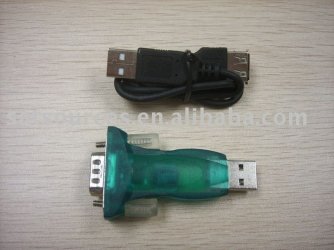
So how to attach? Well the best solution costs around A$5-A$10 from my local electronics shop, it should be pretty cheap for you as well. What you need is an USB to RS232 converter, this creates an RS232(aka standard Serial port) from a USB port. Here's some standard information about one if you are not familiar with it USB to RS232 converters and below is a picture of one so that you can see if it's like your printer port.

Another solution is similar to the one above, where we connect it locally to the XP box and then share it out on the network. We may need to (i'm not sure for Win7) force the mapping of the serial COM port to a tcp/ip connection, we can do this through a small batch file that we put in the startup folder and the net use command. Something like (FYI - This written on-the-fly i.e. untested :D ):
Code:
NET USE COM1 /d
NET USE COM1: \\your_Win7\[Printer_Shared_Name /PERSISTENT:YES

Let me know what you think, by the way - I am currently in the process of moving to Singapore and whipping around Australia to visit family and friends before I leave. So there could be delays in my replies for the next few months.
 

Attachments

  • RS232_To_USB_Convertor.jpg
    RS232_To_USB_Convertor.jpg
    69.5 KB · Views: 101

My Computer

Computer Manufacturer/Model Number
Custom Hack job
OS
Windows 7 Ultimate 64 bit
CPU
Intel(R) Core(TM)2 Quad CPU Q8200 @ 2.33GHz
Motherboard
GigaByte EP45-UD3
Memory
8 GB Kingston
Graphics Card(s)
Nvidia GeForce 9600GT
Sound Card
Soundblaster Audigy
Monitor(s) Displays
AOC x2 22"
Hard Drives
2 x Samsung 500GB (RAID)
2 x Samsung 2TB
1 x WD Green 2TB
1 x Seagate 1TB
1 x Samsung 500GB
PSU
Thermaltake QFan 750W
Case
CM Scout Gaming
Cooling
Coolermaster V10
Keyboard
Microsoft Wireless Keyboard 1000
Mouse
Microsoft Wireless Optical 2000
Internet Speed
320
Other Info
Winfast PVR2000CP
LG DVD-RAM DVD/RW/DL Super Multi
Linksys WMP300Nx2 Wireless Adapter
Back
Top