Can't prevent photos from opening in Photo Viewer

tathraman

New member
Local time
1:39 PM
Messages
17
I've set Irfanview as my default for .jpg files, yet photos continue to open in Photo Viewer. Right-clicking on the picture doesn't give me an 'open with' option. I use a Fujifilm finepix T200 camera. Please help - it's driving me crazy!:cry:
 

My Computer My Computer

At a glance

windows 7 home premium 64 bitIntel(R)Core(TM)[email protected]4.00GB Usable 3.91Intel(R) HD Graphics
Computer type
PC/Desktop
Computer Manufacturer/Model Number
Dell
OS
windows 7 home premium 64 bit
CPU
Intel(R)Core(TM)[email protected]
Motherboard
Dell Inc. 0GDG8Y
Memory
4.00GB Usable 3.91
Graphics Card(s)
Intel(R) HD Graphics
Sound Card
(1)Conexant HD Audio 2. (Intel(R) Display Audio (3)Audials S
Default Program Windows 7 - How to Change the Default Program for a Specific File Extension in Windows 7
  1. Click on Start and then Control Panel.
    Tip: In a hurry? Type associations in the search box after clicking the start button. Choose Make a file type always open in a specific program from the list of results and then skip to Step 4.
  2. Click on the Programs link.
    Note: If you're viewing the Small icons or Large icons view of Control Panel, you won't see this link. Click on the Default Programs icon and then click on the Associate a file type or protocol with a program link. Then proceed to Step 4.
  3. Click on the Make a file type always open in a specific program link under the Default Programs heading.
  4. In the Set Associations window, scroll down the list until you see the file extension that you want to change the default program for.
  5. Click on the file extension to highlight it, once you've found the one you're looking for.
  6. Click the Change program... button above the scroll bar.
    The Open With dialog box should appear.
  7. Look through the options in the Recommended Programs area and choose the application that you want to open the file extension with when you double-click on the particular kind of file on your computer.
    Note: Chances are, the applications listed under Recommended Programs will contain the most applicable programs for this file type but be sure to look at the applications under Other Programs. You may need to click the v to expand the list of these programs.
    Note: Click Browse... to search through your computer for any program not listed that you'd like to use.
  8. Click the OK button on the Open With window. Windows 7 will refresh the list of file associations to show the new default program to open this type of file.
  9. Click the Close button at the bottom of the Set Associations window. You may also close the Control Panel window if it's still open.
  10. From this point forward, when you double-click on any file with this particular file extension, the program you associated it with in Step 7 will launch and load the particular file.
    Important: Whatever program used to automatically open when these types of files were launched will still open these types of files. To use another program, you'll just need to start the program manually and then browse your computer for the particular file.
Nice picture tutorial here
How to Change Default Programs in Windows 7 - Windows 7
 
Last edited:

My Computer My Computer

At a glance

Windows 7 Professional SP1 64-bitIntel Core 2 Duo Processor E8300 @ 2.83GHz4.00 GB Dual-Channel DDR2 @ 332MHz (5-5-5-15)Intel(R) G33/G31 Express Chipset Family
Computer type
PC/Desktop
Computer Manufacturer/Model Number
Dell Inspiron 530
OS
Windows 7 Professional SP1 64-bit
CPU
Intel Core 2 Duo Processor E8300 @ 2.83GHz
Motherboard
Dell Inc. 0RY007 (Socket 775)
Memory
4.00 GB Dual-Channel DDR2 @ 332MHz (5-5-5-15)
Graphics Card(s)
Intel(R) G33/G31 Express Chipset Family
Sound Card
Integrated 7.1 Channel Audio
Monitor(s) Displays
Acer G245HQL 23.6" LED(1920x1080@60Hz)
Screen Resolution
1920 x 1080
Hard Drives
Disk 0 HITACHI 1TB OS Installed - Disk 1 HITACHI 1TB For Backups
Keyboard
Dell USB Keyboard
Mouse
Dell Optical USB Mouse
Internet Speed
DSL 10 meg
Antivirus
Symantec(SEP)
Browser
Pale Moon
Hi tathraman and welcome to SevenForums,

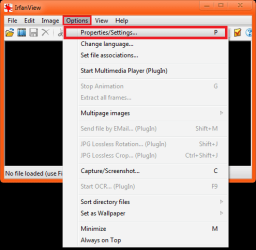
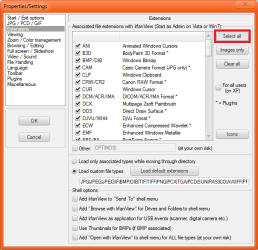
First, open IrfanView and select Options, then select Properties/Settings, now select Extensions and select Select all from the top right. Now select OK at the middle left.

Example.pngExample 2.png

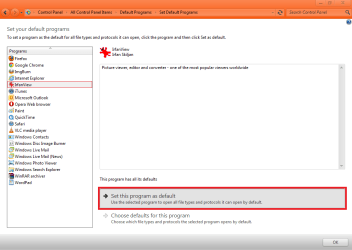
If this doesn't help, try going to Control Panel - Default Programs - Set your default programs, select IrfanView and select Set this program as default then press OK when your done.

Example 3.png

To fix your Open with.. Issue, see this Tutorial to add it to the Context Menu, Right Click on it and select Open with..., if you still do not see it, click Browse and browse to
"C:\Program Files\IrfanView\i_view32.exe"
 

My Computer My Computer

At a glance

Windows 7 Ultimate SP1 - 64 BitIntel Core i5 2500k2x4GB DDR3 1333HzAti Radeon 6770
Computer type
PC/Desktop
Computer Manufacturer/Model Number
Novatech iRush Pro
OS
Windows 7 Ultimate SP1 - 64 Bit
CPU
Intel Core i5 2500k
Motherboard
Foxconn H67M-S/H67M-V/H67
Memory
2x4GB DDR3 1333Hz
Graphics Card(s)
Ati Radeon 6770
Sound Card
None
Monitor(s) Displays
Samsung S22B150
Screen Resolution
1920x1080
Hard Drives
2x500GB
PSU
500W
Cooling
Fan
Keyboard
HP KU0316
Mouse
Wireless Logitech M185
Internet Speed
20MB/s
Antivirus
Avast Free
Browser
Google Chrome
Other Info
Logitech M185 Mouse
KU-M316 Keyboard
It seems the problem is only with photos on my camera - all other photos open with Irfanview, but with pics on the camera, a double click displays in Photo Viewer. A right click gives two choices - Preview (shows in P.V.) or Open (shows in Irfanview) I guess I'll have to learn to live with this.
I also tried another suggestion -
If it doesn’t work, please try to remove the preview by modifying the registry. Please backup the registry before you modify it. Then, run to regedit and navigate to HKEY_CLASSES_ROOT/SystemFileAssociations/image/ShellEx/ContexMenuHandles Then delete the key ShellImagePreview.

But SystemFileAssociation isn't listed (see screenshot below.
 

My Computer My Computer

At a glance

windows 7 home premium 64 bitIntel(R)Core(TM)[email protected]4.00GB Usable 3.91Intel(R) HD Graphics
Computer type
PC/Desktop
Computer Manufacturer/Model Number
Dell
OS
windows 7 home premium 64 bit
CPU
Intel(R)Core(TM)[email protected]
Motherboard
Dell Inc. 0GDG8Y
Memory
4.00GB Usable 3.91
Graphics Card(s)
Intel(R) HD Graphics
Sound Card
(1)Conexant HD Audio 2. (Intel(R) Display Audio (3)Audials S
It seems the problem is only with photos on my camera - all other photos open with Irfanview, but with pics on the camera, a double click displays in Photo Viewer. A right click gives two choices - Preview (shows in P.V.) or Open (shows in Irfanview) I guess I'll have to learn to live with this.
I also tried another suggestion -
If it doesn’t work, please try to remove the preview by modifying the registry. Please backup the registry before you modify it. Then, run to regedit and navigate to HKEY_CLASSES_ROOT/SystemFileAssociations/image/ShellEx/ContexMenuHandles Then delete the key ShellImagePreview.

But SystemFileAssociation isn't listed (see screenshot below.

I have this exact same problem but the above quote is where this answer ends. I have already set the default viewer as irfanview and tried to use the fixes in this thread to no avail. There is no listing in my registry "HKEY_CLASSES_ROOT/SystemFileAssociations/image/ShellEx/ContexMenuHandles Then delete the key ShellImagePreview" that shows shellimagepreview as suggested. So this answer ends with see screenshot below but there is nothing else to see. Has this ever been solved??

rodeohog
 

My Computer My Computer

At a glance

win7 ultimate 64bitamd 6300 six core fx8gbnvidia geforce gtx 650ti
Computer type
PC/Desktop
Computer Manufacturer/Model Number
custom build
OS
win7 ultimate 64bit
CPU
amd 6300 six core fx
Motherboard
gigabyte 970A-ud3p
Memory
8gb
Graphics Card(s)
nvidia geforce gtx 650ti
Hard Drives
WDC WD10EZEX-60M2NA0 [Hard drive] (1000.20 GB) main.
Antivirus
malware hunter, Super Spy
Browser
use google
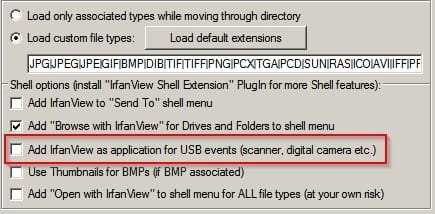
Well somehow this thread doesn't mention that you can set Irfanview as the default for USB events even though the option is shown in the screenshot in Post #2.

Properties_Settings.jpg
 

My Computer My Computer

At a glance

Microsoft Windows 7 Home Premium 64-bit 7601 ...AMD C-60 APU with Radeon(tm) HD Graphics4.00 GBAMD Radeon HD 6290 Graphics
Computer type
Laptop
Computer Manufacturer/Model Number
ASUS
OS
Microsoft Windows 7 Home Premium 64-bit 7601 Multiprocessor Free Service Pack 1
CPU
AMD C-60 APU with Radeon(tm) HD Graphics
Motherboard
ASUSTeK COMPUTER INC. X501U
Memory
4.00 GB
Graphics Card(s)
AMD Radeon HD 6290 Graphics
Sound Card
(1) AMD High Definition Audio Device (2) Realtek High Defi
Screen Resolution
1366 x 768 x 32 bits (4294967296 colors) @ 60 Hz
Hard Drives
Hitachi HTS545050A7E380 SATA Disk Device
Antivirus
Comodo CIS & FW, SecureAplus App Whitelisting, Threatfire
Browser
Cyberfox 64bit, Opera 64bit, Airfox
Other Info
Spy-The-Spy, HitmanPro.Alert, Norton Connect Safe, MJRegWatcher, BitDefender TrafficLight, Voodoo Shield, Zemana AntiMalware
photo preview opening - the cure is

hi all, i have had this problem with my usb microscope opening windows photo viewer every time i take a snap from the microscope. - i stumbled upon your forum entry and had a try, but like the guy who had this problem had stated i too couldn't find the entry ShellImagePreview Registry Key. I know i'm on Windows 10 but kinda thought your answer wouldn't be too far off. Then i CLICKED when i looked up the Tree a bit....

You wanna look slightly before where the last guy stated just a tad up a bit... find these 2 Registry Keys

HKEY_CLASSES_ROOT\SystemFileAssociations\.jpeg

and

HKEY_CLASSES_ROOT\SystemFileAssociations\.jpg

-- those filetypes are what your software will probably capture pictures AS, both of those have (or should have) a ShellImagePreview Section and in each of the two types there is an entry under DEFAULT !

~ what i did was note down in a txt file what that data was in the default key for each, and THEN i DELETED both of the "ShellImagePreview" folders for both the .jpeg and the .jpg filetypes and voila - NO MORE PREVIEWS every time i take a photo !!

> Hope that fixes your problem - Good Luck !

:-)
 

My Computer My Computer

At a glance

WINDOWS 10 PROFESSIONAL x64AMD ATHLON 64 X2 DUAL CORE16 GB DDR2 800MSI GeFORCE 730 4 GB
Computer type
PC/Desktop
Computer Manufacturer/Model Number
CUSTOM
OS
WINDOWS 10 PROFESSIONAL x64
CPU
AMD ATHLON 64 X2 DUAL CORE
Motherboard
ASROCK AliveN570SLi-eSATA2
Memory
16 GB DDR2 800
Graphics Card(s)
MSI GeFORCE 730 4 GB
Hard Drives
3 DRIVES
MULTIPLE PARTITIONS
Antivirus
WINDOWS DEFENDER
Browser
CHROME
Back
Top