Can't remove Chinese (Taiwan) as an input option

drwin

New member
Local time
10:27 PM
Messages
3
This is a well-known problem category, going back years in various online threads, for various languages.
I have language packs installed. (Japanese, Chinese Simplified, Chinese Taiwan). Original language is English.
Chinese Taiwan was the most recent addition. It has proved to be a mistake (for various reasons that are not relevant to the problem) and I want to uninstall it. But the "Remove" option is grayed out.
How can I remove Chinese Taiwan?
Please don't tell me how the "remove" is supposed to work. I know how it is supposed to work. The problem is that it does not work at all because it is grayed out. It is not grayed out for Japanese or Chinese Simplified, but I don't want to remove those.
Thanks!

- - - Updated - - -

I have found that whenever when I open Outlook, or open a Word document, the display language switches to Chinese (Taiwan). Even though I have repeatedly set the default language to English.
This issue does not appear to happen with websites.
None of this ever happened with Japanese or Chinese Simplified.
 

My Computers My Computers

  • At a glance

    Windows 7 Professional 64bit
    Computer type
    Laptop
    Computer Manufacturer/Model Number
    Dell
    OS
    Windows 7 Professional 64bit
  • Computer type
    PC/Desktop
I would try removing it using dism ( or dism++ ) from booted media.

Probably wise to make a backup image of the os first, in case you muck something up.

I did a post about adding languages that way. If you can be bothered searching for it.

Method 1 Using dism from booted media

I made a little gui which is in my boot media, which looks like this:

dism10a.JPG

So from the booted media , click dism10 icon ( it is on the dektop of the booted media)

in the box MOUNT DIR enter the windows partition letter (as seen from booted media - drive letters look different from winpe ) e.g. D:

then click GET PKGS ( which means get packages ).

From the list of installed packages it produces, copy the name of the taiwan package.

then click REMOVE PKG ( which means remove package ) and paste in the package name you just copied.

- - - Updated - - -

You can borrow my boot media
17514x64v26.iso

extract the 17514x64v26.iso to bootable usb using this: View attachment Usb7ice.zip

- - - Updated - - -

Method 2 Using dism++ from booted media

OR you could use dism ++ . The icon is on the dektop of the booted media.

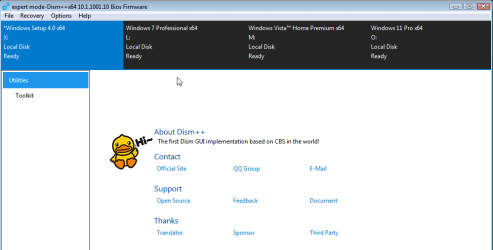
1. In the top pane of dism++ main window, click the os you want to work on to highlight it in blue

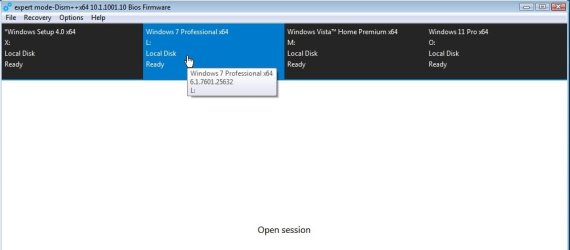
2. click "open session"

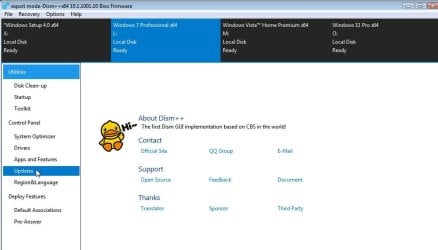
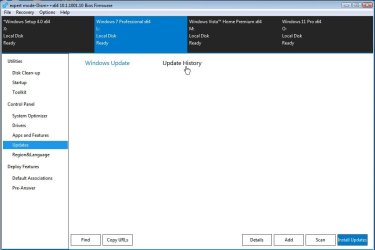
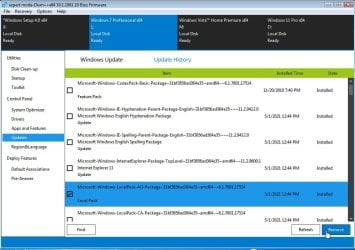
3. then in the left pane click "updates", then "update history" and it lists all the packages. There is a handy "Remove" button so you can select any of the displayed packages and remove it.

- - - Updated - - -

How to use dism++

In the top pane , click the os you want to work on to highlight it in blue

top-pane1.png

top-pane2.jpg

- - - Updated - - -

Click "Open Session"
open-session.jpg

Click "Updates" in the left pane
click-updates.jpg


Click "Update History"
click-update-history.jpg

It will take a few seconds to list the installed packages

Select any packages you want to remove
package-remove.jpg

It is very obvious when you see it.

If you then click region and language in the left pane, it will let you set your defaults to english
 
Last edited:

My Computers My Computers

  • At a glance

    7 X64i5 84002x8gb 3200mhz
    Computer type
    PC/Desktop
    OS
    7 X64
    CPU
    i5 8400
    Motherboard
    gigabyte b365m ds3h
    Memory
    2x8gb 3200mhz
    Hard Drives
    various
    PSU
    pure power 11 400w cm
    Case
    Coolermaster
    Cooling
    cryorig m9i
  • At a glance

    7x64g54008gb ddr4 2400
    Computer type
    PC/Desktop
    OS
    7x64
    CPU
    g5400
    Motherboard
    ga b365m ds3h
    Memory
    8gb ddr4 2400
    PSU
    xfx pro 450w
Thank you!

I truly appreciate the effort and detail in your suggestion.
My only worry about it is this: since Win7 no longer gets any support from MS, I'm afraid that if I actually remove the language pack I'll have no way to get it back. I use Japanese all the time; Chinese less so but I don't want to lose it all permanently.
I considered deleting the language pack and then reinstalling, but I was unable to find a source for it online.
Do you know where & how I can get it to reload it?
Thanks again!
 

My Computers My Computers

  • At a glance

    Windows 7 Professional 64bit
    Computer type
    Laptop
    Computer Manufacturer/Model Number
    Dell
    OS
    Windows 7 Professional 64bit
  • Computer type
    PC/Desktop
Make a backup image of your os first.

Arent you already making backup images ?

You could use windows own built in image backup , many people prefer the extra flexibilty from the many 3rd party free imaging programs.

Any problems, just restore the image. Then you are back exactly as the moment the image was made.

I am surprised if you are not already doing this.

I will post a few screenies in a minute to show how easy it is.

- - - Updated - - -

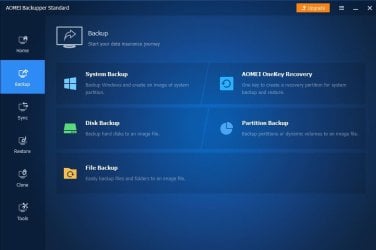
Click Backup, Then System backup.

ab1.JPG

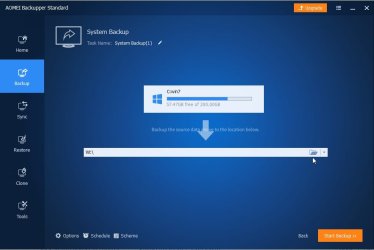
It will auto select the partitions needed for your os.

ab2.jpg

Then you just tell it where to store the backup image by clicking the little browse button.

Then click start backup.

Ideally you should store the image on a separate disk - preferably an external disk.
If you have a lot of stuff on your os partition, it takes a litle while the first time.

Then whatever happens, you are safe. Even if at some point in the future, your current hard disk dies, pop a new hd into the machine and restore the image onto that.

https://www2.aomeisoftware.com/download/adb/AOMEIBackupperStd.exe

- - - Updated - - -


In addition
TW Chinese is not so common, pretty sure I have the iso somewhere in storage if you ever need it.
But you wont need it if you have an image
 

My Computers My Computers

  • At a glance

    7 X64i5 84002x8gb 3200mhz
    Computer type
    PC/Desktop
    OS
    7 X64
    CPU
    i5 8400
    Motherboard
    gigabyte b365m ds3h
    Memory
    2x8gb 3200mhz
    Hard Drives
    various
    PSU
    pure power 11 400w cm
    Case
    Coolermaster
    Cooling
    cryorig m9i
  • At a glance

    7x64g54008gb ddr4 2400
    Computer type
    PC/Desktop
    OS
    7x64
    CPU
    g5400
    Motherboard
    ga b365m ds3h
    Memory
    8gb ddr4 2400
    PSU
    xfx pro 450w
Back
Top