Solved Change boot disk / reassign C: drive?!

raudog

New member
Local time
4:33 AM
Messages
6
Here's the deal...

I bought a new hard drive that is a little bit faster and a more reliable brand than the original ... My original swap went just fine without a hitch (details on my process below), and I was running totally fine for a few days on my new hard drive.

So... now I decided I didn't need to save the data on my old drive anymore and I wanted to reformat it for use as an internal backup (it was old and slow but it still worked)... this is when things went a little wacky...

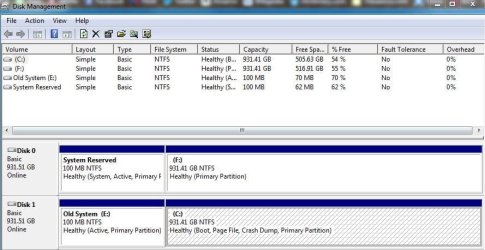
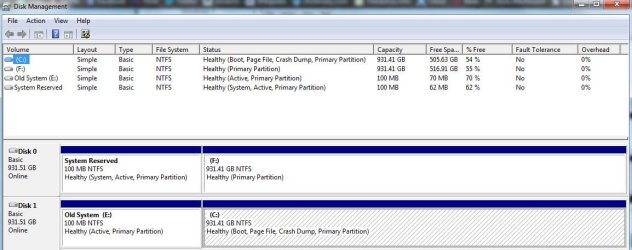
Because of my process, both HDs have nearly identical partitions including a "System Reserved" partition and a second bootable partition... but when Windows boots up with both HDs connected for some reason it is using the System Reserved partition from Disk 0 (my new HD), but assigning C: to the partition on Disk 1 (my old HD)... since this is then assigned as C:, I can't reformat it... So... How can I re-assign the C: back to the partition on Disk 0 in order to free up Disk 1 to be completely re-formatted?

In case it helps... this is a step by step of my whole process...

1. Before changing anything, I created a backup system image on an external drive
2. I removed the old HD and installed the new HD
3. I booted up using a Windows 7 repair disk
4. I restored the system image from the external drive onto my new HD
- At this point both drives were identical copies, but the old drive was physically removed.
5. I was working completely on the new drive for several days without any problems
- At this point System Reserved and C: both were assigned to the new HD in Disk 0
6. I decided to re-install my old HD as a secondary drive as Disk 1
7. Windows booted up OK with both HDs installed... but...
- Now the System Reserved in use is on Disk 0, and the boot drive (C:) is on Disk 1... YIKES!
- I want to reassign the boot drive (C:) back to the partition in Disk 0 like it was earlier today!
 

My Computer

Computer type
PC/Desktop
OS
Windows 7 Professional 64bit
Thats a very common issue. The easiest way to solve this to move the boot manager to C: thereby making the System Reserved partition redundant. It can then be removed, and the free space merged into the existing C: partition.

A minority of purists consider this some form of heresay, but since you already (wisely) use system imaging, the System Reserved partition serves no useful function to you (assuming you don't use bitlocker drive encryption) so the practical solution is to remove it.

This is how you do it, but I would encourage you to post a screen capture image of your disk management screen before you proceed, so we can review it.

http://www.sevenforums.com/tutorials/209885-bootmgr-move-c-easybcd.html
 

My Computer

Computer type
PC/Desktop
Computer Manufacturer/Model Number
Golden Mk. I.4
OS
Windows 10 Pro x64 ; Xubuntu x64
CPU
Intel i7 860 @ 2.80 GHz O/C'ed to 4.0GHz
Motherboard
Gigabyte P55A-UD3R Rev.1. Award BIOS F13
Memory
16GB Corsair Vengance DDR3 @ 661 MHz Dual Channel (9-9-9-24)
Graphics Card(s)
EVGA NVidia GTX 560 1024MB
Sound Card
Realtek Integrated
Monitor(s) Displays
Dual Samsung SyncMaster 2494HS
Screen Resolution
1920*1080 and 1920*1080
Hard Drives
1*Samsung 840 EVO 120GB SSD;
1*OCZ Vertex 2 60GB SSD;
2*Samsung F3 SpinPoint 1TB in RAID0;
1*Samsung F1 SpinPoint 1TB;
2*Western Digital 1TB External USB 3.0
1*Western Digital 500GB External USB 3.0
1*Seagate 500GB External USB 2.0
PSU
Thermaltake ToughPower QFan 750W
Case
Thermaltake Element S VK60001W2Z
Cooling
Corsair H60 Water Cooling, 2*230mm and 2*80mm case fans
Keyboard
Logitech G110
Mouse
Logitech MX518
See attached.
 

Attachments

  • Capture.JPG
    Capture.JPG
    68.6 KB · Views: 2

My Computer

Computer type
PC/Desktop
OS
Windows 7 Professional 64bit
I renamed what was originally also named "System Reserved" to "Old System" just for clarity.
I actually want what is currently being called F: to become the new C:
 

My Computer

Computer type
PC/Desktop
OS
Windows 7 Professional 64bit
Can you please redo the image, but open the status column by dragging the column border to the right?

Just checking : what imaging software do you use? Windows inbuilt, or 3rd party such as Macrium?
 

My Computer

Computer type
PC/Desktop
Computer Manufacturer/Model Number
Golden Mk. I.4
OS
Windows 10 Pro x64 ; Xubuntu x64
CPU
Intel i7 860 @ 2.80 GHz O/C'ed to 4.0GHz
Motherboard
Gigabyte P55A-UD3R Rev.1. Award BIOS F13
Memory
16GB Corsair Vengance DDR3 @ 661 MHz Dual Channel (9-9-9-24)
Graphics Card(s)
EVGA NVidia GTX 560 1024MB
Sound Card
Realtek Integrated
Monitor(s) Displays
Dual Samsung SyncMaster 2494HS
Screen Resolution
1920*1080 and 1920*1080
Hard Drives
1*Samsung 840 EVO 120GB SSD;
1*OCZ Vertex 2 60GB SSD;
2*Samsung F3 SpinPoint 1TB in RAID0;
1*Samsung F1 SpinPoint 1TB;
2*Western Digital 1TB External USB 3.0
1*Western Digital 500GB External USB 3.0
1*Seagate 500GB External USB 2.0
PSU
Thermaltake ToughPower QFan 750W
Case
Thermaltake Element S VK60001W2Z
Cooling
Corsair H60 Water Cooling, 2*230mm and 2*80mm case fans
Keyboard
Logitech G110
Mouse
Logitech MX518
I just used the built in Windows software to create the backup image... and I know that what is currently identified as F: is already bootable, since I was working only with Disk 0 for a few days... seems like I shouldn't have to move the Bootmgr... is there another way to simply tell Windows it should instead be looking to the partition on Disk 0?

p.s. - I think this is what you wanted to see in my Disk Management window... right?
 

Attachments

  • Capture.JPG
    Capture.JPG
    81.9 KB · Views: 3

My Computer

Computer type
PC/Desktop
OS
Windows 7 Professional 64bit
There are always other ways of doing things...moving the boot manager to C: is just an easy solution. But, since you use native Windows imaging, I'm not sure that this should be the approach....unfortunately I know nothing but Windows imaging, except that it can be flaky.

That disk management arrangement is quite a mess. I'll ask SiW to have a look at this for you....he is more knowlegable in this area than I am. Keep an eye out for his post here.
 

My Computer

Computer type
PC/Desktop
Computer Manufacturer/Model Number
Golden Mk. I.4
OS
Windows 10 Pro x64 ; Xubuntu x64
CPU
Intel i7 860 @ 2.80 GHz O/C'ed to 4.0GHz
Motherboard
Gigabyte P55A-UD3R Rev.1. Award BIOS F13
Memory
16GB Corsair Vengance DDR3 @ 661 MHz Dual Channel (9-9-9-24)
Graphics Card(s)
EVGA NVidia GTX 560 1024MB
Sound Card
Realtek Integrated
Monitor(s) Displays
Dual Samsung SyncMaster 2494HS
Screen Resolution
1920*1080 and 1920*1080
Hard Drives
1*Samsung 840 EVO 120GB SSD;
1*OCZ Vertex 2 60GB SSD;
2*Samsung F3 SpinPoint 1TB in RAID0;
1*Samsung F1 SpinPoint 1TB;
2*Western Digital 1TB External USB 3.0
1*Western Digital 500GB External USB 3.0
1*Seagate 500GB External USB 2.0
PSU
Thermaltake ToughPower QFan 750W
Case
Thermaltake Element S VK60001W2Z
Cooling
Corsair H60 Water Cooling, 2*230mm and 2*80mm case fans
Keyboard
Logitech G110
Mouse
Logitech MX518

My Computers

System One System Two

  • Computer type
    PC/Desktop
    OS
    7 X64
    CPU
    i5 8400
    Motherboard
    gigabyte b365m ds3h
    Memory
    2x8gb 3200mhz
    Hard Drives
    various
    PSU
    pure power 11 400w cm
    Case
    Coolermaster
    Cooling
    cryorig m9i
  • Computer type
    PC/Desktop
    OS
    7x64
    CPU
    g5400
    Motherboard
    ga b365m ds3h
    Memory
    8gb ddr4 2400
    PSU
    xfx pro 450w
The problem was created in step 6 of your first post. You apparently did not disconnect Disk 0 when you installed a new system on Disk 1 and the installer grabbed the system reservef partition of Disl 0 to install the bootmgr for the Disk 1 installation - the installer always grabs the first primary active partition it can find.

Now you have a valid bootmgr for Disk 1 on Disk 0. The original Disk 0 bootmgr should also still be there - check that with EasyBCD - first tab "View Settings". Post the result here and then we'll see what should be done.
 

My Computer

Computer Manufacturer/Model Number
HP, Dell, Gateway, Toshiba - 4 laptops and 2 desktops
OS
Vista, Windows7, Mint Mate, Zorin, Windows 8
CPU
from 1.6GHz Duo to i7
Monitor(s) Displays
2x HP w2207
Hard Drives
5x HDD, 7x SSD, 12x Externals
Keyboard
with trackball - no mices
Mouse
Trackball mice
Internet Speed
DSL 6000
OK... so I've been offline most of the day today... but I ultimately got it worked out on my own... I was impatient last night so I messed around a bit on my own... I'd basically figured out what WHS said, "the installer always grabs the first primary active partition it can find." Since I couldn't find a way on my own to prioritize the new drive... I did the following to fix the problem:

1. I used the Windows Repair Disk to get a command prompt without running an OS on any HD.
2. Using DISKPART in DOS - I deleted both partitions on my old drive to make it all unallocated space.
3. I tried to boot again hoping that it would boot to the new drive, but something in the boot record was messed up.
4. I used the Windows Repair Disk again to auto detect and repair my windows installation.
5. It then booted correctly using the System Reserved and assigning C: to the new drive alone.
6. I then used Disk Management to reformat the old drive... and that FINALLY assigned the volume a higher drive letter!

So now "the first primary active partition it can find" is the new drive (as it should be)
...and the old drive is entirely re-formatted as a single volume that can function as a backup (as it should be)!

And all is well in the valley. :)

This might not have been the quickest way to make it happen, but I learned quite a bit as I became quite well acquainted with DISKPART and in the end it all worked out!
 

My Computer

Computer type
PC/Desktop
OS
Windows 7 Professional 64bit
:thumbsup: Good outcome
 

My Computer

Computer type
PC/Desktop
Computer Manufacturer/Model Number
Golden Mk. I.4
OS
Windows 10 Pro x64 ; Xubuntu x64
CPU
Intel i7 860 @ 2.80 GHz O/C'ed to 4.0GHz
Motherboard
Gigabyte P55A-UD3R Rev.1. Award BIOS F13
Memory
16GB Corsair Vengance DDR3 @ 661 MHz Dual Channel (9-9-9-24)
Graphics Card(s)
EVGA NVidia GTX 560 1024MB
Sound Card
Realtek Integrated
Monitor(s) Displays
Dual Samsung SyncMaster 2494HS
Screen Resolution
1920*1080 and 1920*1080
Hard Drives
1*Samsung 840 EVO 120GB SSD;
1*OCZ Vertex 2 60GB SSD;
2*Samsung F3 SpinPoint 1TB in RAID0;
1*Samsung F1 SpinPoint 1TB;
2*Western Digital 1TB External USB 3.0
1*Western Digital 500GB External USB 3.0
1*Seagate 500GB External USB 2.0
PSU
Thermaltake ToughPower QFan 750W
Case
Thermaltake Element S VK60001W2Z
Cooling
Corsair H60 Water Cooling, 2*230mm and 2*80mm case fans
Keyboard
Logitech G110
Mouse
Logitech MX518
Would you please post back a screenshot of Disk Management - Post a Screen Capture Image so we can look it over to see if it's correct?

Just for the record: Win7 cannot change its booting drive letter once installed under any circumstances. It will always see itself as C when booted unless it is incorrectly installed from another OS which blocks it from using C. This is why it should always be installed from boot, with all other HD's unplugged so that the boot files are not placed on the first-in-order Primary partition.
 
Last edited:
Gregrocker - I did read your post, but I didn't happen to see yours until AFTER I'd already begun messing with things myself... so it just happened to come to late for me to follow your suggestions.

Also, if I was reading your note properly it sounded like your suggestion was actually targeted for restoring the System Reserve and C: to what was labelled as "Disk1" (Did I read your notes right? Or did I misunderstand?)... but what I actually wanted was the reverse... I wanted to re-format "Disk1" and instead get it to boot entirely on "Disk0"... So the System Reserve in use was already on the correct drive and it was the C: that was being assigned to the wrong drive.

Anyways... I'm actually out of town for the weekend (hence my being impatient and anxious to get it fixed before I left)... but if you all are still interested to review the final result then I can post a capture of the Disk Management when I get back on Sunday evening.

In any case, I'm grateful to this community for helping me resolve it... Even though I didn't use the suggested methods in this thread, it was other threads from this forum that sparked in me the idea of using DISKPART and helped me figure out how to accomplish the task in DOS.

Thanks.
 

My Computer

Computer type
PC/Desktop
OS
Windows 7 Professional 64bit
Randomly Disk 1 becomes Disk 0 and vice versa if connected via SATA.

That is one of the stupid race hazards that Microsoft make us live with.

I find the drive numbers tend to be allocated in one sequence on a cold start from power-down and no disks rotating
and a different sequence after a warm Reboot with disks still spinning.

I learned the hard way to ensure that every volume has a unique system volume name.

If you every need to use a Linux BOOT rescue CD you will discover it will NOT show you drive letters C:\ and F:\
 

My Computer

Computer Manufacturer/Model Number
ASUSTeK Computer INC. M3A32-MVP DELUXE (CPU 1)
OS
Windows 7 Ultimate 64 bit SP1 x64
CPU
AMD Phenom X4 9500
Motherboard
ASUSTeK M3A32-MVP Deluxe (CPU 1)
Memory
8 GB
Graphics Card(s)
ATI Radeon HD 4600 Series
Sound Card
AMD High Definition Audio Device
Monitor(s) Displays
SyncMaster (1680x1050@60Hz)
Hard Drives
59GB OCZ-VERTEX2 ATA Device
+
977GB SAMSUNG HD103SJ ATA Device
+
625GB WDC WD6401AALS-00L3B2 ATA Device
Back
Top