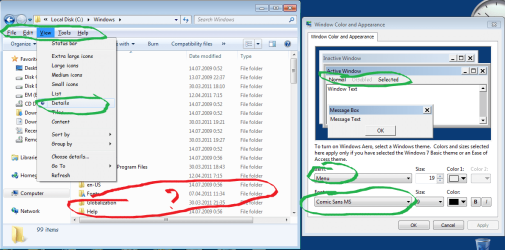
This tutorial Fonts - Change will show you how to change the fonts in Windows Explorer. When you click on the "Items" drop-down menu, select "Menu" to change the Windows Explorer fonts.
My Computer
At a glance
Vista 64 bit and 32 bit (SP2)Intel(R) Core(TM)2 Duo Processor T9400 (2.53 GHz4GB DDR2 System Memory (2 Dimm)512 MB NVIDIA GeForce 9600M GT
Computer Manufacturer/Model Number
HP Pavillion dv5t (generation 1)
OS
Vista 64 bit and 32 bit (SP2)
CPU
Intel(R) Core(TM)2 Duo Processor T9400 (2.53 GHz
Memory
4GB DDR2 System Memory (2 Dimm)
Graphics Card(s)
512 MB NVIDIA GeForce 9600M GT
Monitor(s) Displays
15.4" diagonal WSXGA+ High-Definition HP BrightView Widescre
Screen Resolution
1680 x 1050
Hard Drives
320GB 5400RPM SATA Hard Drive with HP ProtectSmart Hard Drive Protection
Keyboard
Built-in HP
Mouse
Built in - Synaptics TouchPad V6.5 on PS/2 Port
Internet Speed
Max
Other Info
~ Intel Next-Gen Wireless-N Mini-card w/Bluetooth ~ Blu-Ray ROM DVD+/-R/RW ~ Integ. HDTV Hybrid Tuner ~ 12 Cell Battery ~ MS Office (Home Premium) 2007 ~
This tutorial Fonts - Change will show you how to change the fonts in Windows Explorer. When you click on the "Items" drop-down menu, select "Menu" to change the Windows Explorer fonts.
This will change only menu of Windows Explorer, which is hidden by default anyway.
Well, and right click menu.
That is not what the question was about.
My Computer
At a glance
Windows 8.1 ; Windows 7 x86 (Dec2008-Jan2013)
Computer type
PC/Desktop
OS
Windows 8.1 ; Windows 7 x86 (Dec2008-Jan2013)
Other Info
"The scale icon at the top right of a post or tutorial is how you can give rep to the member."
This tutorial Fonts - Change will show you how to change the fonts in Windows Explorer. When you click on the "Items" drop-down menu, select "Menu" to change the Windows Explorer fonts.
This will change only menu of Windows Explorer, which is hidden by default anyway.
Well, and right click menu.
That is not what the question was about.
I believe you're incorrect Neutron16. I have used this procedure to change, not only the font for the menu of items, but it also the list (and tree) of files and folders in my Windows Explorer.
My Computer
At a glance
Vista 64 bit and 32 bit (SP2)Intel(R) Core(TM)2 Duo Processor T9400 (2.53 GHz4GB DDR2 System Memory (2 Dimm)512 MB NVIDIA GeForce 9600M GT
Computer Manufacturer/Model Number
HP Pavillion dv5t (generation 1)
OS
Vista 64 bit and 32 bit (SP2)
CPU
Intel(R) Core(TM)2 Duo Processor T9400 (2.53 GHz
Memory
4GB DDR2 System Memory (2 Dimm)
Graphics Card(s)
512 MB NVIDIA GeForce 9600M GT
Monitor(s) Displays
15.4" diagonal WSXGA+ High-Definition HP BrightView Widescre
Screen Resolution
1680 x 1050
Hard Drives
320GB 5400RPM SATA Hard Drive with HP ProtectSmart Hard Drive Protection
Keyboard
Built-in HP
Mouse
Built in - Synaptics TouchPad V6.5 on PS/2 Port
Internet Speed
Max
Other Info
~ Intel Next-Gen Wireless-N Mini-card w/Bluetooth ~ Blu-Ray ROM DVD+/-R/RW ~ Integ. HDTV Hybrid Tuner ~ 12 Cell Battery ~ MS Office (Home Premium) 2007 ~
I'm not sure what your picture or thousand words are trying to say. Using the method I posted above, I chose for my Windows Explorer files and folder list: Times New Roman font, font size 10, font color Navy --- and that's exactly what I've got.
My Computer
At a glance
Vista 64 bit and 32 bit (SP2)Intel(R) Core(TM)2 Duo Processor T9400 (2.53 GHz4GB DDR2 System Memory (2 Dimm)512 MB NVIDIA GeForce 9600M GT
Computer Manufacturer/Model Number
HP Pavillion dv5t (generation 1)
OS
Vista 64 bit and 32 bit (SP2)
CPU
Intel(R) Core(TM)2 Duo Processor T9400 (2.53 GHz
Memory
4GB DDR2 System Memory (2 Dimm)
Graphics Card(s)
512 MB NVIDIA GeForce 9600M GT
Monitor(s) Displays
15.4" diagonal WSXGA+ High-Definition HP BrightView Widescre
Screen Resolution
1680 x 1050
Hard Drives
320GB 5400RPM SATA Hard Drive with HP ProtectSmart Hard Drive Protection
Keyboard
Built-in HP
Mouse
Built in - Synaptics TouchPad V6.5 on PS/2 Port
Internet Speed
Max
Other Info
~ Intel Next-Gen Wireless-N Mini-card w/Bluetooth ~ Blu-Ray ROM DVD+/-R/RW ~ Integ. HDTV Hybrid Tuner ~ 12 Cell Battery ~ MS Office (Home Premium) 2007 ~
I'm not sure what your picture or thousand words are trying to say. Using the method I posted above, I chose for my Windows Explorer files and folder list: Times New Roman font, font size 10, font color Navy --- and that's exactly what I've got.