Solved Change system partition?

Did you get the prompt to load drivers during your first install to this HD?

Did you Wipe with one set of zeroes before creating the partition?

Do you have your SATA controller drivers from the Support Downloads webpage for your computer or mobo? Unzip them to stick or CD to browse to from the Load Drivers link. This should not be necessary with Win7, especially if it wasn't before, but could be exceptional.

If you need help finding the drivers, post back your computer or mobo model.
 
Well, I have a disk of drivers and utilities that came with my computer, its just that all the drivers are labelled with long strings of numbers so I have no clue which one is the one I want. My computer is a Dell XPS 625, though not sure as to how that will help.
 

My Computer

OS
Windows 7 Professional x32
CPU
AMD Phenom II X4 940 Processor
Memory
4.00 GB
Thank you so much. The driver is exactly what I needed to get it to work. After I loaded the driver, it was able to detect Windows 7. I ran Startup Repair, only had to run it once in fact, and now I can log in again. The best part is, thanks to the messing around with Partition Wizard, now it's the only OS on my computer, located at the front of my HD, and more or less has the entire HD at its disposable. Thanks to everyone who was kind enough to give me advice on how to get through this mess.
 

My Computer

OS
Windows 7 Professional x32
CPU
AMD Phenom II X4 940 Processor
Memory
4.00 GB
Glad that it worked as we were overdue for some good news on this.

I have never heard of the Repair utility needing SATA controller drivers to be able to repair.

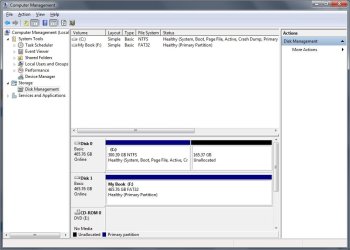
If you'll post back another screenshot of the full Disk Mgmt drive map, we can look it over to be sure there are no potential problems.

It sounds like you Resized Win7 into the left hand side of your HD. If not is that what you want to do?
 
Yes, I had used Partition Wizard to resize it to the left of the HD before loading the driver and running Startup Repair. And apparently installing Windows 7 on SATA hard drives is an issue for a lot of people. Here's the disk management screen.
 

Attachments

  • diskmanage.jpg
    diskmanage.jpg
    65.6 KB · Views: 75

My Computer

OS
Windows 7 Professional x32
CPU
AMD Phenom II X4 940 Processor
Memory
4.00 GB
In hundreds of repairs we have helped with here, SATA drivers were never required.

In only the rarest cases are they required for install because Win7 has almost all SATA drivers in the installer but not some older IDE drivers.

We will learn from this and take the error at face value in the future, since it can also mean other things like corrupted install media.

Nice work for sticking with it. We never give up either.
 
Hello again, well done; that's a lot better than what you started with.
 

My Computer

Computer Manufacturer/Model Number
* BFK Customs *
OS
W 7 64-bit Ultimate
CPU
Intel Q9550 Yorkfield
Motherboard
ASUS P5Q Pro
Memory
8GB Dominator 8500C5D
Graphics Card(s)
ATI : XFX 5870
Sound Card
Realtek HD Audio 7-1
Monitor(s) Displays
1x 47" LCD HDMI & 3x 26" LCD HDMI
Screen Resolution
1920x1080P & 1920x1200
Hard Drives
1x 80GB Intel X25-M G2 SSD : 1x 500GB & 1x 640GB WD Caviar Black(s)
PSU
Corsair 620HX
Case
Cooler Master RC-690
Cooling
Tuniq Tower 120, 2x 140mm and 3x 120mm case fans
Keyboard
Microsoft 500
Mouse
Razer Diamondback 3G
Internet Speed
14 Mb/s
Other Info
1x Koutech 3Gb/s SATA HDD Hot Swap Rack
Changing system partition

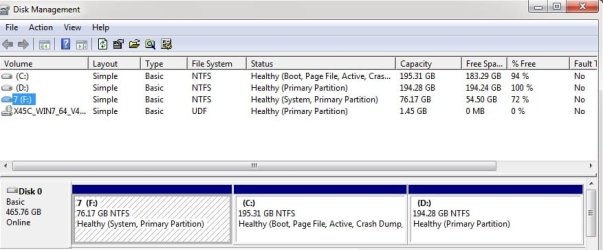
Okay so I'm trying to change my system partition as well. I bought my laptop and decided to install Windows 7 Ultimate to partition C:. Now I have a left over OS on my smaller system partition F:. It bugs me for two reasons: 1) I still have left over files on the drive and 2) I still have this old OS as a boot option in my boot loader. Here is a screenshot of Disk Management:

How do I go about changing this partition F: to a deletable partition?
 

Attachments

  • partsscrn.jpg
    partsscrn.jpg
    49.7 KB · Views: 2

My Computer

Computer type
Laptop
Computer Manufacturer/Model Number
Asus X45C
OS
Windows 7 Ultimate
First move the System flag (and boot files) to C by running Startup Repair - Run up to 3 Separate Times.

Once the System flag is on C, you can delete F and resize C into the space to the left which is the preferred area of the HD for the OS. This tool makes it fun and easy: Partition Wizard Resize Partition Video Help.

Download the Bootable CD ISO for PW which is safest, burn to CD using Windows Image Burner. Boot CD, rightclick F to Delete, click OK.

Then rightclick C to Resize, drag left border to the left to take up deleted F's space, click OK, Apply Steps.

In rare cases resizing on the boot sector requires running Startup Repair again so keep the disk handy.
 
sorry to pick up on a thread so old but I need help. Due to a number of power cuts (and maybe some viruses) my computer stopped booting and asked to boot from cd/dvd rom. so I got the Win 7 disc, since Win 7 was the OS it had before it stopped booting. My intention is to make a clean installation of Win 7. Everything runs smoothly up until I get to the point where im supposed to choose the partition in which im to install the OS. These are the drives I have, the 1st one is " Disk 0 Partition 1 (size: 232.9 GB) (type: System) " and the 2nd one is " Disk 0 Unallocated Space (size: 8.0 MB) (type: not stated) ". Okay, I read on the net that if I delete the system partition drive, my computer wont boot properly. I tried to install the OS directly into the System partition drive (since its the biggest) but that resulted in an error. Is it possible for me to reduce the System partition drive from 232.9 GB to about 100 MB so that I can have enough space to extend the 2nd partition drive in order for me to install the OS in it?
 

My Computer

Computer type
PC/Desktop
Computer Manufacturer/Model Number
Gigabyte
OS
windows 7 professional 32bit
Memory
1 GB
Antivirus
AVG
Browser
Explorer
Back up your files, power down to unplug all other hard drives except the target drive. During the Clean Install Windows 7
use the Drive Options pictured to delete all partitions shown, then create and format your install partition of the size you want. Ignore the small boot partition it creates. Highlight the install partition and click Next.

Study these same steps for Clean Reinstall - Factory OEM Windows 7 which assure a perfect install.

If problems persist work through these steps for Overcoming Windows 7 Installation Failures - Windows 7 Help Forums
 
Greg, thanks man. But I just want to be sure cause I guess I have been terrified by posts I saw on the internet about how deleting the System partition will cause problems during the booting stage. So, just to be clear, I should delete all my partitions?? including the system one??
 

My Computer

Computer type
PC/Desktop
Computer Manufacturer/Model Number
Gigabyte
OS
windows 7 professional 32bit
Memory
1 GB
Antivirus
AVG
Browser
Explorer
If you begin the installation and delete all partitions when you come to the partitioning screen and then continue the installation, the necessary system partitions will be re-created.
 

My Computer

Computer type
PC/Desktop
Computer Manufacturer/Model Number
Ignatz Special; 4 speed manual gearbox; factory air conditioning; one of one
OS
Windows 7 Home Premium SP1, 64-bit
CPU
Intel Skylake i5-6600K, not overclocked
Motherboard
AsRock Z170M Extreme 4, micro ATX
Memory
8 GB HyperX DDR4-2666 (2 x 4 GB)
Graphics Card(s)
none; graphics are integrated on CPU
Sound Card
onboard: Realtek ALC1150; external: USB Behringer UF0-202
Monitor(s) Displays
Dell S2340M 23 inch IPS
Screen Resolution
1600 x 900
Hard Drives
System: Crucial MX100 series SSD, 128 GB;
Data: Samsung Spinpoint 103SJ, 1 TB;
Backup: WD Caviar Green WD30EZRX-00D8PB0, 3 TB
PSU
Rosewill SilentNight 500 watt fanless, semi-modular
Case
Antec Solo II
Cooling
Noctua NH-U12S; Noctua F12 intake, Noctua S12A exhaust
Keyboard
Microsoft 200 6JH-00001 USB
Mouse
Dell or Microsoft optical wired; USB
Antivirus
Microsoft Security Essentials and Malwarebytes Premium
Browser
Pale Moon
Other Info
All fans PWM; speeds at idle: CPU circa 500 rpm; intake circa 600 rpm; exhaust circa 600 rpm; CPU temps 27 idle and 47 C load in a warm room (27 C/81 F) when running Intel Extreme Tuning Utility stress test.
Yes if you want, delete all the partitions down to un allocated space, unless a partition has something on it you wish to keep, data, software, movies, pictures etc. Do not delete or format that partition.
 

My Computer

Computer type
PC/Desktop
Computer Manufacturer/Model Number
Skylake Special #666
OS
Windows 10 Pro x64
CPU
Intel Core i7 6700K
Motherboard
Asus Sabertooth Z170 Mark 1
Memory
GSkill TridentZ RGB 16GB 3600 16-16-16-36
Graphics Card(s)
EVGA GTX 980 Ti SC x2
Sound Card
Realtek High Definition
Monitor(s) Displays
AOC G2460PG
Screen Resolution
1920 x 1080 144Hz
Hard Drives
Samsung 860 Pro 256GB, Seagate Barracuda 4TB x2
PSU
EVGA 1000 P2, EVGA White Custom Braided Cables
Case
Corsair Vengeance C70 Gunmetal Black
Cooling
Corsair H100i v2, Corsair ML120 x2, Thermal Grizzly Kryonaut
Keyboard
Logitech G910 Orion Spectrum
Mouse
Logitech G700s
Internet Speed
Verizon Fios Quantum Gateway 75/75
Antivirus
Windows Defender, Malwarebytes Free 3.8.3
Browser
Chrome
Other Info
Corsair SP120 x4, LG Blu-ray Drive, Durabrand HT-395 100 Watt Dolby Digital Amp, Corsair H2100 Wireless 7.1 Headset
I'm having a very similar issue that I think is related to this. My computer had a 128gb SSD that I'm trying to upgrade to a 240gb SSD. I've used Windows Home Server for backup and restore for years and never had an issue with it. Attempting to restore from WHS, I'm able to restore my primary C partition and the 100mb reserved system partition.

All of the data is there but when I boot with the new drive in the computer, I get "loading operating system... a disk read error occurred press ctrl+alt+del to restart" And that happens over and over again. I've restored 3-4 times now. I've plugged in the old SSD to the same cables, it works great. I plugged the new SSD into other cables, still works great. I think it's a problem with the boot configuration or a driver issue with the drive or something. I'm hoping someone a little more knowledgeable than me can push me in the right direction to resolve this.

With both drives plugged in, I can boot from my old drive and see the new drive just fine. It shows the reserved system partition and the OS partition on the new drive. The OS partition is not flagged as boot, though. And the reserved system partition is not flagged as system. These are two differences I see between the new drive and the old one. The problem is, I don't know how to change that. When I run through the automated repair steps (with just the new drive connected) it can see the OS partition. When I repair it, it tells me the repair was successful and it adds a second partition called recovery or something like that. When I reboot, I just continue to get the same error. I tried doing a repair on the second recovery partition that it created and it says that failed. The message is "boot configuration is corrupt."

And I've tried running bootrec with the 4 different switches. The middle 2 tell me they're successful. The first and last tell me no OS was found. But when booting to a command prompt, I can browse to both partitions, I can see all of the files there. I've run chkdsk /s /x /f (I think I remembered the switches correctly) as many have recommending. 0 bad sectors found, everything seems to be correct. But I can't get the darn thing to boot. And I've tried updating the BIOS as many have suggested. I even tried using the new drive to do a clean install of Windows but unfortunately I get the same behavior then too. It says it installs fine but when it reboots, I get the same error.

One thing of note is that when I do put in the old drive and the new one at the same time and boot from the old drive, it tells me it's detected a new drive and it says it is installing drivers. Both drives are SATA drives. I've plugged them into the same cable at different times. So I'm not sure why the OS thinks there's new hardware there that it needs to install drivers for. And I'm not sure if that's causing problems or what but given the comments on this thread, I thought it was worth calling out.

Any ideas from this group? I'd really appreciate any help or insight you can provide. Thanks!

 

My Computer

Computer type
PC/Desktop
OS
Win7 Ultimate x64
Motherboard
Gigabyte
Memory
G-Skill
Could you please post a shot of Disk Management with both drives hooked up.
 

My Computer

Computer type
PC/Desktop
Computer Manufacturer/Model Number
Skylake Special #666
OS
Windows 10 Pro x64
CPU
Intel Core i7 6700K
Motherboard
Asus Sabertooth Z170 Mark 1
Memory
GSkill TridentZ RGB 16GB 3600 16-16-16-36
Graphics Card(s)
EVGA GTX 980 Ti SC x2
Sound Card
Realtek High Definition
Monitor(s) Displays
AOC G2460PG
Screen Resolution
1920 x 1080 144Hz
Hard Drives
Samsung 860 Pro 256GB, Seagate Barracuda 4TB x2
PSU
EVGA 1000 P2, EVGA White Custom Braided Cables
Case
Corsair Vengeance C70 Gunmetal Black
Cooling
Corsair H100i v2, Corsair ML120 x2, Thermal Grizzly Kryonaut
Keyboard
Logitech G910 Orion Spectrum
Mouse
Logitech G700s
Internet Speed
Verizon Fios Quantum Gateway 75/75
Antivirus
Windows Defender, Malwarebytes Free 3.8.3
Browser
Chrome
Other Info
Corsair SP120 x4, LG Blu-ray Drive, Durabrand HT-395 100 Watt Dolby Digital Amp, Corsair H2100 Wireless 7.1 Headset
I'll take a picture of the screen when I get home again. I was able to confirm again that doing a clean install of Win7 exhibits the exact same behavior. As best I can remember, the system reserved partition is not marked "system" and the primary OS partition is not marked "bootable." Everything else seems to align, though. It's marked primary and active and all that good stuff. But I'll post the picture later today. Thanks for your help.
 

My Computer

Computer type
PC/Desktop
OS
Win7 Ultimate x64
Motherboard
Gigabyte
Memory
G-Skill
For some reason, the upload of my screenshot if failing. Repeatedly. Here's what I'm seeing:

Disk 0 (the new disk):
"New Volume" 99MB NTFS Healthy/Active/Primary Partition
"E:" 223.47GB NTFS Healthy/File Page/Primary Partition

Disk 1 (the old disk):
"System Reserved" 100MB NTFS Healthy/System/Active/Primary Partition
"C:" 119.14GB NTFS Healthy/Boot/Crash Dump/Primary Partition
 

My Computer

Computer type
PC/Desktop
OS
Win7 Ultimate x64
Motherboard
Gigabyte
Memory
G-Skill

My Computer

Computer type
PC/Desktop
Computer Manufacturer/Model Number
Home made Desktop
OS
Windows 10 Pro. 64/ version 1709 Windows 7 Pro/64
CPU
Intel i7-6800K @ 4.3
Motherboard
ASUS X-99 Deluxe II
Memory
Corsair Platinum 16 gig @2400
Graphics Card(s)
EVGA GTX 1070 OC
Monitor(s) Displays
Asus 27" LED LCD/VE278Q
Screen Resolution
1920-1080 or 1280-720 HDMI
Hard Drives
INTEL SSD 730-240 Gb Sata 3.0/
PSU
EVGA Platium 1200W
Case
Phanteks Luxe Tempered Glass 8 fans/ one radiator
Cooling
XSPC/ Water Cooled CPU
Keyboard
Das 4 Professional
Mouse
Logitech M705/MX Anywhere 2-S
Internet Speed
100 mbits
Antivirus
Microsoft Security Essentials/ Malwarebytes Premium 3.0/ SAS
Browser
I.E. 11 default/Firefox/ ISP Time Warner Cable/Spectrum
Other Info
LG BluRay Burner/
Sound system-KLipsch-THX/
Icy Dock ssd Hot Swap bays.
Back
Top