Solved Clean install W7 without extra partitions

septimus

New member
Local time
11:08 AM
Messages
11
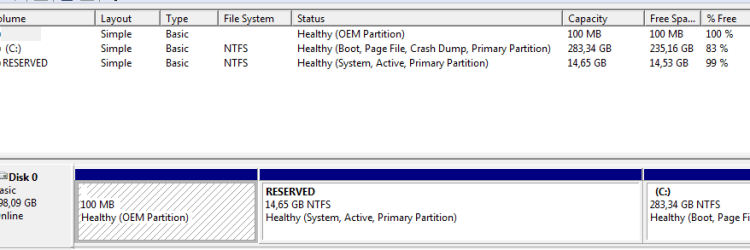
There are three partitions currently on my disk.

I know that 100Mb section is for boot files and a reserved section (14Gb, really???) is for recovery. But I would prefer to have just one solid partition with all boot files on it and with no extra partitions. I understand I can do it only during the installation process using the command line or formatting/deleting partitions. Could someone give me a step-by-step procedure? Or direct me to the tutorial?

I do not plan to use the bit-locker or the dual boot, so I assume having one full 300Gb partition would be better than having 14Gb on a separate reserve. 100MB OEM partition does not look usefull to me either.
 

Attachments
  • Untitled7.png
    Untitled7.png
    10.2 KB · Views: 0

My Computer

Computer type
Laptop
Computer Manufacturer/Model Number
Dell Vostro 3550
OS
W7 x64 Home Basic
CPU
Intel Core i5-2520M 2,50 GHz
Memory
4GB
Graphics Card(s)
Internal ATI Mobile Intel HD Graphics
The 100 MB OEM partition contains the factory rebuild data, in case you ever need to do a factory rebuild.

I suggest that you keep that partition, because you can't get Windows 7 anymore, and that may be the only way you can rebuild the computer to a fresh Windows 7 setup if you ever need to. Also, it takes up almost no space on your hard drive.

I'm not experienced enough on combining/deleting partitions to advise you how to combine the various partitions into one new partition.
 

My Computer

Computer type
PC/Desktop
Computer Manufacturer/Model Number
Dell
OS
Linux Mint 18.2 xfce 64-bit (VMWare host) / Windows 8.1 Pro 32-bit (VMWare guest)
CPU
Haswell
Memory
4 GB
Monitor(s) Displays
Acer 23"
Screen Resolution
1920 x 1080
Hard Drives
Two hard drives, 1TB each: One for Linux, one for my data.
Keyboard
IBM Model M
Antivirus
Sophos (Linux), Trend Micro (Windows)
Browser
Firefox, Opera
Other Info
I use Samba to share my data drive with the other computers at my house and with my guest session in VMWare Workstation Player.
Backup all your data 1st.

If you are going to reinstall W7 then I`ll assume you have the install media, if not you`ll have to download the Iso file and create an installer.

Here is the tutorial, use Diskpart to setup the drive, and you`ll have 1 nice clean partition, I always setup my Windows drive like this.

To run Diskpart at 1st boot, use Method 1

DISKPART : At PC Startup - Windows 7 Help Forums

Once you are there use the commands given here, it should not take you more then 5 minutes to setup the drive. Go slowly, type them exactly as they are written.

SSD Alignment - Windows 7 Help Forums

A Partition Wizard Boot CD is capable of doing the same thing.

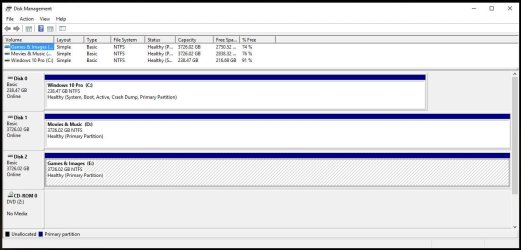
This is just an example, as I`m using W10 right now, but my W7 ssd looks exactly the same.

Ask any questions BEFORE you proceed :)
 

Attachments

  • DM W10 Pro CU.JPG
    DM W10 Pro CU.JPG
    137.4 KB · Views: 2

My Computer

Computer type
PC/Desktop
Computer Manufacturer/Model Number
Skylake Special #666
OS
Windows 10 Pro x64
CPU
Intel Core i7 6700K
Motherboard
Asus Sabertooth Z170 Mark 1
Memory
GSkill TridentZ RGB 16GB 3600 16-16-16-36
Graphics Card(s)
EVGA GTX 980 Ti SC x2
Sound Card
Realtek High Definition
Monitor(s) Displays
AOC G2460PG
Screen Resolution
1920 x 1080 144Hz
Hard Drives
Samsung 860 Pro 256GB, Seagate Barracuda 4TB x2
PSU
EVGA 1000 P2, EVGA White Custom Braided Cables
Case
Corsair Vengeance C70 Gunmetal Black
Cooling
Corsair H100i v2, Corsair ML120 x2, Thermal Grizzly Kryonaut
Keyboard
Logitech G910 Orion Spectrum
Mouse
Logitech G700s
Internet Speed
Verizon Fios Quantum Gateway 75/75
Antivirus
Windows Defender, Malwarebytes Free 3.8.3
Browser
Chrome
Other Info
Corsair SP120 x4, LG Blu-ray Drive, Durabrand HT-395 100 Watt Dolby Digital Amp, Corsair H2100 Wireless 7.1 Headset
This process can also be used if you don`t want to wipe out windows and reinstall.

In a nutshell, you have to write the system files to (C) your windows partition, but it has to be marked Active in order to do that, this will do it for you.

Bootmgr - Move to C:\ with EasyBCD - Windows 7 Help Forums

Notice how your Recovery partition is marked Active and how it contains the system files, then notice how mine are all on C :) that is the difference.

Once C is marked Active and it shows the system files, then you can delete the 2 partitions to the left of C and then extend C to the left with Partition Wizard to add the unallocated space.

Best Free Partition Manager for Windows | MiniTool Partition Free

In my opinion, I would just leave your drive alone, you`ll only gain 15 GB and you will wipe out your recovery partition, as already suggested.

But if you really want the extra space, then carry on :)
 

My Computer

Computer type
PC/Desktop
Computer Manufacturer/Model Number
Skylake Special #666
OS
Windows 10 Pro x64
CPU
Intel Core i7 6700K
Motherboard
Asus Sabertooth Z170 Mark 1
Memory
GSkill TridentZ RGB 16GB 3600 16-16-16-36
Graphics Card(s)
EVGA GTX 980 Ti SC x2
Sound Card
Realtek High Definition
Monitor(s) Displays
AOC G2460PG
Screen Resolution
1920 x 1080 144Hz
Hard Drives
Samsung 860 Pro 256GB, Seagate Barracuda 4TB x2
PSU
EVGA 1000 P2, EVGA White Custom Braided Cables
Case
Corsair Vengeance C70 Gunmetal Black
Cooling
Corsair H100i v2, Corsair ML120 x2, Thermal Grizzly Kryonaut
Keyboard
Logitech G910 Orion Spectrum
Mouse
Logitech G700s
Internet Speed
Verizon Fios Quantum Gateway 75/75
Antivirus
Windows Defender, Malwarebytes Free 3.8.3
Browser
Chrome
Other Info
Corsair SP120 x4, LG Blu-ray Drive, Durabrand HT-395 100 Watt Dolby Digital Amp, Corsair H2100 Wireless 7.1 Headset
This process can also be used if you don`t want to wipe out windows and reinstall.

In a nutshell, you have to write the system files to (C) your windows partition, but it has to be marked Active in order to do that, this will do it for you.

Bootmgr - Move to C:\ with EasyBCD - Windows 7 Help Forums

Notice how your Recovery partition is marked Active and how it contains the system files, then notice how mine are all on C :) that is the difference.

Once C is marked Active and it shows the system files, then you can delete the 2 partitions to the left of C and then extend C to the left with Partition Wizard to add the unallocated space.

Best Free Partition Manager for Windows | MiniTool Partition Free

In my opinion, I would just leave your drive alone, you`ll only gain 15 GB and you will wipe out your recovery partition, as already suggested.

But if you really want the extra space, then carry on :)
Good Job Brian that was a good explanation
 

My Computer

Computer type
PC/Desktop
Computer Manufacturer/Model Number
CoreI7-6700K MrFingerIII Special Builds
OS
Windows 10 Home Premium 64bit sp1
CPU
Intel I7-6700K @ 4.6 Ghz 1.344 volts everyday OC
Motherboard
Asrock Fatality K6 Z170 Socket 1151
Memory
32GB G-Skill TridentZ 3200mhz 16-18-18-38 DDR4
Graphics Card(s)
Sli Gigabyte Windforce GTX 980 G1
Sound Card
AC97 Creative Rage Tactic 3D Headphones Bluetooth
Monitor(s) Displays
27" Asus ROG Swift PG278Q G-Sync 48" Vizio Smart HD TV
Screen Resolution
2560x1440p 27"- 48" Currently Gaming at 2560x1440p Res 2K
Hard Drives
250GB Samsung Evo840SSD Seagate baracuda 500 GB WD Mybook 500Gb 1TB Seagate Barracuda
PSU
HX1050w Corsair Silver 80plus certified crosfire/sli
Case
Enthod Pro Full Tower
Cooling
Corsair H110i GT 280 mm High Performance WaterBlock
Keyboard
Logitech wireless keyboard
Mouse
Logitech wireless mouse
Internet Speed
Cox Cable 100+ mb
Antivirus
WebRoot Spysweeper with Antivirus
Browser
IE-10, Chrome, Opera
Other Info
My Other Rig is a AMD FX8320E @4.6Ghz 16GB Ballistic Sport Ram
Mobo Asrock Fatality 990FX 120GB OCZ SSD 1TB Seagate Barracuda Corsair H75 Cooling PSU Corsair CX750
GPU GTX Gigabyte 970G1
Backup all your data 1st.

If you are going to reinstall W7 then I`ll assume you have the install media, if not you`ll have to download the Iso file and create an installer.

Here is the tutorial, use Diskpart to setup the drive, and you`ll have 1 nice clean partition, I always setup my Windows drive like this.

To run Diskpart at 1st boot, use Method 1

DISKPART : At PC Startup - Windows 7 Help Forums

Once you are there use the commands given here, it should not take you more then 5 minutes to setup the drive. Go slowly, type them exactly as they are written.

SSD Alignment - Windows 7 Help Forums

A Partition Wizard Boot CD is capable of doing the same thing.

This is just an example, as I`m using W10 right now, but my W7 ssd looks exactly the same.

Ask any questions BEFORE you proceed :)

Success! Thank you very much!
 

My Computer

Computer type
Laptop
Computer Manufacturer/Model Number
Dell Vostro 3550
OS
W7 x64 Home Basic
CPU
Intel Core i5-2520M 2,50 GHz
Memory
4GB
Graphics Card(s)
Internal ATI Mobile Intel HD Graphics
Excellent :)
 

My Computer

Computer type
PC/Desktop
Computer Manufacturer/Model Number
Skylake Special #666
OS
Windows 10 Pro x64
CPU
Intel Core i7 6700K
Motherboard
Asus Sabertooth Z170 Mark 1
Memory
GSkill TridentZ RGB 16GB 3600 16-16-16-36
Graphics Card(s)
EVGA GTX 980 Ti SC x2
Sound Card
Realtek High Definition
Monitor(s) Displays
AOC G2460PG
Screen Resolution
1920 x 1080 144Hz
Hard Drives
Samsung 860 Pro 256GB, Seagate Barracuda 4TB x2
PSU
EVGA 1000 P2, EVGA White Custom Braided Cables
Case
Corsair Vengeance C70 Gunmetal Black
Cooling
Corsair H100i v2, Corsair ML120 x2, Thermal Grizzly Kryonaut
Keyboard
Logitech G910 Orion Spectrum
Mouse
Logitech G700s
Internet Speed
Verizon Fios Quantum Gateway 75/75
Antivirus
Windows Defender, Malwarebytes Free 3.8.3
Browser
Chrome
Other Info
Corsair SP120 x4, LG Blu-ray Drive, Durabrand HT-395 100 Watt Dolby Digital Amp, Corsair H2100 Wireless 7.1 Headset
Back
Top