Clean Install Windows 7

How to Do a Clean Installation with Windows 7

   Information
This will show you how to do a clean installation with a retail Windows 7. A OEM Windows 7 may have a few different screens than below, but basically the same.

Yes, you can do a clean install from a upgrade Windows 7 version. :)
NOTE: See this tutorial for how: Clean Install with a Upgrade Windows 7 Version

   Note
Do a Clean Installation if:
  • Your computer has no operating system installed, or it’s running a version of Windows prior to Windows Vista with Service Pack 1 (including Windows XP).
  • You do NOT want to preserve your data, programs, or system drivers.
  • You want to delete your current operating system and replace it with Windows 7.
  • You want to create a multiboot system by installing Windows 7 on a separate hard disk partition.
   Tip

  • Sometimes you may have a problem with installing Windows 7 with more than 2 GB of RAM installed on some older motherboards. If you have this problem, then you should install Windows 7 with a maximum of 2GB of RAM installed and add the rest of the RAM after Windows 7 is fully installed. You may need to flash your motherboard BIOS with the latest version to support more RAM like this. (WARNING - DO NOT FLASH THE BIOS if you do not know what you are doing. Please ask for help instead. One mistake can kill your motherboard permanently.)
  • Before doing this clean install, you should download and save all of your device drivers to a USB flash drive, DVD, another HDD, or some other media to have them handy to make setting Windows 7 up easier when finished installing Windows 7. For example, having the network driver available in case you cannot connect to the internet until it's installed.
   Warning
Windows 7 Minimum Hardware Requirements:

NOTE: For more information on this, see: Windows 7 system requirements
  • 1 GHz 32-bit or 64-bit processor
  • 1 GB RAM for 32-bit Windows 7 OR 2 GB RAM for 64-bit Windows 7
  • 16 GB available hard disk space for 32-bit Windows 7 OR 20 GB for 64-bit Windows 7
  • Graphics card or chip that supports DirectX 9 with 128 MB memory (to have Aero theme enabled)
  • DVD-R/W drive, or bootable USB 2.0 port with Windows 7 USB flash drive
  • Internet or phone access to activate Windows 7.


Here's How:1. Boot the computer from your Windows 7 installation DVD/USB.
NOTE: Make sure that the CD/DVD drive is selected first and your HDD second in the boot priority order in your BIOS settings. Usually it is by default.

   Warning
If you want to install Windows 7 using UEFI instead of BIOS, then see this below first.

How to Install Windows 7 Using "Unified Extensible Firmware Interface" (UEFI)

   Note
If you do not have a Windows 7 with SP1 installation DVD/USB, then you can download the latest official Windows 7 with SP1 ISO file at the links below.

:ar: Microsoft Software Recovery

:ar: Microsoft: Windows 7 Direct Download Links

You can use Windows 7 USB-DVD Download Tool to create a bootable DVD or USB flash drive with the ISO to do the clean install with.


2. If using a DVD, then when prompted, press any key to boot from the installation DVD. (See screenshot below)
NOTE: You will only have about 8 seconds to press this key. If you miss it, you will have to restart the computer.Step1.jpg
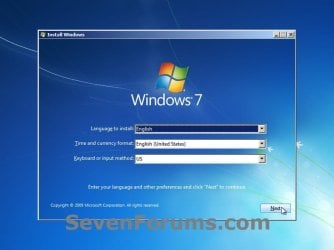
3. Set up your language preferences, and click on the Next button. (See screeshot below).step3.jpg
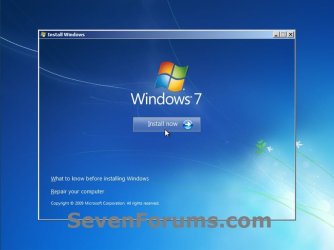
4. Click on the Install Now button to start the installation. (See screenshot below)step4.jpg
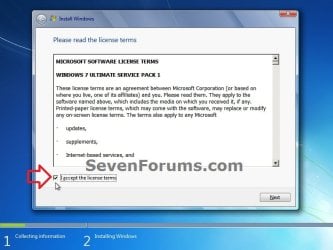
5. Check the I accept the license terms box, and click on Next. (See screenshot below)step5.jpg
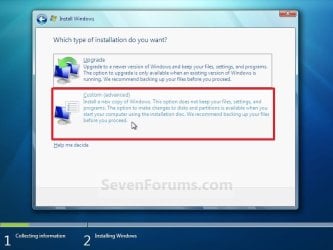
6. Click on the Custom (advanced) option. (See screenshot below)Step6.jpg
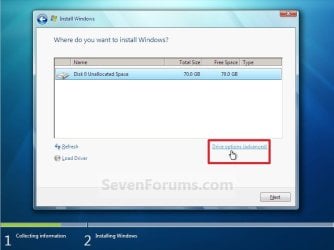
7. Select the hard drive or partition that you want to install Windows 7 on, and click on the Drive Options (advanced) link. (See screenshot below)
NOTE: If the hard drive or partition that you have selected is unallocated, then you can just click on the Next button instead and go to step 9 since it is already empty.
WARNING: You may not have the Drive options (advanced) option unless the installation is done at boot, and not running the installation from within your current OS.Step7.jpg
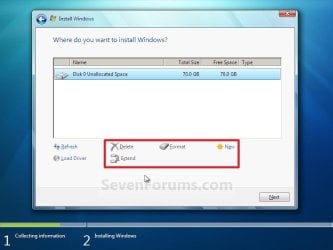
8. Select a hard drive or partition that you want to do a clean install of Windows 7 on, do what Drive options (advanced) you want if any, and click on the Next button when finished. (See screenshot below)
NOTE: If you have your hard drives in a RAID setup, then connect your USB key with the RAID drivers on it, click on Load Driver, select the folder on the USB key that contains the RAID drivers to install them. Afterwards, your RAID drives will be available to select from to install Windows 7 on.

   Tip
Drive options (advanced)
  • If you have more than one partition for a disk # (hard drive) and want to get rid of them to make that disk # one partition drive again, then select a partition with that disk # and click on the Delete option for each partition with the same disk # until there is only one "unallocated space" with that disk # left as in the screenshot below.
  • To shrink an existing partition to create another partition to install Windows 7 on instead, select the partition you want shrink and click on the Extend option. Type in how much in MB (1 GB = 1024 MB) that you want to shrink it by. Now select the new extended partition.
   Note
The 100 MB System Reserved partition is used for the Boot Manager code, BCD (Boot Configuration Database), System Recovery Options (Windows RE), and start up files for BitLocker (if turned on).
  • If you want to have the 100 MB System Reserved partition in addition to the Windows 7 C: partition on a HDD or SSD after installation, then you would need to make sure that all partitions on the drive have been deleted until it is only unallocated space. Next, select the unallocated drive to install Windows 7 on. If there are no partitions on the disk, you will get the 100 MB System Reserved.
  • If you do not want to have the 100 MB System Reserved partition and only the Windows 7 C: partition on a HDD or SSD after installation, then select a formatted partition or drive to install Windows 7 on. If there are any partitions on the disk, you won't get the 100 MB System Reserved.
Step8.jpg
9. The installation of Windows 7 will now begin. (See screenshot below)
NOTE: During the installation process, your screen may flash and computer will restart a few times.Step9.jpg
10. After the final restart, you will see this screen for a moment. (See screenshot below)step10.jpg
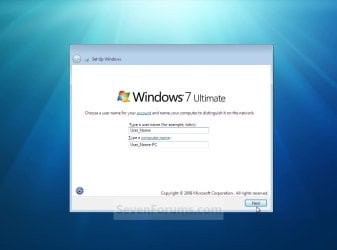
11. Type in any user name that you want for your default administrator account and any computer name, then click on the Next button. (See screenshot below)Step11.jpg
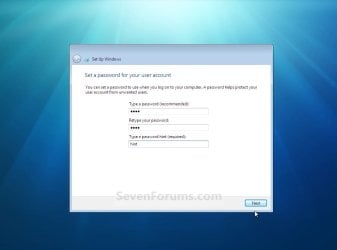
12. Type in a password you want for your default administrator account. Type it in again to confirm it, then type in a hint for your password. Click on the Next button. (See screenshots below)
WARNING: The password will be case sensitive. The hint will be seen by all users on the computer, so do not type your password as the hint.
NOTE: If you do not want your your user account password protected at this time or do not want to have to type in a hint, then leave this blank and click on the Next button. You can create a password later for your user account in the Control Panel User Accounts after installing Windows 7 without having to type in a hint.Step12A.jpg

Step12B.jpg
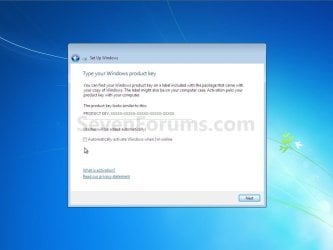
13. Type in your Windows 7 product key number. (See screenshot below step 14)

14. Uncheck the Automatically activate Windows when I'm online box, then click on the Next button. (See screenshot below)
NOTE: You can activate Windows 7 later after you make sure it is running properly. (See step 21 below)
If you chose to automatically activate Windows 7 online when you set up your computer, automatic activation begins trying to activate your copy of Windows three days after you log on for the first time.Step13.jpg
15. Click on Use recommended settings to allow automatic Windows Updates and proper security settings. (See screenshot below)
NOTE: For more information about these recommended settings, click on the Learn more about each option link in this window.Step14.jpg
16. Select your time zone and set your time and date settings, then click on the Next button. (See screenshot below)Step15.jpg
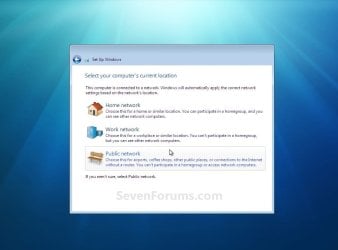
17. Click on your computer's correct network location type location to select it and have the settings for that location automatically applied. (See screenshot below)Step16.jpg
18. Windows 7 will now prepare your desktop to startup. (See screenshots below)Step17.jpg

Desktop.jpg
19. When it's finished and you are at your desktop, you can now remove or disconnect your installation DVD/USB from step 1 above.

20. Install all of your device drivers, then Windows Updates.

21. Refresh your Windows Experience Index (WEI) score.

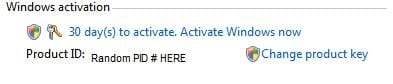
22. When finished, all you will need to do is to activate Windows 7. (See screenshot below)
Activate.jpg
   Tip
If you are dual booting with another OS (ex: Vista), then that OS partition may not show up in Computer with a driver letter in Windows 7. You will need to add a drive letter to the OS (ex: Vista) partition in Windows 7 Disk Management for it to show up in Computer with a driver letter.


That's it,
Shawn


Related Tutorials

 
Last edited:
Mariner ,

You could do what Brink is telling you do to . As he said you will have to reinstall your software cause you formatted the C:\ drive .

If you want to do what I said without formatting the C:\ drive and extend the two deleted and unallocated spaces see this link http://www.sevenforums.com/tutorials/2670-partition-volume-extend.html tutorial written by Brink himself . To be safe please do a BACKUP of your personal files before you try anything
 

My Computer

Computer Manufacturer/Model Number
Custom Built
OS
Windows 7 Ultimate 32-Bit & Windows 7 Ultimate 64-Bit
CPU
Intel Core i7 CPU 950 @ 3.07GHz
Motherboard
ASUS P6T DELUXE V2
Memory
OCZ 6GB (3 x 2GB) 240-Pin DDR3 SDRAM DDR3 1600 OCZ3X1600R2
Graphics Card(s)
ATI Radeon HD 5700 Series
Sound Card
OnBoard
Hard Drives
WD6400AACS-00M3B0 (640GB SATA )
PSU
CORSAIR 850w
Case
NZXT LEXA
Cooling
Intel Stock Heatsink Fan
Keyboard
Microsoft Wireless Laser Keyboard 7000
Mouse
Microsoft Wireless Laser Mouse 7000
So would installing 7 on a separate SSD be wise for performance? I was originally planning to go with a 128GB SSD and have multiple partitions having one dedicated to the OS. I would also spring for the 250GB if there is no increased benefit for instillation on a separate HD and create larger partitions, since I'm not a big gammer or video/photo editor. I also use external HD for my music and movies so space is not that big of a concern.
 

My Computer

Computer type
PC/Desktop
OS
Microsoft Windows 7 Professional 64-bit SP1
CPU
Intel(R) Core(TM) i5 CPU M 520 @ 2.40GHz
Motherboard
Dell Inc. 0K42JR
Memory
8.00 GB
Graphics Card(s)
NVIDIA NVS 3100M
Sound Card
(1) NVIDIA High Definition Audio (2) IDT High Definition A
Monitor(s) Displays
1
Screen Resolution
1440 x 900 x 32 bits (4294967296 colors) @ 59 Hz
Hard Drives
Samsung SSD 840 PRO Series ATA Device
Thanks to Brink and Vistaking for their help. Am now where I want to be.
 

My Computer

Computer type
Laptop
Computer Manufacturer/Model Number
Asus
OS
W7 Ultimate
CPU
2.2 bh Intel Core i3-2330M
Motherboard
Asustek Computer Inc. P53E 1.0
Memory
4MB
Graphics Card(s)
On Board
Sound Card
On Board
Monitor(s) Displays
On Board
Screen Resolution
1366 X 768
Hard Drives
ST9500423AS
ST2000DM USB Backup Drive External
So would installing 7 on a separate SSD be wise for performance? I was originally planning to go with a 128GB SSD and have multiple partitions having one dedicated to the OS. I would also spring for the 250GB if there is no increased benefit for instillation on a separate HD and create larger partitions, since I'm not a big gammer or video/photo editor. I also use external HD for my music and movies so space is not that big of a concern.

I would rather install Windows and Applications on the SSD . And have Users folder on the second hard drive the mechanical one.

Take a look at these links :

1st http://www.sevenforums.com/tutorial...reate-move-during-windows-7-installation.html ( I would personally do this 1 )

2nd http://www.sevenforums.com/tutorials/87555-user-profile-change-default-location.html


Thanks to Brink and Vistaking for their help. Am now where I want to be.

You're welcome. Glad to help.
 

My Computer

Computer Manufacturer/Model Number
Custom Built
OS
Windows 7 Ultimate 32-Bit & Windows 7 Ultimate 64-Bit
CPU
Intel Core i7 CPU 950 @ 3.07GHz
Motherboard
ASUS P6T DELUXE V2
Memory
OCZ 6GB (3 x 2GB) 240-Pin DDR3 SDRAM DDR3 1600 OCZ3X1600R2
Graphics Card(s)
ATI Radeon HD 5700 Series
Sound Card
OnBoard
Hard Drives
WD6400AACS-00M3B0 (640GB SATA )
PSU
CORSAIR 850w
Case
NZXT LEXA
Cooling
Intel Stock Heatsink Fan
Keyboard
Microsoft Wireless Laser Keyboard 7000
Mouse
Microsoft Wireless Laser Mouse 7000
Thanks to Brink and Vistaking for their help. Am now where I want to be.

You're most welcome Mariner. Glad we could help. :)
 

My Computer

Computer type
PC/Desktop
Computer Manufacturer/Model Number
Self built custom
OS
64-bit Windows 11 Pro for Workstations
CPU
Intel i7-8700K OC'd to 5 GHz
Motherboard
ASUS ROG Maximus XI Formula Z390
Memory
64 GB (4x16GB) G.SKILL TridentZ RGB DDR4 3600 MHz
Graphics Card(s)
ASUS ROG-STRIX-GTX1080TI-O11G-GAMING
Sound Card
Integrated
Monitor(s) Displays
2 x Samsung Odyssey G7 27"
Screen Resolution
2560x1440
Hard Drives
1TB Samsung 990 PRO M.2,
4TB Samsung 990 PRO PRO M.2,
TerraMaster F8 SSD Plus NAS
PSU
Seasonic Prime Titanium 850W
Case
Thermaltake Core P3
Cooling
Corsair Hydro H115i
Keyboard
Logitech wireless K800
Mouse
Logitech MX Master 4
Internet Speed
2 Gb/s Download and 100 Mb/s Upload
Antivirus
Malwarebyte Anti-Malware Premium
Browser
Google Chrome
Other Info
Logitech Z625 speaker system,
Logitech BRIO 4K Pro webcam,
HP Color LaserJet Pro MFP M477fdn,
APC SMART-UPS RT 1000 XL - SURT1000XLI,
Galaxy S23 Plus phone
So would installing 7 on a separate SSD be wise for performance? I was originally planning to go with a 128GB SSD and have multiple partitions having one dedicated to the OS. I would also spring for the 250GB if there is no increased benefit for instillation on a separate HD and create larger partitions, since I'm not a big gammer or video/photo editor. I also use external HD for my music and movies so space is not that big of a concern.

I would rather install Windows and Applications on the SSD . And have Users folder on the second hard drive the mechanical one.

Take a look at these links :

1st http://www.sevenforums.com/tutorial...reate-move-during-windows-7-installation.html ( I would personally do this 1 )

2nd http://www.sevenforums.com/tutorials/87555-user-profile-change-default-location.html

Hello Berkey,

If you mean to have W7 on one SSD and data on a separate SSD, then sure that would allow you to be able to read and write to both at the same time a bit faster. It's not really enough to be that noticeable though.


Personally, I wouldn't recommend moving user profile folders to another location than the default C. Doing so will also have the location you move them to included in a system image that cannot be unselected.


To just save space on the SSD, you might consider this below to be able to access the files from your libraries with the files actually located where you like instead. This way you will not have to worry about any potential issues like above that come along with moving user profile folder locations.
 

My Computer

Computer type
PC/Desktop
Computer Manufacturer/Model Number
Self built custom
OS
64-bit Windows 11 Pro for Workstations
CPU
Intel i7-8700K OC'd to 5 GHz
Motherboard
ASUS ROG Maximus XI Formula Z390
Memory
64 GB (4x16GB) G.SKILL TridentZ RGB DDR4 3600 MHz
Graphics Card(s)
ASUS ROG-STRIX-GTX1080TI-O11G-GAMING
Sound Card
Integrated
Monitor(s) Displays
2 x Samsung Odyssey G7 27"
Screen Resolution
2560x1440
Hard Drives
1TB Samsung 990 PRO M.2,
4TB Samsung 990 PRO PRO M.2,
TerraMaster F8 SSD Plus NAS
PSU
Seasonic Prime Titanium 850W
Case
Thermaltake Core P3
Cooling
Corsair Hydro H115i
Keyboard
Logitech wireless K800
Mouse
Logitech MX Master 4
Internet Speed
2 Gb/s Download and 100 Mb/s Upload
Antivirus
Malwarebyte Anti-Malware Premium
Browser
Google Chrome
Other Info
Logitech Z625 speaker system,
Logitech BRIO 4K Pro webcam,
HP Color LaserJet Pro MFP M477fdn,
APC SMART-UPS RT 1000 XL - SURT1000XLI,
Galaxy S23 Plus phone
Thank you for the replies Vistaking and Brink I appreciate your time.

I think I will stick with just the one SSD like initially planned. Brink, space won't be a real problem for me as my current laptop has only 55GB and I'm only using 20GB so something in the 128 range will be more than enough.

So you would recommend upon installing keeping the OS in the C: drive and after installation creating a new partition to keep programs and perhaps another for general storage as an easier choice?
 

My Computer

Computer type
PC/Desktop
OS
Microsoft Windows 7 Professional 64-bit SP1
CPU
Intel(R) Core(TM) i5 CPU M 520 @ 2.40GHz
Motherboard
Dell Inc. 0K42JR
Memory
8.00 GB
Graphics Card(s)
NVIDIA NVS 3100M
Sound Card
(1) NVIDIA High Definition Audio (2) IDT High Definition A
Monitor(s) Displays
1
Screen Resolution
1440 x 900 x 32 bits (4294967296 colors) @ 59 Hz
Hard Drives
Samsung SSD 840 PRO Series ATA Device
You're welcome Berkey. Glad we could help.

Yes, that would be the easier option to use.
 

My Computer

Computer type
PC/Desktop
Computer Manufacturer/Model Number
Self built custom
OS
64-bit Windows 11 Pro for Workstations
CPU
Intel i7-8700K OC'd to 5 GHz
Motherboard
ASUS ROG Maximus XI Formula Z390
Memory
64 GB (4x16GB) G.SKILL TridentZ RGB DDR4 3600 MHz
Graphics Card(s)
ASUS ROG-STRIX-GTX1080TI-O11G-GAMING
Sound Card
Integrated
Monitor(s) Displays
2 x Samsung Odyssey G7 27"
Screen Resolution
2560x1440
Hard Drives
1TB Samsung 990 PRO M.2,
4TB Samsung 990 PRO PRO M.2,
TerraMaster F8 SSD Plus NAS
PSU
Seasonic Prime Titanium 850W
Case
Thermaltake Core P3
Cooling
Corsair Hydro H115i
Keyboard
Logitech wireless K800
Mouse
Logitech MX Master 4
Internet Speed
2 Gb/s Download and 100 Mb/s Upload
Antivirus
Malwarebyte Anti-Malware Premium
Browser
Google Chrome
Other Info
Logitech Z625 speaker system,
Logitech BRIO 4K Pro webcam,
HP Color LaserJet Pro MFP M477fdn,
APC SMART-UPS RT 1000 XL - SURT1000XLI,
Galaxy S23 Plus phone
...Hello Brink and anybody...
So...Do you know if I install W7 in another partition in my hard disk (where my OEM W7 also is)
Something like dual boot to the same Os. And I'll do the above for testing propose...How it will "come" about drivers?
I mean ..the new Os will it takes the drivers?..or I'll have to start from scratch?...
...I'll do it, to see if all versions (drivers) I have, working well...and then if so....I can make a clean install
-just one- to my hard drive....
Thank you
(hoping the answer is not somewhere hide and that you understood my english...)
 

My Computer

Computer Manufacturer/Model Number
Acer Aspire 5739G laptop, *Dell XPS L702X
OS
Windows 7 Home Premium x64, *W7 Prem. x64
CPU
Intel P7450 2cores 2,13 GHz, *Intel Core i7-2670QM 2,20 GHz
Memory
4096Mb 2slots, *8088Mb
Graphics Card(s)
Nvidia GeForce 240m, *Nvidia GeForce GT 555m
Screen Resolution
1366x768, *1920x1080
Hard Drives
TOSHIBA MK5055GSX, *WD7500BPKT-75PK4T0 750,16 G
Hello Notis,

If you do a clean install, you will be starting from scratch.

You would get drivers for your devices from the device manufacturer's website on their driver support download page.

Hope this helps, :)
Shawn
 

My Computer

Computer type
PC/Desktop
Computer Manufacturer/Model Number
Self built custom
OS
64-bit Windows 11 Pro for Workstations
CPU
Intel i7-8700K OC'd to 5 GHz
Motherboard
ASUS ROG Maximus XI Formula Z390
Memory
64 GB (4x16GB) G.SKILL TridentZ RGB DDR4 3600 MHz
Graphics Card(s)
ASUS ROG-STRIX-GTX1080TI-O11G-GAMING
Sound Card
Integrated
Monitor(s) Displays
2 x Samsung Odyssey G7 27"
Screen Resolution
2560x1440
Hard Drives
1TB Samsung 990 PRO M.2,
4TB Samsung 990 PRO PRO M.2,
TerraMaster F8 SSD Plus NAS
PSU
Seasonic Prime Titanium 850W
Case
Thermaltake Core P3
Cooling
Corsair Hydro H115i
Keyboard
Logitech wireless K800
Mouse
Logitech MX Master 4
Internet Speed
2 Gb/s Download and 100 Mb/s Upload
Antivirus
Malwarebyte Anti-Malware Premium
Browser
Google Chrome
Other Info
Logitech Z625 speaker system,
Logitech BRIO 4K Pro webcam,
HP Color LaserJet Pro MFP M477fdn,
APC SMART-UPS RT 1000 XL - SURT1000XLI,
Galaxy S23 Plus phone
...I meant dual boot, same Os.
Reason :testing if I am able and have all the corect drivers.(In the case that the "new" W7 start from scratch..)
That's why I'm asking. If everything is o.k then I'll delete all partitions and "clean install"...again to the whole hdd
I don't know if is stupid, possible or what....but I would be sure that everything will be ok.
I wrote a thread about "Installation & Setup » Dell xpsl702x bios and driver's order"...but don't waste your time..
the question is if the "new W7" will start from scratch....because if not....The "test" has not meaning.
Thank you Brink....every thinking from you is welcome.....very soon I'll stop to "bother"...
 

My Computer

Computer Manufacturer/Model Number
Acer Aspire 5739G laptop, *Dell XPS L702X
OS
Windows 7 Home Premium x64, *W7 Prem. x64
CPU
Intel P7450 2cores 2,13 GHz, *Intel Core i7-2670QM 2,20 GHz
Memory
4096Mb 2slots, *8088Mb
Graphics Card(s)
Nvidia GeForce 240m, *Nvidia GeForce GT 555m
Screen Resolution
1366x768, *1920x1080
Hard Drives
TOSHIBA MK5055GSX, *WD7500BPKT-75PK4T0 750,16 G
If you do a Dell factory recovery, then it will wipe everything out and have you back to factory conditions.

You will not be able to dual boot with your Dell OEM installation of Windows 7 if you do this.
 

My Computer

Computer type
PC/Desktop
Computer Manufacturer/Model Number
Self built custom
OS
64-bit Windows 11 Pro for Workstations
CPU
Intel i7-8700K OC'd to 5 GHz
Motherboard
ASUS ROG Maximus XI Formula Z390
Memory
64 GB (4x16GB) G.SKILL TridentZ RGB DDR4 3600 MHz
Graphics Card(s)
ASUS ROG-STRIX-GTX1080TI-O11G-GAMING
Sound Card
Integrated
Monitor(s) Displays
2 x Samsung Odyssey G7 27"
Screen Resolution
2560x1440
Hard Drives
1TB Samsung 990 PRO M.2,
4TB Samsung 990 PRO PRO M.2,
TerraMaster F8 SSD Plus NAS
PSU
Seasonic Prime Titanium 850W
Case
Thermaltake Core P3
Cooling
Corsair Hydro H115i
Keyboard
Logitech wireless K800
Mouse
Logitech MX Master 4
Internet Speed
2 Gb/s Download and 100 Mb/s Upload
Antivirus
Malwarebyte Anti-Malware Premium
Browser
Google Chrome
Other Info
Logitech Z625 speaker system,
Logitech BRIO 4K Pro webcam,
HP Color LaserJet Pro MFP M477fdn,
APC SMART-UPS RT 1000 XL - SURT1000XLI,
Galaxy S23 Plus phone
..strange..in Acer, I had dual boot -OEM W7- with Ubuntu. (but I had to fix the boot files)
.. Acer has SystemReserve-Active and Dell RecoverPart.-Active,
...maybe this makes the differ..
..I found an old laptop, where I can do all my tests...
...(so I'll not brake your nervus....anymore....) :)
...You were very kind to me....special you.. Thank you
 

My Computer

Computer Manufacturer/Model Number
Acer Aspire 5739G laptop, *Dell XPS L702X
OS
Windows 7 Home Premium x64, *W7 Prem. x64
CPU
Intel P7450 2cores 2,13 GHz, *Intel Core i7-2670QM 2,20 GHz
Memory
4096Mb 2slots, *8088Mb
Graphics Card(s)
Nvidia GeForce 240m, *Nvidia GeForce GT 555m
Screen Resolution
1366x768, *1920x1080
Hard Drives
TOSHIBA MK5055GSX, *WD7500BPKT-75PK4T0 750,16 G
You could dual boot if you like, but just not using the same Dell factory recovery media. That's all. :)
 

My Computer

Computer type
PC/Desktop
Computer Manufacturer/Model Number
Self built custom
OS
64-bit Windows 11 Pro for Workstations
CPU
Intel i7-8700K OC'd to 5 GHz
Motherboard
ASUS ROG Maximus XI Formula Z390
Memory
64 GB (4x16GB) G.SKILL TridentZ RGB DDR4 3600 MHz
Graphics Card(s)
ASUS ROG-STRIX-GTX1080TI-O11G-GAMING
Sound Card
Integrated
Monitor(s) Displays
2 x Samsung Odyssey G7 27"
Screen Resolution
2560x1440
Hard Drives
1TB Samsung 990 PRO M.2,
4TB Samsung 990 PRO PRO M.2,
TerraMaster F8 SSD Plus NAS
PSU
Seasonic Prime Titanium 850W
Case
Thermaltake Core P3
Cooling
Corsair Hydro H115i
Keyboard
Logitech wireless K800
Mouse
Logitech MX Master 4
Internet Speed
2 Gb/s Download and 100 Mb/s Upload
Antivirus
Malwarebyte Anti-Malware Premium
Browser
Google Chrome
Other Info
Logitech Z625 speaker system,
Logitech BRIO 4K Pro webcam,
HP Color LaserJet Pro MFP M477fdn,
APC SMART-UPS RT 1000 XL - SURT1000XLI,
Galaxy S23 Plus phone
O.k. clear.
 

My Computer

Computer Manufacturer/Model Number
Acer Aspire 5739G laptop, *Dell XPS L702X
OS
Windows 7 Home Premium x64, *W7 Prem. x64
CPU
Intel P7450 2cores 2,13 GHz, *Intel Core i7-2670QM 2,20 GHz
Memory
4096Mb 2slots, *8088Mb
Graphics Card(s)
Nvidia GeForce 240m, *Nvidia GeForce GT 555m
Screen Resolution
1366x768, *1920x1080
Hard Drives
TOSHIBA MK5055GSX, *WD7500BPKT-75PK4T0 750,16 G
Dear Brink, it's KP again >__<

I read this thread and the other thread => http://www.sevenforums.com/tutorials/52291-partition-hard-drive-windows-7-install.html regarding reinstalling windows 7.

I'd like to ask... last question :D

For example if my SSD has 3 partitions, and i want to reinstall windows. After I delete all 3 partitions and get "Disk 0 Unallocated Space", I'm always confused every time whether I should press New or Next.

which one is the best practice actually?

Click Next on the Disk 0 unallocated space directly, or click New => apply, then after that click next?


cheers,

KP
 

My Computer

Computer type
Laptop
Computer Manufacturer/Model Number
Asus K43S
OS
windows 7 home premium 64bit
CPU
Intel Core i3-2330m
Memory
6 Gib 10600 DDR3 RAM
Graphics Card(s)
Radeon 6730
Monitor(s) Displays
Generic PnP Monitor
Hard Drives
Intel SSD 330 Series 120 Gb
Seagate Momentus 750 Gb
Internet Speed
Slow, lol
Antivirus
KIS 2013
Hello KP,

No problem mate. Please feel free to keep asking away until you are comfortable with it.

After that, you would just need to click on Next. The installation will then take care of formatting and setting up the 100 MB System Reserved and Windows partitions on the disk. :)
 

My Computer

Computer type
PC/Desktop
Computer Manufacturer/Model Number
Self built custom
OS
64-bit Windows 11 Pro for Workstations
CPU
Intel i7-8700K OC'd to 5 GHz
Motherboard
ASUS ROG Maximus XI Formula Z390
Memory
64 GB (4x16GB) G.SKILL TridentZ RGB DDR4 3600 MHz
Graphics Card(s)
ASUS ROG-STRIX-GTX1080TI-O11G-GAMING
Sound Card
Integrated
Monitor(s) Displays
2 x Samsung Odyssey G7 27"
Screen Resolution
2560x1440
Hard Drives
1TB Samsung 990 PRO M.2,
4TB Samsung 990 PRO PRO M.2,
TerraMaster F8 SSD Plus NAS
PSU
Seasonic Prime Titanium 850W
Case
Thermaltake Core P3
Cooling
Corsair Hydro H115i
Keyboard
Logitech wireless K800
Mouse
Logitech MX Master 4
Internet Speed
2 Gb/s Download and 100 Mb/s Upload
Antivirus
Malwarebyte Anti-Malware Premium
Browser
Google Chrome
Other Info
Logitech Z625 speaker system,
Logitech BRIO 4K Pro webcam,
HP Color LaserJet Pro MFP M477fdn,
APC SMART-UPS RT 1000 XL - SURT1000XLI,
Galaxy S23 Plus phone
KungfuPanda7

If you do not want to have the hidden partition (System Reserved 100MB) you could open up a command prompt before the installation begins and partition the hard drive . See commands below

Press enter when you see the screen that says Press any key to boot from cd or DVD…( image below )

windows-7-startup-repair-1.jpg


When you get to this screen ( image below )

212270d1337270227-clean-install-windows-7-step4.jpg


Press Shift and F10 . You will get a command prompt window . It should open up to X:\Sources . In there input these commands and press <ENTER> after each line .
Code:
DISKPART
LIST DISK
SELECT DISK 0
CLEAN
CREATE PRIMARY PARTITION 
SELECT PARTITION 1 
ACTIVE 
FORMAT FS=NTFS LABEL="Windows" QUICK 
ASSIGN LETTER=C
EXIT
EXIT

Back on the image above press Install Now . Check the I accept the license terms box and click on Next.

Click on the Custom (advanced) option. Then choose

Disk 0 Partition 1: Window (C:\) and click Next
 

My Computer

Computer Manufacturer/Model Number
Custom Built
OS
Windows 7 Ultimate 32-Bit & Windows 7 Ultimate 64-Bit
CPU
Intel Core i7 CPU 950 @ 3.07GHz
Motherboard
ASUS P6T DELUXE V2
Memory
OCZ 6GB (3 x 2GB) 240-Pin DDR3 SDRAM DDR3 1600 OCZ3X1600R2
Graphics Card(s)
ATI Radeon HD 5700 Series
Sound Card
OnBoard
Hard Drives
WD6400AACS-00M3B0 (640GB SATA )
PSU
CORSAIR 850w
Case
NZXT LEXA
Cooling
Intel Stock Heatsink Fan
Keyboard
Microsoft Wireless Laser Keyboard 7000
Mouse
Microsoft Wireless Laser Mouse 7000
hey if i don t have a product key what should i do?
 

My Computer

Computer type
PC/Desktop
Computer Manufacturer/Model Number
Asus desktop PC CP3130 series
OS
windows 7 home basic x64
CPU
Intel Pentium G640 @2.80Ghz
Memory
2 Gb
Graphics Card(s)
Intel HD graphics 1000
Antivirus
Kaspersky anti virus
Browser
Google Chrome

My Computer

Computer type
PC/Desktop
Computer Manufacturer/Model Number
Golden Mk. I.4
OS
Windows 10 Pro x64 ; Xubuntu x64
CPU
Intel i7 860 @ 2.80 GHz O/C'ed to 4.0GHz
Motherboard
Gigabyte P55A-UD3R Rev.1. Award BIOS F13
Memory
16GB Corsair Vengance DDR3 @ 661 MHz Dual Channel (9-9-9-24)
Graphics Card(s)
EVGA NVidia GTX 560 1024MB
Sound Card
Realtek Integrated
Monitor(s) Displays
Dual Samsung SyncMaster 2494HS
Screen Resolution
1920*1080 and 1920*1080
Hard Drives
1*Samsung 840 EVO 120GB SSD;
1*OCZ Vertex 2 60GB SSD;
2*Samsung F3 SpinPoint 1TB in RAID0;
1*Samsung F1 SpinPoint 1TB;
2*Western Digital 1TB External USB 3.0
1*Western Digital 500GB External USB 3.0
1*Seagate 500GB External USB 2.0
PSU
Thermaltake ToughPower QFan 750W
Case
Thermaltake Element S VK60001W2Z
Cooling
Corsair H60 Water Cooling, 2*230mm and 2*80mm case fans
Keyboard
Logitech G110
Mouse
Logitech MX518
Back
Top