clone multiboot two disc win7 xp install to win7 ssd plus disk XPx64

booter123

New member
Local time
5:54 PM
Messages
11
I have a multiboot win7 /xpx64 TWO DISK system, showing win7 as the C; drive and XPx64 as D: when examining via My Computer.
Cloned the C: drive (win7) using Samsung tool to same size Samsung evo SSD. When put in computer the dual boot option gone. The SSD clone of win7 runs ok, but with that in alone (no XP disk) My Computer now shows two drive, C: local disk 488GB free of 931GB, and D: Data 100Mb containing a folder Boot containing folders such as cs-CZ containing a single file such as bootmgr.exe.mui
Minitool Partition shows
D: Data primary active&boot
C: system
.....
(Trying to fix the multiboot on the original installation has killed the old XPx64 disk drive (now unrecognisable during boot) and left me with a system having only win7, and no boot loader showing during startup.)
.....
What I want is a duplicate of the original setup but with the SSD running the win7 section. Am prepared to reload the XPx64 as reinstall, although I have a copy of the XP drive if that could be somehow reattached. or if the damaged XP disk could be repaired.
My guess is that the problem comes from the cloning not being what is should, ie bit for bit image of the original disc including MBR etc. (Correcting this would not help because I have damaged the original setup.)
For a start, is it possible to make the SSD run win7 but appear as a single drive,and then add a disk and load XP and have it show as D: (This keeps all the higher disks with their original labels, ie DVD E: datas F: G: and H:)
 

My Computer My Computer

At a glance

win7 ultimate x64i7
Computer type
PC/Desktop
Computer Manufacturer/Model Number
supermicro
OS
win7 ultimate x64
CPU
i7
PW confirms that C is the booted OS as signified by the System label - while in Disk Mgmt this label would be Boot. The boot files actually booting Win7 are on D as signified by System Active.

To confirm this please post back screenshot of Disk Management - Post a Screen Capture Image and we will tell you how to correct it once we know for sure. If it confirms it by showing the labels reversed (which would be correct due to PW's unusual labeling scheme) then as long as C is a Primary partition you'd simply Mark C Partition Active and run Startup Repair - Run 3 Separate Times to move boot files to C.

The best way to configure a Dual Boot on separate HD's is to set have each HD boot itself, then set preferred to boot first in BIOS Boot Priority, boot the other (XP) using the one-time BIOS Boot interrupt key at boot. If this is not to your liking, install EasyBCD to Win7 to add XP.

But we need to sort out your Win7 boot first so let's see the screenshot. Confirm also whether XP partition is marked System Active in DIsk Mgmt, or Boot Active in PW.
 
Screenshot

Thanks for above. Have a hotswap caddy machine, but dare not put in XP disk until above sorted. Please find screenshot attached. Cheers.
 

Attachments

  • Capture.PNG
    Capture.PNG
    9.2 KB · Views: 1

My Computer My Computer

At a glance

win7 ultimate x64i7
Computer type
PC/Desktop
Computer Manufacturer/Model Number
supermicro
OS
win7 ultimate x64
CPU
i7
That isn't of course Data partition but a Win7 System Reserved partition intended to boot the OS and apparently doing it correctly. The only change required is to remove the D drive letter in Disk Mgmt after relabeling it in its D Properties box

Go ahead and plug in XP alone to see if it will boot and post back its DM screenshot pasting Print Screen into Paint to Save and Attach. If wont start then plug in 7 drive set first to boot and post 7 DM screenshot of both.
 
The configuration is exactly as Greg suspected. What you can do is to shrink the C partition to gain unallocated space for XP. Then define a partition (can be a logical extended partition). The installation process for XP is described in Option 2 of this tutorial.

Another option you have is to start from scratch and image/restore (not clone) all of the original partitions to be transferred to the SSD. For that I would use free Macrium.
 

My Computer My Computer

At a glance

Vista, Windows7, Mint Mate, Zorin, Windows 8from 1.6GHz Duo to i7
Computer Manufacturer/Model Number
HP, Dell, Gateway, Toshiba - 4 laptops and 2 desktops
OS
Vista, Windows7, Mint Mate, Zorin, Windows 8
CPU
from 1.6GHz Duo to i7
Monitor(s) Displays
2x HP w2207
Hard Drives
5x HDD, 7x SSD, 12x Externals
Keyboard
with trackball - no mices
Mouse
Trackball mice
Internet Speed
DSL 6000
"The only change required is to remove the D drive letter in Disk Mgmt after relabeling it in its D Properties box"
Sorry to be obtuse, but could you please expand on this. No idea what you are referring to, unfortunately.
Re plugging in the XP disc, I would have to take the SSD back out the rack. Unfortunately, the SSD on its hotswop carriage is literally a jam fit into the bottom slot of the Supermicro case, so I am reluctant to pull it again. Would rather fix it, then put in the XP disck and see what win7 or minitools PW says.
 

My Computer My Computer

At a glance

win7 ultimate x64i7
Computer type
PC/Desktop
Computer Manufacturer/Model Number
supermicro
OS
win7 ultimate x64
CPU
i7
I don't think you need to take the SSD out for any of the solutions I suggested.
 

My Computer My Computer

At a glance

Vista, Windows7, Mint Mate, Zorin, Windows 8from 1.6GHz Duo to i7
Computer Manufacturer/Model Number
HP, Dell, Gateway, Toshiba - 4 laptops and 2 desktops
OS
Vista, Windows7, Mint Mate, Zorin, Windows 8
CPU
from 1.6GHz Duo to i7
Monitor(s) Displays
2x HP w2207
Hard Drives
5x HDD, 7x SSD, 12x Externals
Keyboard
with trackball - no mices
Mouse
Trackball mice
Internet Speed
DSL 6000
I want my computer back the way is was, but with an SSD in C instead of the original drive. I have corrupted the original setup stack, so Greg's solution works for me, otherwise I have to crowbar things in and out to even be able to copy/image things.
 

My Computer My Computer

At a glance

win7 ultimate x64i7
Computer type
PC/Desktop
Computer Manufacturer/Model Number
supermicro
OS
win7 ultimate x64
CPU
i7
Where is your original system disk now - the one that had Win 7 and XP installed.
 

My Computer My Computer

At a glance

Vista, Windows7, Mint Mate, Zorin, Windows 8from 1.6GHz Duo to i7
Computer Manufacturer/Model Number
HP, Dell, Gateway, Toshiba - 4 laptops and 2 desktops
OS
Vista, Windows7, Mint Mate, Zorin, Windows 8
CPU
from 1.6GHz Duo to i7
Monitor(s) Displays
2x HP w2207
Hard Drives
5x HDD, 7x SSD, 12x Externals
Keyboard
with trackball - no mices
Mouse
Trackball mice
Internet Speed
DSL 6000
Rightclick on D in Disk Mgmt to Change Drive Letter, remove drive letter.

Fix what else? You want XP on separate HD correct? Plug it in to see if it boots. If not take a picture of PW CD drive map showing all listings. Otherwise Repair Install or reinstall XP to it HD with SSD unplugged.
 
Gregrocker, thanks for above. "The only change required is to remove the D drive letter in Disk Mgmt after relabeling it in its D Properties box"

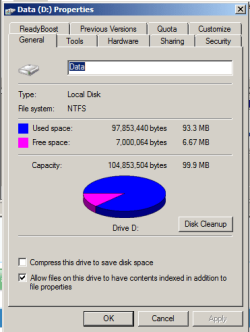
I don't understand the bit about relabelling it in the D properties box. Which properties box, the one that comes up in right-click on the name in Disk Management as here? If I pick any old name and then delete it, the @D@ drive will be deleted, together with the boot table etc. Is there a special 'reserved' name it should be called? Sorry to be stupid, but I have to get this right. If you could assume my newbie status and tell me click by click what to do I would be very grateful.

Re the XP disk, will plug in when I know that the above is fixed. I already screwed the system by starting off putting the SSD into a HD slot and 'cloning' the C drive into it. I pulled the C drive and put in the SSD, and the multiboot had vanished. (From a comment above I should perhaps have created a disc image? whatever the difference is between that and a clone... ) I put the C drive into a free bay to try and see what the difference might be, and somehow after several passes looking at the drives and repairing and bootrecing I ended up with the SSD in its present configuration in the first (C) slot, a dead drive which used to be D: (XP), and luckily, an older version of the XP disk from an old rebuild.
If I can understand your instructions I think I end up with an SSD in the first drive bay, labelled C. I can then either load XP onto a second disk, which I think means wrestling with the BCD table or whatever, or try reattaching the good copy of XP that I now have on a disk, which hopefully just means putting it in a slot and relabelling it and patching another disk label into the boot loader? If you could clarify the relabelling bit of
"The only change required is to remove the D drive letter in Disk Mgmt after relabeling it in its D Properties box"

Ta
 

Attachments

  • properties.png
    properties.png
    9.1 KB · Views: 6

My Computer My Computer

At a glance

win7 ultimate x64i7
Computer type
PC/Desktop
Computer Manufacturer/Model Number
supermicro
OS
win7 ultimate x64
CPU
i7
Name it System Reserved in Properties box. Then remove drive letter in Disk Mgmt.

Are you saying in all that mumbo jumbo you want XP on the SSD, which you never said at first?

If so take a XP partition backup image with a simple app like Macrium which whs is expert in so can walk you through. Apply it to an unallocated partition you shrink from Win7 partition, without including XP MBR, track 0 or Active flag. Just the inert XP partition. You could do it all from Win 7 partition if you could plug in both drives which I thought was the point of a caddy.

Once image is applied and not Active, add XP from Win7 using Easy BCD. If it steals XP boot confirm win7 SysReserved partition is Active and run 3 Startup Repairs w reboots. Add XP again w EasyBCD if necessary
 
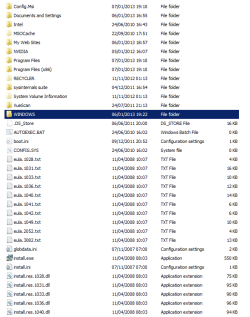
Thanks for getting me this far, simple though it might be. Have renamed Data and deleted drive D; and plugged in the old disk which has a version of XP on it. The details are as below. Is it possible to reattach this as D: easily?
Thanks
 

Attachments

  • properties.png
    properties.png
    11.2 KB · Views: 0
  • disk2.PNG
    disk2.PNG
    14.8 KB · Views: 1

My Computer My Computer

At a glance

win7 ultimate x64i7
Computer type
PC/Desktop
Computer Manufacturer/Model Number
supermicro
OS
win7 ultimate x64
CPU
i7
Easy BCD returns
.................................................................................................................
There is one entry in the Windows bootloader.

Default: Windows 7
Timeout: 30 seconds
EasyBCD Boot Device: C:\

Entry #1
Name: Windows 7
BCD ID: {current}
Drive: C:\
Bootloader Path: \Windows\system32\winload.exe
 

My Computer My Computer

At a glance

win7 ultimate x64i7
Computer type
PC/Desktop
Computer Manufacturer/Model Number
supermicro
OS
win7 ultimate x64
CPU
i7
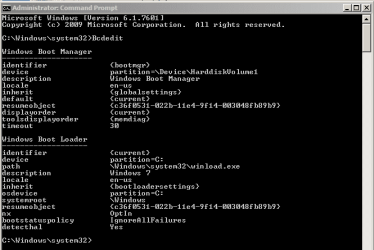
If it helps
 

Attachments

  • BCDedit.PNG
    BCDedit.PNG
    8 KB · Views: 7

My Computer My Computer

At a glance

win7 ultimate x64i7
Computer type
PC/Desktop
Computer Manufacturer/Model Number
supermicro
OS
win7 ultimate x64
CPU
i7
If you want to add XP to a Windows Dual Boot menu rather than booting from the BIOS which is easier then add XP from the Add OS Entry tab using Automatic drive detection method.

If XP won't boot then unplug Win7 drive, use the bootrec commands given in How to Fix MBR in Windows XP and Vista to Start XP. You can then either plug back in the Win7 drive, set it to boot first in BIOS, then trigger XP using the one-time BIOS boot interrupt key; or try adding XP again from Win7 using EasyBCD.
 
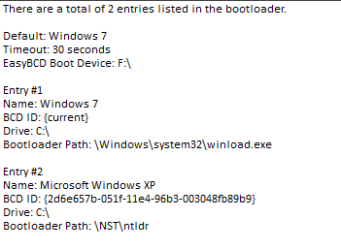
Thanks for the help. I got the backup XP disk running using your first suggestion. Then tried the damaged version in its place and diskchk got it up and running again. So my system is as original, but with an SSD in C: position.

For Newbies, could you please comment on why XP appears as on the C: drive, when in fact it is a separate disk D: (as below) When I specified D: in easyBCD instead of auto, it still showed as C: in the new BCD

Also, what did I do wrong originally? It should have been possible to copy the original HD across bit for bit to the SSD, it was the same size, so that when inserted instead of the original, it ran seamlessly. I assumed that was a clone, but either the Samsung cloner does not do what it should, or I used the wrong method.
 

Attachments

  • BCDedit.PNG
    BCDedit.PNG
    4 KB · Views: 6

My Computer My Computer

At a glance

win7 ultimate x64i7
Computer type
PC/Desktop
Computer Manufacturer/Model Number
supermicro
OS
win7 ultimate x64
CPU
i7
Please post back screenshot of Disk Mgmt.

Each OS should always see itself as C when booted. This is optimal. Always choose Auto drive letter setting when offered for cloning or imaging to assure this.

I am not familiar with Samsung cloning app but if its like their laptop bloatware it is not worth using. The best choices are in http://www.sevenforums.com/tutorials/149969-ssd-install-transfer-operating-system.html and given earlier.
 
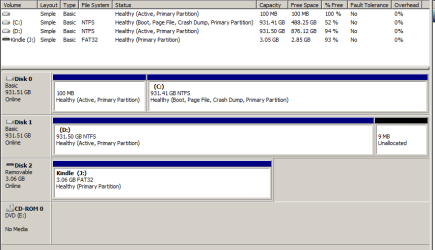
Latest versions win7.PNG

BCDedit.PNG

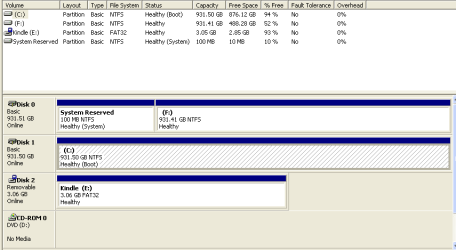
Annoyingly the Win7 drive appears as F; in XP, and cannot be reset to D: but that I guess I live with that. Have to sort out the restore point problem now...

Cheers.

PS ignore kindle..
 

My Computer My Computer

At a glance

win7 ultimate x64i7
Computer type
PC/Desktop
Computer Manufacturer/Model Number
supermicro
OS
win7 ultimate x64
CPU
i7
The XP view of the same system
 

Attachments

  • xpdsk.png
    xpdsk.png
    6 KB · Views: 0

My Computer My Computer

At a glance

win7 ultimate x64i7
Computer type
PC/Desktop
Computer Manufacturer/Model Number
supermicro
OS
win7 ultimate x64
CPU
i7
Back
Top