Common File Dialog Box - Customize Places Bar

How to Customize Common Open File Dialog Box Places Bar in Windows


   Information
When you save or open a file in an application that uses Windows common dialog box, the Places bar on the left side of the dialog box can help you navigate quicker to a location.

This will show you how to customize the list of items displayed in the Places Bar in the Windows XP style common open file dialog box (ex: Save As, Open) for all users in Vista, Windows 7, and Windows 8.

You can specify from 1 to 5 items to be displayed in the Places Bar.
   Note
The valid items you may display in the Places Bar are:

1) Shortcuts (full path) to a local folder -- (ex. C:\Windows)
NOTE: Do not include full path in quotes.

2) Shortcuts (full path) to remote folders -- (\\server\share)

3) FTP folders

4) web folders

5) Shell Commands in Windows 7 or Windows 8 for locations

6) Common Shell folders -- (examples)
  • MyComputerFolder
  • MyDocuments
  • MyFavorites
  • MyMusic
  • MyPictures
  • MyNetworkPlaces
  • MyFavorites
  • CommonDocuments
  • CommonMusic
  • CommonPictures
  • Desktop
  • Printers
  • ProgramFiles
  • Recent
  • shell:desktop
  • shell:documentsLibrary
  • shell:Libraries
  • shell:MusicLibrary
  • shell:PicturesLibrary
  • shell:VideosLibrary
  • shell:MyComputerFolder
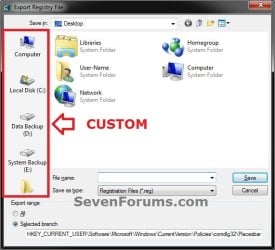
EXAMPLE: Default and Custom Places Bar Items in Common Open File Dialog Box
NOTE: These will be the smaller Windows XP (ex: Browse type) common dialog box style windows that have shortcut icons (places) instead of the normal Navigation Pane that has a folder tree.
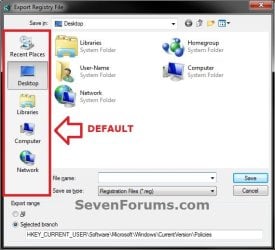
Default.jpg

Custom.jpg


OPTION ONE

Customize Places Bar using the Local Group Policy Editor


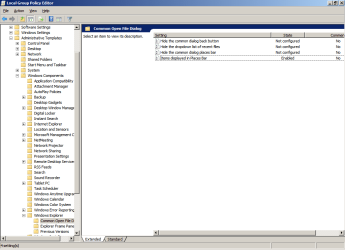
1. Open the all users, specific users or groups, or all users except administrators Local Group Policy Editor for how you want this policy applied.
2. In the left pane, click/tap on to expand User Configuration, Administrative Templates, Windows Components, Windows Explorer (Vista and Windows 7) or File Explorer (Windows 8), and Common Open File Dialog. (see screenshot below)
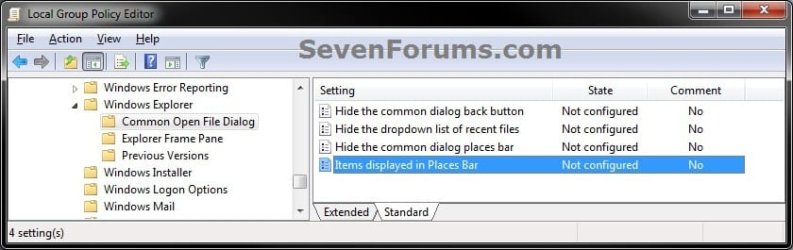
GPEDIT-1.jpg
3. In the right pane of Common Open File Dialog, double click/tap on Items displayed in Places Bar to edit it. (see screenshot above)

4. To Restore Default Items Displayed in the Places Bar
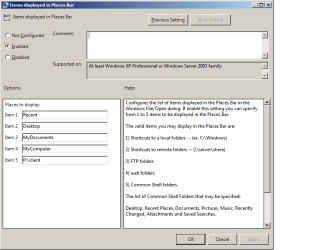
A) Select (dot) either Not Configured or Disabled. (see screenshot below step 6)
B) Go to step 6.
5. To Customize Items to be Displayed in the Places Bar
A) Select (dot) Enabled. (see screenshot below step 6)

B) Under Options, you can type in up to 5 separate items (locations) for Places to display. (see screenshot below step 6)
NOTE: See the NOTE box at the top of the tutorial for more on valid items you may display in the Places Bar.
6. Click/tap on OK. (see screenshot below)
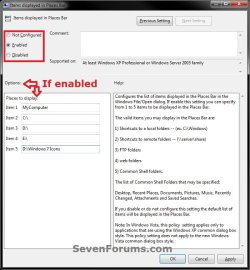
GPEDIT-2.jpg
7. Close the Local Group Policy Editor window.


OPTION TWO

To Customize Places Bar Manually in Registry Editor


1. Press the Windows + R keys to open the Run dialog, type regedit, and press enter.

2. If prompted by UAC, click/tap on Yes (Windows 7/8) or Continue (Vista).

3. In regedit, navigate to the location below. (see screenshot below)
HKEY_CURRENT_USER\Software\Microsoft\Windows\CurrentVersion\Policies
Reg1.jpg
4. To Customize Items to be Displayed in the Places Bar
A) In the left pane, right click on Policies, and click/tap on New and Key. (see screenshot below)
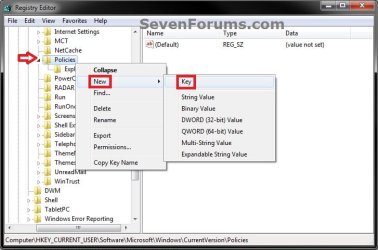
Reg2.jpg
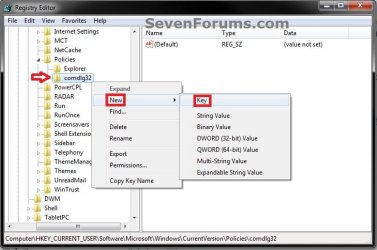
B) Type comdlg32, and press enter. Right click on comdlg32, and click/tap on New and Key. (see screenshot below)
NOTE: If you already have the comdlg32 key, then you can skip on to step 4C below.
Reg3.jpg
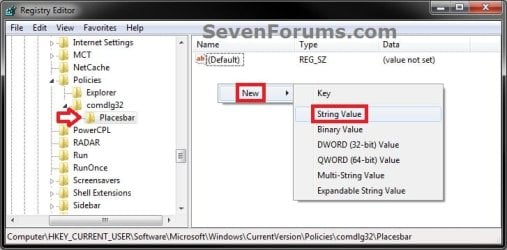
C) Type Placesbar, and press enter. (see screenshot below step 4D)

D) In the right pane of Placesbar, right click or press and hold on an empty space, and click/tap on New and String Value. (see screenshot below)
Reg4.jpg
E) You can specify up to 5 places, so type Place0, Place1, Place2, Place3, or Place4 for each one you would like to customize, and press Enter. (see screenshot below)
Reg5.jpg
F) Repeat steps 4D and 4E to add each Place# string value for how many custom places you wanted to be displayed as items in the Places Bar.

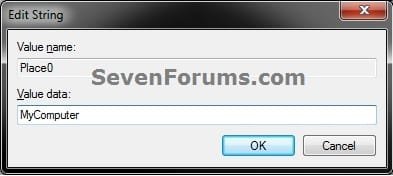
G) In the right pane, double click/tap on the Place# to modify it. Type in the item location that you want to have displayed in the Places Bar, and click/tap on OK. Repeat for each Place# that you have added in step 4E above. (see screenshot below)
NOTE: See the NOTE box at the top of the tutorial for more on valid items you may display in the Places Bar.
Modify.jpg
H) Go to step 6.
5. To Restore Default Items Displayed in the Places Bar
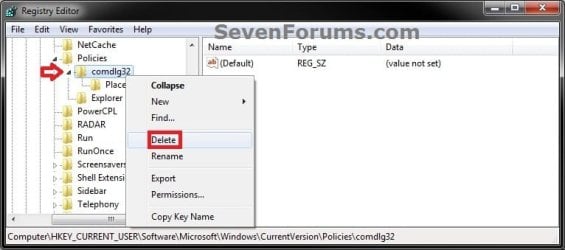
A) In the left pane, right click on Placesbar, and click/tap on Delete. (see screenshot below)
Delete-1.jpg
B) Click/tap on Yes to approve deletion. (see screenshot below)
Delete-2.jpg
6. Close regedit.
That's it,
Shawn


Last edited:
Oops, yeah that should have been "What are you using...".

I don't have Java installed (don't like/trust it) to be able to test with that program. Any others?

I'm going to guess that this is a program specific issue though since you say your places bar is fine everywhere else.
 

My Computer My Computer

Computer type
PC/Desktop
Computer Manufacturer/Model Number
Self built custom
OS
64-bit Windows 11 Pro for Workstations
CPU
Intel i7-8700K OC'd to 5 GHz
Motherboard
ASUS ROG Maximus XI Formula Z390
Memory
64 GB (4x16GB) G.SKILL TridentZ RGB DDR4 3600 MHz
Graphics Card(s)
ASUS ROG-STRIX-GTX1080TI-O11G-GAMING
Sound Card
Integrated
Monitor(s) Displays
2 x Samsung Odyssey G7 27"
Screen Resolution
2560x1440
Hard Drives
1TB Samsung 990 PRO M.2,
4TB Samsung 990 PRO PRO M.2,
TerraMaster F8 SSD Plus NAS
PSU
Seasonic Prime Titanium 850W
Case
Thermaltake Core P3
Cooling
Corsair Hydro H115i
Keyboard
Logitech wireless K800
Mouse
Logitech MX Master 4
Internet Speed
2 Gb/s Download and 100 Mb/s Upload
Antivirus
Malwarebyte Anti-Malware Premium
Browser
Google Chrome
Other Info
Logitech Z625 speaker system,
Logitech BRIO 4K Pro webcam,
HP Color LaserJet Pro MFP M477fdn,
APC SMART-UPS RT 1000 XL - SURT1000XLI,
Galaxy S23 Plus phone
That must be the case yes. Sorry I didn't catch that before.
 

My Computer My Computer

Computer Manufacturer/Model Number
HP Compaq 8510w
OS
Windows 7 Professional x64
CPU
Core 2 Duo
How To Add Recent Places

Btw: In case anyone is still wondering, I figured out how to add Recent Places instead of Recent Items. Enter the following:

Code:
Shell:::{22877a6d-37a1-461a-91b0-dbda5aaebc99}
For a complete list of other special folders (even the ones other lists often leave out), see: http://www.sevenforums.com/tutorials/110919-clsid-key-list-windows-7-a.html
 
Last edited by a moderator:

My Computer My Computer

Computer type
PC/Desktop
Computer Manufacturer/Model Number
Dell XPS 720 H2C
OS
Windows 7 Ultimate x64
This saved my SO MUCH TIME! Thank you so much!

I am much more productive now that I can open my Dropbox and secondary drives from the Places Bar.

You rock man.
 

My Computer My Computer

Computer type
Laptop
Computer Manufacturer/Model Number
Asus
OS
Windows 7 Professional x64
CPU
i7
Memory
12GB DDR3
Graphics Card(s)
EVGA GTX 580
Monitor(s) Displays
Dual 27" Samsung
Hard Drives
2x 256MB Samsung 840 Pro SSD
2x 2TB Samsung SATA
6x 2TB WD Black USB 3.0
PSU
450W Standard + ePOWER 450W Juice Box (DVD slot PSU for GPU)
Case
ASUS
Cooling
High-P Box fan with Cardboard/Duct tape casing & fins haha
Keyboard
Logitech
Mouse
Logitech
Internet Speed
300Mb/s residential through Time Warner Cable (Rare)
Antivirus
MSE
Browser
Chrome, Firefox
Thank you for posting this info. I've done my best to read this thread and related threads to get the answers to my issue.

I am using Windows 7 Pro, 64 bit.

My problem is that I did everything listed in both methods exactly as instructed, but my "save as" dialog did not change at all with either approach. I'm usually pretty good at following instructions, but was frustrated to find that it changed nothing....

Questions:

1 - Is a reboot required to make these changes take place?

2 - Is a network drive one of the locations that can be added?

3 - Is there a space between "My" and "Documents" and "My" and "Computer" when trying to display those in the places bar, or should it be "MyDocuments" and "MyComputer"? Or should I be using "shell commands" (which I don't know anything about, to be honest) to show those items?

I know this is an old thread so I may not get the help I'm looking for, but it's worth a try!
 

My Computer My Computer

Computer type
PC/Desktop
OS
Windows 7 Professional 64 bit

My Computer My Computer

Computer type
PC/Desktop
Computer Manufacturer/Model Number
Self built custom
OS
64-bit Windows 11 Pro for Workstations
CPU
Intel i7-8700K OC'd to 5 GHz
Motherboard
ASUS ROG Maximus XI Formula Z390
Memory
64 GB (4x16GB) G.SKILL TridentZ RGB DDR4 3600 MHz
Graphics Card(s)
ASUS ROG-STRIX-GTX1080TI-O11G-GAMING
Sound Card
Integrated
Monitor(s) Displays
2 x Samsung Odyssey G7 27"
Screen Resolution
2560x1440
Hard Drives
1TB Samsung 990 PRO M.2,
4TB Samsung 990 PRO PRO M.2,
TerraMaster F8 SSD Plus NAS
PSU
Seasonic Prime Titanium 850W
Case
Thermaltake Core P3
Cooling
Corsair Hydro H115i
Keyboard
Logitech wireless K800
Mouse
Logitech MX Master 4
Internet Speed
2 Gb/s Download and 100 Mb/s Upload
Antivirus
Malwarebyte Anti-Malware Premium
Browser
Google Chrome
Other Info
Logitech Z625 speaker system,
Logitech BRIO 4K Pro webcam,
HP Color LaserJet Pro MFP M477fdn,
APC SMART-UPS RT 1000 XL - SURT1000XLI,
Galaxy S23 Plus phone
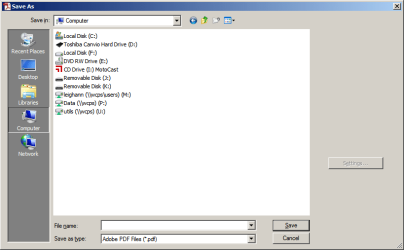
Thank you, Brink, you seem to have all the answers! Here are some screen shots - hopefully you can tell me what I'm doing wrong :)
 

Attachments

  • Screen Shot.png
    Screen Shot.png
    23 KB · Views: 689
  • Screen Shot 1.png
    Screen Shot 1.png
    16.1 KB · Views: 679
  • Screen Shot 2.png
    Screen Shot 2.png
    14.5 KB · Views: 681

My Computer My Computer

Computer type
PC/Desktop
OS
Windows 7 Professional 64 bit
As a test, remove or replace "P:\client" to see if that's the one preventing it to work properly.

If it's a network location, then you'll need to use #2 in the note box at the top of the tutorial for a proper path.
 

My Computer My Computer

Computer type
PC/Desktop
Computer Manufacturer/Model Number
Self built custom
OS
64-bit Windows 11 Pro for Workstations
CPU
Intel i7-8700K OC'd to 5 GHz
Motherboard
ASUS ROG Maximus XI Formula Z390
Memory
64 GB (4x16GB) G.SKILL TridentZ RGB DDR4 3600 MHz
Graphics Card(s)
ASUS ROG-STRIX-GTX1080TI-O11G-GAMING
Sound Card
Integrated
Monitor(s) Displays
2 x Samsung Odyssey G7 27"
Screen Resolution
2560x1440
Hard Drives
1TB Samsung 990 PRO M.2,
4TB Samsung 990 PRO PRO M.2,
TerraMaster F8 SSD Plus NAS
PSU
Seasonic Prime Titanium 850W
Case
Thermaltake Core P3
Cooling
Corsair Hydro H115i
Keyboard
Logitech wireless K800
Mouse
Logitech MX Master 4
Internet Speed
2 Gb/s Download and 100 Mb/s Upload
Antivirus
Malwarebyte Anti-Malware Premium
Browser
Google Chrome
Other Info
Logitech Z625 speaker system,
Logitech BRIO 4K Pro webcam,
HP Color LaserJet Pro MFP M477fdn,
APC SMART-UPS RT 1000 XL - SURT1000XLI,
Galaxy S23 Plus phone
I took out the "P:\client" but I still only get the default options in the "save as" dialog.
 

My Computer My Computer

Computer type
PC/Desktop
OS
Windows 7 Professional 64 bit
Favourites in the Places Bar

Thank you for sharing. I followed your instructions and it works fine so far.

However, is there any way to show the "favourites" list in the places bar?
 

My Computer My Computer

Computer type
PC/Desktop
OS
win 8.1 64bit
Thank you for sharing. I followed your instructions and it works fine so far.

However, is there any way to show the "favourites" list in the places bar?

Hello Wotaewer, and welcome to Seven Forums.

No, but you could add Favorites to the places bar by adding the folder below if you like.

C:\Users\(user-name)\Links
 

My Computer My Computer

Computer type
PC/Desktop
Computer Manufacturer/Model Number
Self built custom
OS
64-bit Windows 11 Pro for Workstations
CPU
Intel i7-8700K OC'd to 5 GHz
Motherboard
ASUS ROG Maximus XI Formula Z390
Memory
64 GB (4x16GB) G.SKILL TridentZ RGB DDR4 3600 MHz
Graphics Card(s)
ASUS ROG-STRIX-GTX1080TI-O11G-GAMING
Sound Card
Integrated
Monitor(s) Displays
2 x Samsung Odyssey G7 27"
Screen Resolution
2560x1440
Hard Drives
1TB Samsung 990 PRO M.2,
4TB Samsung 990 PRO PRO M.2,
TerraMaster F8 SSD Plus NAS
PSU
Seasonic Prime Titanium 850W
Case
Thermaltake Core P3
Cooling
Corsair Hydro H115i
Keyboard
Logitech wireless K800
Mouse
Logitech MX Master 4
Internet Speed
2 Gb/s Download and 100 Mb/s Upload
Antivirus
Malwarebyte Anti-Malware Premium
Browser
Google Chrome
Other Info
Logitech Z625 speaker system,
Logitech BRIO 4K Pro webcam,
HP Color LaserJet Pro MFP M477fdn,
APC SMART-UPS RT 1000 XL - SURT1000XLI,
Galaxy S23 Plus phone
I took out the "P:\client" but I still only get the default options in the "save as" dialog.

Sorry I missed your reply. Did you get this sorted?
 

My Computer My Computer

Computer type
PC/Desktop
Computer Manufacturer/Model Number
Self built custom
OS
64-bit Windows 11 Pro for Workstations
CPU
Intel i7-8700K OC'd to 5 GHz
Motherboard
ASUS ROG Maximus XI Formula Z390
Memory
64 GB (4x16GB) G.SKILL TridentZ RGB DDR4 3600 MHz
Graphics Card(s)
ASUS ROG-STRIX-GTX1080TI-O11G-GAMING
Sound Card
Integrated
Monitor(s) Displays
2 x Samsung Odyssey G7 27"
Screen Resolution
2560x1440
Hard Drives
1TB Samsung 990 PRO M.2,
4TB Samsung 990 PRO PRO M.2,
TerraMaster F8 SSD Plus NAS
PSU
Seasonic Prime Titanium 850W
Case
Thermaltake Core P3
Cooling
Corsair Hydro H115i
Keyboard
Logitech wireless K800
Mouse
Logitech MX Master 4
Internet Speed
2 Gb/s Download and 100 Mb/s Upload
Antivirus
Malwarebyte Anti-Malware Premium
Browser
Google Chrome
Other Info
Logitech Z625 speaker system,
Logitech BRIO 4K Pro webcam,
HP Color LaserJet Pro MFP M477fdn,
APC SMART-UPS RT 1000 XL - SURT1000XLI,
Galaxy S23 Plus phone
Thank you for sharing. I followed your instructions and it works fine so far.

However, is there any way to show the "favourites" list in the places bar?

Hello Wotaewer, and welcome to Seven Forums.

No, but you could add Favorites to the places bar by adding the folder below if you like.

C:\Users\(user-name)\Links

awesome! This worked perfectly - thank you very much!
 

My Computer My Computer

Computer type
PC/Desktop
OS
win 8.1 64bit
You're most welcome. :)
 

My Computer My Computer

Computer type
PC/Desktop
Computer Manufacturer/Model Number
Self built custom
OS
64-bit Windows 11 Pro for Workstations
CPU
Intel i7-8700K OC'd to 5 GHz
Motherboard
ASUS ROG Maximus XI Formula Z390
Memory
64 GB (4x16GB) G.SKILL TridentZ RGB DDR4 3600 MHz
Graphics Card(s)
ASUS ROG-STRIX-GTX1080TI-O11G-GAMING
Sound Card
Integrated
Monitor(s) Displays
2 x Samsung Odyssey G7 27"
Screen Resolution
2560x1440
Hard Drives
1TB Samsung 990 PRO M.2,
4TB Samsung 990 PRO PRO M.2,
TerraMaster F8 SSD Plus NAS
PSU
Seasonic Prime Titanium 850W
Case
Thermaltake Core P3
Cooling
Corsair Hydro H115i
Keyboard
Logitech wireless K800
Mouse
Logitech MX Master 4
Internet Speed
2 Gb/s Download and 100 Mb/s Upload
Antivirus
Malwarebyte Anti-Malware Premium
Browser
Google Chrome
Other Info
Logitech Z625 speaker system,
Logitech BRIO 4K Pro webcam,
HP Color LaserJet Pro MFP M477fdn,
APC SMART-UPS RT 1000 XL - SURT1000XLI,
Galaxy S23 Plus phone
I took out the "P:\client" but I still only get the default options in the "save as" dialog.

Sorry I missed your reply. Did you get this sorted?

Hi again Brink, no, I have not been able to get this to work. I seem to be the only one. :p I've kind of resigned myself to the idea that it just won't happen for me. :cry:
 

My Computer My Computer

Computer type
PC/Desktop
OS
Windows 7 Professional 64 bit
I took out the "P:\client" but I still only get the default options in the "save as" dialog.

Sorry I missed your reply. Did you get this sorted?

Hi again Brink, no, I have not been able to get this to work. I seem to be the only one. :p I've kind of resigned myself to the idea that it just won't happen for me. :cry:

In that case, you could use the default items but substitute one with Favorites like above instead. This way you can have folder shortcuts in your Favorites folder to select from as well.
 

My Computer My Computer

Computer type
PC/Desktop
Computer Manufacturer/Model Number
Self built custom
OS
64-bit Windows 11 Pro for Workstations
CPU
Intel i7-8700K OC'd to 5 GHz
Motherboard
ASUS ROG Maximus XI Formula Z390
Memory
64 GB (4x16GB) G.SKILL TridentZ RGB DDR4 3600 MHz
Graphics Card(s)
ASUS ROG-STRIX-GTX1080TI-O11G-GAMING
Sound Card
Integrated
Monitor(s) Displays
2 x Samsung Odyssey G7 27"
Screen Resolution
2560x1440
Hard Drives
1TB Samsung 990 PRO M.2,
4TB Samsung 990 PRO PRO M.2,
TerraMaster F8 SSD Plus NAS
PSU
Seasonic Prime Titanium 850W
Case
Thermaltake Core P3
Cooling
Corsair Hydro H115i
Keyboard
Logitech wireless K800
Mouse
Logitech MX Master 4
Internet Speed
2 Gb/s Download and 100 Mb/s Upload
Antivirus
Malwarebyte Anti-Malware Premium
Browser
Google Chrome
Other Info
Logitech Z625 speaker system,
Logitech BRIO 4K Pro webcam,
HP Color LaserJet Pro MFP M477fdn,
APC SMART-UPS RT 1000 XL - SURT1000XLI,
Galaxy S23 Plus phone
Oh, I like that idea... will give it a try as soon as I have some time and let you know how it goes. thanks again :)
 

My Computer My Computer

Computer type
PC/Desktop
OS
Windows 7 Professional 64 bit
Hi Shawn,

again a Forum Tutorial which saves so much clicking, and it can be done with
the more or less hidden Windows 7 features (Group Policy Editor) ... :p

It was most annoying to have the new Win 7 Common File Dialog Box with the ability
to store own favorites and then have some programs using the old XP style box, where
the defaults didn't fit my needs.

Many thanks,
Tom.
 

My Computer My Computer

Computer type
PC/Desktop
Computer Manufacturer/Model Number
Custom Build
OS
Windows 7 Ultimate x64
CPU
Intel Sandy Bridge i5 2500K
Motherboard
ASUS P8 H67-M Pro Rev. 3
Memory
16 GB
Graphics Card(s)
Intel internal HD 3000
Sound Card
Realtek internal High Def Audio
Monitor(s) Displays
ViewSonic 24"
Case
Cooler Master - HAF 932 (Big Tower)
Cooling
CPU: EKL AG "Alpenfohn Brocken"
Mouse
SteelSeries Sensei
Antivirus
Kaspersky Internet Security
Browser
Avant (Tri-Core: IE, FireFox & Chrome Engine)
Hello Tom,

Glad it could help. :)
 

My Computer My Computer

Computer type
PC/Desktop
Computer Manufacturer/Model Number
Self built custom
OS
64-bit Windows 11 Pro for Workstations
CPU
Intel i7-8700K OC'd to 5 GHz
Motherboard
ASUS ROG Maximus XI Formula Z390
Memory
64 GB (4x16GB) G.SKILL TridentZ RGB DDR4 3600 MHz
Graphics Card(s)
ASUS ROG-STRIX-GTX1080TI-O11G-GAMING
Sound Card
Integrated
Monitor(s) Displays
2 x Samsung Odyssey G7 27"
Screen Resolution
2560x1440
Hard Drives
1TB Samsung 990 PRO M.2,
4TB Samsung 990 PRO PRO M.2,
TerraMaster F8 SSD Plus NAS
PSU
Seasonic Prime Titanium 850W
Case
Thermaltake Core P3
Cooling
Corsair Hydro H115i
Keyboard
Logitech wireless K800
Mouse
Logitech MX Master 4
Internet Speed
2 Gb/s Download and 100 Mb/s Upload
Antivirus
Malwarebyte Anti-Malware Premium
Browser
Google Chrome
Other Info
Logitech Z625 speaker system,
Logitech BRIO 4K Pro webcam,
HP Color LaserJet Pro MFP M477fdn,
APC SMART-UPS RT 1000 XL - SURT1000XLI,
Galaxy S23 Plus phone
Addition :

I meanwhile worked for some hours with my older version of a popular picture editing
program, which uses the old XP box. The difference between "before" and "now" is
much bigger than I expected :

Now it's really ten times more fun to save the files. :thumbsup:

Thanks again and some virtual hugs ... :grouphug:
 

My Computer My Computer

Computer type
PC/Desktop
Computer Manufacturer/Model Number
Custom Build
OS
Windows 7 Ultimate x64
CPU
Intel Sandy Bridge i5 2500K
Motherboard
ASUS P8 H67-M Pro Rev. 3
Memory
16 GB
Graphics Card(s)
Intel internal HD 3000
Sound Card
Realtek internal High Def Audio
Monitor(s) Displays
ViewSonic 24"
Case
Cooler Master - HAF 932 (Big Tower)
Cooling
CPU: EKL AG "Alpenfohn Brocken"
Mouse
SteelSeries Sensei
Antivirus
Kaspersky Internet Security
Browser
Avant (Tri-Core: IE, FireFox & Chrome Engine)
Back
Top