dsperber: you are right that the original computer came with vista installed, complete with an upgrade disk for windows 7, will this effect the trying to recover the lost Gb
No. It only clarifies the odd partition structure we see for the C and D partitions.
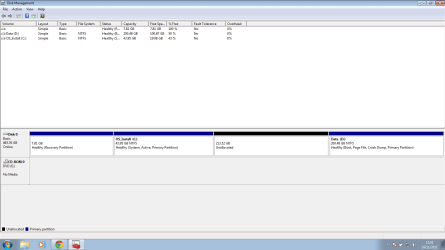
I now believe the current 45GB C partition (which shows as "active" is where your old Vista system lived), and that your current 200GB D partition (which shows as "boot" and includes the page file) is where your current Win7 system lives.
I don't know how your upgrade process went, and whether or not Win7 was added to Vista as a second bootable OS, so that you currently have a boot-time menu that offers you a choice of booting to your old Vista or your new Win7, or whether the upgrade process simply made the new Win7 system (which I believe is actually on D) the one-and-only bootable OS and Vista is simply gone.
If we could see Windows Explorer screenshots of the root directory for both C and D it would probably even further clarify what your two partitions contain. But you could simply tell us what happens (or happened) at boot time before you tried to manipulate partitions with Paragon. I, myself, use Partition Wizard for partitioning tasks but there are many ways to skin this cat.
For your current situation it seems all you need to do is CREATE a new partition in that unallocated 213GB space in the middle of the drive. Just run DISKMGMT.MSC again, and right-click on that "unallocated" space shown in the graphical area in the lower part of the screen, and select CREATE from the popup context menu.
Then follow the wizard... which will be simple if you just one to allocate the whole 218GB to one more "primary" partition. You're only allowed to have at most FOUR "primary" partitions on a hard drive and you've currently got three, so you can create one more (and allocate all 218GB available to it). The NTFS file system should be pre-selected by default, and if you want you can create a "label" for the partition (say... DATA2, since you already have DATA even though I think it is really Win7 living there).
This will also cause a new drive letter to be assigned to that newly created partition, which will most likely be F (since you already have C and D on that DISK0 hard drive, and E for your CD drive). Actually you can always change your drive letters (for other than your Win7 partition) if you don't like what you will get (which will likely be F for that new partition).
Alternatively, you can CREATE a "logical" partition in that unallocated space, which for now can still be ALL of the available space. But if you do define it as "logical" then you can come back at a future date and further sub-divide the space (obviously somewhat shrinking the logical partition you're creating now) in order to create additional "logical" partitions in what will then be newly available unallocated space.
In other words, you can have up to FOUR "primary" partitions on a hard drive. But one of those "primary" partitions can be used as what's called an "extended partition" (and it's truly a "primary" partition). However inside of that one "extended partition" you can sub-allocate ANY NUMBER of "logical" partitions. So this trick allows you to have more than four partitions on a single hard drive... up to three "primary" partitions and then ANY NUMBER of "logical" sub-defined inside of that fourth "primary" partition used as an "extended partition".
I'm not trying to complicate the discussion, so if you only have a need and desire for one more partition on this drive, to use all of the currently available 218GB of storage, then go ahead and just allocate it as a fourth "primary" in that CREATE wizard, and use all the available space.
And, one more alternative... you can also use Partition Wizard to do the same CREATE of the new partition (and again, either "primary" or "logical").
And I think you can also use Paragon to do the same thing.
The important thing is that you simply need to right-click on the unallocated space using any of the above-named tools, and then select CREATE from the popup context menu, and then just "follow the wizard". That will give you a newly lettered partition, with all of the 218GB space now available for your use.