Computer - Pin to Taskbar

How to Pin Computer to the Windows 7 Taskbar

   Information
This will show you how to pin Computer to the Windows 7 taskbar as a separate icon instead of it being pinned as a Jump list item in the default pinned Window Explorer taskbar icon.

Default.jpg

   Note
When you have both the default Windows Explorer icon to the left and this Computer icon to the right of it, then each time you click on the Computer icon on the taskbar it will open another separate new window of Computer. Clicking on the Windows Explorer icon will only open the one window instance.

   Warning
To avoid issues with other pinned "explorer" type shortcuts from displaying their opened windows in the thumbnail previews of whatever pinned "explorer" type shortcut is on the farthest left of the taskbar, be sure that the default pinned Windows Explorer taskbar icon is dragged to the left of this pinned Computer icon on the taskbar, and that any other pinned "explorer" type icon is dragged to the right of this Computer icon.

EXAMPLE: Computer Unpinned and Pinned from the Taskbar
attachment.php


attachment.php

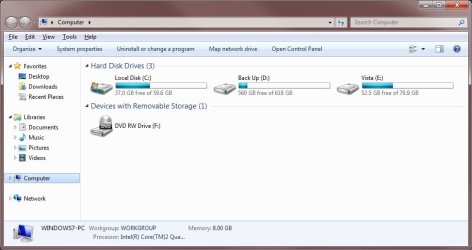
EXAMPLE: Computer window
Computer.jpg


OPTION ONE

To Download the "Computer" Shortcut


1. If you have not already, then uncheck the default Computer shortcut from the Desktop Icon Settings window.

2. Click on the Download button below to download the Computer.zip file below.

Download


3. Click on Save, and save the .zip file to the desktop.

4. Open the .zip file and extract the Computer shortcut to the desktop.

5. Right click on the Computer shortcut and click on Properties, General tab, and the Unblock button. (see screenshot below)
NOTE: If the unblock button is not there, then the shortcut is already set to be unblocked. Continue on to step 6.
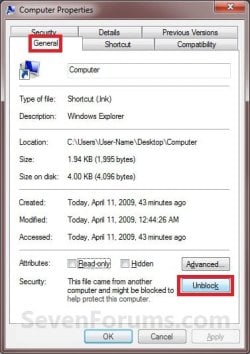
Blocked.jpg
6. Drag the Computer shortcut onto the taskbar until you see the Pin to Taskbar pop-up and drop it. (see screenshot below)
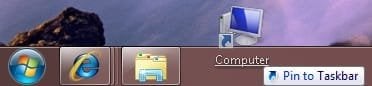
Pin.jpg
7. Computer is now pinned to the taskbar. (see screenshot below)
NOTE: If you ever wish to remove the pinned Computer icon from the taskbar, right click on it and click on Unpin this program from the Taskbar.
Taskbar-2.jpg
8. When done, you can delete the downloaded Computer shortcut and .zip files on the desktop if you like.


OPTION TWO

To Manually Create the "Computer" Shortcut


1. If you have not already, then uncheck the default Computer shortcut from the Desktop Icon Settings window.

2. Right click on a empty space on the desktop and click on New and Shortcut.

3. Copy and past either location below into the location area and click on the Next button. (see screenshot below)
explorer.exe ,0

OR

%SystemRoot%\explorer.exe shell:MyComputerFolder

OR

%windir%\explorer.exe shell:MyComputerFolder

OR

%windir%\explorer.exe /e,::{20D04FE0-3AEA-1069-A2D8-08002B30309D}
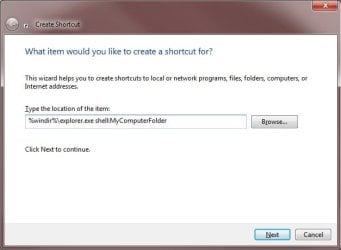
Step1.jpg
4. For the name, type Computer and click on the Finish button. (see screenshot below)
Step2.jpg
5. Right click on the new Computer shortcut on the desktop and click on Properties.

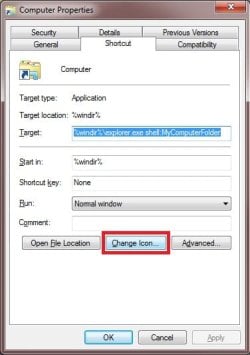
6. Under the Shortcut tab, click on the Change Icon button. (see screenshot below)
Step3.jpg
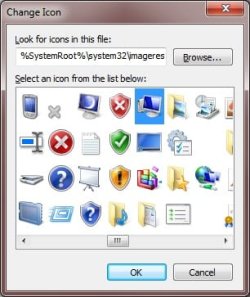
7. In the "Look for icons..." line, copy and paste the path below and press enter. (see screenshot below)
%SystemRoot%\system32\imageres.dll
Step4.jpg
8. Select the Computer icon and click on OK. (see screenshot above)

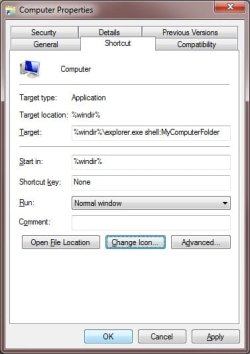
9. Click on OK. (see screenshot below)
Step5.jpg
10. Drag the new Computer shortcut onto the taskbar until you see the Pin to Taskbar pop-up and drop it. (see screenshot below)
Pin.jpg
11. Computer is now pinned to the taskbar. (see screenshot below)
NOTE: If you ever wish to remove the pinned Computer icon from the taskbar, right click on it and click on Unpin this program from the Taskbar.
Taskbar-2.jpg
12. You can now delete the Computer shortcut on the desktop.
That's it,
Shawn


Attachments

  • Taskbar-1.jpg
    Taskbar-1.jpg
    4.9 KB · Views: 131,584
  • Computer.zip
    Computer.zip
    800 bytes · Views: 11,336
Last edited:
Hey Shawn.
I like to be able to see how many windows I have open and what they are at a glance, so the always combine thing buggs me a little, but thatnks for the tip.

Kookster, I saw your post after i submitted mine, but havnt had a chance to try it yet, but ill definatly give it a shot. thanks :)
 

My Computer

OS
|Windows 7 x64| |Windows XP Pro x64|
CPU
Intel Core i7 920
Motherboard
Gigabyte GA-EX58-Extreme
Memory
G.Skill Tri-Channel, 2GB X3
Graphics Card(s)
Zotac Nvidia GeForce GTX 275
Monitor(s) Displays
Benq 24" High Definition
Screen Resolution
1920 x 1080
Hard Drives
WD 320GB Caviar Blue
WD 1TB Caviar Green
WD 1TB MyBook USB
Thanks mate , but doing so will create another explorer.exe process which is unnecessary

Here’s a way to link my computer directly and much faster

http://www.sevenforums.com/tutorials/2863-windows-explorer-taskbar-icon-change-open-target.html

OR

1] Create a shortcut to My Computer on the desktop . Just drag it from the start menu to the desktop
2] Create a new text document. Change its filename and extension to “My Computer.exe”
3] Pin this My Computer.exe to the taskbar
4] Now Open “C:\Users\%User%\AppData\Roaming\Microsoft\Internet Explorer\Quick Launch\User Pinned\TaskBar”
5]Replace the shortcut My Computer [ the one linked to the .exe ] with the one on your desktop.
6] Click on the pinned item on the desktop .opening it will not create an extra explorer.exe process and it opens a tad bit faster too
 
Last edited by a moderator:

My Computer

OS
Windows 7 Ultimate x64
Thanks Shawn I can't believe I missed this one. I prefer using the My Computer shortcut over the Windows Explorer shortcut because I do not use Libraries and had previously removed Libraries Folder from navigation pane but the Icons were still showing up to the right of the navigation pane even after un-ticking & unindexing folders.

The Windows Explorer Taskbar Icon - Change Open To Target tutorial was also usful for changing the target of the windows explorer icon under All Programs/Accessories/Windows Explorer
 
Last edited:

My Computer

Computer type
PC/Desktop
Computer Manufacturer/Model Number
My own abomination, I call it the Money Pit
OS
Windows 10 Pro x 2/Windows 11 Home
CPU
Intel i7 2600K @ 3.40 GHz
Motherboard
ASUS Sabertooth P67
Memory
Corsair Vengeance 16GB DDR3 1600MHz CL8 Dual Channel Kit
Graphics Card(s)
EVGA GeForce RTX 3080 XC3 ULTRA GAMING 10GB GDDR6X
Sound Card
Onboard Realtek or Nvidia High Definition Audio (HDMI)
Monitor(s) Displays
Samsung JS7000 50" SUHD TV or Samsung 27" FHD 60Hz 8ms GTG V
Screen Resolution
1920 x 1080
Hard Drives
1 x Samsung 870 EVO 250 GB SSD (Windows 10 Pro), 1 x Samsung 850 EVO 250 GB SSD (Windows 10 Pro)
PSU
Corsair AX860 - 860W Modular Power Supply
Case
Phanteks Enthoo Luxe Full Tower Case - Black
Cooling
CORSAIR Hydro Series H150i PRO RGB 360mm Liquid CPU Cooler
Keyboard
Logitech K830 Illuminated Living-Room Keyboard
Mouse
Logitech MX Anywhere 2S Wireless Mouse
Internet Speed
100 Mbps
Antivirus
ESET Internet Security
Browser
Latest Version Of Firefox & Microsoft Edge Chromium Stable
Other Info
LG Super Multi Blue Internal Blu-ray Disk Rewriter - BH10LS30
6x2 HDMI Switcher (6 inputs, 2 outputs) so I can send the output of my Cable Box, Roku, or any my 4 computers to either my TV or Monitor separately or simultaneously.
You're most welcome IownAmoneyPit. :)
 

My Computer

Computer type
PC/Desktop
Computer Manufacturer/Model Number
Self built custom
OS
64-bit Windows 11 Pro for Workstations
CPU
Intel i7-8700K OC'd to 5 GHz
Motherboard
ASUS ROG Maximus XI Formula Z390
Memory
64 GB (4x16GB) G.SKILL TridentZ RGB DDR4 3600 MHz
Graphics Card(s)
ASUS ROG-STRIX-GTX1080TI-O11G-GAMING
Sound Card
Integrated
Monitor(s) Displays
2 x Samsung Odyssey G7 27"
Screen Resolution
2560x1440
Hard Drives
1TB Samsung 990 PRO M.2,
4TB Samsung 990 PRO PRO M.2,
TerraMaster F8 SSD Plus NAS
PSU
Seasonic Prime Titanium 850W
Case
Thermaltake Core P3
Cooling
Corsair Hydro H115i
Keyboard
Logitech wireless K800
Mouse
Logitech MX Master 4
Internet Speed
2 Gb/s Download and 100 Mb/s Upload
Antivirus
Malwarebyte Anti-Malware Premium
Browser
Google Chrome
Other Info
Logitech Z625 speaker system,
Logitech BRIO 4K Pro webcam,
HP Color LaserJet Pro MFP M477fdn,
APC SMART-UPS RT 1000 XL - SURT1000XLI,
Galaxy S23 Plus phone
icons change when both "my computer" and "my documents" pinned

thanks for this advice and the warning re issues with other pinned "explorer" type shortcuts.

i've tried to follow the instructions exactly (ie "default pinned Windows Explorer taskbar icon is dragged to the right of this pinned Computer icon on the taskbar, and that any other pinned "explorer" type icon is dragged to the right of this Computer icon" - - - i have put "computer" at the left, then "my documents", then "explorer") but am still finding that when i pin both "computer" and "documents" to the taskbar, the leftmost (computer) icon changes to preview documents when they are opened.

"computer" is set to to %windir%\explorer.exe shell:MyComputerFolder
"my documents" is %SystemRoot%\explorer.exe /N,::{450D8FBA-AD25-11D0-98A8-0800361B1103}
"explorer" is %windir%\explorer.exe

in my case "my documents" is actually "H:\My Documents" (synchronised with a company network) but that can only be pinned to "computer"

i am not sure if any of these factors are the cause of the problem

is there a way to avoid this behaviour?

thanks
 

My Computer

OS
windows 7 32 bit
Hello Cbeer, and welcome to Seven Forums.

This would be normal. All explorer type shortcuts that open Windows Explorer or use the explorer.exe command, will have their window open with the explorer type shortcut that is the furthest left on the taskbar.
 

My Computer

Computer type
PC/Desktop
Computer Manufacturer/Model Number
Self built custom
OS
64-bit Windows 11 Pro for Workstations
CPU
Intel i7-8700K OC'd to 5 GHz
Motherboard
ASUS ROG Maximus XI Formula Z390
Memory
64 GB (4x16GB) G.SKILL TridentZ RGB DDR4 3600 MHz
Graphics Card(s)
ASUS ROG-STRIX-GTX1080TI-O11G-GAMING
Sound Card
Integrated
Monitor(s) Displays
2 x Samsung Odyssey G7 27"
Screen Resolution
2560x1440
Hard Drives
1TB Samsung 990 PRO M.2,
4TB Samsung 990 PRO PRO M.2,
TerraMaster F8 SSD Plus NAS
PSU
Seasonic Prime Titanium 850W
Case
Thermaltake Core P3
Cooling
Corsair Hydro H115i
Keyboard
Logitech wireless K800
Mouse
Logitech MX Master 4
Internet Speed
2 Gb/s Download and 100 Mb/s Upload
Antivirus
Malwarebyte Anti-Malware Premium
Browser
Google Chrome
Other Info
Logitech Z625 speaker system,
Logitech BRIO 4K Pro webcam,
HP Color LaserJet Pro MFP M477fdn,
APC SMART-UPS RT 1000 XL - SURT1000XLI,
Galaxy S23 Plus phone
Explorer.exe not quitting

While all these tutorials are great, the warning about addition explorer.exe process is not exactly complete. In my case, the additional instances of explorer.exe DO NOT terminate after using the shortcuts. (and yes, setting in Folder Options is to only launch one instance).

Any suggestions?
 

My Computer

Computer Manufacturer/Model Number
Custom
OS
Windows 7 Ultimate x64
CPU
Core I7-950
Motherboard
EVGA X58 Classified 3 EATX
Memory
Gskill Ripjaws DDR3 1333Mhz 16GB
Graphics Card(s)
2x GTX 464
Sound Card
Internal
Hard Drives
HDD1 (Boot Drive): Revodrive X2 100GB
HDD2: WD Velociraptor 600GB
HDD3: WD Raptor 74GB
HDD4: Hitachi HDS720 1GB
HDD5: Seagate ST3100 1GB
HDD6: WD 750GB Black Series
PSU
Antec Truepower 1200
Case
Cooler Master HAF X RC-942
Cooling
Cooler Master Hyper 212 Plus
Hello Tanger, and welcome to Seven Forums.

This is normal with both the Windows Explorer and Computer pinned to the taskbar together. I have added a note box at the top of the tutorial to help explain this better.

This is so that you can easily open as many Computer windows as you like by just clicking on the Computer taskbar icon for how many you want opened.
 

My Computer

Computer type
PC/Desktop
Computer Manufacturer/Model Number
Self built custom
OS
64-bit Windows 11 Pro for Workstations
CPU
Intel i7-8700K OC'd to 5 GHz
Motherboard
ASUS ROG Maximus XI Formula Z390
Memory
64 GB (4x16GB) G.SKILL TridentZ RGB DDR4 3600 MHz
Graphics Card(s)
ASUS ROG-STRIX-GTX1080TI-O11G-GAMING
Sound Card
Integrated
Monitor(s) Displays
2 x Samsung Odyssey G7 27"
Screen Resolution
2560x1440
Hard Drives
1TB Samsung 990 PRO M.2,
4TB Samsung 990 PRO PRO M.2,
TerraMaster F8 SSD Plus NAS
PSU
Seasonic Prime Titanium 850W
Case
Thermaltake Core P3
Cooling
Corsair Hydro H115i
Keyboard
Logitech wireless K800
Mouse
Logitech MX Master 4
Internet Speed
2 Gb/s Download and 100 Mb/s Upload
Antivirus
Malwarebyte Anti-Malware Premium
Browser
Google Chrome
Other Info
Logitech Z625 speaker system,
Logitech BRIO 4K Pro webcam,
HP Color LaserJet Pro MFP M477fdn,
APC SMART-UPS RT 1000 XL - SURT1000XLI,
Galaxy S23 Plus phone
I was able to create the icon but unable to pin on the task bar please help what can be done
 

My Computer

OS
Windows 7 Ultimate x64
Motherboard
DH55TC Intel
Memory
4GBRAM
Monitor(s) Displays
LG W2053TP
Internet Speed
512 Kbps
Hello TrojanHorse27,

Do you already have another "Computer" icon pinned on the taskbar?

Have you tried the other target locations in step 3 OPTION TWO to see if one may work better for you?

When you right click on the "Computer" shortcut, do you have a "Pin to Taskbar" option?
 

My Computer

Computer type
PC/Desktop
Computer Manufacturer/Model Number
Self built custom
OS
64-bit Windows 11 Pro for Workstations
CPU
Intel i7-8700K OC'd to 5 GHz
Motherboard
ASUS ROG Maximus XI Formula Z390
Memory
64 GB (4x16GB) G.SKILL TridentZ RGB DDR4 3600 MHz
Graphics Card(s)
ASUS ROG-STRIX-GTX1080TI-O11G-GAMING
Sound Card
Integrated
Monitor(s) Displays
2 x Samsung Odyssey G7 27"
Screen Resolution
2560x1440
Hard Drives
1TB Samsung 990 PRO M.2,
4TB Samsung 990 PRO PRO M.2,
TerraMaster F8 SSD Plus NAS
PSU
Seasonic Prime Titanium 850W
Case
Thermaltake Core P3
Cooling
Corsair Hydro H115i
Keyboard
Logitech wireless K800
Mouse
Logitech MX Master 4
Internet Speed
2 Gb/s Download and 100 Mb/s Upload
Antivirus
Malwarebyte Anti-Malware Premium
Browser
Google Chrome
Other Info
Logitech Z625 speaker system,
Logitech BRIO 4K Pro webcam,
HP Color LaserJet Pro MFP M477fdn,
APC SMART-UPS RT 1000 XL - SURT1000XLI,
Galaxy S23 Plus phone
Hi Brink,

When i create a My Computer Icon i cant pin to task bar
and dont have a option When i right click on the "Computer" shortcut, do you have a "Pin to Taskbar
 

My Computer

OS
Windows 7 Ultimate x64
Motherboard
DH55TC Intel
Memory
4GBRAM
Monitor(s) Displays
LG W2053TP
Internet Speed
512 Kbps
Yes, you should have a "Pin to Taskbar" or "Unpin from Taskbar" option when you right click on this "Computer" shortcut. You might check by using the tutorials below to add it back and see if that may help. They only restore the default settings, so it will not hurt anything.

Could you also post a screenshot showing what you see when you right click on the Computer shortcut to see if that may reveal anything?

http://www.sevenforums.com/tutorials/196235-pin-taskbar-add-remove-context-menu-windows-7-a.html

and

http://www.sevenforums.com/tutorials/127968-pin-taskbar-pin-start-menu-missing-context-menu-fix.html
 

My Computer

Computer type
PC/Desktop
Computer Manufacturer/Model Number
Self built custom
OS
64-bit Windows 11 Pro for Workstations
CPU
Intel i7-8700K OC'd to 5 GHz
Motherboard
ASUS ROG Maximus XI Formula Z390
Memory
64 GB (4x16GB) G.SKILL TridentZ RGB DDR4 3600 MHz
Graphics Card(s)
ASUS ROG-STRIX-GTX1080TI-O11G-GAMING
Sound Card
Integrated
Monitor(s) Displays
2 x Samsung Odyssey G7 27"
Screen Resolution
2560x1440
Hard Drives
1TB Samsung 990 PRO M.2,
4TB Samsung 990 PRO PRO M.2,
TerraMaster F8 SSD Plus NAS
PSU
Seasonic Prime Titanium 850W
Case
Thermaltake Core P3
Cooling
Corsair Hydro H115i
Keyboard
Logitech wireless K800
Mouse
Logitech MX Master 4
Internet Speed
2 Gb/s Download and 100 Mb/s Upload
Antivirus
Malwarebyte Anti-Malware Premium
Browser
Google Chrome
Other Info
Logitech Z625 speaker system,
Logitech BRIO 4K Pro webcam,
HP Color LaserJet Pro MFP M477fdn,
APC SMART-UPS RT 1000 XL - SURT1000XLI,
Galaxy S23 Plus phone
Thanks m8
 

My Computer

OS
Windows 7 Ultimate x64
Motherboard
DH55TC Intel
Memory
4GBRAM
Monitor(s) Displays
LG W2053TP
Internet Speed
512 Kbps
You're most welcome. :)
 

My Computer

Computer type
PC/Desktop
Computer Manufacturer/Model Number
Self built custom
OS
64-bit Windows 11 Pro for Workstations
CPU
Intel i7-8700K OC'd to 5 GHz
Motherboard
ASUS ROG Maximus XI Formula Z390
Memory
64 GB (4x16GB) G.SKILL TridentZ RGB DDR4 3600 MHz
Graphics Card(s)
ASUS ROG-STRIX-GTX1080TI-O11G-GAMING
Sound Card
Integrated
Monitor(s) Displays
2 x Samsung Odyssey G7 27"
Screen Resolution
2560x1440
Hard Drives
1TB Samsung 990 PRO M.2,
4TB Samsung 990 PRO PRO M.2,
TerraMaster F8 SSD Plus NAS
PSU
Seasonic Prime Titanium 850W
Case
Thermaltake Core P3
Cooling
Corsair Hydro H115i
Keyboard
Logitech wireless K800
Mouse
Logitech MX Master 4
Internet Speed
2 Gb/s Download and 100 Mb/s Upload
Antivirus
Malwarebyte Anti-Malware Premium
Browser
Google Chrome
Other Info
Logitech Z625 speaker system,
Logitech BRIO 4K Pro webcam,
HP Color LaserJet Pro MFP M477fdn,
APC SMART-UPS RT 1000 XL - SURT1000XLI,
Galaxy S23 Plus phone
You're most welcome. :)

Hey in step 3 when manually entering the path it would be far better to use:

"explorer.exe ,0"

Take note of the space used as well.

I'm saying this because I tried the path you suggested and compared it to the one above in this post and when opening "my computer"

The path in this post opened the window a bit faster.

Try it yourself if you want.

Edit: Tried again and indeed I think I'm right on this one. The blue icon loading bar doesn't quickly flash for me either when using the path I suggested.

Great tutorial btw but any improvement is worth it, surely?

After all it would be pointless having us :D
 

My Computer

OS
Windows 7 Professional 64bit
Hello Mangoh,

Thank you for the addition. I'm not sure if I noticed any difference in how fast it opens compared to the others, but I added it as another option. :)
 

My Computer

Computer type
PC/Desktop
Computer Manufacturer/Model Number
Self built custom
OS
64-bit Windows 11 Pro for Workstations
CPU
Intel i7-8700K OC'd to 5 GHz
Motherboard
ASUS ROG Maximus XI Formula Z390
Memory
64 GB (4x16GB) G.SKILL TridentZ RGB DDR4 3600 MHz
Graphics Card(s)
ASUS ROG-STRIX-GTX1080TI-O11G-GAMING
Sound Card
Integrated
Monitor(s) Displays
2 x Samsung Odyssey G7 27"
Screen Resolution
2560x1440
Hard Drives
1TB Samsung 990 PRO M.2,
4TB Samsung 990 PRO PRO M.2,
TerraMaster F8 SSD Plus NAS
PSU
Seasonic Prime Titanium 850W
Case
Thermaltake Core P3
Cooling
Corsair Hydro H115i
Keyboard
Logitech wireless K800
Mouse
Logitech MX Master 4
Internet Speed
2 Gb/s Download and 100 Mb/s Upload
Antivirus
Malwarebyte Anti-Malware Premium
Browser
Google Chrome
Other Info
Logitech Z625 speaker system,
Logitech BRIO 4K Pro webcam,
HP Color LaserJet Pro MFP M477fdn,
APC SMART-UPS RT 1000 XL - SURT1000XLI,
Galaxy S23 Plus phone
Hello Mangoh,

Thank you for the addition. I'm not sure if I noticed any difference in how fast it opens compared to the others, but I added it as another option. :)

Cheers.

It's easier to add to the field anyways.
 

My Computer

OS
Windows 7 Professional 64bit
Easily Dooable .. Works ..thanks Shawn !!!
 

My Computer

Computer type
Laptop
OS
Windows 7 Home Premium
Back
Top