computers see each other but problems

Status
Not open for further replies.

DWFII

New member
Member
VIP
Local time
9:35 PM
Messages
116
Location
High desert of Central Oregon
I followed the instructions for setting up a home network between a Win 7 x64 system and an XP system. I got two sets on instructions...one from Microsoft, and one from a link posted here to Astonisher.com:here.

I have gotten the two systems to see each other but there are problems.

First when I try to access the XP computer from the Win 7 computer I get a request for a username and password. I don't use a username on the XP computer...not to log in, not to do anything with the system itself. I would know what my username is and I never set a password.

Going the other way...from the XP computer to the Win 7 computer, I can see the files folders that correspond to folders on the Win7 machine but there is nothing in the folders. The files that I know are there are not showing up. Some files are there...an ini file here and there, subfolders, and some sample music that was installed by Dell, etc., but none of the downloads, documents and music that i have either created or put into those same folders...

Third with some folders on the Win 7 machine, when I click on properties and select sharing I see that a sub menu that says those folders are locked.

Complicating this, I am not sure I really understand what is wanted on either machine when it comes to making folders and files accessible. I tried to make the folder that represents the C: drive on the Win 7 system sharable. but I get an error message when I try to access it from the XP system...something about "not having permission to access this resource.".

I would appreciate any advice ...what am I missing, where did I take a wrong turn?
 

My Computer

Computer Manufacturer/Model Number
custom
OS
Windows 7 Ultimate x64
CPU
Intel Core i5 320ghz
Memory
4gbDDR2 800mhz
Graphics Card(s)
Nvidia Gforce 9800
Sound Card
Creative Audigy 2 ZS
Monitor(s) Displays
NEC
Screen Resolution
1280x1024
Hard Drives
500gb ATA
320gb ATA
I plan on watching the solution here because I tried this also and I didn't even come close to hooking up.
Oh . Are the sharing the public folders and documents?i
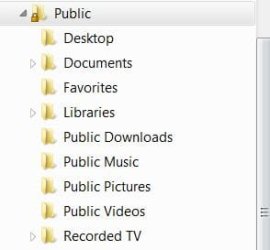
These seem to be the automatically generated folders for public access on mine.
See picture
 

Attachments

  • public.JPG
    public.JPG
    17 KB · Views: 270

My Computer

Computer type
PC/Desktop
Computer Manufacturer/Model Number
Self Built
OS
Windows 10 Pro
CPU
Intel i5
Motherboard
I have a fatherboard
Memory
I'm old and lost a few chips
Graphics Card(s)
Yup
Sound Card
Yup
Monitor(s) Displays
Samsung 32" UHD
Screen Resolution
3840 x 2160
Hard Drives
Samsung 860 EVO drives
PSU
450 Watt and some fans that blow
Case
Small tower
Cooling
Yes I am cool. lol
Keyboard
Who needs a keyboard?
Mouse
Logitech Laser G7 wireless
Internet Speed
Zippy fast UP and DOWN
Antivirus
I got a shot
Browser
The new Improved EDGE 2020
The tutorial below can show you how to share between different Op systems. You need to set up sharing premissions on those drives if you want to share them but it's not safe to share entire drives.

Getting all the Advanced Sharing settings correct goes a long way towards making everything work properly. You may also need to set up permissions on the Windows 7 folders to gain access. You can right click on folders to set up permissions for that folder.

This should answer most of your questions.
Networking home computers running different versions of Windows
 

Attachments

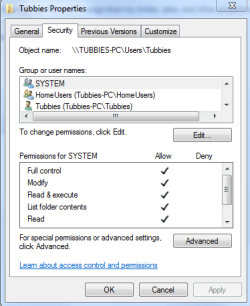
  • Tubbies access full control.PNG
    Tubbies access full control.PNG
    13.2 KB · Views: 8

My Computer

Computer type
PC/Desktop
Computer Manufacturer/Model Number
Home built
OS
Windows 7 Ult, Windows 8.1 Pro,
CPU
Q9650-4.275GHz, E8600 4.5GHz, E6750-3.8GHz
Motherboard
Evga 780i FTW
Memory
G.Skill PC2 9600 1200Mhz 5 5 5 15 2T
Graphics Card(s)
GTX480
Sound Card
Asus Xonar D2
Monitor(s) Displays
HannsG
Screen Resolution
1680X1050
Hard Drives
GSkill Phoenix Pro 120GB SSD
PSU
ThermalTake Toughpower 1000Watt modular
Case
ThermalTake XaserV
Cooling
Xigmatek S1283
Keyboard
Logitech G15
Mouse
Logitech G9
Internet Speed
T1
The tutorial below can show you how to share between different Op systems. You need to set up sharing premissions on those drives if you want to share them but it's not safe to share entire drives.

Getting all the Advanced Sharing settings correct goes a long way towards making everything work properly. You may also need to set up permissions on the Windows 7 folders to gain access. You can right click on folders to set up permissions for that folder.

This should answer most of your questions.
Networking home computers running different versions of Windows

Yes, I saw that. there is really nothing here that I haven't already done. Unless...I'm missing something or misunderstanding something.

What bothers me most right about now is why I am being asked for a username and password to access the XP computer.
 

My Computer

Computer Manufacturer/Model Number
custom
OS
Windows 7 Ultimate x64
CPU
Intel Core i5 320ghz
Memory
4gbDDR2 800mhz
Graphics Card(s)
Nvidia Gforce 9800
Sound Card
Creative Audigy 2 ZS
Monitor(s) Displays
NEC
Screen Resolution
1280x1024
Hard Drives
500gb ATA
320gb ATA
After reading that article I'm sure Microsoft just wants every computer upgraded to W7. Sharing public folders w/o homegroup is easy, it's the rest of the folders that won't work.
 

My Computer

Computer Manufacturer/Model Number
Asus
OS
Windows 7/Linux Ubuntu
CPU
AMD 7750
Motherboard
Asus M3N78-EM
Memory
2GB
Graphics Card(s)
8300 IGP
Monitor(s) Displays
65" HDTV
Hard Drives
80GB and 1TB
PSU
Rosewill Green 430W
The sharing system between different Op systems work perfectly. The learning curve is the real problem here. There are many options and for good reason. All those settings matter and need to be adjusted correctly.

I have tested sharing between XP and Win 7 for nearly a year. I set it up over a dozen times with just about every new Win 7 build and it works perfectly I can assure you.
 

My Computer

Computer type
PC/Desktop
Computer Manufacturer/Model Number
Home built
OS
Windows 7 Ult, Windows 8.1 Pro,
CPU
Q9650-4.275GHz, E8600 4.5GHz, E6750-3.8GHz
Motherboard
Evga 780i FTW
Memory
G.Skill PC2 9600 1200Mhz 5 5 5 15 2T
Graphics Card(s)
GTX480
Sound Card
Asus Xonar D2
Monitor(s) Displays
HannsG
Screen Resolution
1680X1050
Hard Drives
GSkill Phoenix Pro 120GB SSD
PSU
ThermalTake Toughpower 1000Watt modular
Case
ThermalTake XaserV
Cooling
Xigmatek S1283
Keyboard
Logitech G15
Mouse
Logitech G9
Internet Speed
T1
The tutorial below can show you how to share between different Op systems. You need to set up sharing premissions on those drives if you want to share them but it's not safe to share entire drives.

Getting all the Advanced Sharing settings correct goes a long way towards making everything work properly. You may also need to set up permissions on the Windows 7 folders to gain access. You can right click on folders to set up permissions for that folder.

This should answer most of your questions.
Networking home computers running different versions of Windows

Yes, I saw that. there is really nothing here that I haven't already done. Unless...I'm missing something or misunderstanding something.

What bothers me most right about now is why I am being asked for a username and password to access the XP computer.

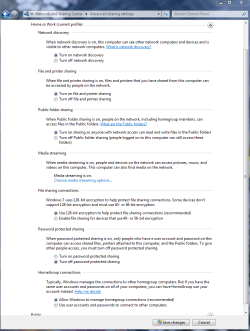
These settings in Advanced Sharing settings have everything to do with that. Take note of the ones that mention "turn password protected sharing" On or Off.

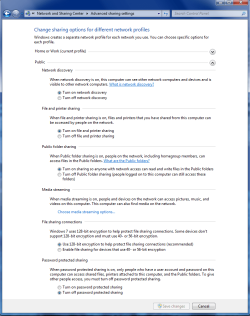
Remember these are two seperate windows. One for Work- Home sharing and the other one for Public file sharing. You need to make sure the options are correct in both of these Windows.

Are you certain that you didn't inadvertantly set up Homegroups on the Win 7 machine because it uses a password like you mentioned. You certainly should not be seeing any type of password prompt to access the XP machine if you didn't set one up.
 

Attachments

  • Home or work homegroup enable.PNG
    Home or work homegroup enable.PNG
    45 KB · Views: 35
  • public sharing enabled all.PNG
    public sharing enabled all.PNG
    39.7 KB · Views: 27

My Computer

Computer type
PC/Desktop
Computer Manufacturer/Model Number
Home built
OS
Windows 7 Ult, Windows 8.1 Pro,
CPU
Q9650-4.275GHz, E8600 4.5GHz, E6750-3.8GHz
Motherboard
Evga 780i FTW
Memory
G.Skill PC2 9600 1200Mhz 5 5 5 15 2T
Graphics Card(s)
GTX480
Sound Card
Asus Xonar D2
Monitor(s) Displays
HannsG
Screen Resolution
1680X1050
Hard Drives
GSkill Phoenix Pro 120GB SSD
PSU
ThermalTake Toughpower 1000Watt modular
Case
ThermalTake XaserV
Cooling
Xigmatek S1283
Keyboard
Logitech G15
Mouse
Logitech G9
Internet Speed
T1
The tutorial below can show you how to share between different Op systems. You need to set up sharing premissions on those drives if you want to share them but it's not safe to share entire drives.

Getting all the Advanced Sharing settings correct goes a long way towards making everything work properly. You may also need to set up permissions on the Windows 7 folders to gain access. You can right click on folders to set up permissions for that folder.

This should answer most of your questions.
Networking home computers running different versions of Windows

Yes, I saw that. there is really nothing here that I haven't already done. Unless...I'm missing something or misunderstanding something.

What bothers me most right about now is why I am being asked for a username and password to access the XP computer.

These settings in Advanced Sharing settings have everything to do with that. Take note of the ones that mention "turn password protected sharing" On or Off.

Remember these are two seperate windows. One for Work- Home sharing and the other one for Public file sharing. You need to make sure the options are correct in both of these Windows.

Are you certain that you didn't inadvertantly set up Homegroups on the Win 7 machine because it uses a password like you mentioned. You certainly should not be seeing any type of password prompt to access the XP machine if you didn't set one up.


OK, now I think we are getting somewhere...I will have to check the business about "password protected sharing" on home sharing and public sharing. I know I have it turned off on home sharing. I didn't think to change anything with regard to public sharing.

And...I don't think it was inadvertent, maybe ignorant but not inadvertent...I did set up homegroups on the Win 7 machine. I know the password for the homegroups but I am am not sure of the username. And why would the Win 7 machine prompt me for that password to access the XP machine?!
 

My Computer

Computer Manufacturer/Model Number
custom
OS
Windows 7 Ultimate x64
CPU
Intel Core i5 320ghz
Memory
4gbDDR2 800mhz
Graphics Card(s)
Nvidia Gforce 9800
Sound Card
Creative Audigy 2 ZS
Monitor(s) Displays
NEC
Screen Resolution
1280x1024
Hard Drives
500gb ATA
320gb ATA
First about Homegroups, you can't use Homegroup sharing if there are other OP systems in the LAN like an XP or Vista machine. It's only for Windows 7 machines so you would need to first leave the HomeGroup from the Windows 7 machine then set up either the Workgroup or you can use Public file sharing.

http://www.sevenforums.com/tutorials/43980-homegroup-leave.html?filter

Everyone makes that mistake the first time. If you have all Windows 7 machines than the Homegroup is a great sharing option because you can share entire Library's of folders very easily.

Yes that Public Advanced Sharing window one matters also, just set it to how the picture shows. Everyone makes that mistake because it's not obvious enough that there are two windows you can access from there,Work-Home and Public both have their own Advanced Sharing option windows.

It's probably best to use the Work sharing option but you can also set up a Workgroup from the Home sharing option.

http://www.sevenforums.com/tutorials/43629-network-location-set-home-work-public-network.html?filter
 

My Computer

Computer type
PC/Desktop
Computer Manufacturer/Model Number
Home built
OS
Windows 7 Ult, Windows 8.1 Pro,
CPU
Q9650-4.275GHz, E8600 4.5GHz, E6750-3.8GHz
Motherboard
Evga 780i FTW
Memory
G.Skill PC2 9600 1200Mhz 5 5 5 15 2T
Graphics Card(s)
GTX480
Sound Card
Asus Xonar D2
Monitor(s) Displays
HannsG
Screen Resolution
1680X1050
Hard Drives
GSkill Phoenix Pro 120GB SSD
PSU
ThermalTake Toughpower 1000Watt modular
Case
ThermalTake XaserV
Cooling
Xigmatek S1283
Keyboard
Logitech G15
Mouse
Logitech G9
Internet Speed
T1
Just a quick question...

What version of Windows XP are you running....

I had the same problem... so if it does come down to it, I may have to tell you how to change your admin pass on your computer.

Try this....

On your Windows XP

As it is booting up... hit F8 so that you can boot it up into Safe Mode
In safe mode, the Administrator account should show up.
log into the account for me...

then once you are logged in... then hit Alt, Ctrl, and Del

and go to Change Password..

the Old Password is left blank.

Once changed...just reboot the computer.

This way wen you are trying to log into that computer to gain access you can always use the User: Administrator then the password you chose
 

My Computer

Computer Manufacturer/Model Number
HP Pavilion Elite HPE-410f
OS
Windows 7 Ultimate x64
CPU
AMD Phenom x6 1045t
Motherboard
N/A
Memory
8 GB
Graphics Card(s)
ATI Radeon HD 5570
Sound Card
Realtek Highdefinition Audio / 5.1 Dolby Setup
Monitor(s) Displays
HP w2207h Widescreen
Screen Resolution
1680*1050
Hard Drives
1 TB (fixed), 320 Portable maxtor, Server Hard drives
PSU
350 Watt
Case
HP CASE
Cooling
Bass
Keyboard
Logitech MX 5500
Mouse
Logitech MX 5500
Internet Speed
ROAD RUNNER 16MB D/512 U
First about Homegroups, you can't use Homegroup sharing if there are other OP systems in the LAN like an XP or Vista machine. It's only for Windows 7 machines so you would need to first leave the HomeGroup from the Windows 7 machine then set up either the Workgroup or you can use Public file sharing.

http://www.sevenforums.com/tutorials/43980-homegroup-leave.html?filter

Everyone makes that mistake the first time. If you have all Windows 7 machines than the Homegroup is a great sharing option because you can share entire Library's of folders very easily.

Yes that Public Advanced Sharing window one matters also, just set it to how the picture shows. Everyone makes that mistake because it's not obvious enough that there are two windows you can access from there,Work-Home and Public both have their own Advanced Sharing option windows.

It's probably best to use the Work sharing option but you can also set up a Workgroup from the Home sharing option.

http://www.sevenforums.com/tutorials/43629-network-location-set-home-work-public-network.html?filter


Well, did all that. Password was turned off in both places . I also changed the network to a work network. and i left homegroups.

I still cant get past the username and password request when I try to access the remote XP machine.

My XP system was never set up with a password. As I recall there was the option, when XP was installed, to by-pass the login screen and a password never went into effect.

On the XP machine I am both User and Admin and there is no password associated with either account. I looked at that earlier--there is a icon in the XP control panel that will allow you to change passwords. No passwords to change.

I have to believe I have done something wrong here because
it simply doesn't make sense that they would make it so dern difficult.
 

My Computer

Computer Manufacturer/Model Number
custom
OS
Windows 7 Ultimate x64
CPU
Intel Core i5 320ghz
Memory
4gbDDR2 800mhz
Graphics Card(s)
Nvidia Gforce 9800
Sound Card
Creative Audigy 2 ZS
Monitor(s) Displays
NEC
Screen Resolution
1280x1024
Hard Drives
500gb ATA
320gb ATA
What people end up doing is to use the same user name and password on all machines to avoid that password prompt. At least that way you still have a password to gain entry even if they are all the same.

Although the Password protected sharing option in Advanced Sharing settings toggled either on or off should take care of that for you, it doesn't seem consistant for some reason.

I don't use user passwords so I havn't had to mess with any of that.
 

My Computer

Computer type
PC/Desktop
Computer Manufacturer/Model Number
Home built
OS
Windows 7 Ult, Windows 8.1 Pro,
CPU
Q9650-4.275GHz, E8600 4.5GHz, E6750-3.8GHz
Motherboard
Evga 780i FTW
Memory
G.Skill PC2 9600 1200Mhz 5 5 5 15 2T
Graphics Card(s)
GTX480
Sound Card
Asus Xonar D2
Monitor(s) Displays
HannsG
Screen Resolution
1680X1050
Hard Drives
GSkill Phoenix Pro 120GB SSD
PSU
ThermalTake Toughpower 1000Watt modular
Case
ThermalTake XaserV
Cooling
Xigmatek S1283
Keyboard
Logitech G15
Mouse
Logitech G9
Internet Speed
T1
What people end up doing is to use the same user name and password on all machines to avoid that password prompt. At least that way you still have a password to gain entry even if they are all the same.

Although the Password protected sharing option in Advanced Sharing settings toggled either on or off should take care of that for you, it doesn't seem consistant for some reason.

I don't use user passwords so I havn't had to mess with any of that.

Thank you but it's kind of after the fact isn't it? Or is it?

What I mean is what do I do to get past that login request for non-existant username and password
 

My Computer

Computer Manufacturer/Model Number
custom
OS
Windows 7 Ultimate x64
CPU
Intel Core i5 320ghz
Memory
4gbDDR2 800mhz
Graphics Card(s)
Nvidia Gforce 9800
Sound Card
Creative Audigy 2 ZS
Monitor(s) Displays
NEC
Screen Resolution
1280x1024
Hard Drives
500gb ATA
320gb ATA
Reguardless if you dont want to use a password on any account for security reasons.... you should really put a passwords on them....

You could always have the computer log into the computer by itself and save it into the computer but being that the computer is online. It is highly important to put a password on all Administrator accounts....

For the XP Computer:

1) Restart the Computer
2) Hit F8 just before the Windows XP screen appears
3) Menu will appear, select "SAFE MODE"
4) Go into safe mode and "Administrator" will show up
5) Log into "Administrator"
6) Hit ALT, CTRL, DEL
7) Select Change Password
8) Don't put anything in the Old password; change new and save
9) Reboot

For the Windows 7:

1) Click on Start
2) type in "cmd" in the search
3) when "cmd" appears; right click and "run as administrator"
4) when the command prompt loads
5) type: net user administrator /active:yes hit enter
6) will say sucessful
7) log off your account your on...
8) when welcome screen comes on, you will see the administrator account
9) log into the administrator account
10) ALT, CTRL, DEL change password , leave old blank
11) change new to the same as the XP so its all the same
12) hit save... then log off...
13) Log back into your other user account...
14) go back into the "cmd" and "run as administrator"
15) type: net user administrator /active:no hit enter
16) this will make the administrator disapear from the welcome screen

Hope this helps.
 

My Computer

Computer Manufacturer/Model Number
HP Pavilion Elite HPE-410f
OS
Windows 7 Ultimate x64
CPU
AMD Phenom x6 1045t
Motherboard
N/A
Memory
8 GB
Graphics Card(s)
ATI Radeon HD 5570
Sound Card
Realtek Highdefinition Audio / 5.1 Dolby Setup
Monitor(s) Displays
HP w2207h Widescreen
Screen Resolution
1680*1050
Hard Drives
1 TB (fixed), 320 Portable maxtor, Server Hard drives
PSU
350 Watt
Case
HP CASE
Cooling
Bass
Keyboard
Logitech MX 5500
Mouse
Logitech MX 5500
Internet Speed
ROAD RUNNER 16MB D/512 U
Reguardless if you dont want to use a password on any account for security reasons.... you should really put a passwords on them....

You could always have the computer log into the computer by itself and save it into the computer but being that the computer is online. It is highly important to put a password on all Administrator accounts....

For the XP Computer:

1) Restart the Computer
2) Hit F8 just before the Windows XP screen appears
3) Menu will appear, select "SAFE MODE"
4) Go into safe mode and "Administrator" will show up
5) Log into "Administrator"
6) Hit ALT, CTRL, DEL
7) Select Change Password
8) Don't put anything in the Old password; change new and save
9) Reboot

For the Windows 7:

1) Click on Start
2) type in "cmd" in the search
3) when "cmd" appears; right click and "run as administrator"
4) when the command prompt loads
5) type: net user administrator /active:yes hit enter
6) will say sucessful
7) log off your account your on...
8) when welcome screen comes on, you will see the administrator account
9) log into the administrator account
10) ALT, CTRL, DEL change password , leave old blank
11) change new to the same as the XP so its all the same
12) hit save... then log off...
13) Log back into your other user account...
14) go back into the "cmd" and "run as administrator"
15) type: net user administrator /active:no hit enter
16) this will make the administrator disapear from the welcome screen

Hope this helps.

I appreciate your input and the careful set of instructions. I really do. But I all I want to do is share files between two computers less than 40 feet apart.

I am far from being an expert or even knowledgeable. But went to some trouble to not use a password on XP and one of the first things I did when I got the Win 7 box was to turn off the login. I don't want to wait while either computer boots up so I can enter the password.

So what I'm saying is that I don't understand why I have to create a password for the XP machine after all these years. What's more even if I create a password for the XP machine, I still won't know what the username is. School me but give me good clear, understandable (understandable for the genetically clueless) reasons why this is necessary.

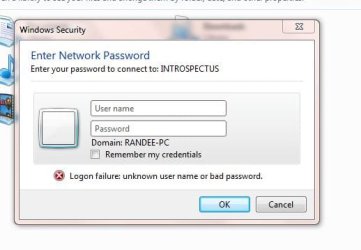
Below is snip of the window I'm getting when I try to access the XP machine
 

Attachments

  • SnipImage.JPG
    SnipImage.JPG
    22.6 KB · Views: 6

My Computer

Computer Manufacturer/Model Number
custom
OS
Windows 7 Ultimate x64
CPU
Intel Core i5 320ghz
Memory
4gbDDR2 800mhz
Graphics Card(s)
Nvidia Gforce 9800
Sound Card
Creative Audigy 2 ZS
Monitor(s) Displays
NEC
Screen Resolution
1280x1024
Hard Drives
500gb ATA
320gb ATA
For one... Windows XP and Windows 7 has two totally completely different security on their computers. thats the main thing.

There are just things in this world that can't be explained.

Military Intelligence.
Microsoft works...

Wait.. I am confusing those with oxymorans.

I understand how badly you dont want to "NOT" use passwords but your just goin to have to put on there and do you see that SAVE creditials button. that is the button you click where you don't even have to put a password in anymore. One time password and it remembers.

For some reason Windows XP and Windows 7 is not reconizing itself as the same USER it seems.

I know this seems kind of **** damn can't remember it. For instance, a job... you can't get job without experiance, but the in order to gain experiance you need a job....


Well, for this to work without entering a password everytime. I would sugguest that you put both of your computers in complete admin with same passwords... both computers will reconize it and then you can use the netplwiz to even skip from logging into windows as well
 

My Computer

Computer Manufacturer/Model Number
HP Pavilion Elite HPE-410f
OS
Windows 7 Ultimate x64
CPU
AMD Phenom x6 1045t
Motherboard
N/A
Memory
8 GB
Graphics Card(s)
ATI Radeon HD 5570
Sound Card
Realtek Highdefinition Audio / 5.1 Dolby Setup
Monitor(s) Displays
HP w2207h Widescreen
Screen Resolution
1680*1050
Hard Drives
1 TB (fixed), 320 Portable maxtor, Server Hard drives
PSU
350 Watt
Case
HP CASE
Cooling
Bass
Keyboard
Logitech MX 5500
Mouse
Logitech MX 5500
Internet Speed
ROAD RUNNER 16MB D/512 U
Sounds exactly like my problem! I could even add passwords and still not gain access! Thread> http://www.sevenforums.com/network-sharing/53926-allow-use-blank-passwords-network-share.html

But the thing that ulitimately fixed my issue was to correct my date and time... I know it sounds crazy but that is what fixed mine.

Just check that thread and try a few things there, including the things mentioned in the first post, do on both machines (where applicable)... Hope it helps GL!
 

My Computer

OS
Windows 7, XP, 2003
haha i love your "mouse could no be located" gif image. funny...

not as funny as a bank we have here..

They actually have braille next to a drive thru atm machine here.
 

My Computer

Computer Manufacturer/Model Number
HP Pavilion Elite HPE-410f
OS
Windows 7 Ultimate x64
CPU
AMD Phenom x6 1045t
Motherboard
N/A
Memory
8 GB
Graphics Card(s)
ATI Radeon HD 5570
Sound Card
Realtek Highdefinition Audio / 5.1 Dolby Setup
Monitor(s) Displays
HP w2207h Widescreen
Screen Resolution
1680*1050
Hard Drives
1 TB (fixed), 320 Portable maxtor, Server Hard drives
PSU
350 Watt
Case
HP CASE
Cooling
Bass
Keyboard
Logitech MX 5500
Mouse
Logitech MX 5500
Internet Speed
ROAD RUNNER 16MB D/512 U
Sounds exactly like my problem! I could even add passwords and still not gain access! Thread> http://www.sevenforums.com/network-sharing/53926-allow-use-blank-passwords-network-share.html

But the thing that ulitimately fixed my issue was to correct my date and time... I know it sounds crazy but that is what fixed mine.

Just check that thread and try a few things there, including the things mentioned in the first post, do on both machines (where applicable)... Hope it helps GL!

Is there something I'm missing here? How do you correct the time and date other than clicking on the taskbar and changing it? I mean it appears to be the same on both computer.
 

My Computer

Computer Manufacturer/Model Number
custom
OS
Windows 7 Ultimate x64
CPU
Intel Core i5 320ghz
Memory
4gbDDR2 800mhz
Graphics Card(s)
Nvidia Gforce 9800
Sound Card
Creative Audigy 2 ZS
Monitor(s) Displays
NEC
Screen Resolution
1280x1024
Hard Drives
500gb ATA
320gb ATA
Yes the date and time needs to be the same on both the Windows time and most importantly the BIOS time needs to be set properly.

You have to get into your bios to adjust the bios clock. Although if the bios clock is losing time then the mobo battery may be having problems or could need replacment. Usually Windows Updates will give you problems if the clocks aren't correctly set.

I never once heard of a time problem causing a password prompt to appear, that is just crazy wrong.

I think perhaps you set up a password to log back in which will cause nothing but problems in this respect.
 

My Computer

Computer type
PC/Desktop
Computer Manufacturer/Model Number
Home built
OS
Windows 7 Ult, Windows 8.1 Pro,
CPU
Q9650-4.275GHz, E8600 4.5GHz, E6750-3.8GHz
Motherboard
Evga 780i FTW
Memory
G.Skill PC2 9600 1200Mhz 5 5 5 15 2T
Graphics Card(s)
GTX480
Sound Card
Asus Xonar D2
Monitor(s) Displays
HannsG
Screen Resolution
1680X1050
Hard Drives
GSkill Phoenix Pro 120GB SSD
PSU
ThermalTake Toughpower 1000Watt modular
Case
ThermalTake XaserV
Cooling
Xigmatek S1283
Keyboard
Logitech G15
Mouse
Logitech G9
Internet Speed
T1
Status
Not open for further replies.
Back
Top